
Table of Contents
Scope
This is an uncontrolled conference room with a ClearTouch PC
- ClearTouch PC
- Logitech Wireless Keyboard and Mouse
- Crestron UC soundbar with camera and microphone
- Crestron AirMedia
- Laptop HDMI
- Crestron MPC3-102 wall button control
Location

Controlling the A/V System
Turning the system on and off
The AV system will power on when pressing the power button in the lower right corner of the control panel. This will turn on the display. To turn the AV system off, press the power button again.
Source Selection
There are three sources available, AirMedia, Laptop, and PC. To select the source, press the corresponding button on the top of the control panel.
Volume Control
Volume can be controlled using the volume buttons at the bottom of the control panel. The raise and lower buttons are on either side of the volume bar and the mute button is located in the lower left corner.

Inputs
Using the Podium PC

The built-in PC is the primary source for this system. There is a wireless keyboard and mouse in the room. This computer runs the same image as all other podium computers in classrooms and labs. You can sign in with your UCCS credentials.
Using the Vaddio/Hyflex VTC System
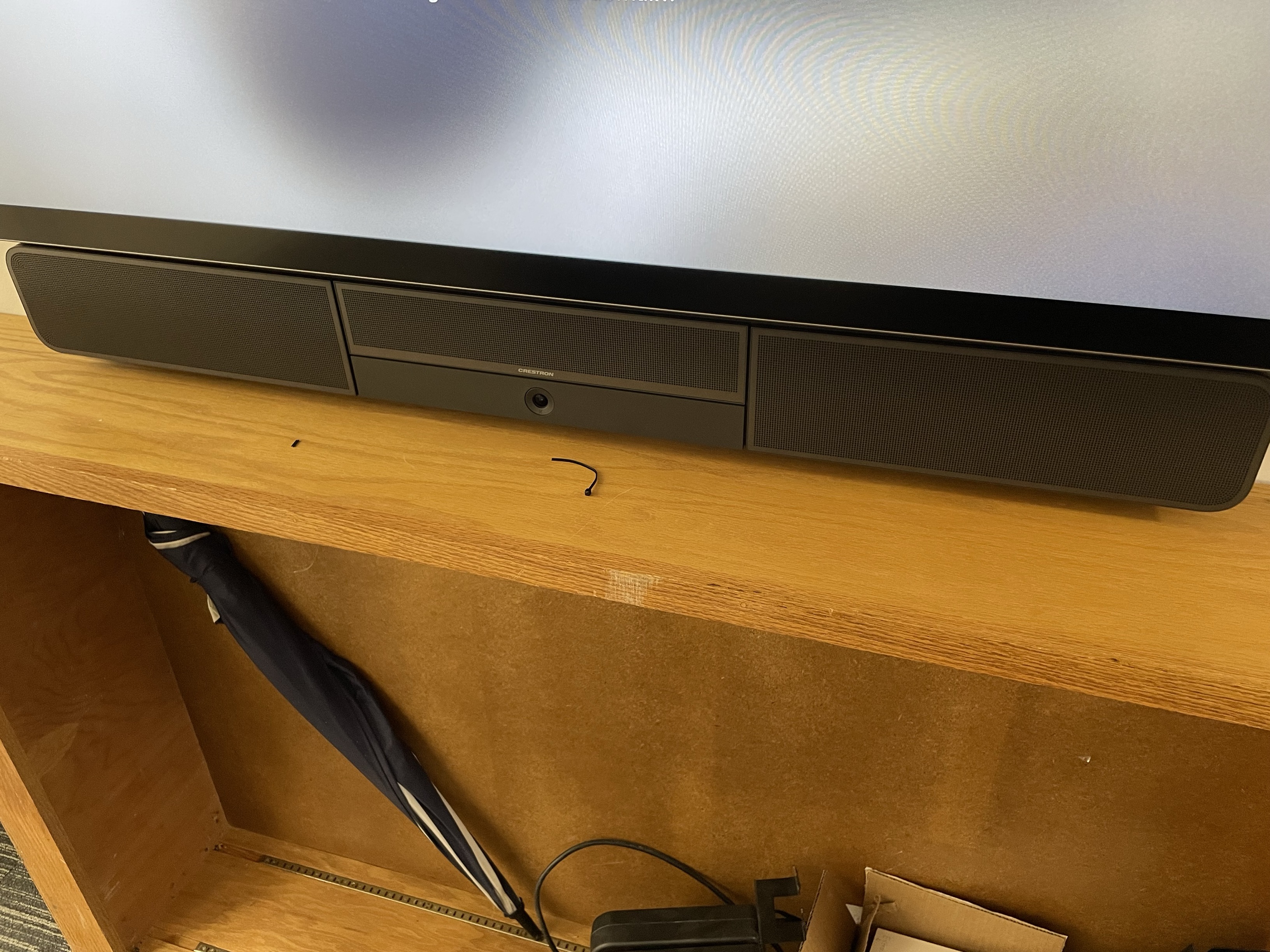
The Crestron UC soundbar. This contains a microphone, webcam, and speaker system. The soundbar is connected to the built-in PC.
Using the AirMedia
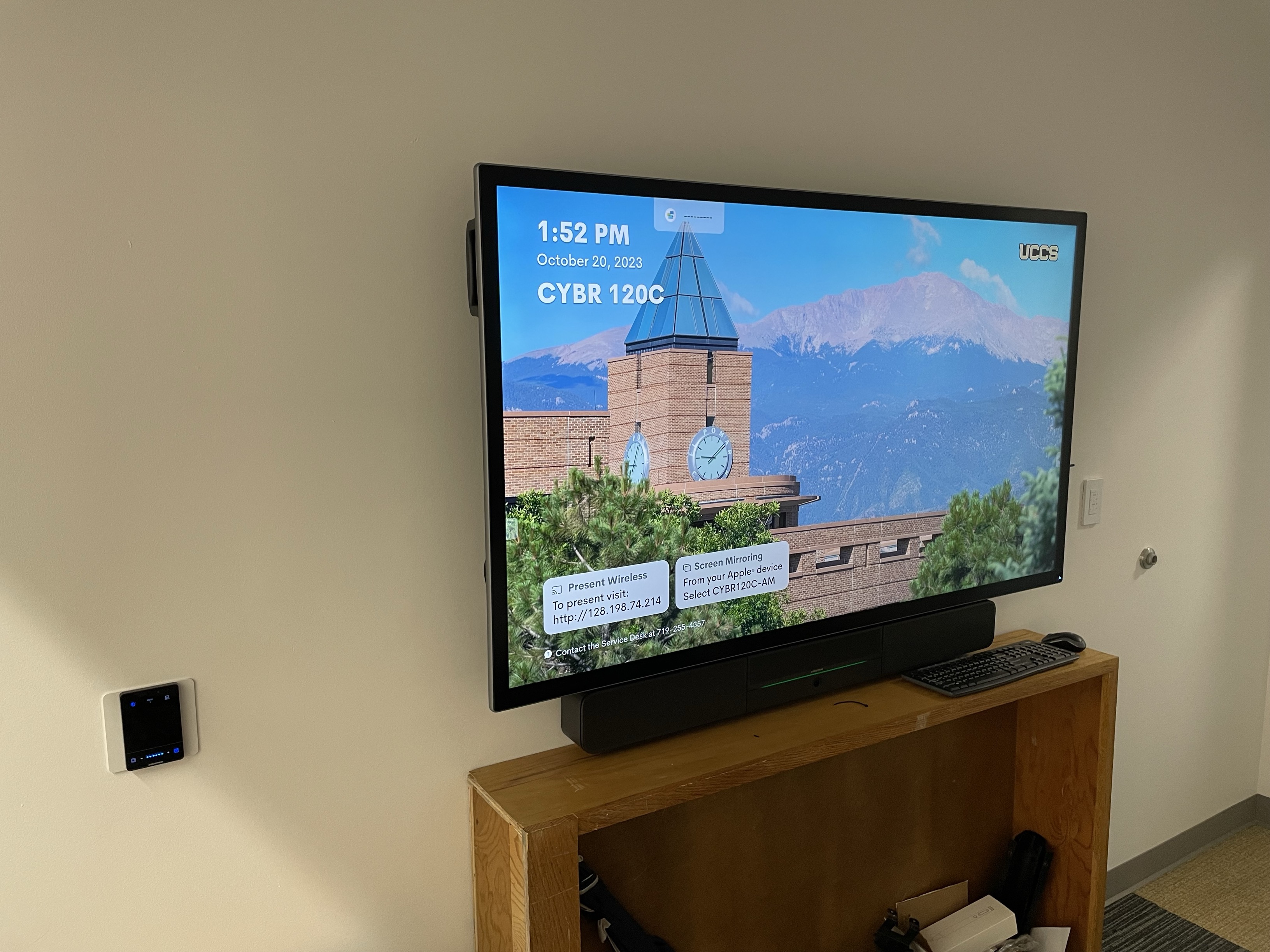
The AirMedia allows for wireless presentation of any device connected to the UCCS-Wireless network.
To connect to the AirMedia:
- Select the AirMedia source on the touch panel.
- Open a web browser and enter the address listed on the lower left corner of the display.
- Follow the instructions on the webpage to download the app to your device.
- Enter the IP address and code to connect your device and start presenting.
Using a Laptop

Laptop connections are available at the center of the conference table. An HDMI cable is available for presentation to the display and an Ethernet cable is available for network.
Troubleshooting
There are no troubleshooting steps to take with the ClearTouch Display. If something is not working correctly, please call OIT at x4357.
Photos

Built-in PC on the right side of the display.

Wall-mounted AirMedia on the left side of the display.
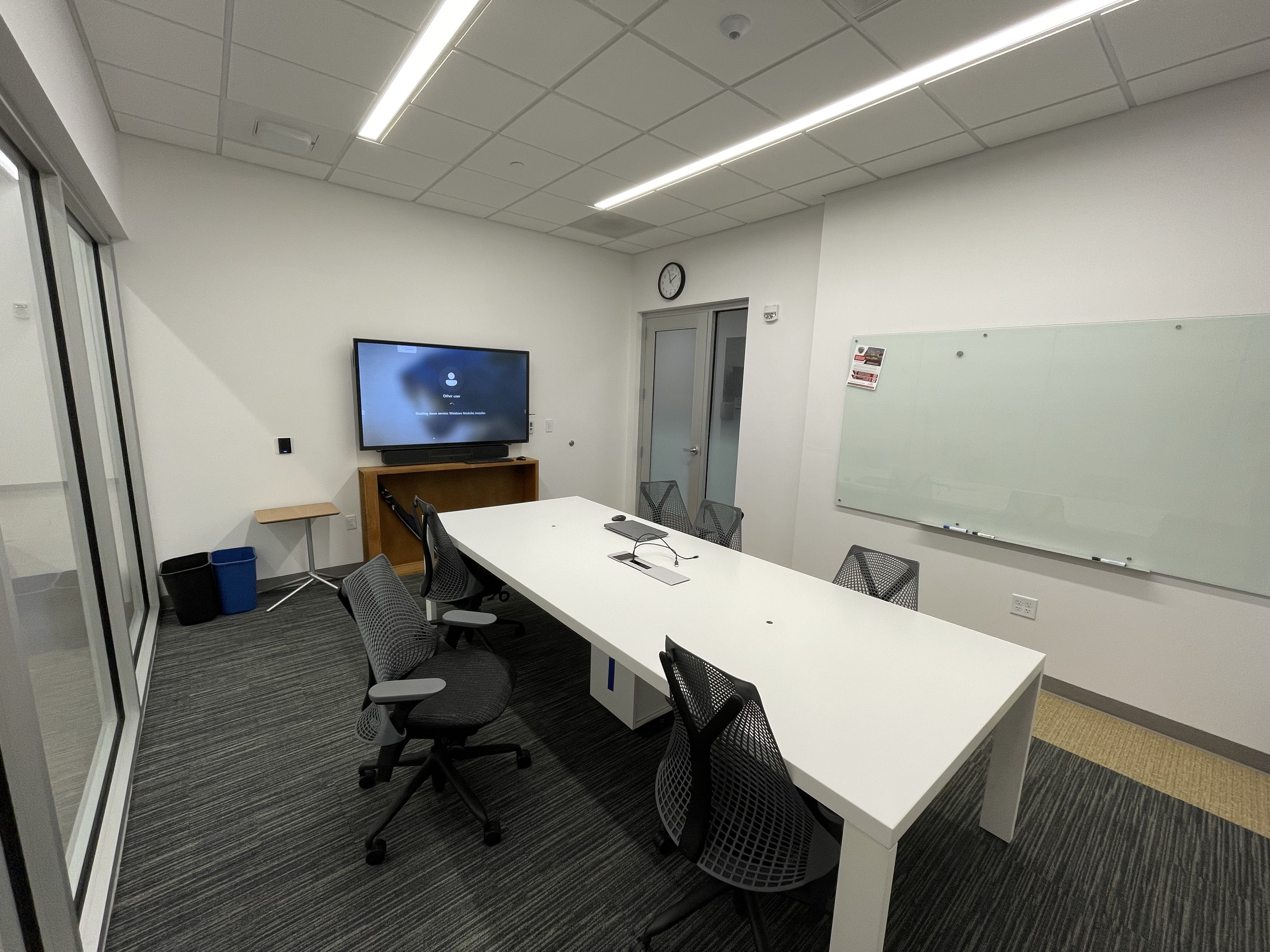
CYBR 120C is a 6-person conference room.