This is not a supported feature on MacOS or IOS devices. This feature must be used on a Windows device or a Android smartphone. To view Microsoft's support page on this feature, please click here.
Table of Contents
What is Room Remote and How can I use it?
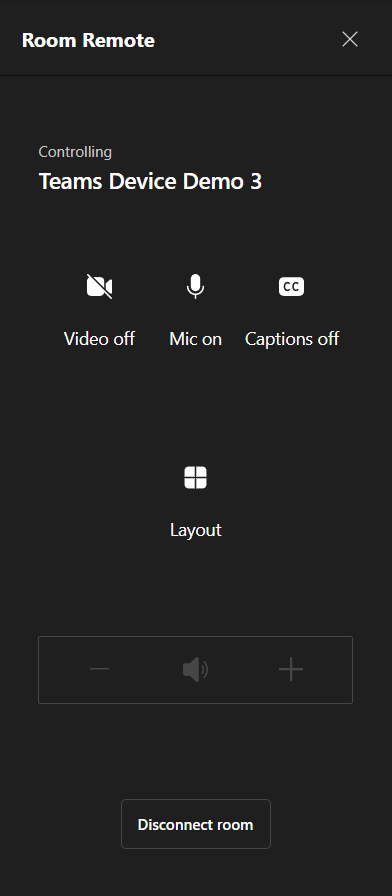
Control shared meeting room devices remotely from your personal device with room remote in the Teams desktop or mobile application. You can manage a shared device’s camera and microphone, volume levels, content layout, and settings without disrupting your call or meeting. The Disconnect Room button at the bottom of the Room Remote will cause the user to disconnect the Teams device from the meeting therefore if you wish to exit out of the Room Remote select the X in the top righthand corner. The Room Remote feature can be accessed by multiple in-room participants so please be cognizant of how many users are accessing this feature at a time.
In order to use this feature you must meet the following criteria:
- Be in a room with a Teams Device
- Have Bluetooth enabled on your device
- Using an Android or Windows device (If on a mobile device, you must have the Teams application installed)
How to Turn Room Remote On/Off
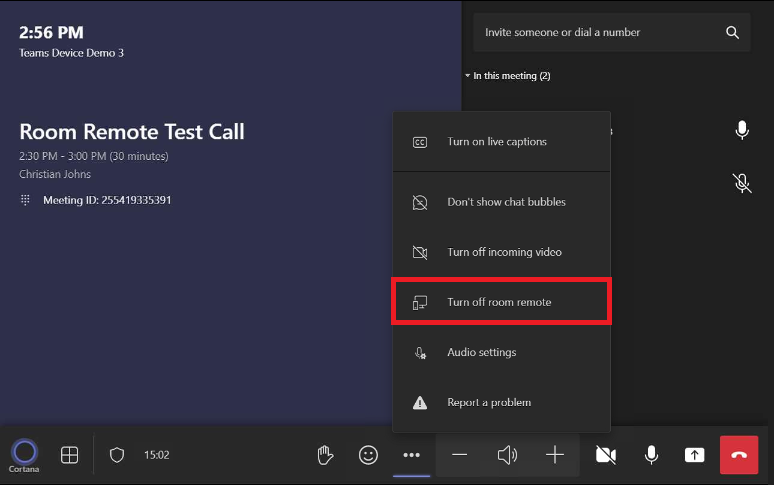
- On the Teams Device, Select More options

- Select Turn On Room Remote (If the device shows "Turn Off Remote" as shown below then that means the Room Remote feature is already enabled)
Controlling a Teams device using a mobile device
- After confirming that the Room Remote feature is enabled, there are two ways to control the room via proximity or during the meeting.
- Using Room Remote via Proximity:
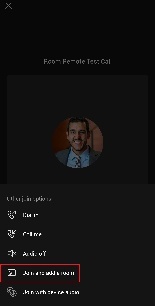
- Select and join the intended Teams Meeting (Your device may already see the Teams Device and automatically join with that devices audio as shown in the first image below)
- If your device does not automatically join with the Team Device the click the arrow next to Join and select Join and Add a Room
- Under the search bar check the Nearby section to see if your room is present, if not, then use the search bar to find your device and hit the check mark to join the meeting
- Select Control from the pop-up meeting banner
- If the pop-up meeting banner does not show up then follow the steps below to join during the meeting
- Using Room Remote via Proximity:


- Using Room Remote via during the meeting:
- Method 1:
- Open the People menu
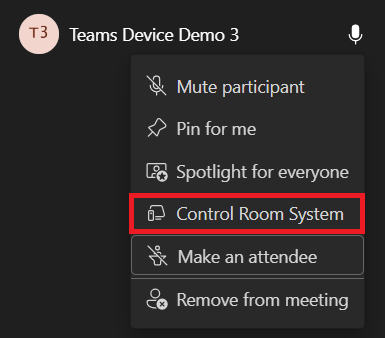
- Select the Teams device within the participants using the to bring up the More Options Menu
- Within the More Options menu, Select Control Room System
- Method 1:
- Using Room Remote via during the meeting:
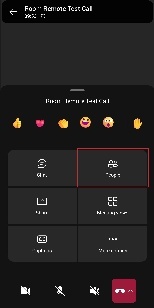
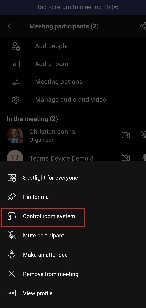
- Method 2:
- While in the meeting, press and hold the Teams Device tile
- The More Options menu will pop up
- Select Control Room System
- Method 2:

Controlling a Teams device using a laptop
- After confirming that the Room Remote feature is enabled, there are two ways to control the room via proximity or during the meeting.
- Using Room Remote via Proximity:
- Select and join the intended Teams Meeting
- Under Room Audio select the Teams Device for the room you are in
- Select Join Now
- Select Control from the pop-up meeting banner
- If the pop-up meeting bar does not appear or is closed out of, then follow the steps below to join during a meeting
- Using Room Remote via Proximity:

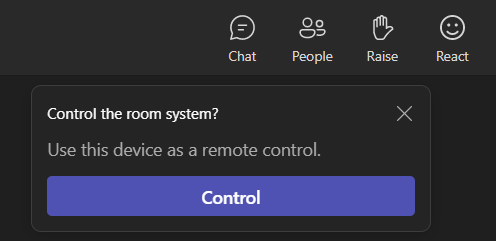
- Using Room Remote via during the meeting:
- Open the People menu
- Select the Teams device within the participants using the to bring up the More Options Menu
- Within the More Options menu, Select Control Room System
- Using Room Remote via during the meeting: