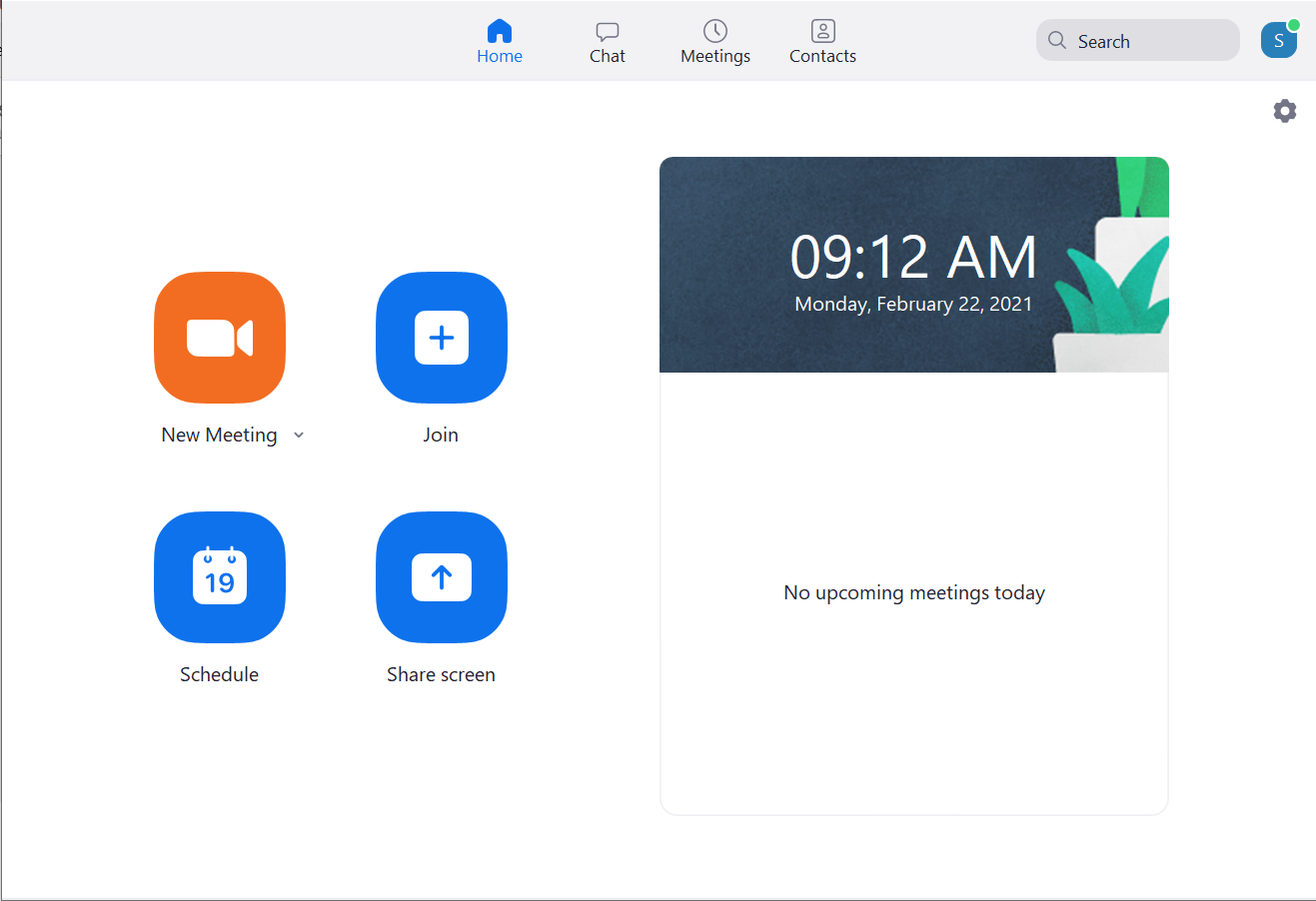
The following tutorial will take you through the process of downloading and setting up the Zoom application. Mobile devices can follow the same steps in order to find the application in the appropriate app store.
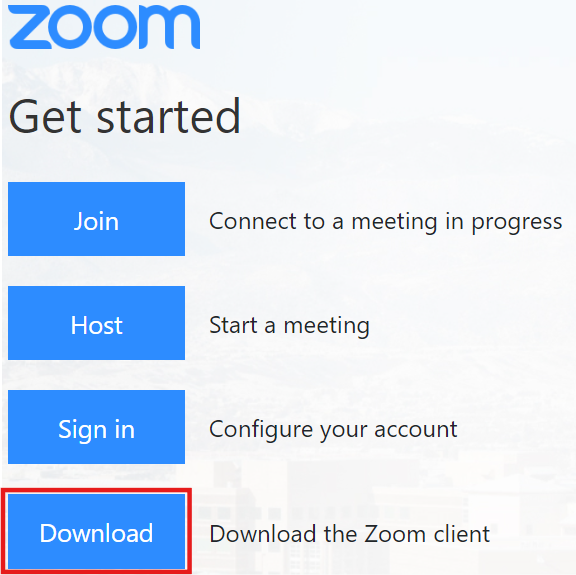
Step 1) Open UCCS Zoom Portal
Go to UCCS Zoom Portal and click the "Download" button.
Step 2) Download Zoom
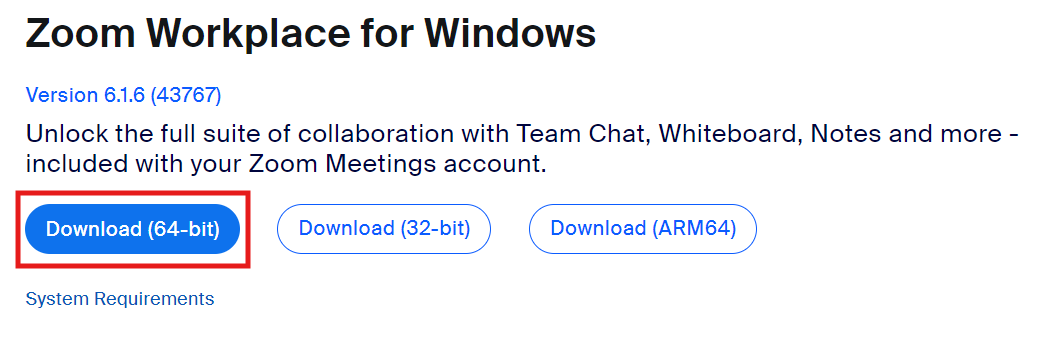
Click "Download (64-bit)" and open the file when the download is complete.
Step 3) Sign In
Zoom will open automatically once installed. You will be prompted to either Join a Meeting or Sign In. Since there is no login required to join a meeting, click the Sign In button.
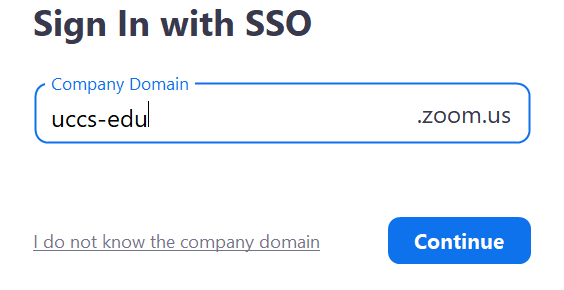
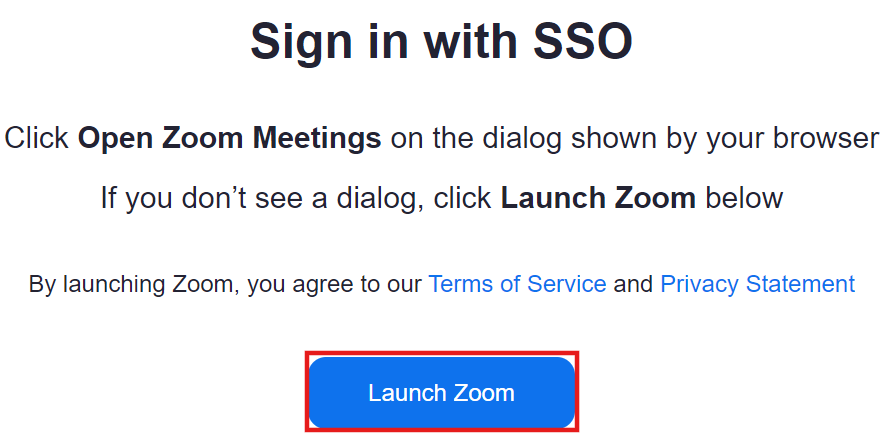
Under the Enter your company domain prompt, type uccs-edu into the text field and click Continue. A web browser window will appear and click Launch Zoom. If you are prompted with a box like the following, check the box to save time in the future and choose "Open" The full Zoom application will then open and you are now ready to use your Pro account. *Note: To check and set audio and video options, click the Settings (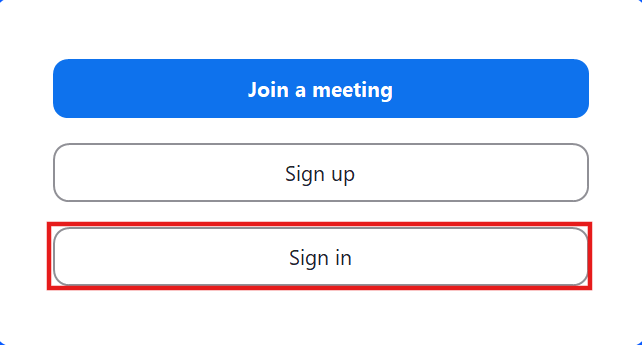
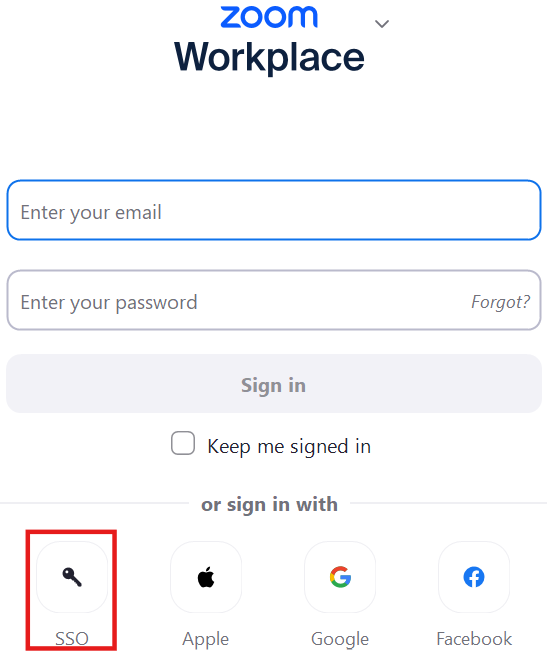
Step 4) Click log in with SSO.
Step 5) Company Domain
Step 6) Launch Zoom Application
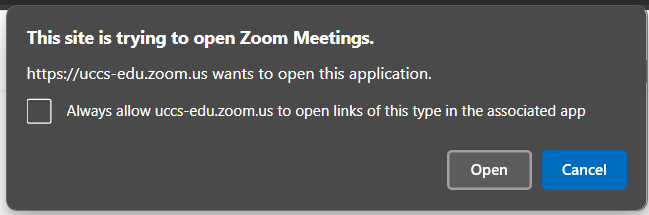
Step 7) Finishing Up
) button at the top right corner.