When you log into a UCCS login page for the first time multi-factor authentication (MFA) will prompt you to set it up.
Step 1: Log into any UCCS website with a UCCS login
Examples:
- Portal: https://my.uccs.edu
- Canvas: https://canvas.uccs.edu
- Email: https://outlook.com/uccs.edu

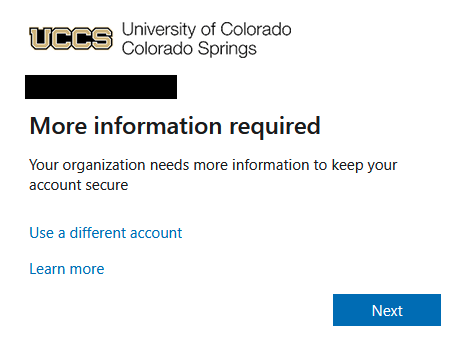
Step 2: More Information Required
Click the 'next' button on the bottom right of the image below when you get to the following screen:
Step 3: Setup Options
After hitting next you will get the following screen:
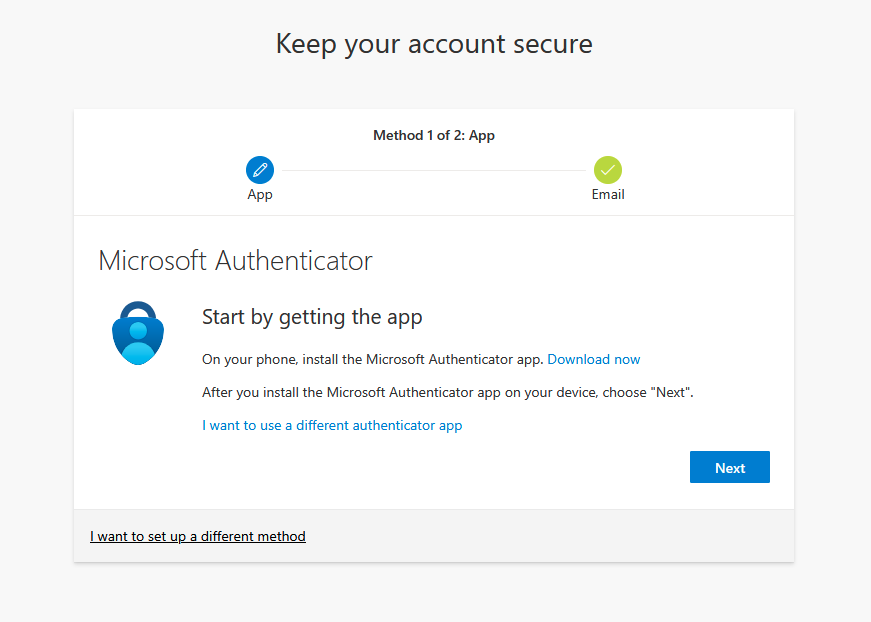
Please refer below for the different options for MFA.
You can defer setting up MFA by selecting the "Skip for now (14 days until this is required)". Once this option is selected you'll be able to skip the setup but after 14 days you'll be required to set it up before you'll be able to get into your email.
Setup Mobile App
For assistance downloading the Microsoft Authenticator App and setting it up for MFA verification please see: Microsoft Authenticator App
Setup Phone
For assistance setting up your phone to verify MFA, refer to this article: Phone Verification