...
| Note | ||
|---|---|---|
| ||
The steps below require you to meet either one of the two conditions below...
If you are visiting from an eduroam participating institution, you can connect to the eduroam wireless network. If none of the above apply to you, please visit the UCCS-Guest information page. |
Step 1: Open Network Connections
Click the networking icon in the system tray, typically located in the lower right side of the screen.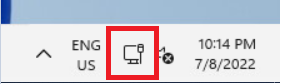
Step 2: Select the UCCS-
...
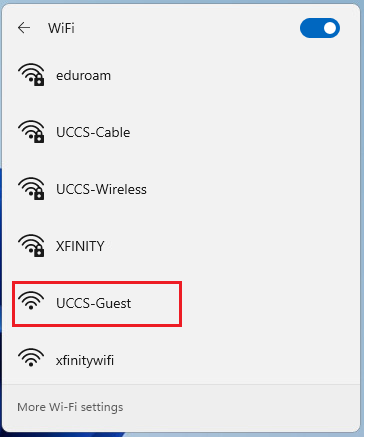
Guest network
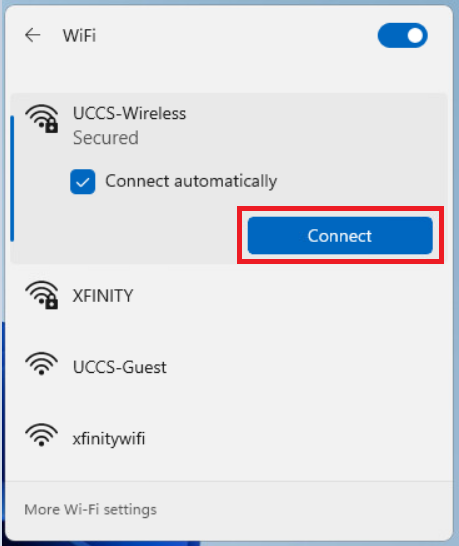
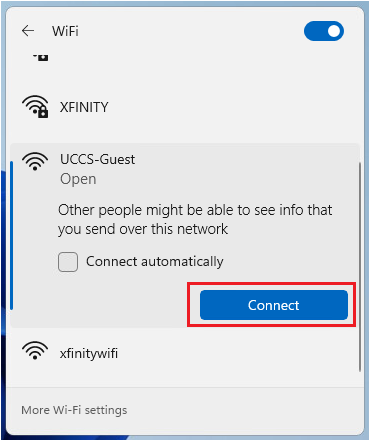
Click the right-arrow to open the list of wireless networks, and choose the UCCS-Wireless networkGuest network, then click Connect.
Note - if you want the computer to remember and save this network so it will automatically connect when in range, check the Connect automatically box.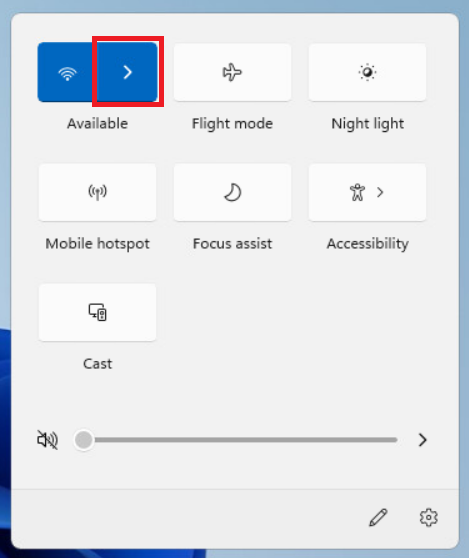
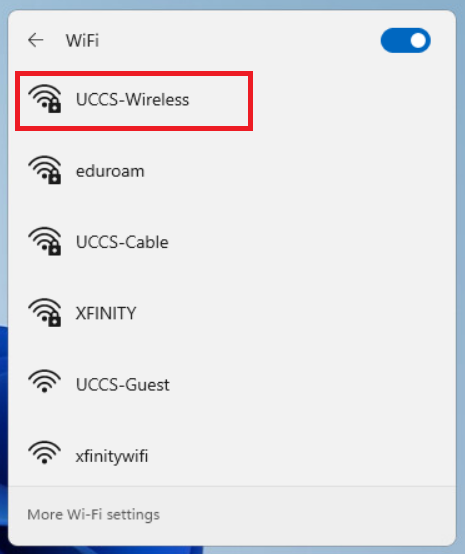
Step 3: Enter your credentials
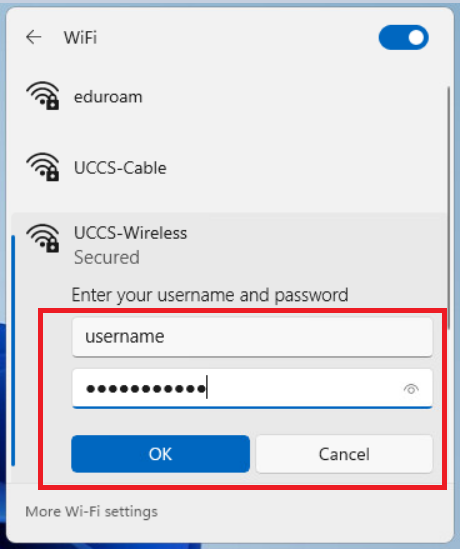
Enter your username and password and click OK.
Step 4: Verify security certificate
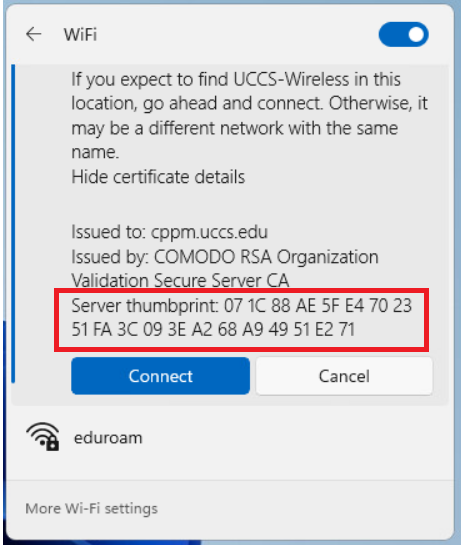
Click Show Certificate Details. The server certificate thumbprint should be displayed. It should match the SHA-1 fingerprint listed below.
If the fingerprint matches, go ahead and click Connect.
NOTE → If the fingerprint does not match, DO NOT trust the certificate! Click Cancel and contact the OIT Helpdesk for assistance.
| Excerpt Include | ||||||
|---|---|---|---|---|---|---|
|

Step 5: Confirm connection
Your device should now be connected to UCCS-Wireless.
...