...
Browse to https://outlook.com/uccs.edu and type in your UCCS email address and password. Click Sign In.

Step 2: Additional info required
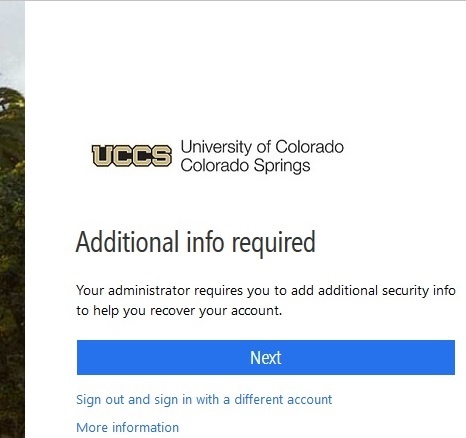
You will see the following image. Click Next to add additional recovery information
Step 3: Choose your Preferred Recovery Option
...
See Recovery Option 1: Phone to setup Phone Recovery or Recovery Option 2: Email to setup Email Recovery
| Anchor | ||||
|---|---|---|---|---|
|
...
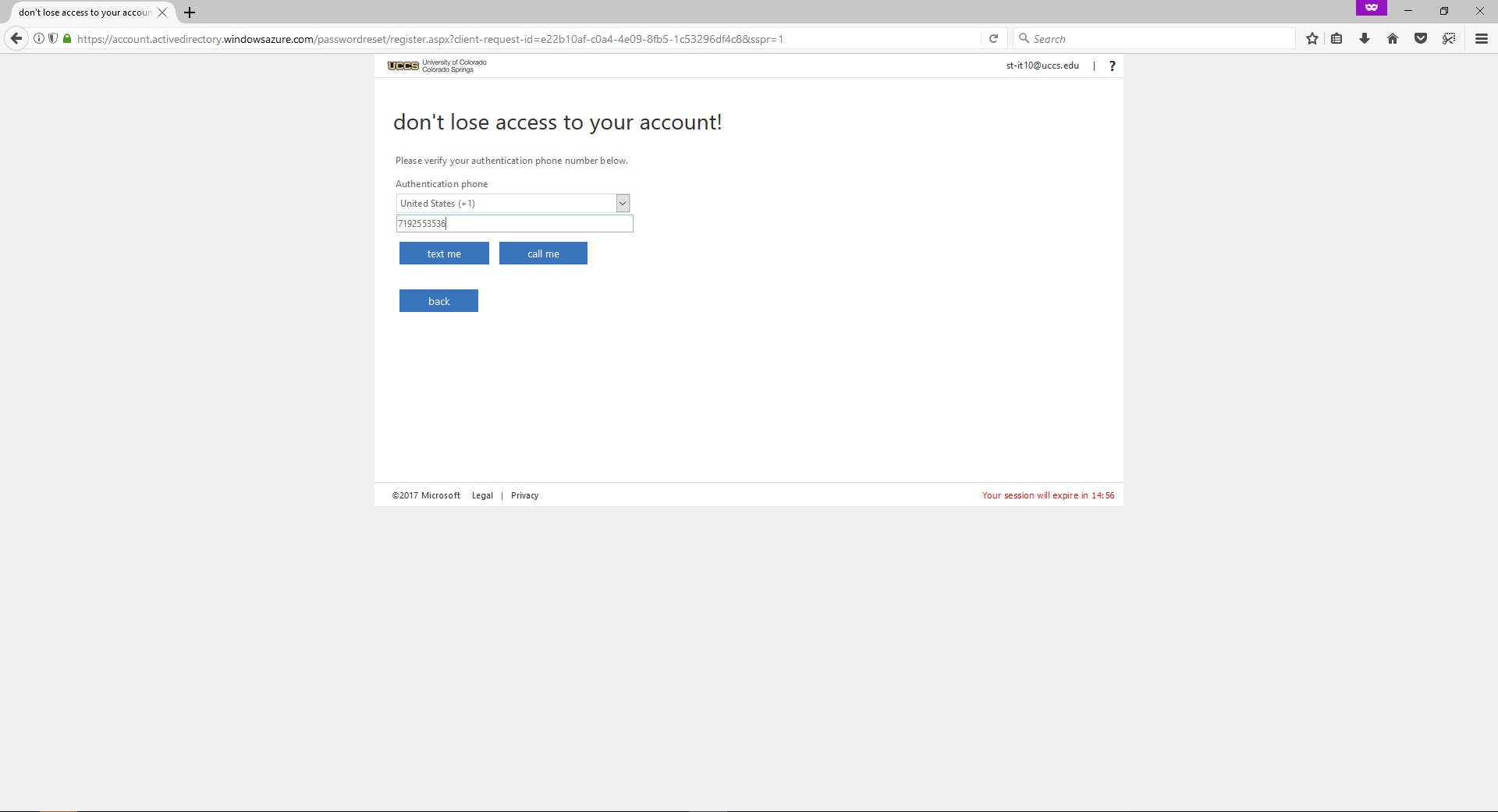
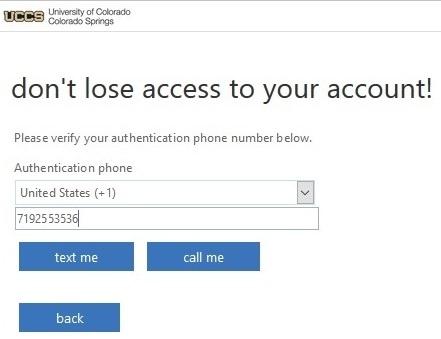
If the phone is text message message capable, click on text me. If you prefer to receive a phone call, click on call me.
Step 2: Verify Code
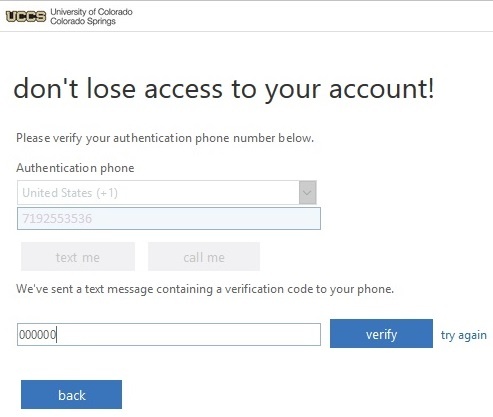
Enter the code that you received in a text message or via an automated call. Press Verify
| Anchor | ||||
|---|---|---|---|---|
|
...
| Note |
|---|
Do not use your UCCS email address |
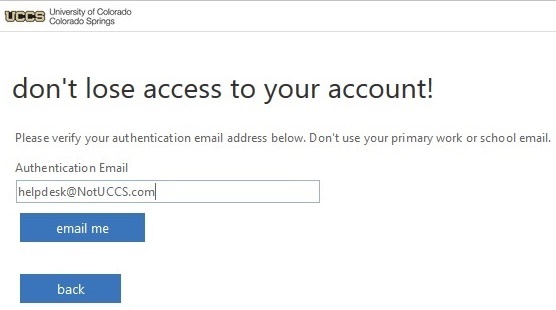
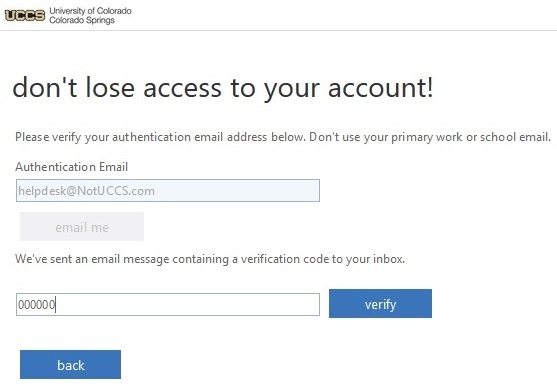
Step 2: Verify Code
Enter the code that you received in an email. Press Verify.
Step 4: Recovery Options Sucessfully Set
Once one or more recovery options are set, you will see a green checkmark next to whichever option you set. Press finish to be directed back to your email.