...
| Table of Contents |
|---|
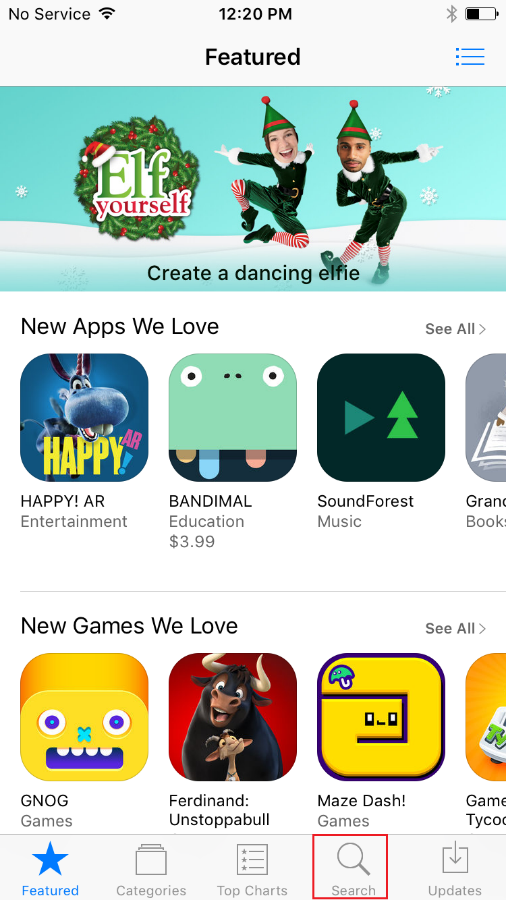
Step 1: Open the App Store
Step 2:
...
Sear for Microsoft Authenticator App
Search for Microsoft Authenticator and select Get
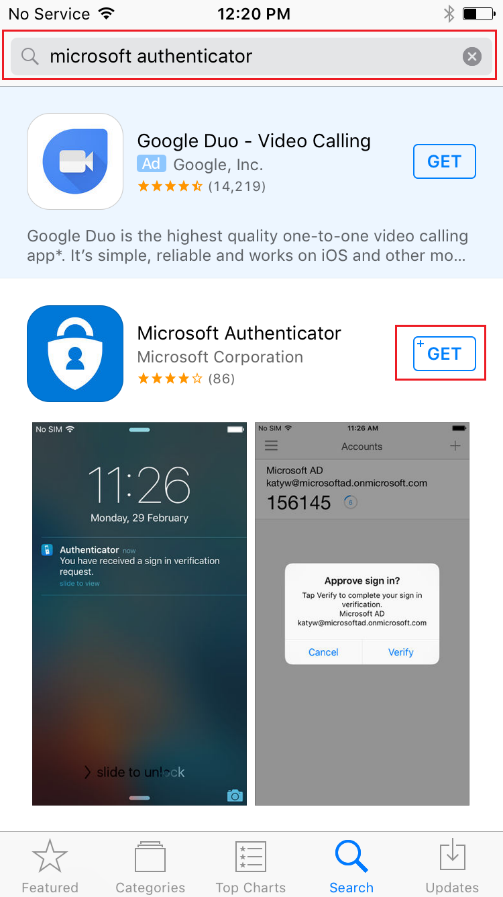
Step 3: Select Install

Step 4: Open the Microsoft Authenticator App
| Note |
|---|
If prompted to allow this app to send notifications to your phone please allow it. If the app cannot send your phone notifications, you won’t be able to use it for Multifactor Authentication. |
...
Select the Open option after the install has completed or go to your list of installed applications and select the Microsoft Authenticator app.

Step 5: Select Add Account

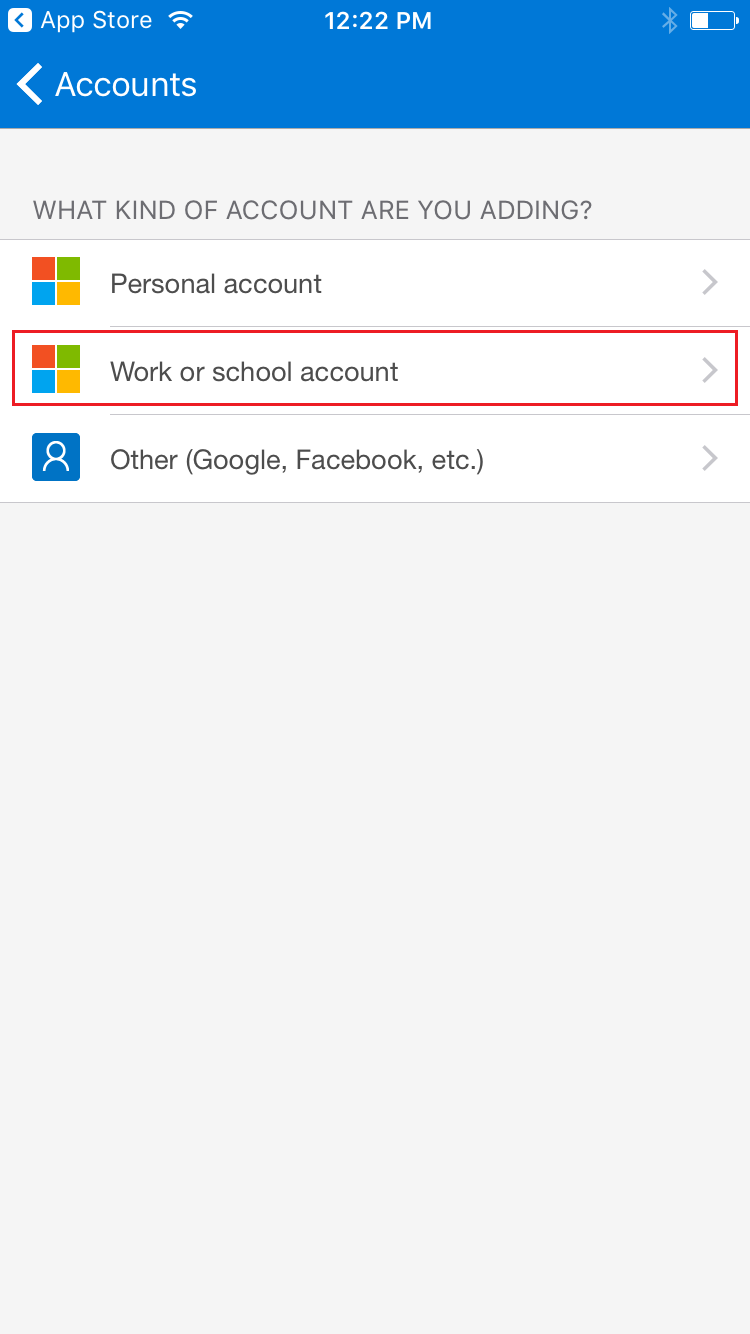
Step 6: Select Work or School Account
| Note |
|---|
If the authenticator asks for access to the camera please allow it to have access. The camera will be used to scan the QR Code to link your UCCS account to the authenticator app. |
Step 7: Scan the QR Code
Scan the QR code on your computer screen with your phone. After the scan has been completed Microsoft will automatically begin authenticating the application to your account.

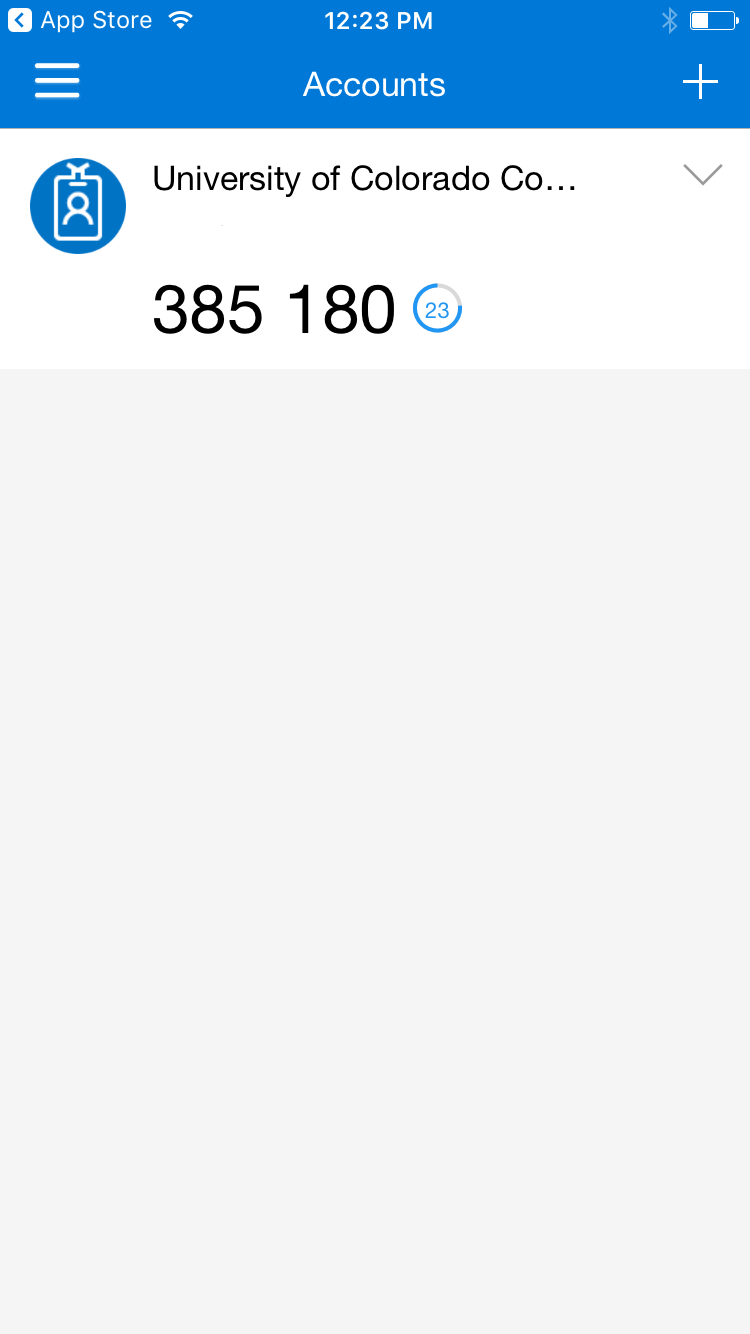
Additionally, the application will show your account.