Attaching Spam as an Attachment for Outlook 2016 (Windows)
| Table of Contents |
|---|
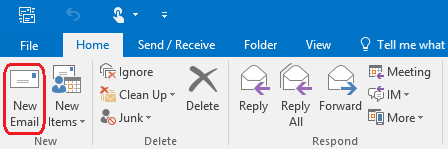
Step 1: Create a New Email
Start a new email within Outlook
Step 2: Drag Spam/Phishing Email and Drop in New Email
...
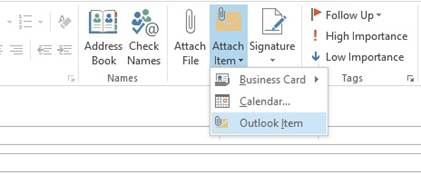
Click on the Attach Item icon and choose Outlook Item from the drop down.
Step 3: Insert Item
In the Insert Item window, find the email you would like to attach. Below the Ok button ensure that it is send as attachment. Click Ok.
Anchor
Step 4: Send the Email
The email should now show an attachment. Click Send.
Updated 5/16/2016 by Cole