...
- Go to "Printers & Scanners" in the Windows Settings.

- Choose "Add a printer or scanner".
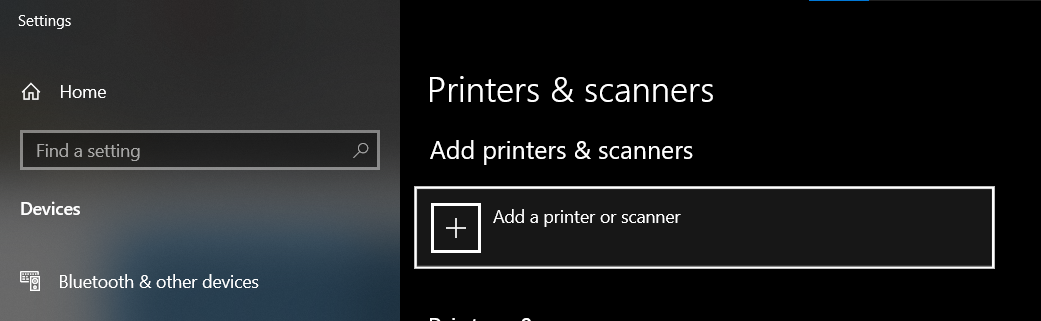
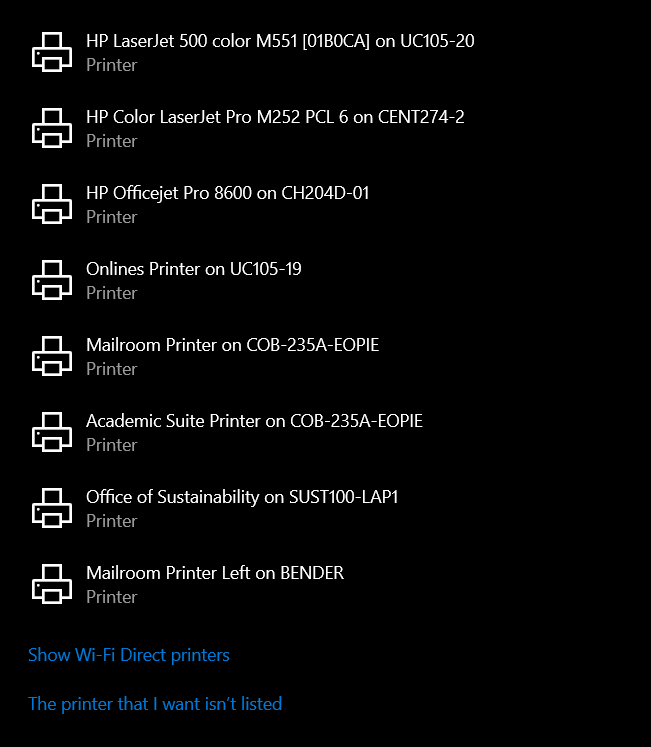
- Wait for a few seconds until "The printer that I want isn't listed" is shown at the bottom of the list. Click the "The printer that I want isn't listed" button.
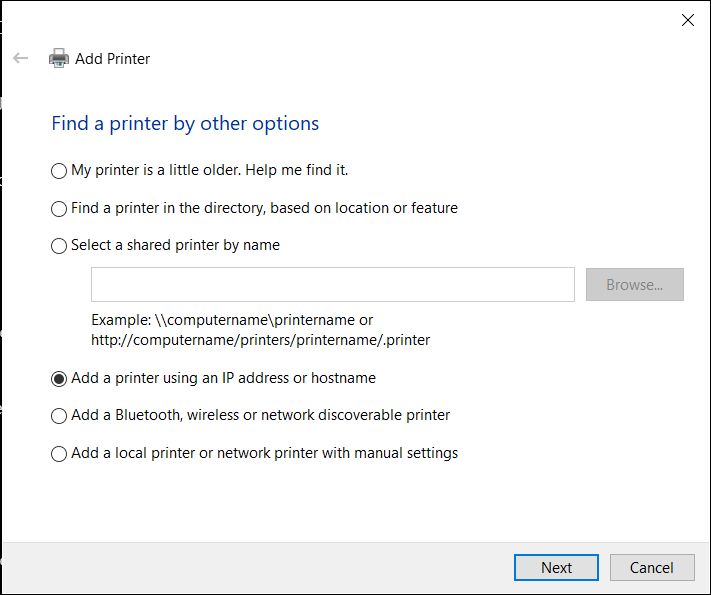
- Choose "Add a printer using an IP address or hostname". Choose "Next"
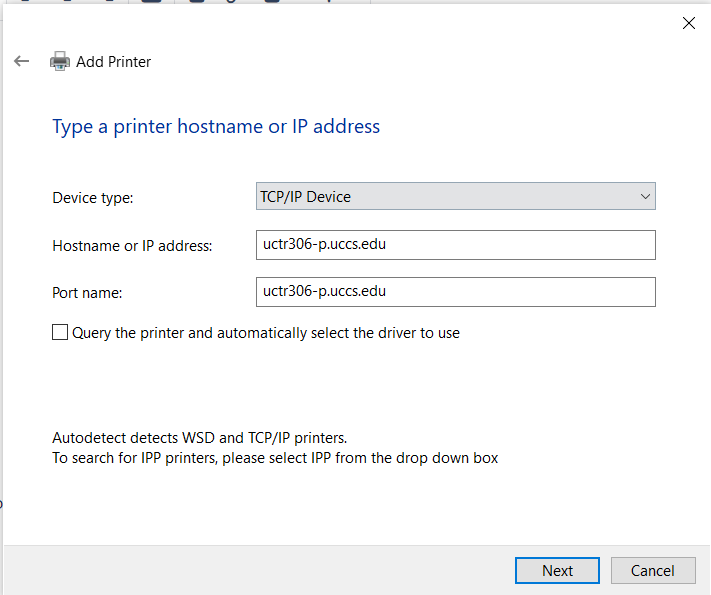
- For Device type, choose TCP/IP Device.
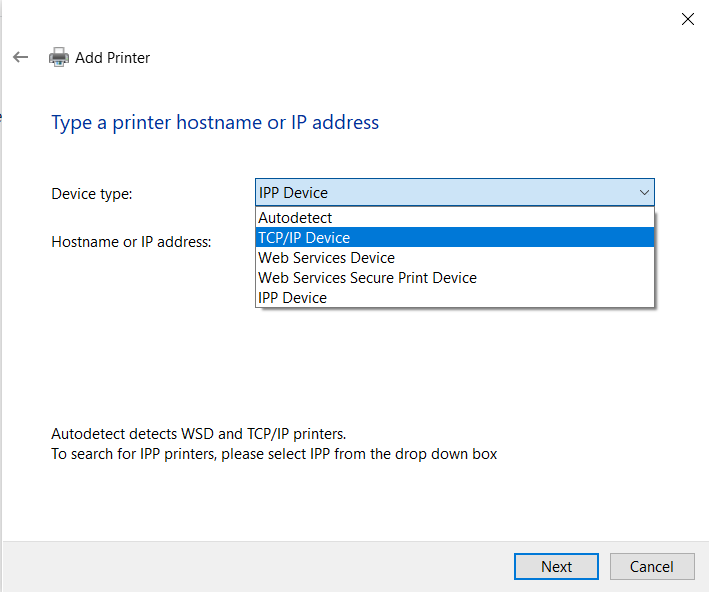
- For Hostname or IP address, enter uctr306-p.uccs.edu

- Uncheck "Query the printer and automatically select the driver to use". Click Next.
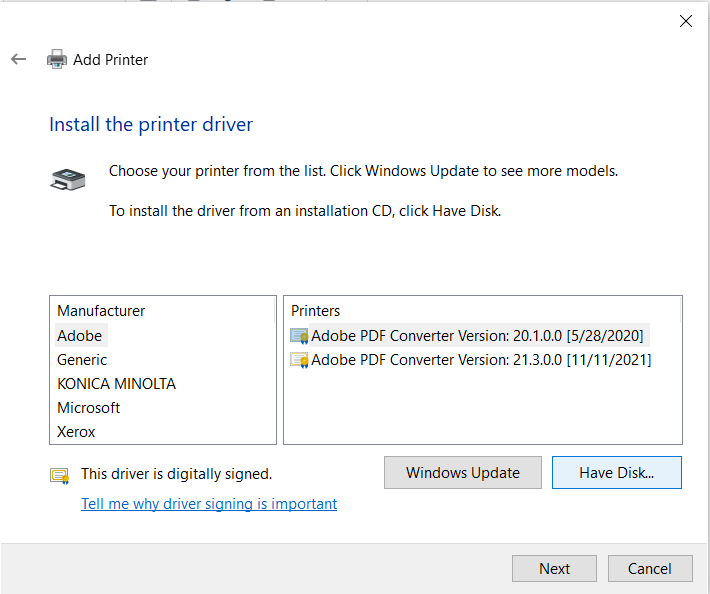
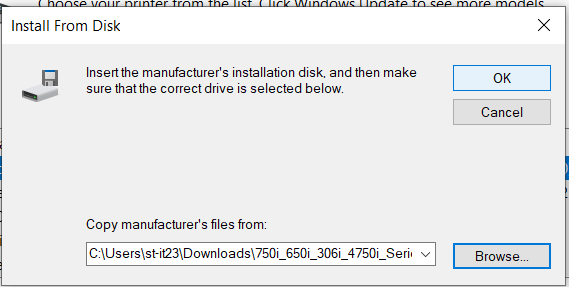
- Choose "Have Disk".
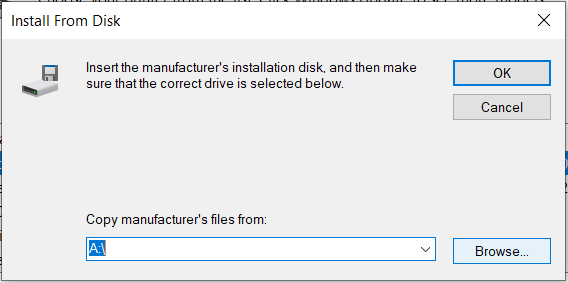
- Then, choose "Browse" and locate the folder to which you extracted the Zip file to.


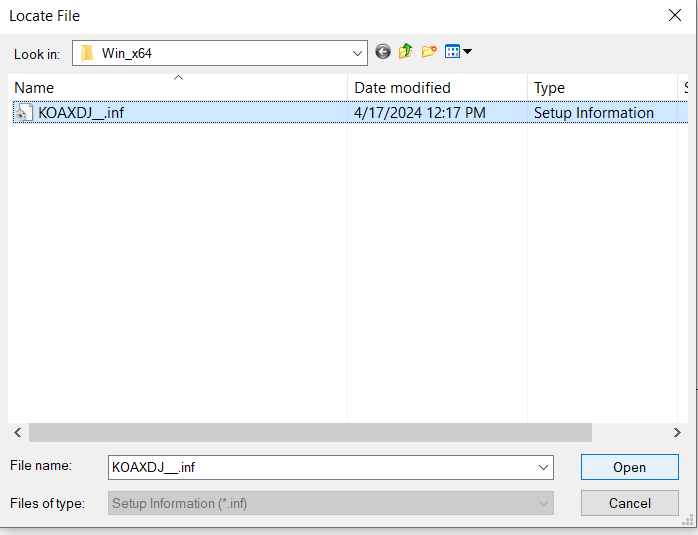
- Then, open the folders until you find the driver. The path will be "750i_650i_306i_4750i_Series_4700i_PS_PCL_FAX_v3.1.12.0 > Drivers > PCL > EN > Win_x64 > KOAXDJ__.inf". Select the file, and choose "Open"
- Choose "OK"
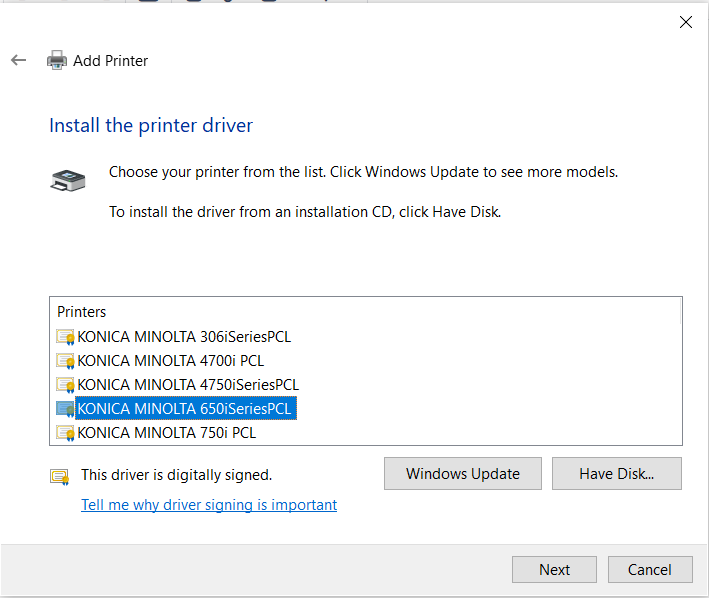
- Select "KONICA MINOLTA 650iSeriesPCL" and choose "Next".
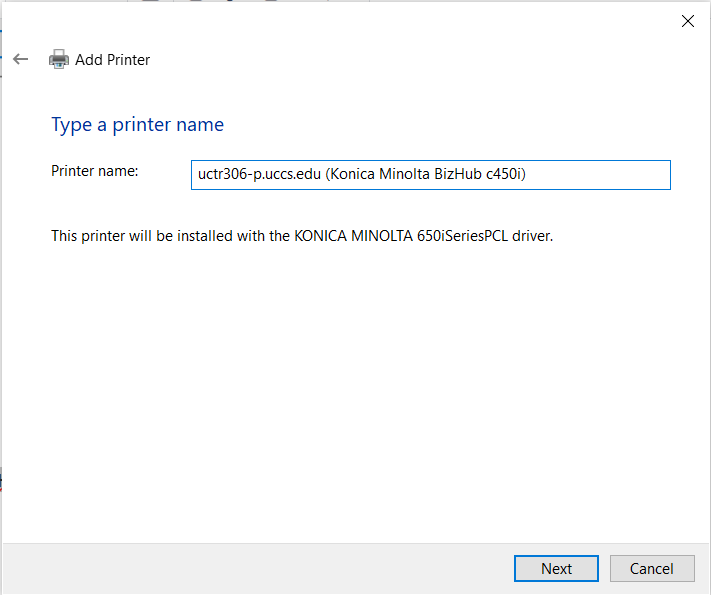
- Rename the printer to uctr306-p.uccs.edu (Konica Minolta BizHub c450i) and select "Next"
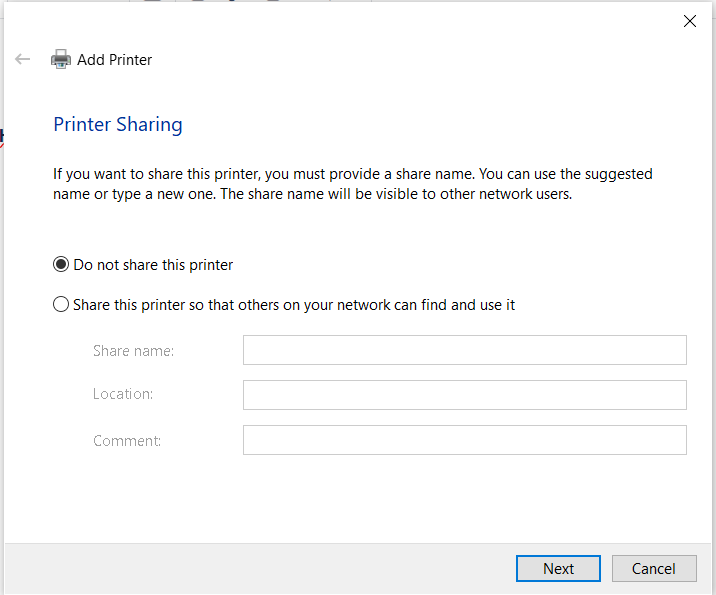
- Ensure the "Do not share this printer" option is selected and select "Next".
- If you would like, check the "Set as the default printer" page.
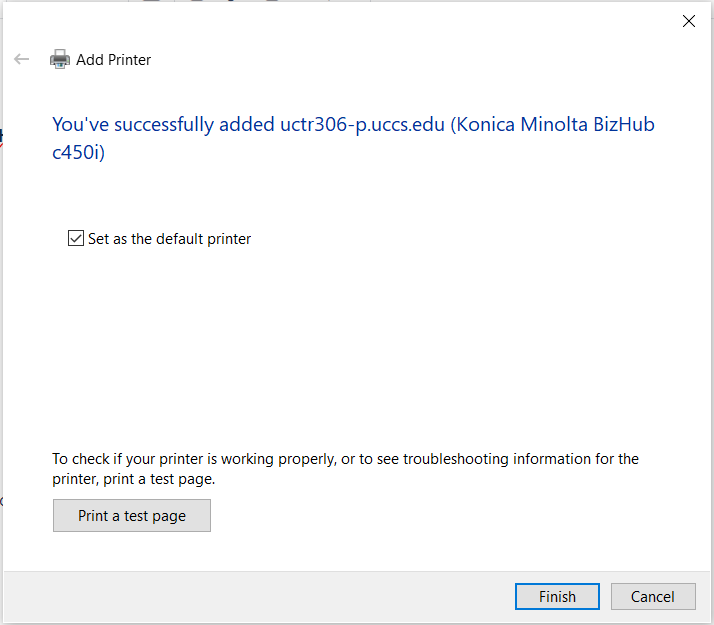
- To test the printer, choose "Print a test page".
- Click "Finish"
...