
Table of Contents
| Table of Contents | ||||
|---|---|---|---|---|
|
Scope
This is a projector-based classroom controlled by a Crestron touch panel.
- Samsung TV Display
- Crestron button panel
- HDMI input plate
- Crestron AirMedia
Controlling the A/V System
Using the Touch Panel

The touch panel controls all AV functionality in the space.
Turning the system on and off
The AV system will power on when pressing the power button on the button panel. The power button is located on the bottom right-hand side of the button panel. This will turn on the TV display.
To turn the AV system off, press the power button on the button panel once more.
Source Selection
To change sources, select the input you would like to send to the projector. You may choose between Podium PC and Wireless Presentation (AirMedia).
Volume Control
Volume can be controlled using the volume buttons at the bottom of the button panel. The raise and lower buttons are on either side of the volume bar and the mute button is located in the lower left corner.
Inputs
Using Wireless Presentation
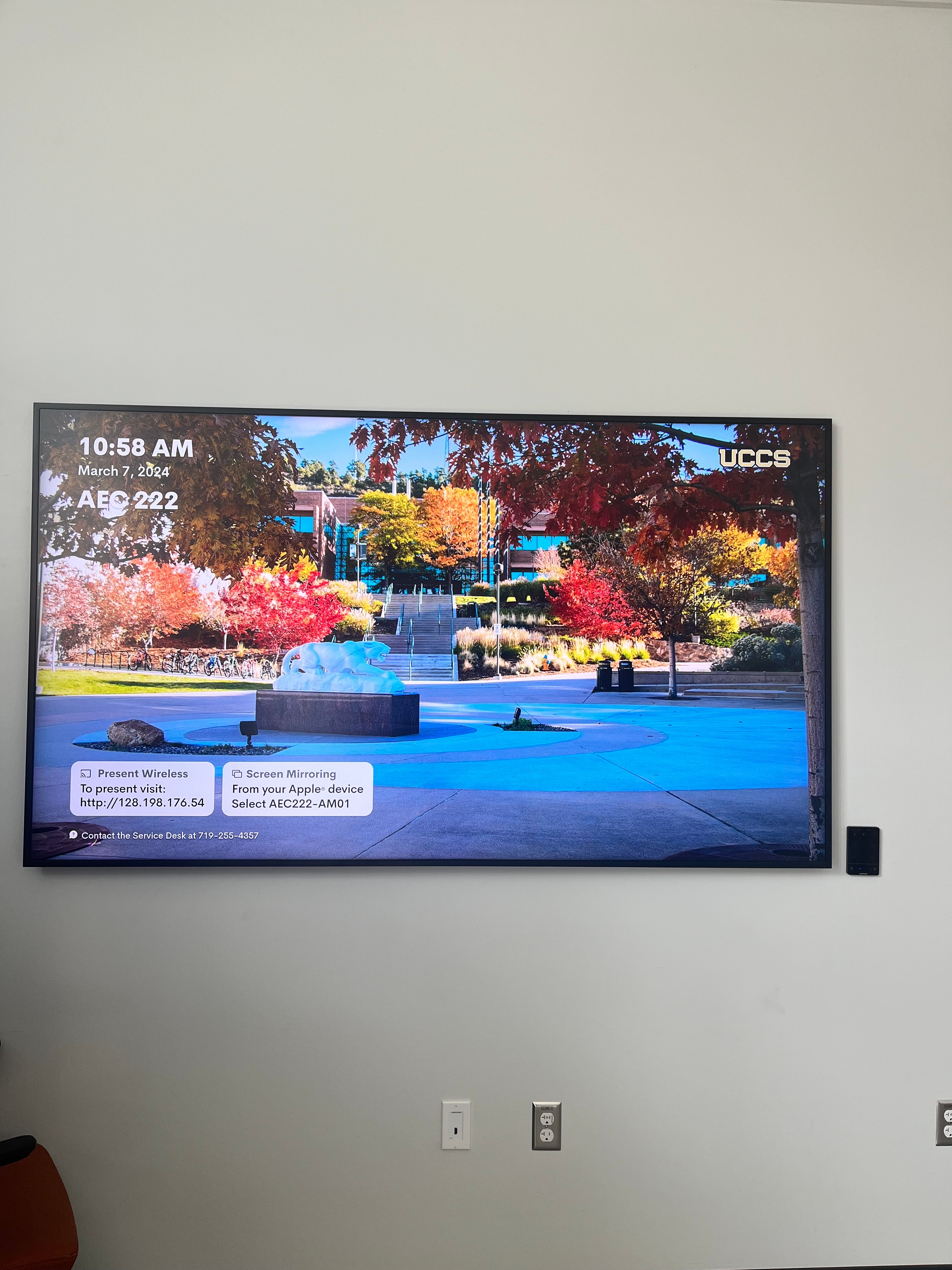
The AirMedia allows for wireless presentation of any device connected to the UCCS-Wireless network.
To connect to the AirMedia:
- Select the AirMedia source on the touch panel
- Open a web browser and enter the address listed on the touch panel or in the lower right corner of the screen
- Follow the instructions on the webpage to download the app to your device
- Enter the IP address and code to connect your device and start presenting
Troubleshooting & Checklist
Audio Issues
Video Issues
- Make sure the display is turned on.
- Make sure the desired source is selected and a device is connected to that input.
- Test with a different device to determine the cause of the video issue.
AirMedia
Wireless Presentation (AirMedia)
Room Specific Issues
This room has no unique equipment or known issues
Photos

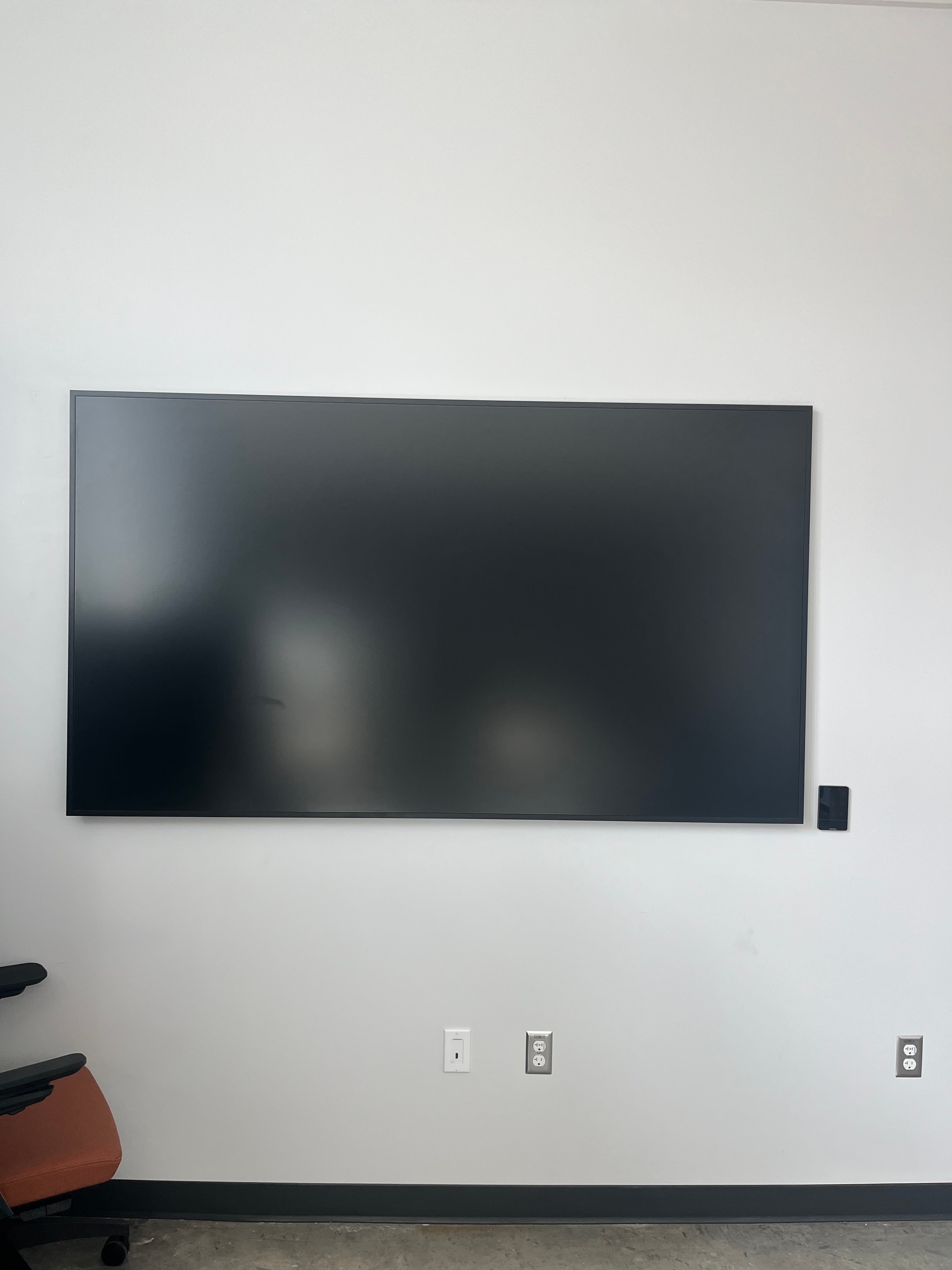
This is a research lab with a wall mounted Samsung TV display and Crestron AirMedia Wireless Presentation system. There is also an HDMI input plate below the display.
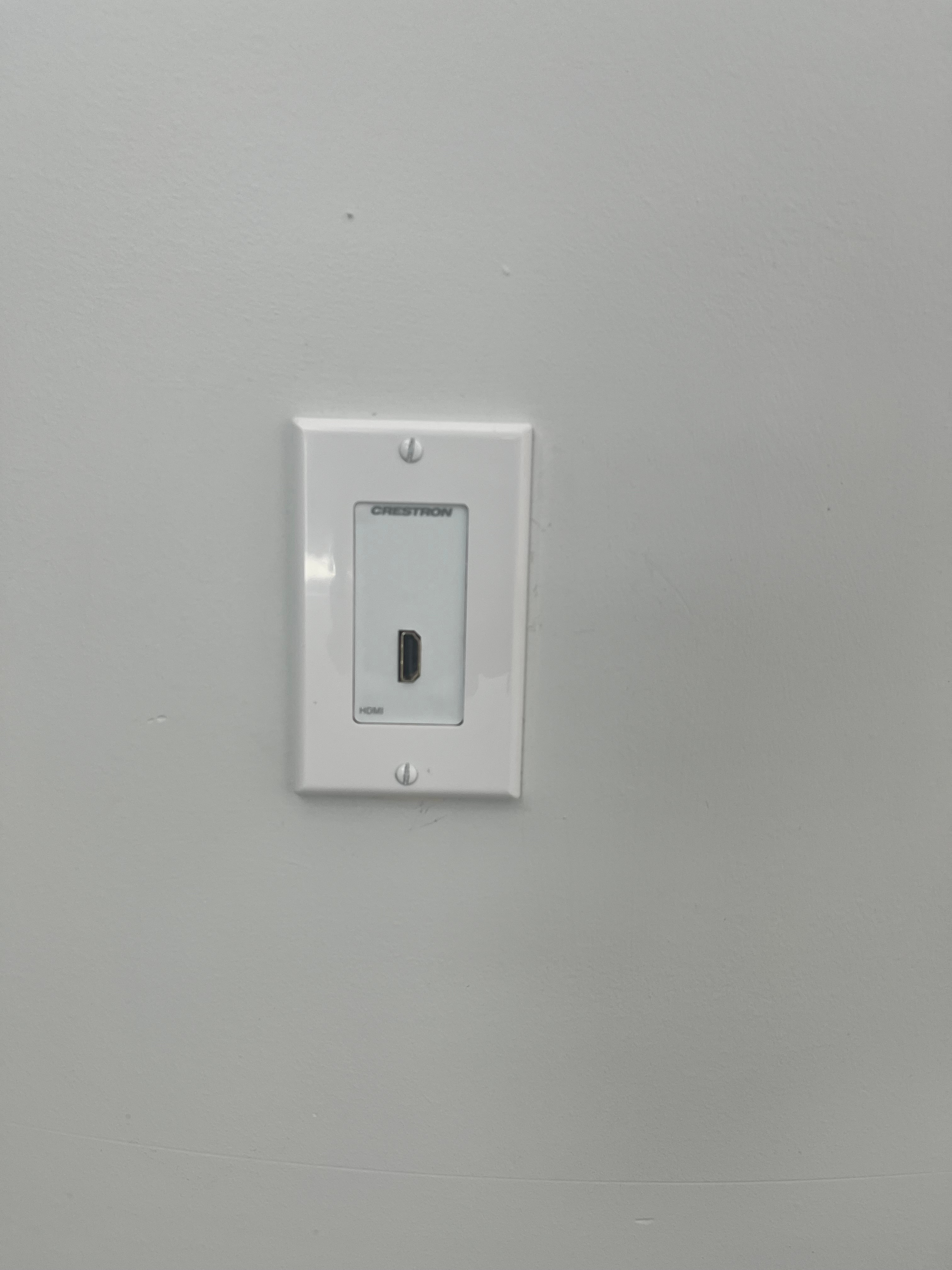
This is a research office with an HDMI input below the display.