...
Click on your wireless network icon in the top right corner of the computer and then select UCCS-Guest from the list. 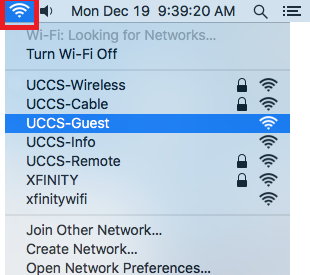
Step 2: Click Create Guest Account
Your default browser will should open up the UCCS-Guest wireless captive portal page. Click Under the Guest Account section, click the Create Guest Account to request a guest account link. 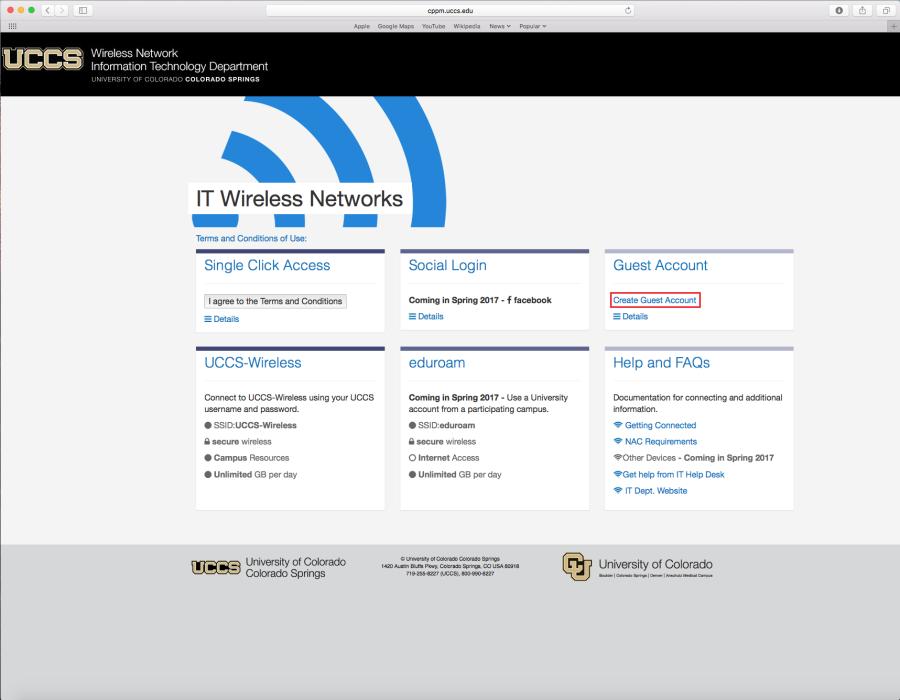
Step 3: Fill Out Form
Fill out the request form and then click Register at the bottom of the page.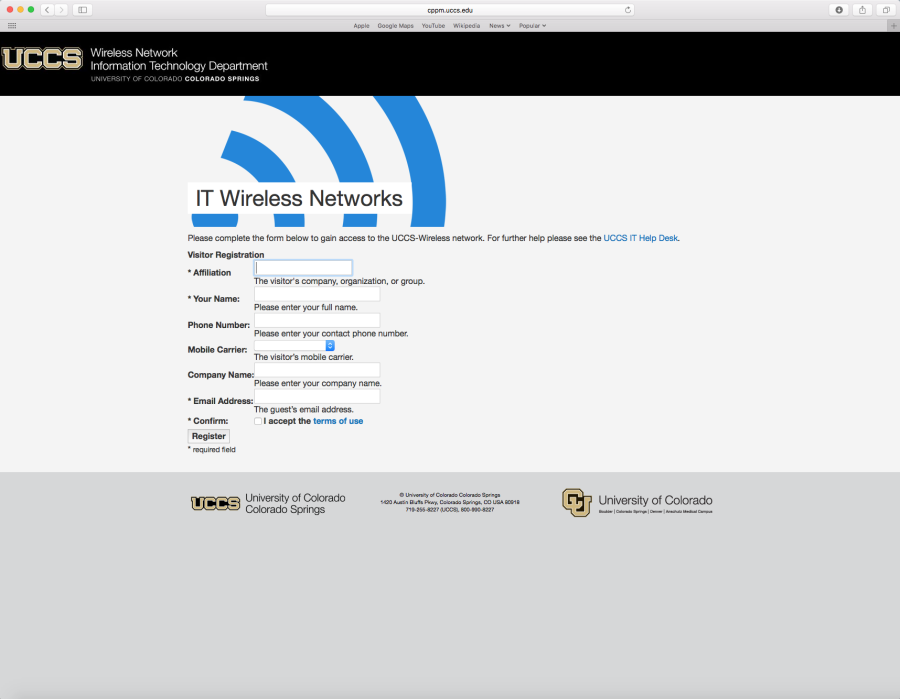
Step 4: Take Note of Guest Account
Take note of your newly issued guest login credentials (username and password) so you can use them to log into the UCCS-Wireless network in the steps below.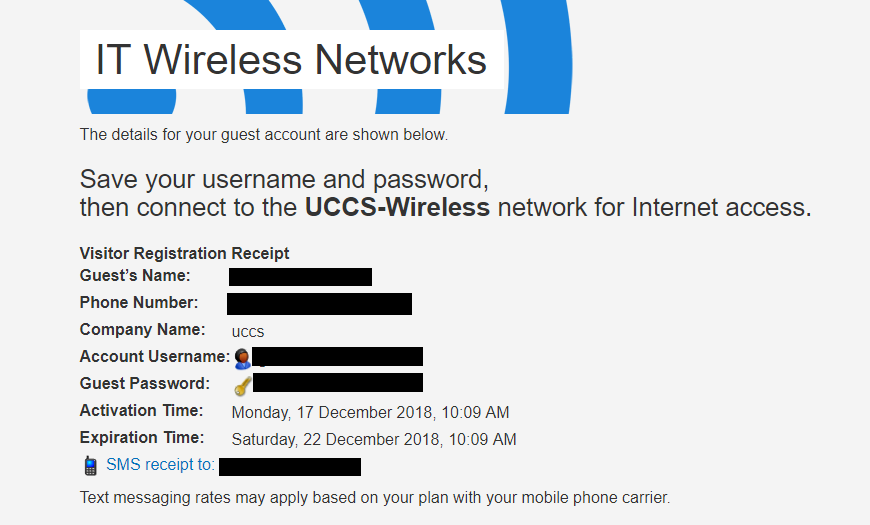
...
Click on your wireless network icon in the top right corner of the computer and then select UCCS-Wireless from the list. 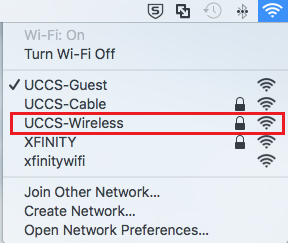
Step 6: Enter your Guest Account
Enter the Guest Credentials you the guest username and password you obtained from the registration step steps above..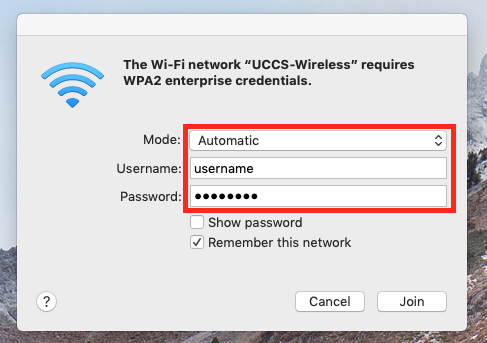
Step 6: Accepting the security certificate.
...
If your certificate fingerprints match those listed above, you can trust the certificate is valid. Click Go ahead and click Continue.
NOTE → If the fingerprint do not match, DO NOT trust the certificate! Click Click CANCEL and and contact the OIT Helpdesk for assistance.
Your computer may then prompt you for your username/password to allow your computer to store the newly trusted certificate.
If prompted, enter your credentials and click "Update Settings."
...