...
| Table of Contents | ||
|---|---|---|
|
Sign in From your Computer (
...
Top code option)
- To sign in to the phone from your computer, go to the website seen in "Step 3:" on the phone ( https://microsoft.com/devicelogin )
Then type in the code when prompted.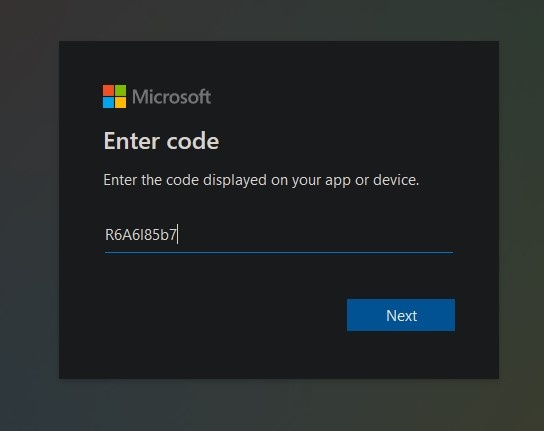
- It should take you to the UCCS Sign In page or ask you to select your UCCS account. (It may prompt you for Multi-Factor Authentication)
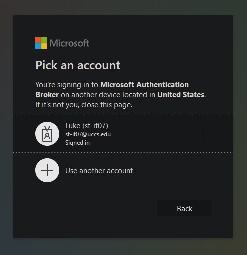
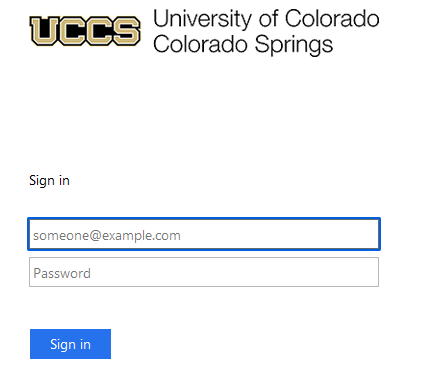
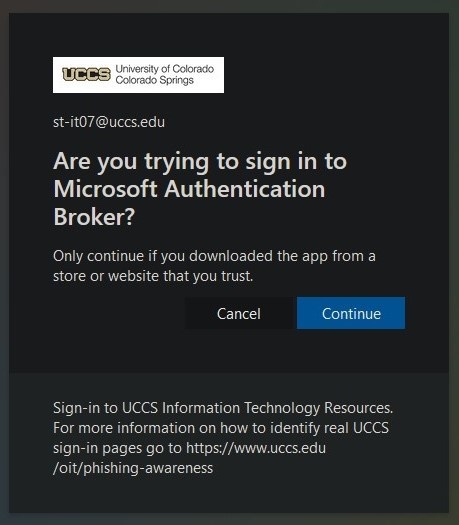
- Once you sign in, the webpage will ask if you would like to sign in using a Microsoft Authentication Broker. When this happens, click: Continue
- If the sign in process is taking too long (more than 5 minutes), try unplugging the device and plugging it back in to reboot.
Sign in on Device (
...
Bottom "Sign in on this device" option)
- If you would rather sign in on the phone itself, please click the Sign in on this Device
This should take you to a page asking for your email. Please enter your full UCCS email address (including the '@uccs.edu' ):
- After typing in your email and tapping Sign in, you should be brought to the UCCS sign in page where you can enter your password.
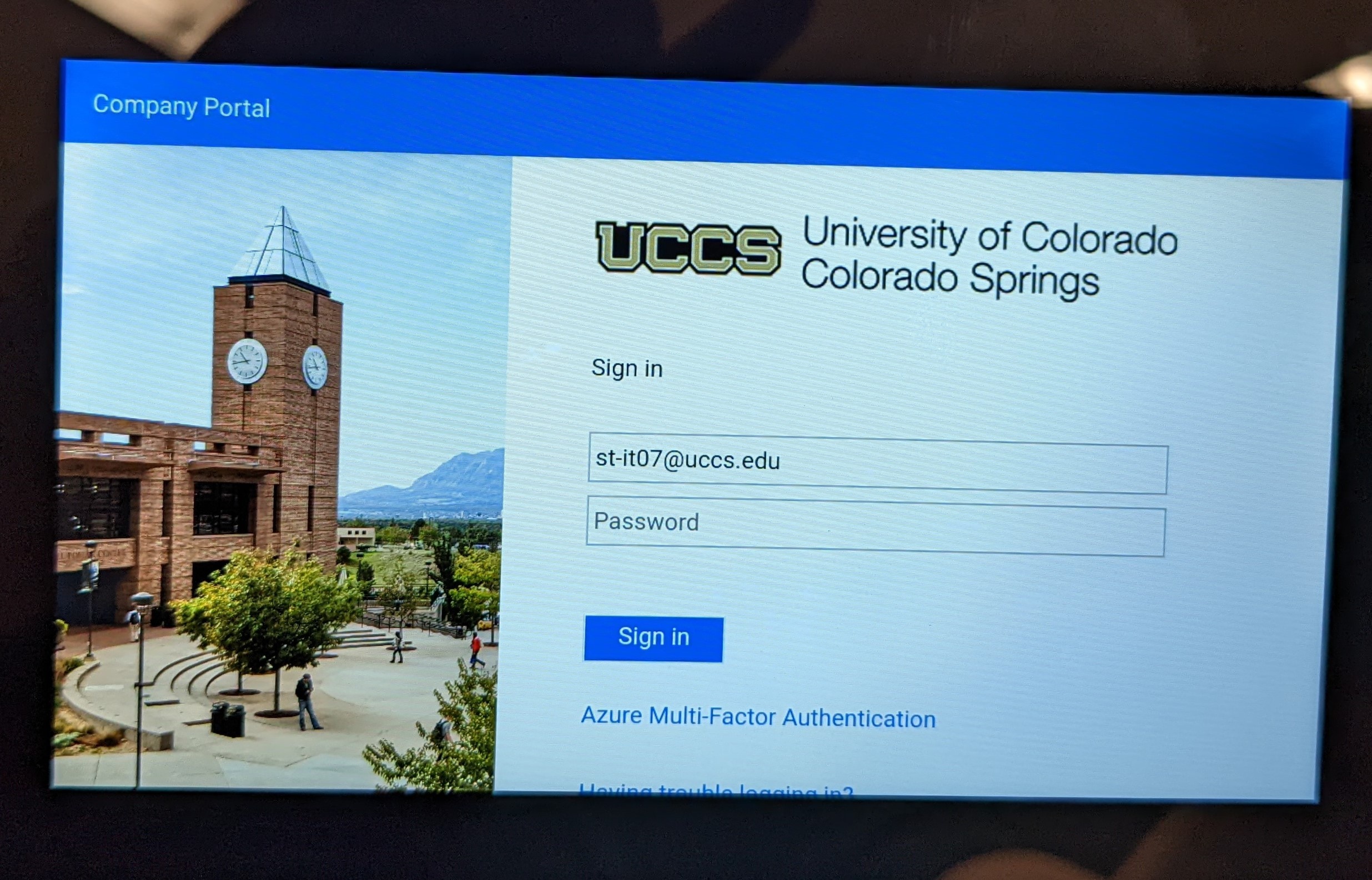
- Press Sign in once more to finish the sign in process
...