...
You have three options for accessing the Virtual Lab Systems:
Internet Browser Access
- Open a browser to Remote Desktop Web Client (microsoft.com). Microsoft Edge is preferred if you have issues with your existing browser.
- Enter UCCS SSO login credentials
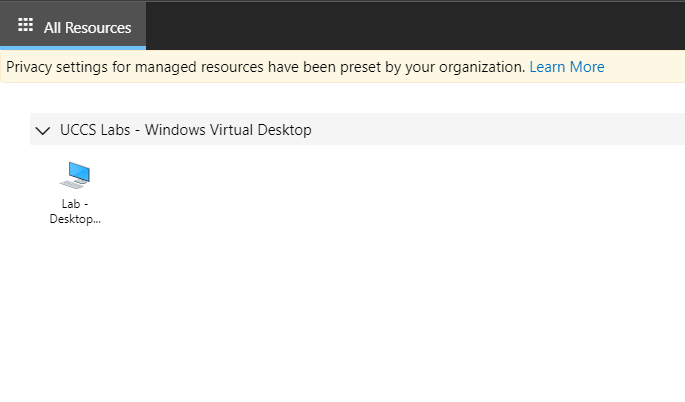
- Select the desktop icon under UCCS Labs - Windows Virtual Desktop:
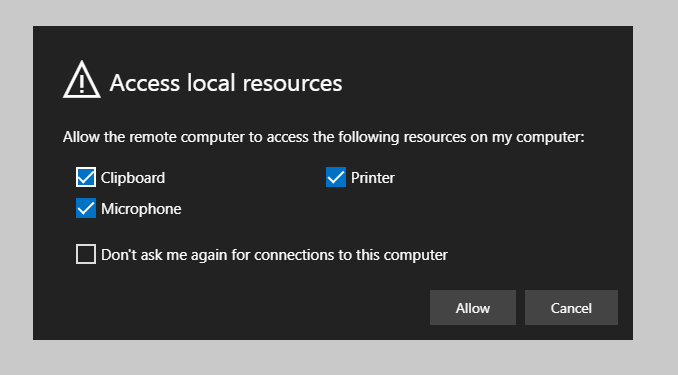
- Select local resources to make available, select Allow:
- Virtual Lab Desktop will appear and work normally through the browser.
Windows Remote Desktop App
- From a Windows desktop, download the Microsoft Remote Desktop application from the Microsoft Store: Get Microsoft Remote Desktop - Microsoft Store
- Open from Start Menu:
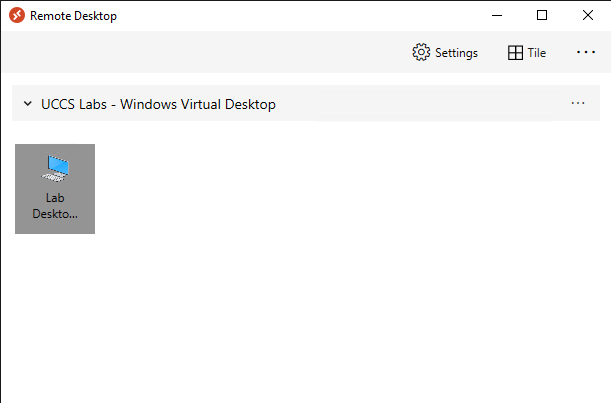
- Double-click on the Lab Desktop icon (or right click to modify connection settings first):
- Remote Desktop Connection window will open normally.
Common Remote Desktop
- This method should only be used if you need a specific Virtual Lab host, instead of the next available in the pool.
- Using your preferred Remote Desktop Connection application, from the campus network (via VPN, RAP or campus connection) RDP directly to one of the following hosts:
- wvd-labsb-0.uccs.edu
- wvd-labsb-1.uccs.edu
- wvd-labsb-2.uccs.edu

...