| Excerpt Include | ||||||
|---|---|---|---|---|---|---|
|
Steps:
| Table of Contents |
|---|
Step 1: Tap Settings
Tap the Settings icon to open up the device settings.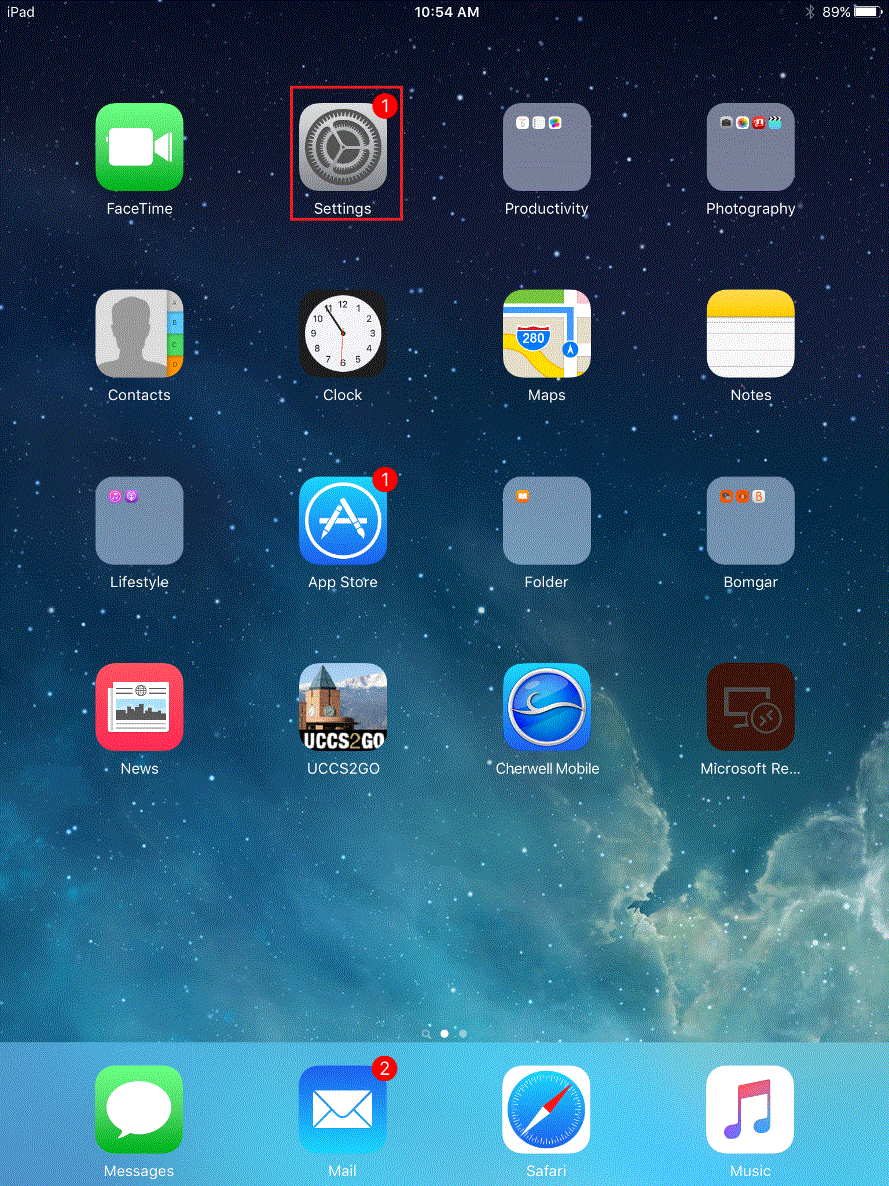
Step 2: Tap Wi-Fi
Tap the Wi-Fi option in the left bar menu.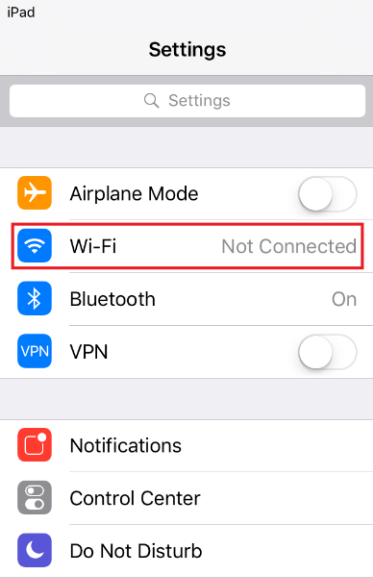
Step 3: Tap UCCS-Guest
Tap on the UCCS-Guest network to connect to the wireless network. After connecting a new page will open (if it does not, try to launch Safari).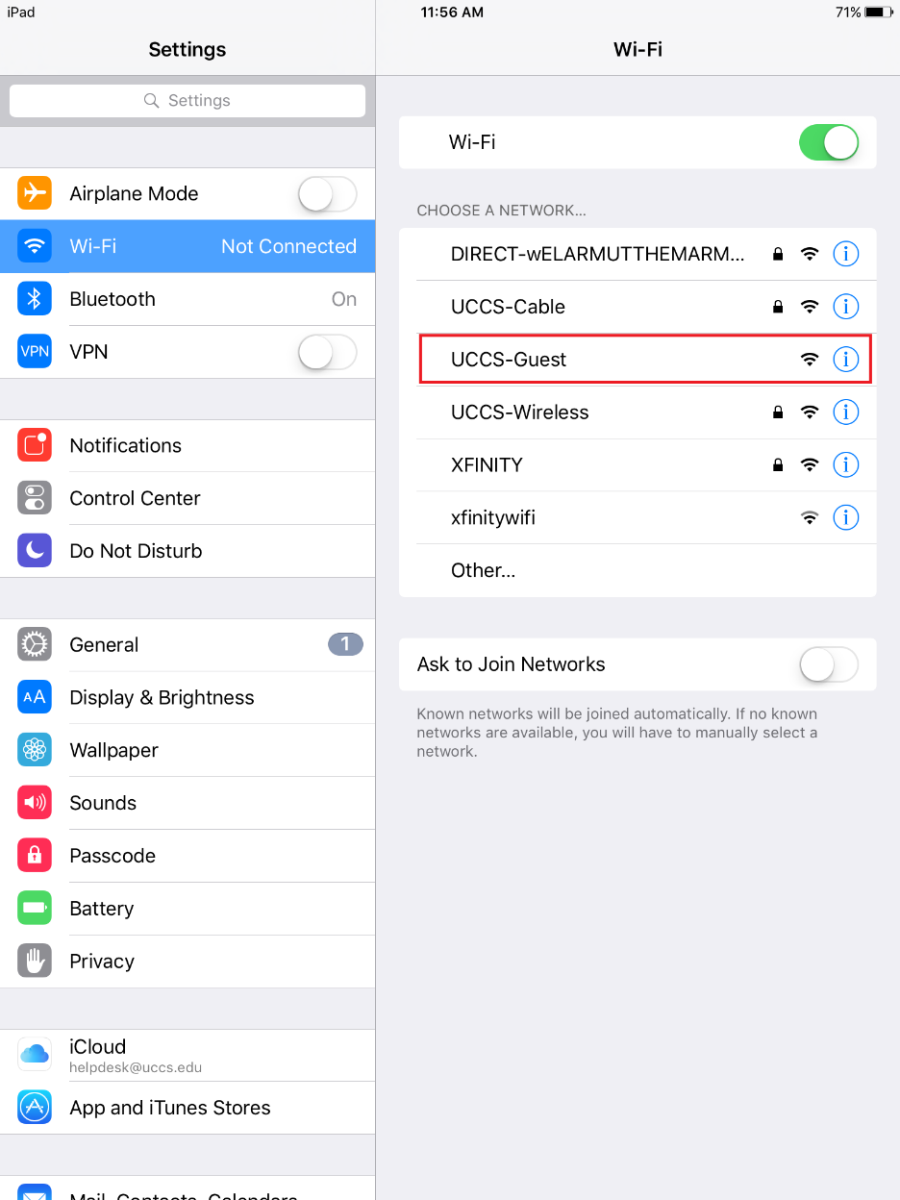
Step 4: Tap Create Guest Account
On Tap the new page tap the Create Guest Account option link under the Guest Account section.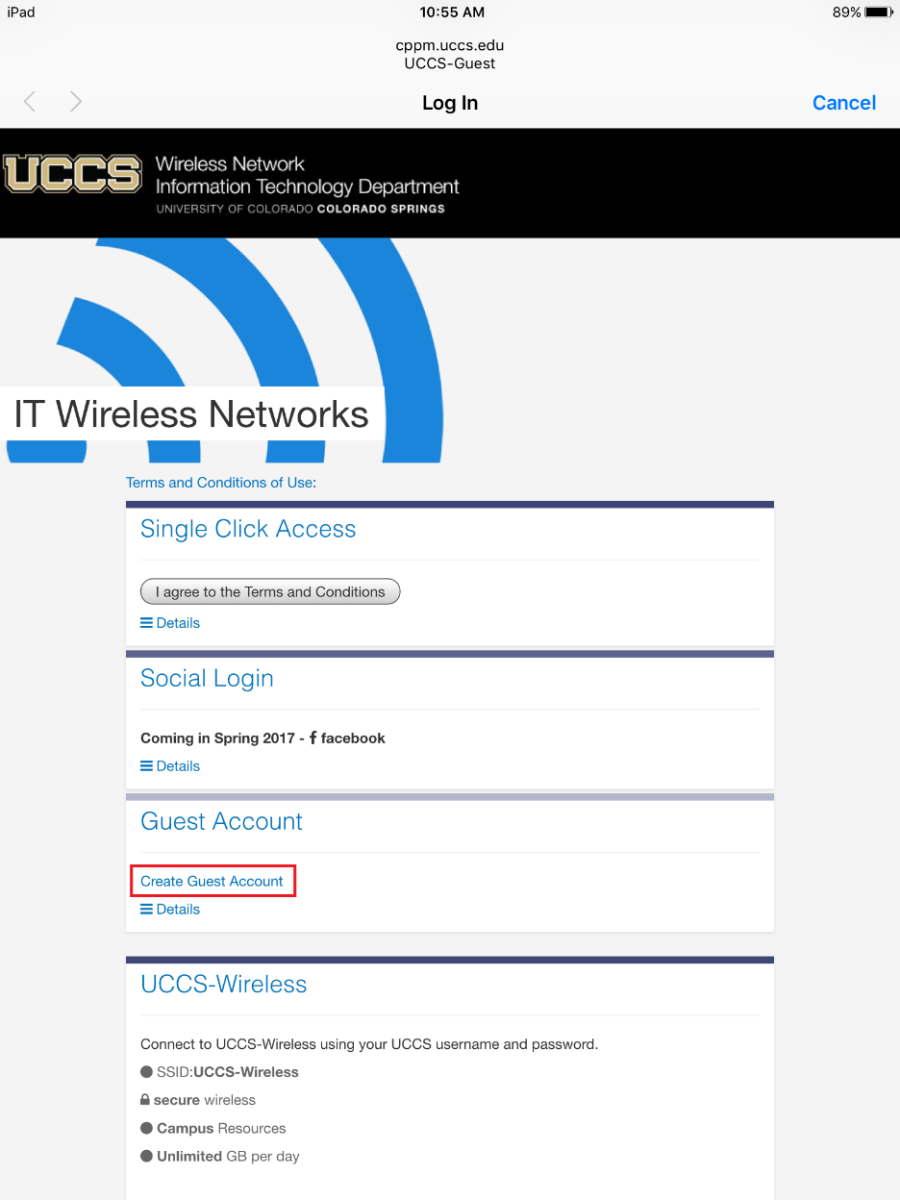
Step 5: Complete form and Register
Complete the form and then press the Register button at the bottom of the page.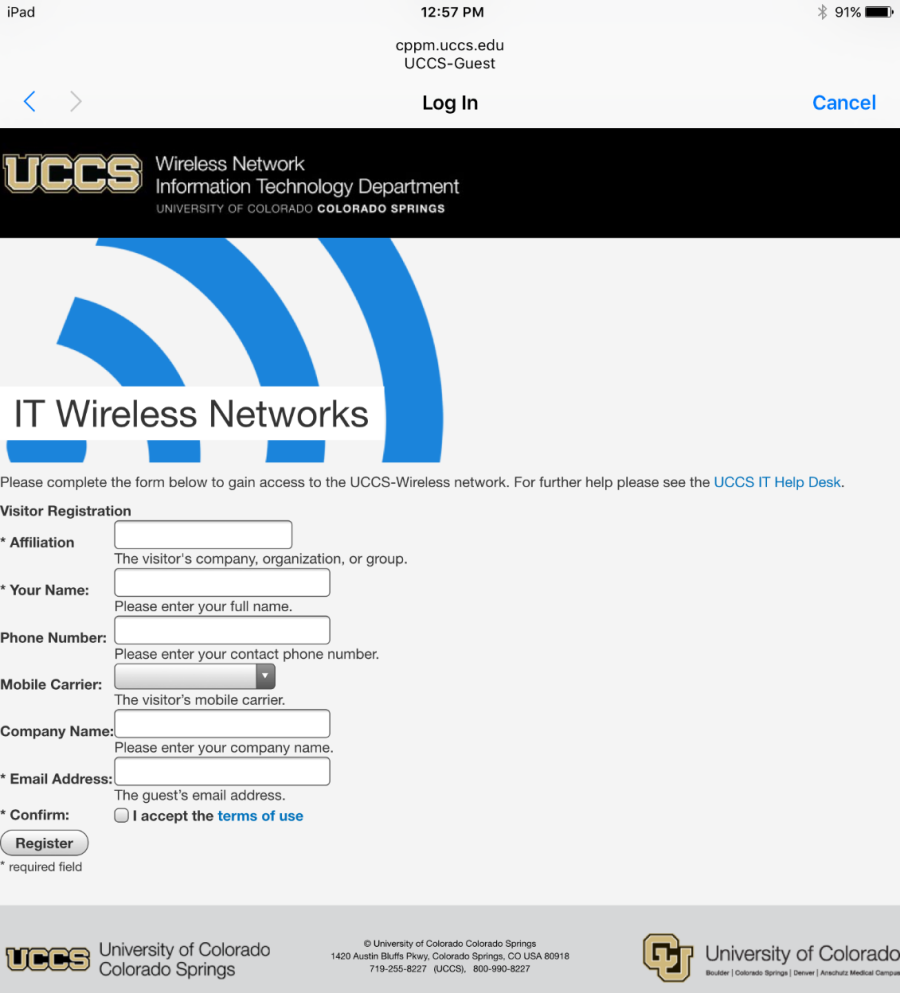
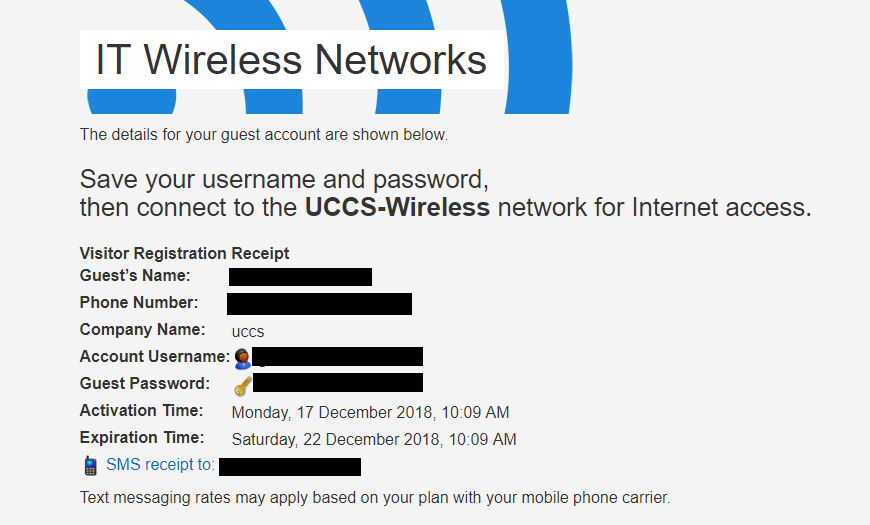
Step 6: Take Note of Login Information
Take note of your newly issued guest login credentials so (username and password) so you can use them to log into the UCCS-Wireless network in the steps below.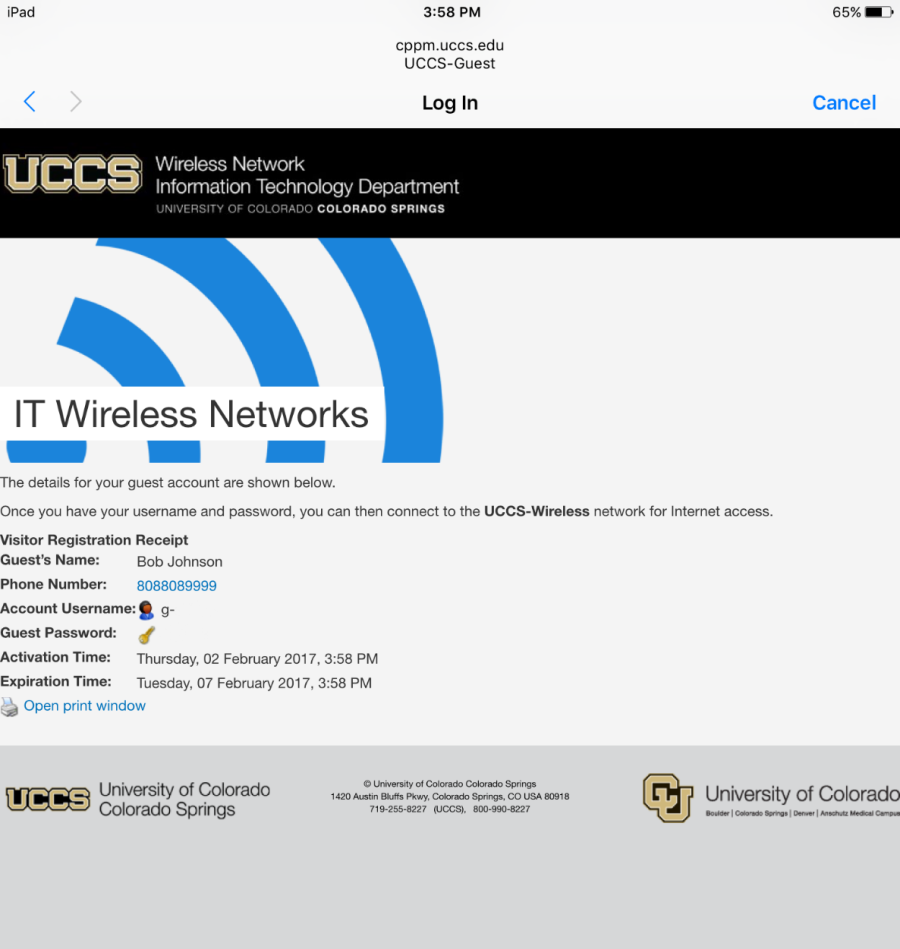
Step 7: Go back to the WiFi settings
Go back to the Settings → Wi-Fi settings and choose to connect to the UCCS-Wireless network. (same as similar to steps 1 and steps 2 above)
Step 8: Tap UCCS-Wireless & Enter Guest Credentials
Tap on UCCS-Wireless and then enter the Guest Credentialsguest username and password you obtained from the registration steps above.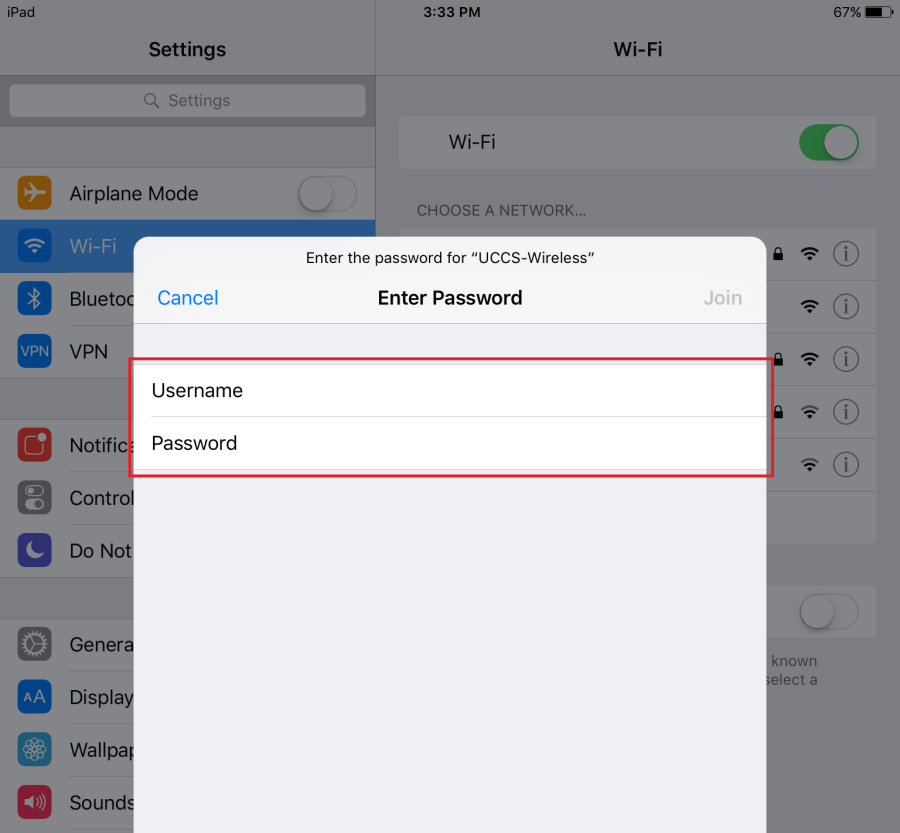
Step 9:
...
Trusting the Security Certificate
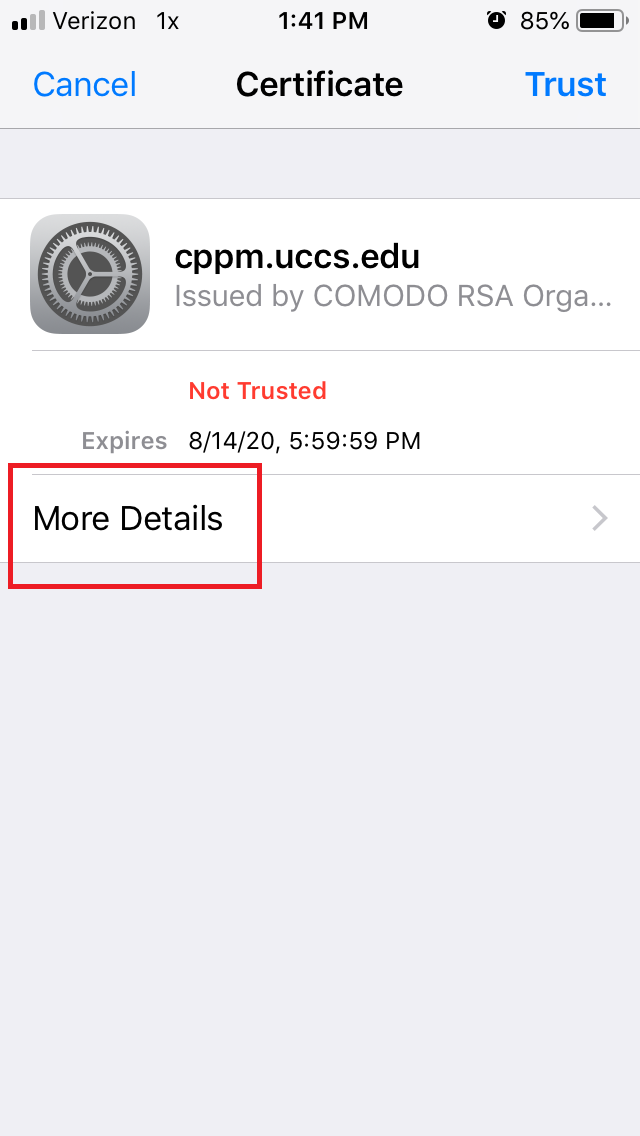
You should see a screen similar to the following asking you to verify and accept the server's security certificate. The server cppm.uccs.edu is the server you are authenticated against.
To be safe you should always validate the certificate you are about to trust. To validate and see more information about the certificate, click More Details.
After clicking More details scroll down to the bottom and you should see the fingerprints...
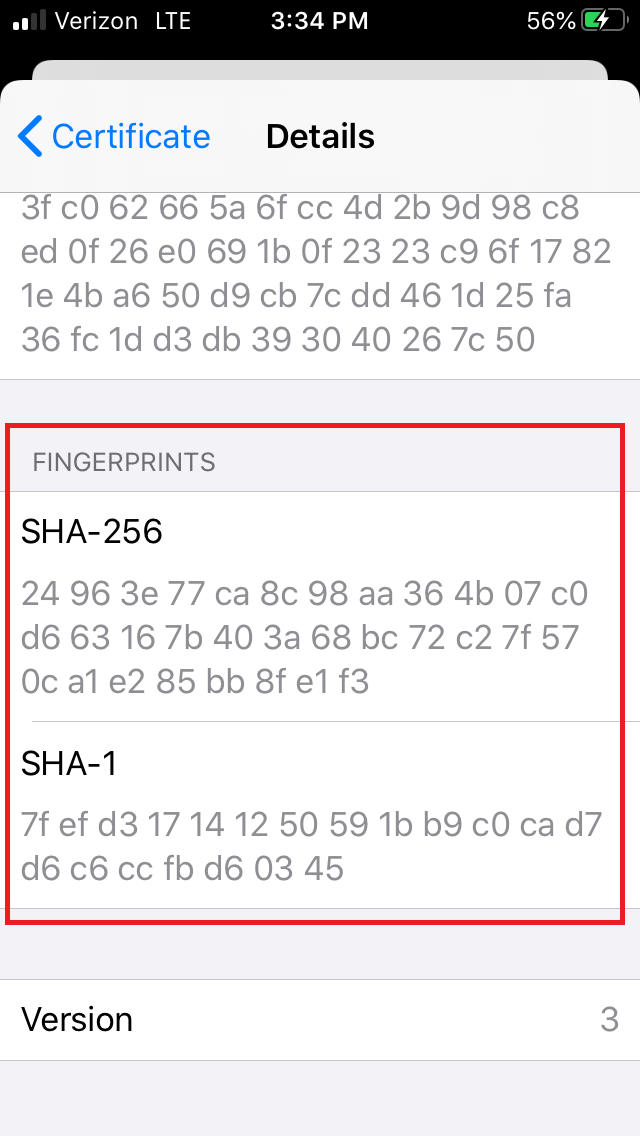
Your certificate fingerprints displayed on your screen should match the fingerprints listed below...
| Excerpt Include | ||||||
|---|---|---|---|---|---|---|
|
If your certificate fingerprints match those listed above, you can trust the certificate is valid. Go ahead and click Continue.
NOTE → If the fingerprint do not match, DO NOT trust the certificate! Click CANCEL and contact the OIT Helpdesk for assistance.If you are prompted with the certificate for the network press Trust in the top right corner.
This tells your device to remember the network as a trusted network.
If you press cancel or close this window you will not be connected to UCCS-Wireless.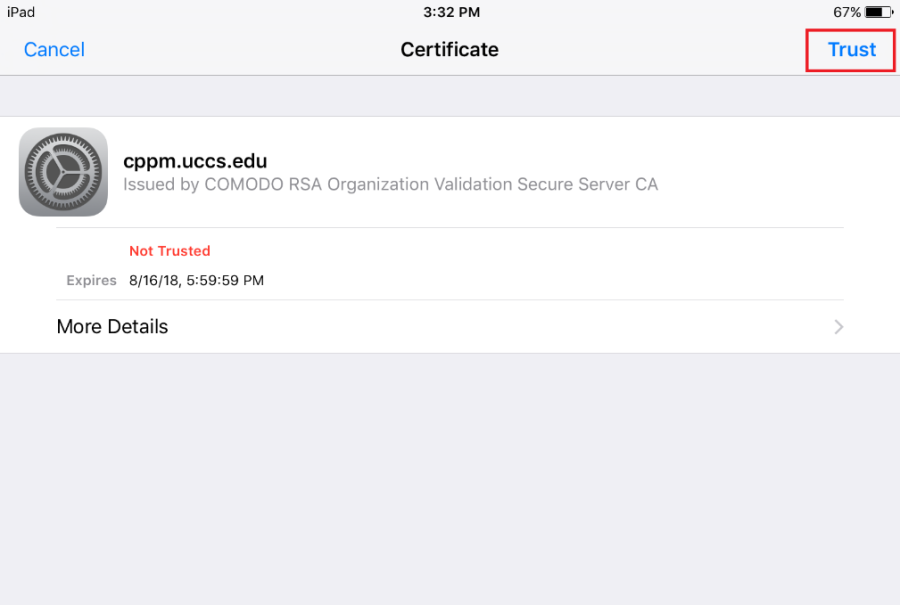
Step 10: Tap Done
Your phone will should redirect you to the UCCS homepage. Tap If presented, tap Done in the top right corner to close this window. 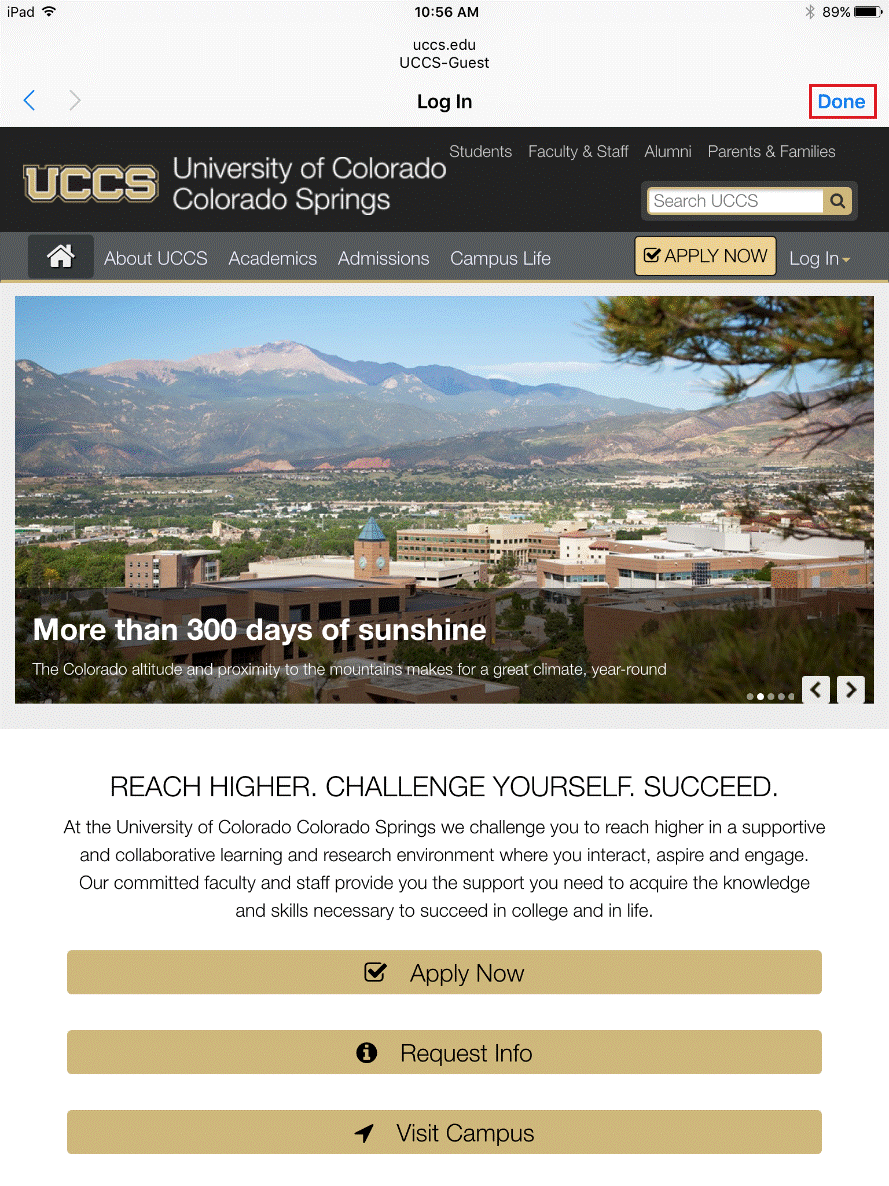 You are
Your device should now be connected to UCCS-Wireless with your guest account.
Still having problems? Please contact the OIT Help Desk.