| Excerpt Include | ||||
|---|---|---|---|---|
|
...
|
Table of Contents
...
| Table of Contents | ||
|---|---|---|
|
...
Option One - Outlook 2016
...
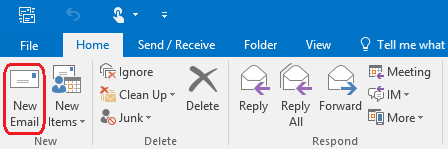
Step 1: Create a New Email
Start a new email within Outlook
Step 2: Drag Spam/Phishing Email and Drop in New Email
Drag the Spam/Phishing email from your list of emails and drop it into the new email. Address the email to [email protected] and put Reporting Spam/Phishing as the subject.
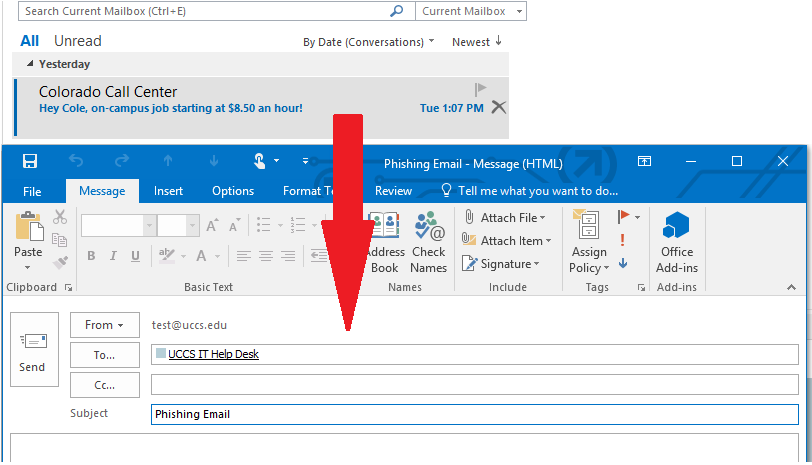
End Result
...
Step 1: Create a New Email
Create a new email and address it to [email protected] with the subject of SPAM Email.
Step 2: Attaching the Email
Click on the Attach Item icon and choose Outlook Item from the drop down.
Step 3: Insert Item
...
Step 1: Find the Message to Attach and Forward as Attachment

- In the message window, click the Other Actions (...) menu and press Forward as Attachment
- Note: If you do not see Forward as Attachment, please proceed with Option Two instead
- Your version of Outlook 2016 may be out-of-date. Please contact OIT if you'd like assistance updating Microsoft Office
Step 2: Send the email to [email protected]

- The message is now attached
- Please include any other relevant information ("Suspected Spam/Phishing", "Is this a real UCCS email?", etc.)
- Press Send
Option Two - Outlook 2013 through Outlook 2016
Step 1: Find the Message to Attach

Step 2: Click New Email

- Arranging the windows side-by-side may be helpful
- Click and drag the message to attach over to the new email window and let go
Step 3: Send the email to [email protected]

- The message is now attached
- Please include any other relevant information ("Suspected Spam/Phishing", "Is this a real UCCS email?", etc.)
- Press Send
Option Three - Outlook 2010 through Outlook 2016
Step 1: Click New Email

Step 2: Attach Message through Insert Menu

- Press the Insert menu
- Press Outlook Item
- Find the message of interest and press OK to attach it to the message
Step 3: Send the email to [email protected]

- The message is now attached
- Please include any other relevant information ("Suspected Spam/Phishing", "Is this a real UCCS email?", etc.)
- Press Send
...
Step 4: Send the Email
...