OIT imaged computers must be signed into at least once when connected to the UCCS network in order to be used off campus. This applies to each account used on the computer. If you are picking up an OIT imaged computer, please connect it to an ethernet port and sign in with your UCCS account before taking it off campus. If an ethernet port is unavailable, or you have already taken the computer off campus, please follow the instructions below.
Note: Mac computers must have their first time sign in completed on-campus using an ethernet cable.
| Expand | ||
|---|---|---|
| ||
If you are on campus and using a Windows 10 computer, you can complete your first time sign in using UCCS-Wireless. Step 1: Select the Network IconStep 2: Sign Intoand Connect to UCCS-Wireless Using Your UCCS Credentials
Step32: Sign Into the Computer Using Your UCCS Credentials |

| Expand | ||
|---|---|---|
| ||
If you are off campus and using a Windows 10 computer with an internet connection, you can complete your first time sign in using UCCSVPN.Note: If you do not see the "Network Sign In" icon, please contact us via https://oit.uccs.edu/get-help for assistance with your first time sign in. Step 1: Connect toaan Off-Campus Network Using Wi-Fi or EthernetClick the Network icon to view a list of available networks to connect to.
Step 2: Select the Network Sign In iconAt the sign in screen, in the bottom right-hand corner, select the "Network Sign In" icon. It is just to the left of the Network icon. 
Note: If you do not see the "Network Sign In" icon, please contact the Help Desk via https://oit.uccs.edu/get-help for assistance with your first time sign in. Step 3: Sign Into UCCSVPN With Your UCCS AccountYou will need to will enter your UCCS username (no @uccs.edu needed) and password. The computer will connect to the VPN and then begin making a profile. This will take a few minutes to complete.  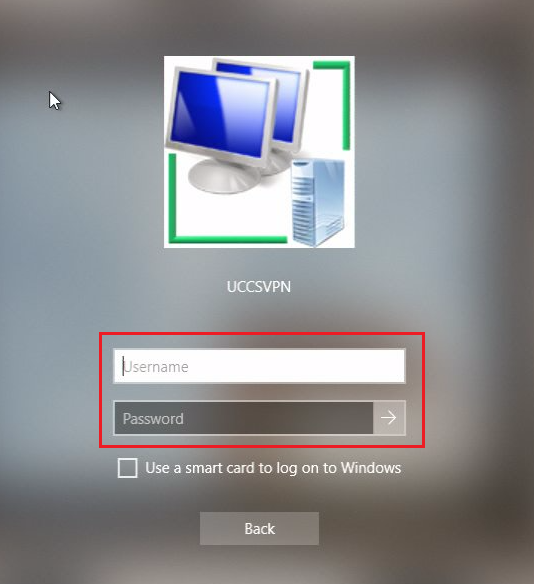 |
