| Table of Contents |
|---|
Step 1: On Campus PuTTy Configuration
Fill Host Name (or IP Address) with academics, Port with 22, and Connection type as SSH.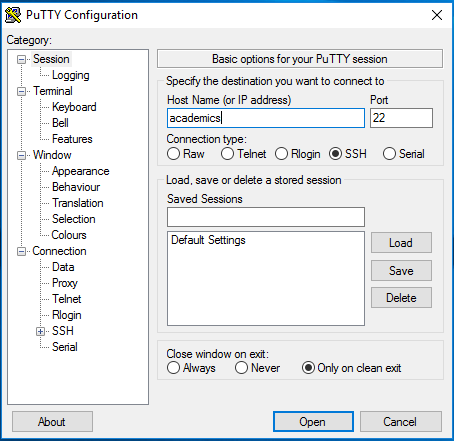
...
| Note |
|---|
You must be connected to the VPN to connect to the Academics Server from off campus |
Step 1: PuTTy Configuration
Fill Host Name (or IP Address) with academics.uccs.edu, Port with 2222 22, and Connection type as SSH.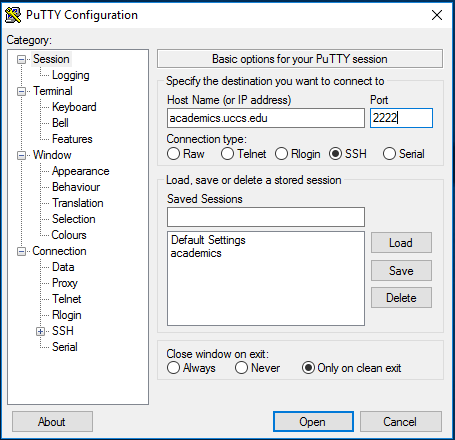
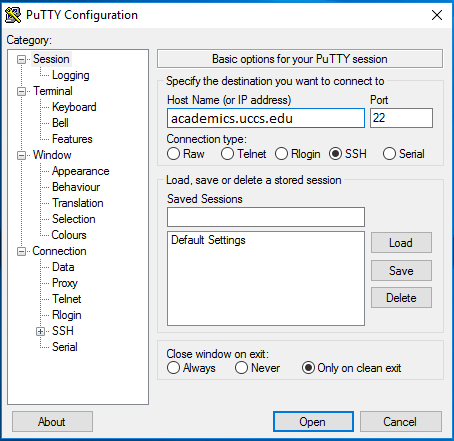
Step
...
2: Saving the Configuration
Under the Save Sessions section, give your configuration a name and then click Save. To use your saved session, click on it once to highlight and then click Load.
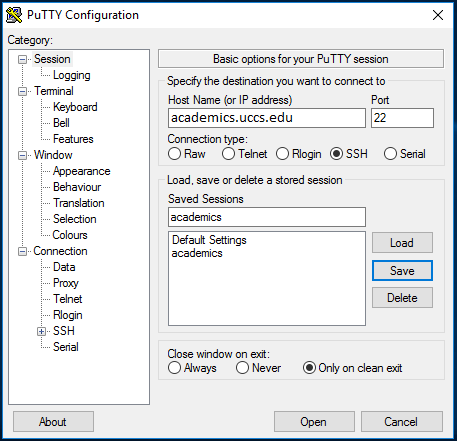
Step
...
3: Opening the PuTTy Client once Configured
Once all of the settings are entered click Open at the bottom of the window. A black window will appear and you will be prompted to enter your UCCS username and password.
Related Content
| Content by Label | ||
|---|---|---|
|