Getting the App
| Expand |
|---|
|
Open the app store: 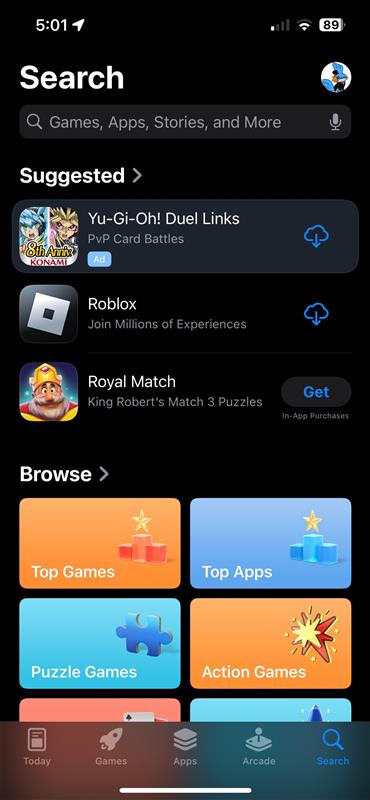 Image Added Image Added
Search for "Microsoft |
...
Step 1: Open the App Store
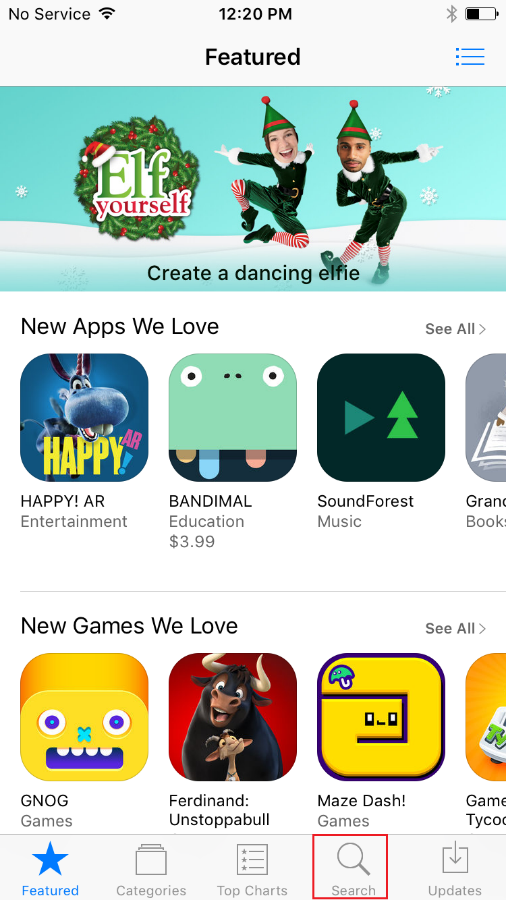 Image Removed
Step 2: Go to Microsoft Authenticator App
Search for Microsoft Authenticator and select Get.
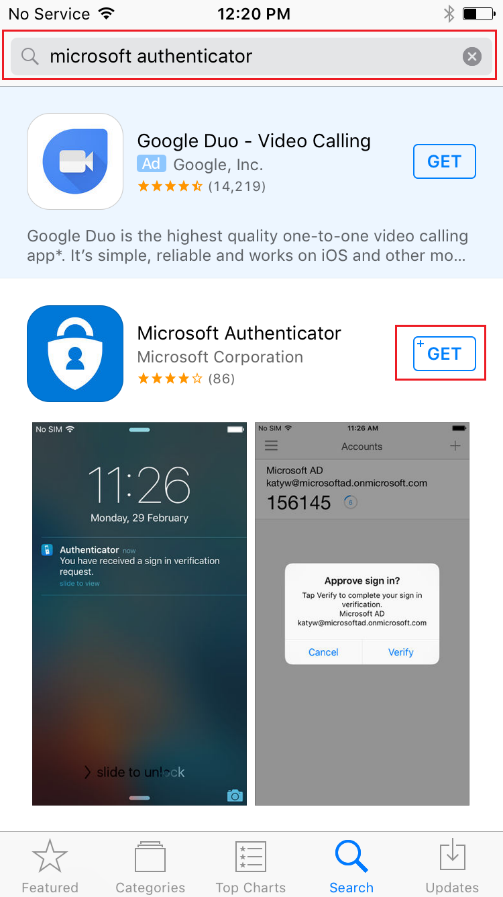 Image Removed
Authenticator App"  Image Added Image Added
Click on this option  Image Added Image Added
Click 'get' and install the app  Image Added Image Added
|
Setting up the App
To set up the Authenticator App on your phone you can do so via a computer browser or the browser on your phone. Setup varies slightly so pick below if you are using a computer browser or a browser on the phone you have the app on.
| UI Tabs |
|---|
| UI Tab |
|---|
| This method utilizes a browser on your computer and the iPhone Authenticator app. After getting this prompt, follow these steps:  Image Added Image Added
Step 1: Click 'Next' on the prompt.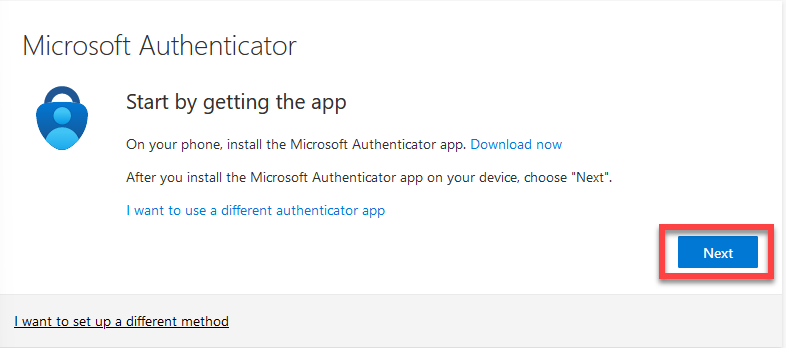 Image Added Image Added
Step 2: On your phone, download the Microsoft Authenticator app in the App Store 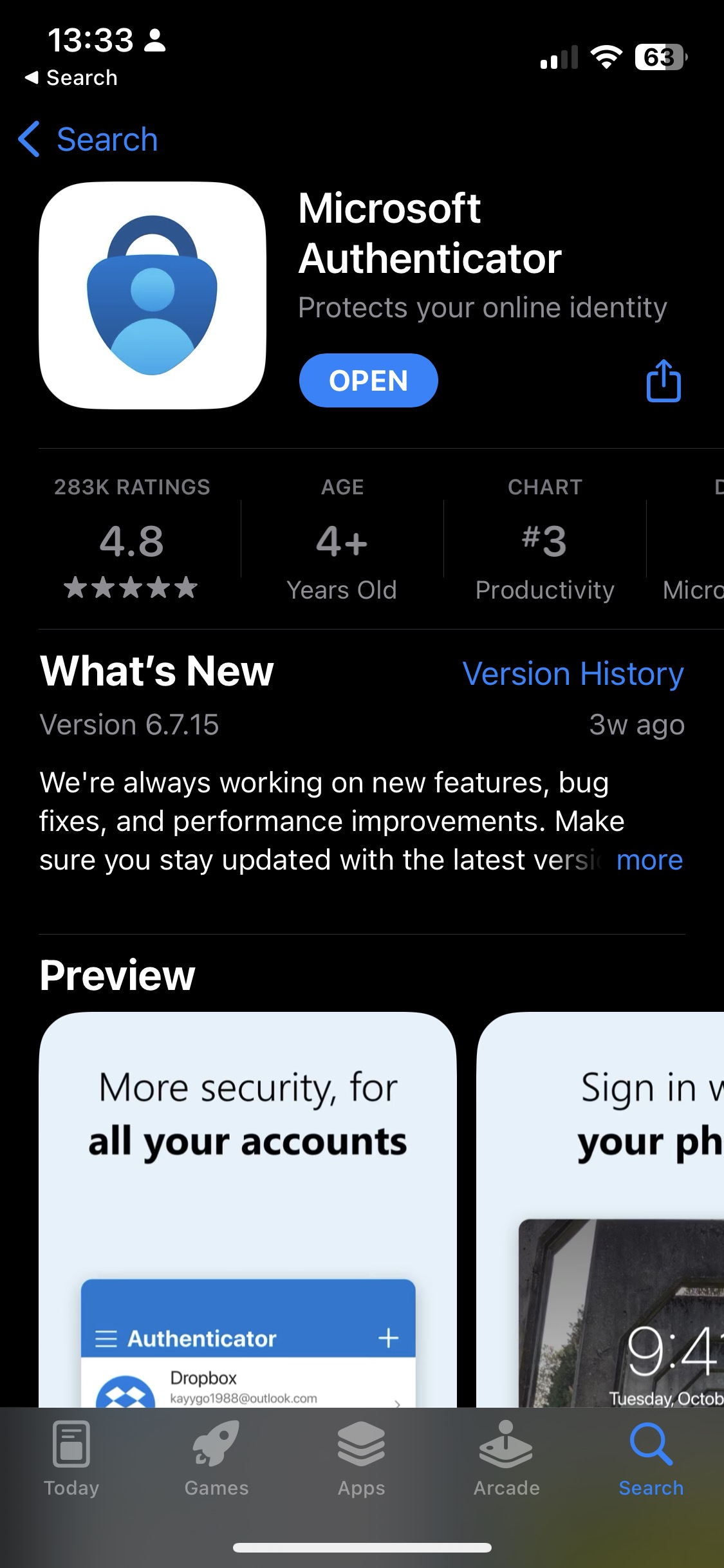 Image Added Image Added
Step 3: Open the Microsoft Authenticator app and select 'Add account'| Note |
|---|
| If prompted to allow this app to send notifications to your phone, please select Allow. If the app cannot send your phone notifications, you won’t be able to use it for MFA. |
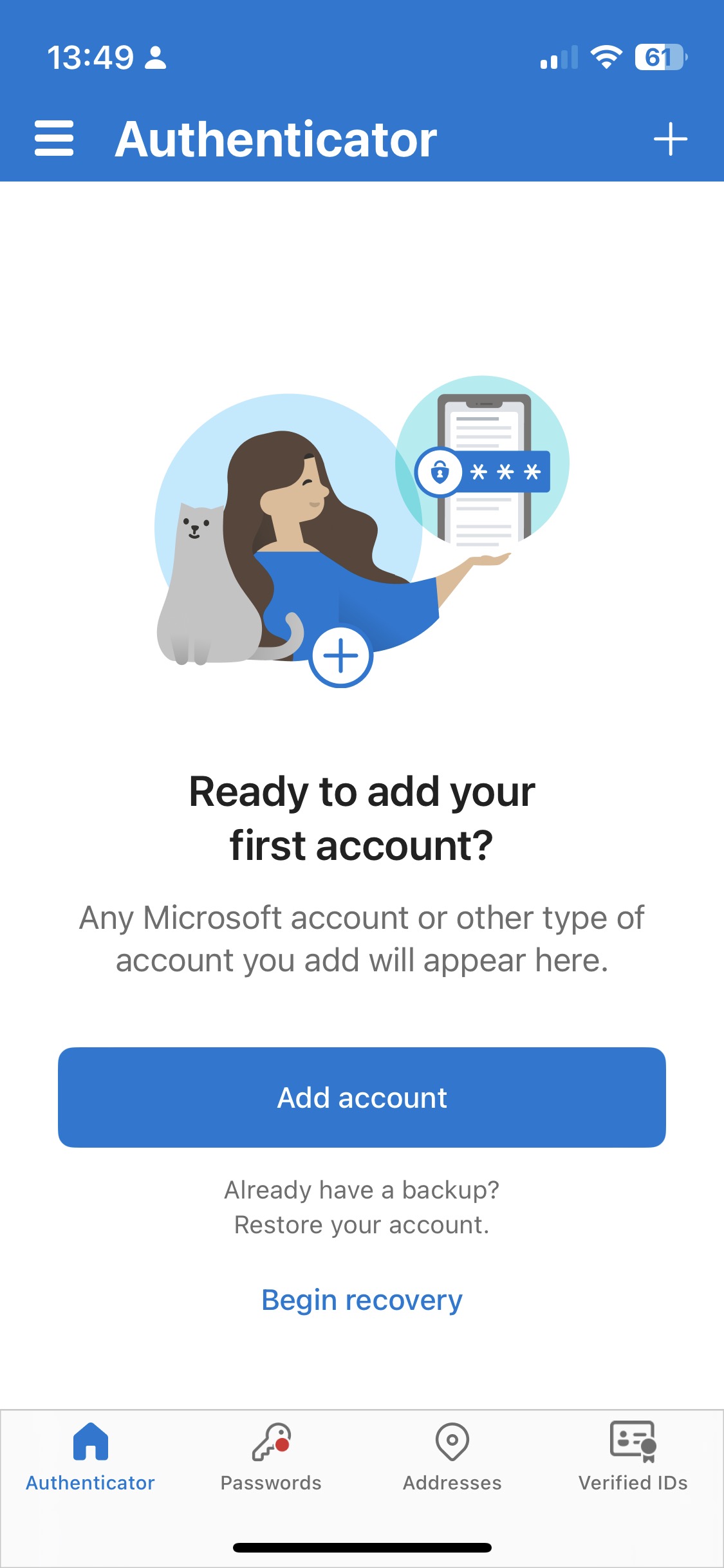 Image Added Image Added
Step 4: Select 'Work or school account' and then select 'Scan a QR Code'| Note |
|---|
| If the Authenticator app asks for access to the camera, please select Allow. The camera will be used to scan the QR Code to link your UCCS account to the Authenticator app. |
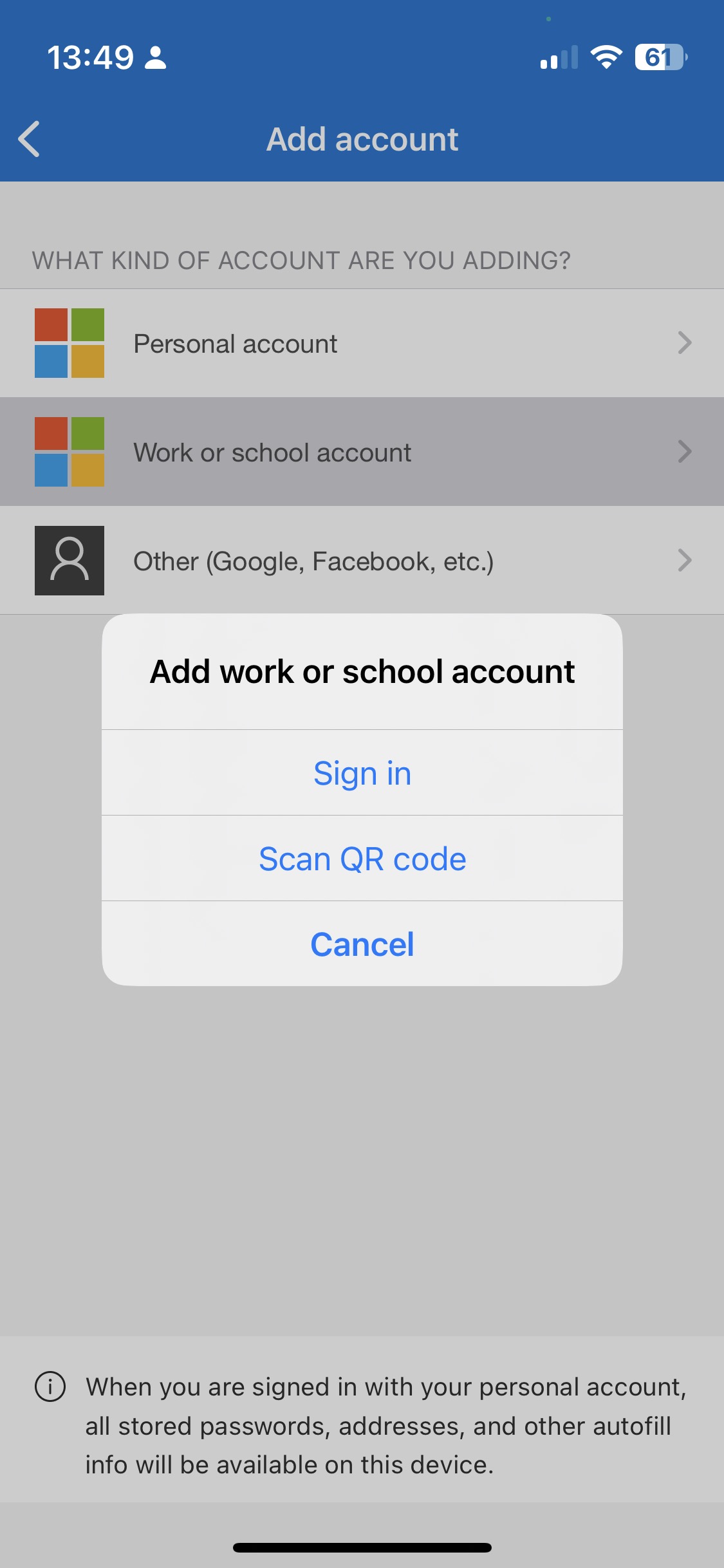 Image Added Image Added
Step 5: Scan the QR code on your browser screen and the click 'Next'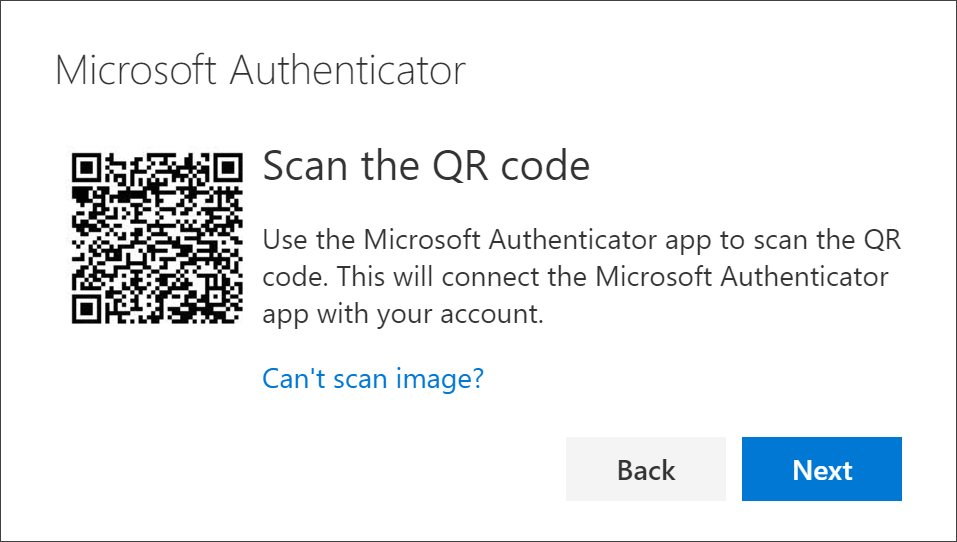 Image Added Image Added
Step 6: The Authenticator app will ask you to enter the number displayed on the screen for verification.
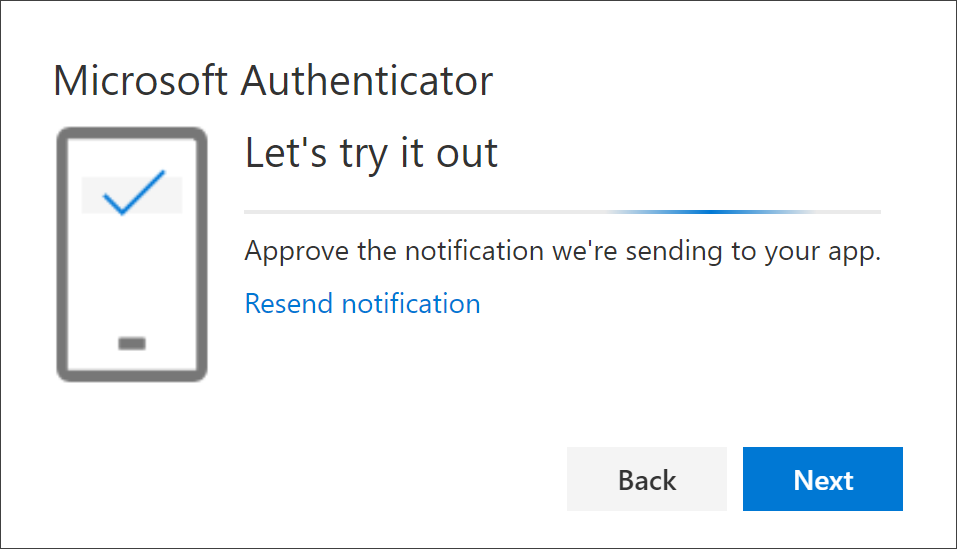 Image Added Image Added
After this, your account is all set up! 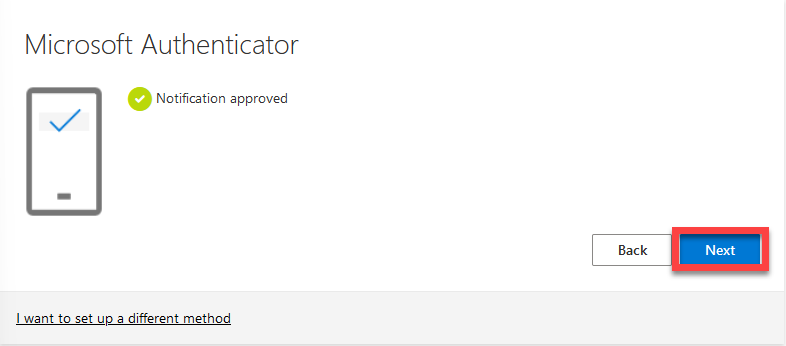 Image Added Image Added
|
| UI Tab |
|---|
| This method utilizes your phone's browser and the Authenticator app. Step 1: After downloading the Authenticator app in the App Store, switch back to your phone's browser and select 'Next'
| Note |
|---|
| If prompted to allow this app to send notifications to your phone, please select Allow. If the app cannot send your phone notifications, you won’t be able to use it for MFA. |
| Note |
|---|
| If the Authenticator app asks for access to the camera, please select Allow. The camera will be used to scan the QR Code to link your UCCS account to the Authenticator app. |
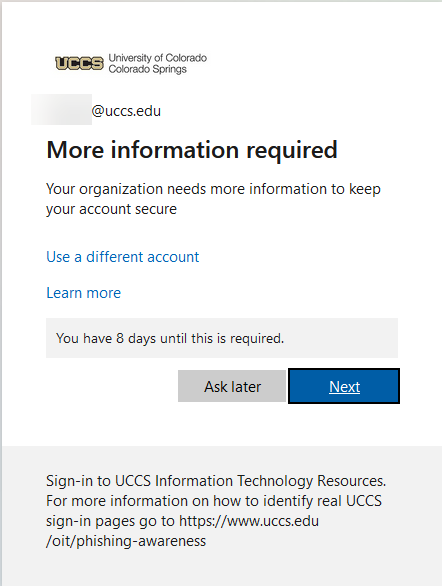 Image Added Image Added
Step 2: In your browser, select 'Pair your account to the app by clicking this link"This will take you to your Authenticator App where your account will be added 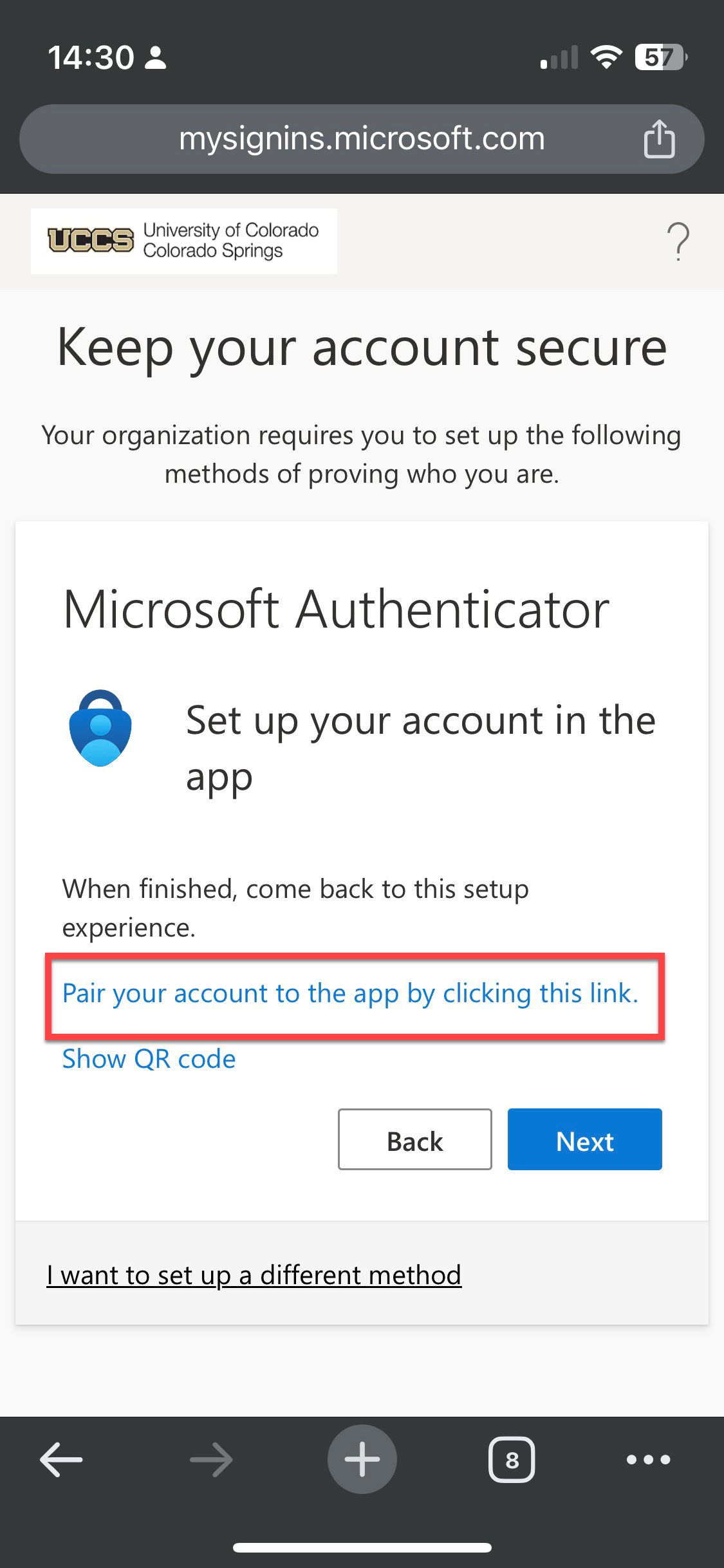 Image Added Image Added
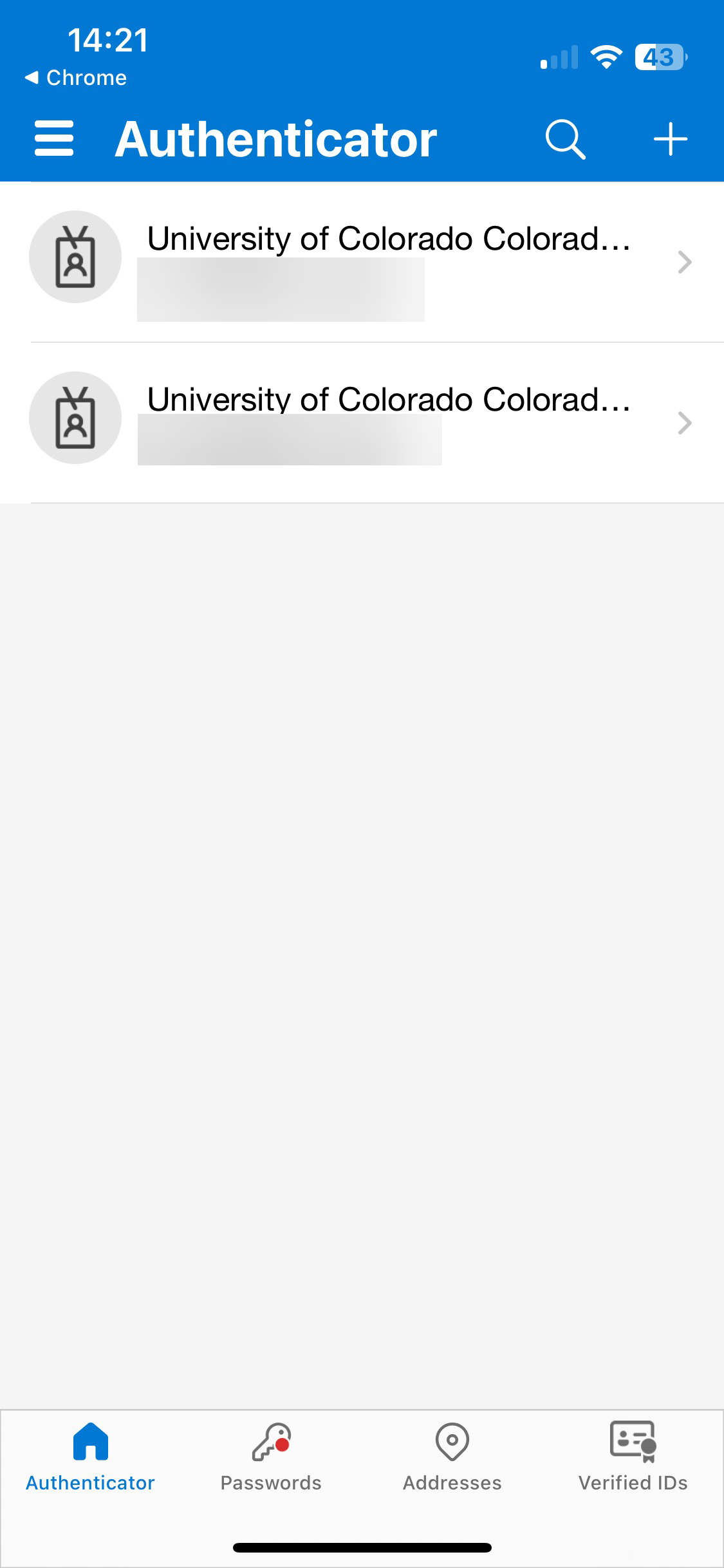 Image Added Image Added
Step 3: Go back to your phone's browser and press "Next"If you've enabled push notifications, this should bring up a push notification you can click on that will take you to the Authenticator App. 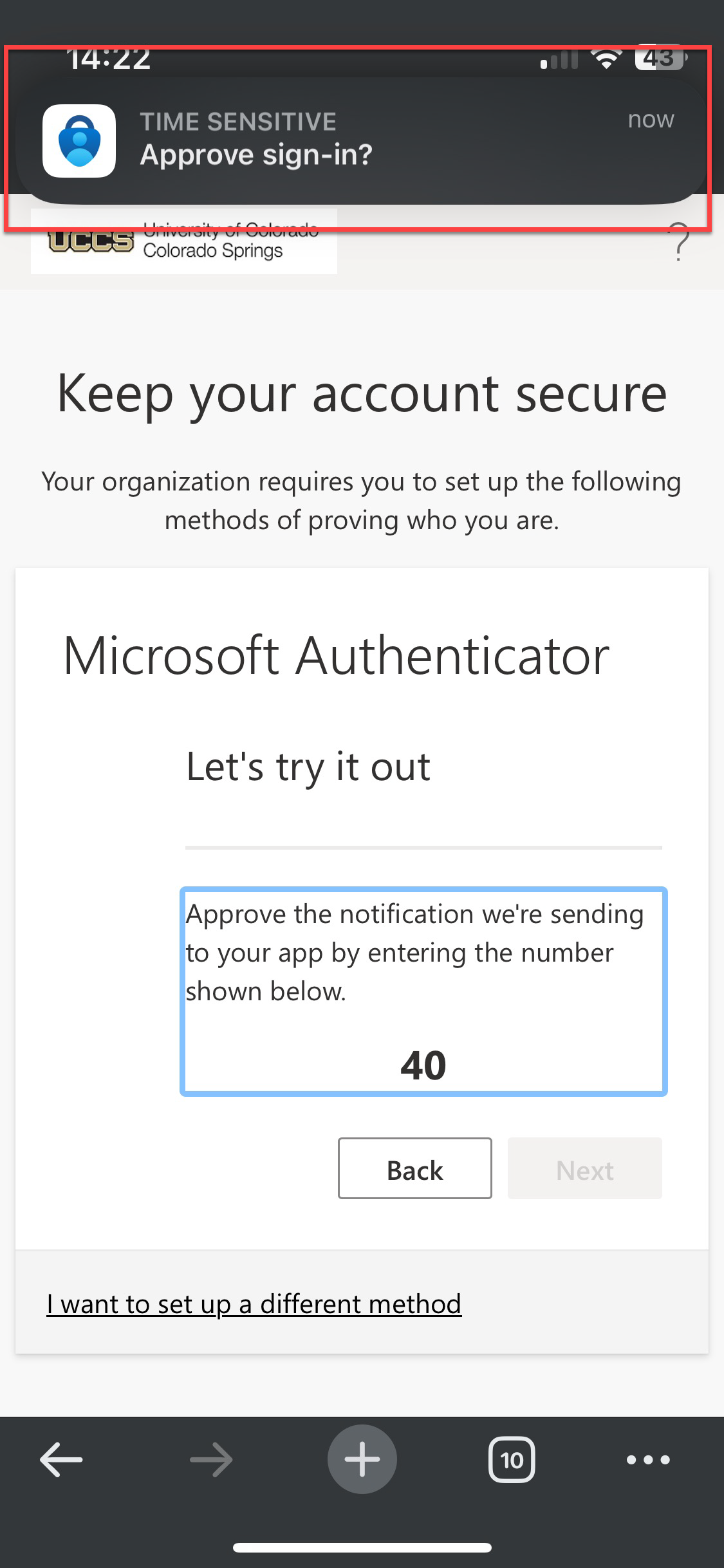 Image Added Image Added
Within the Authenticator app, type in the number displayed that was displayed in your browser, and then press Yes. 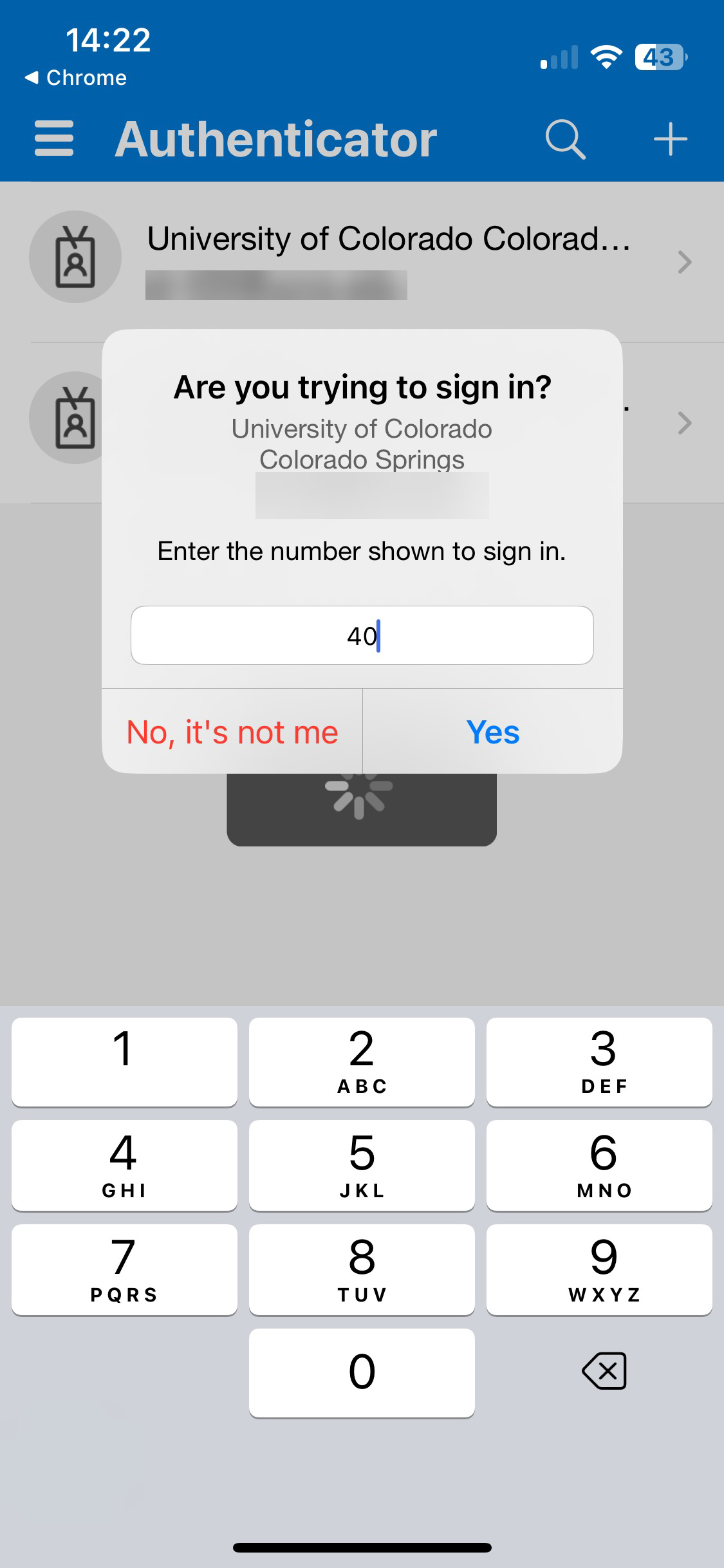 Image Added Image Added
Step 4: CompleteYour Authenticator app should be all set up. You can click 'Next' and continue to the page you were trying to access. 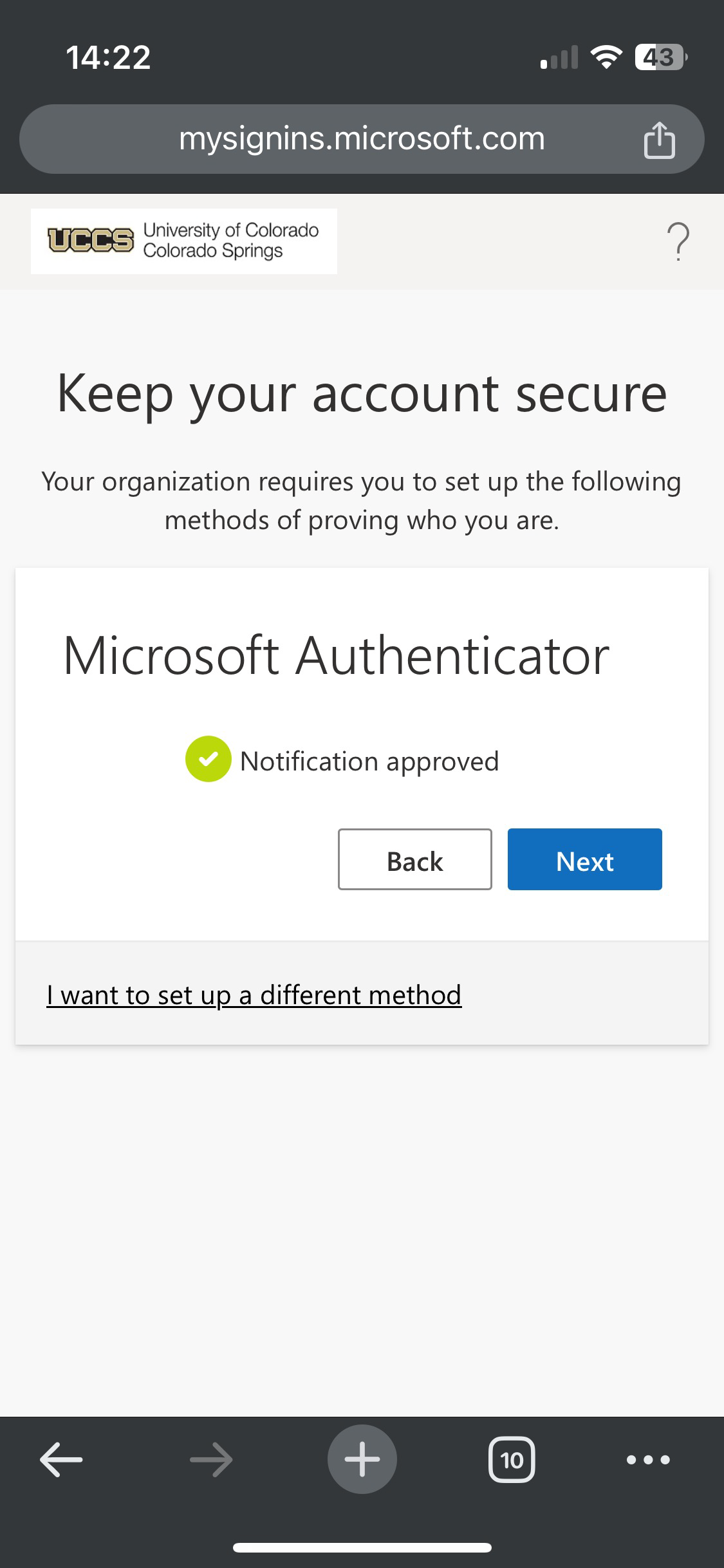 Image Added Image Added
|
|
...