| Table of Contents |
|---|
| Tip |
|---|
Adobe provides 2 options for logging in. You can use your Adobe ID which may be your personal account or an account you had prior to purchasing licensing from UCCS OIT. Or you can use an Enterprise ID which is managed by UCCS OIT.Your UCCS Adobe License is connected to your UCCS email address. You cannot use a personal email for the UCCS Adobe license. |
Step 1: Choose an Application to Sign into
There are multiple places to sign into Adobe products. Choose the appropriate sign in for the service you are attempting to access. Example: Adobe CC web login
- Adobe Creative Cloud Web Login
- Photoshop, Lightroom, Illustrator, etc.
- Adobe Acrobat and Sign Web Login
- For PDF editing and requesting signatures
Step 2:
...
Login Steps
If In the sign in box type your full email address. Clicking enter or navigating away from the Email Address field will automatically send you to the following screen
does not automatically appear on your screen, please select the "Sign In" link in the top right corner of the webpage.

To access your UCCS license: Enter your full UCCS email address in the email address box. Click "Continue".

...
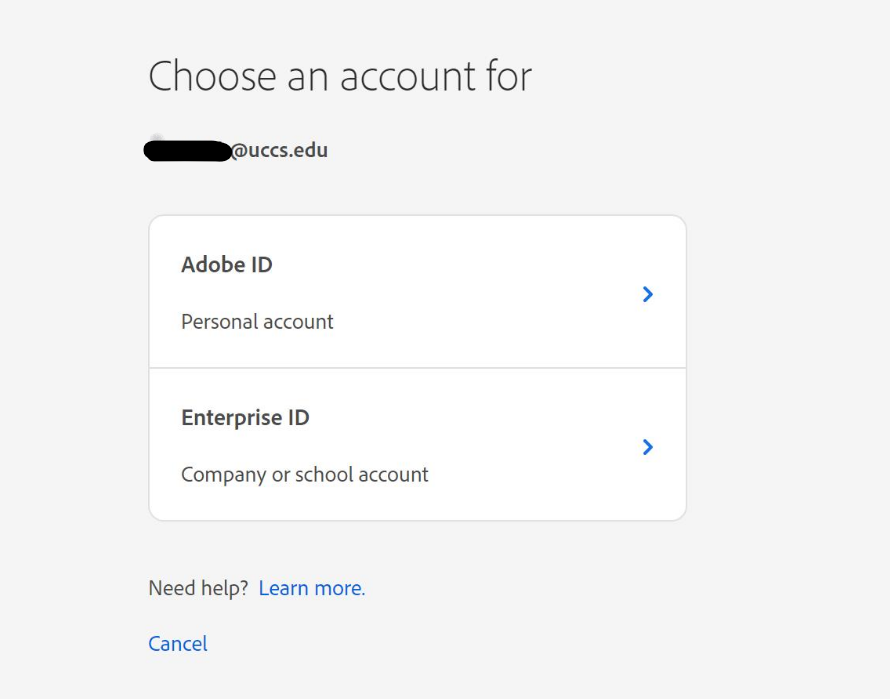
Choose Correct ID type
Choose the "Enterprise ID" option you will be sent to the traditional UCCS login screen
Step 4: Login
If this is your first time signing in with your UCCS email, you may be prompted to "choose an account". Please click "Enterprise ID" or "Work or School Account" if you are using your UCCS provided license.

Login
If this is your first time signing into Adobe, please enter your UCCS credentials when prompted and click Sign In.
If you have signed into Adobe before, you will be automatically signed in and brought to the homepage.
Step 3: Download the Adobe App You Need
After logging in, you will be brought to the Adobe homepage of either Acrobat or Creative Cloud.
To Download Acrobat DC Pro:
In the top right corner of your screen, select the button "Get Acrobat DC Desktop". Follow the prompts to complete the download.

To Download Creative Cloud:
In the top center-right of your screen, select the button "Your Creative Cloud" OR select the 'waffle' icon in the far right corner and then the Creative Cloud icon.

From the selection of apps, click the "Download" button under the Creative Cloud app:

Follow the prompts to complete the Creative Cloud download. After the app has downloaded, you can then download any CC apps.
Sign into the desktop app
After the download, you may need to sign into the desktop app. The sign in screen should pop up automatically once you open the desktop app.
This is what you should see:

To sign in, just copy the link and paste it in a web browser. Then sign in per normal. You may also try signing in via scanning the QR code with your phone.
For questions or additional assistance, please contact the OIT Service Desk. Enter your UCCS credentials and click Sign In