| Table of Contents |
|---|
The UCCS Virtual Lab environment is an Azure a cloud based virtual lab computing platform that allows students and staff faculty to remotely access UCCS provided lab applications and supported lab applications.
The Open Lab
This service is initially limited to a single Open Lab style environment that includes a limited selection of general use and licensed applications available to everyone. Specific software or dedicated labs may be available by request.
Access Options and Instructions
You have three two options for accessing the Virtual Lab Systems: Web Browser or Windows Remote Desktop Client
Preferred client platforms are the Microsoft Windows 10 OS or Edge browser. Mac users are limited to Internet Browser Access. Chromebook devices may use either method.
| Info | ||
|---|---|---|
| ||
If you experience connection errors or delays using the Web Browser method of access, it is recommended you use the Windows Remote Desktop Client method instead. |
Internet Browser Access
- Open a browser to virtuallabs.uccs.edu, or directly at Remote Desktop Web Client (microsoft.com). Microsoft Edge is preferred if you have issues with your existing browser.
- Enter UCCS SSO login credentials
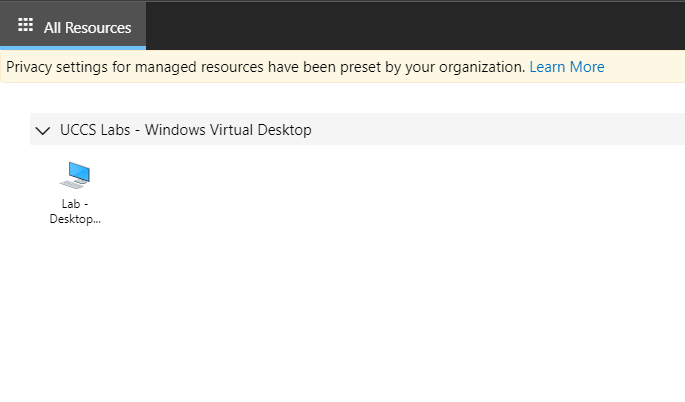
- Select the desktop Open Lab Desktop icon under UCCS Virtual Labs - Windows Virtual Desktop:
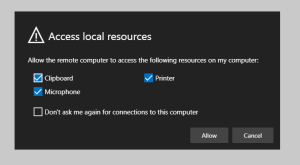
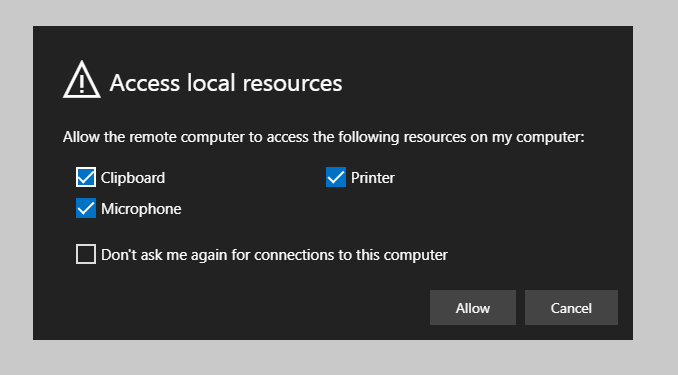
- Select local resources to make available, select then Allow:
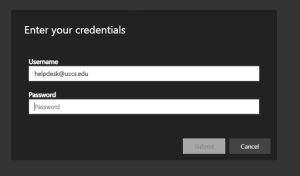
- Enter your domain email credentials:
- Virtual Lab Desktop will appear and work normally through the browser.
Windows Remote Desktop
...
Client
This is the preferred connection utility for improved connection speed and stability.
- From a Windows desktop , download the Microsoft Remote Desktop application directly from Microsoft, or see the Microsoft Store: Get Microsoft Remote Desktop - Microsoft StoreKB for additional Microsoft Desktop Documentation and Downloads.
- Install application using default settings
- Open from Start Menu:
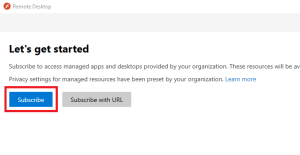
- If prompted with Let's Get Started, you must login first:
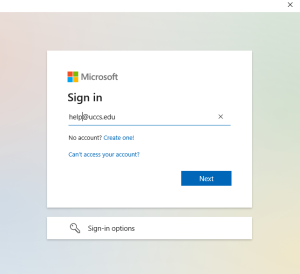
- Sign in with your UCCS email account:
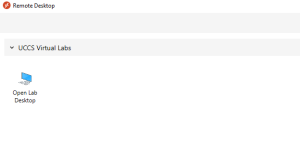
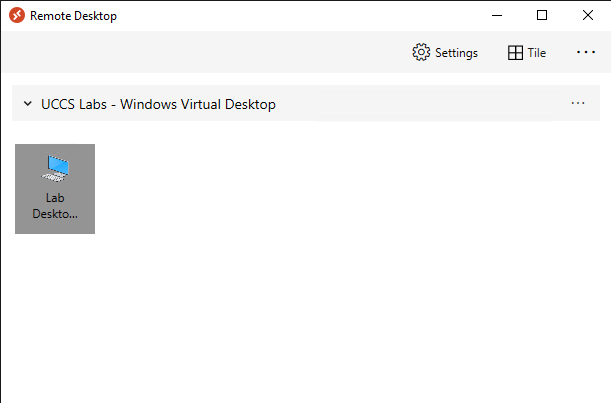
- Double-click on the Open Lab Desktop icon (or right click to modify connection settings first):
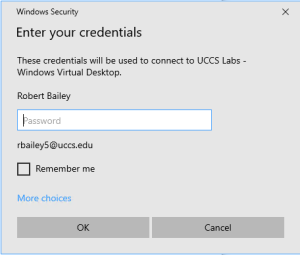
- Enter your domain email credentials then click OK:
- Remote Desktop Connection window will open normally.
Common Remote Desktop
This method should only be used if you need a specific Virtual Lab host, instead of the next available in the pool. - Using your preferred Remote Desktop Connection application, from the campus network (via VPN, RAP or campus connection) RDP directly to one of the following hosts:
- wvd-labsb-0.uccs.edu
- wvd-labsb-1.uccs.edu
- wvd-labsb-2.uccs.edu

OneDrive, Profiles, and Data Storage
Any content saved on a Virtual Lab System system not stored in your OneDrive or campus Home Directory network drive will be lost! This includes all content in your local 'Downloads' directory and the system's 'Temp' directory.
...
The common shared drive mapping for your home directory and department directory are still in place, allowing you to manually save content to this storage if needed.
Available Software
Currently the Virtual Labs are limited to a single Open Lab environment, so access to specific licensed software
...
may not be available yet.
Please contact the Help Desk to request additional licensed software be available on the Virtual Labs.
- Internet Browsers (Edge, Firefox, Chrome)
- Microsoft Office365
- ArcGIS Desktop
- Adobe Creative Cloud Suite
- Adobe Acrobat Pro DC
- VLC Media Player
- Matlab r2020b
Feedback and Reviews
With this pilot program, we are looking for feedback on your usage of the Virtual Lab systems to help improve the service before a campus release. Any questions, comments, and concerns you can share is valuable in assessing what still needs improvement and what is working for us. Any feedback is welcome, but we are paying specific attention to:
- Basic system functionality over remote access (lag, delays, limitations caused by cloud access, etc).
- Application performance (Adobe vs Office, ArcGIS fully functional?).
- Missing applications you request be installed.
- OneDrive profile redirection compared to the campus labs current local file server storage.
- Do you already have a better alternative to the Virtual Lab, or see a use on campus?
- Microsoft Office365 / Teams
- Microsoft PowerBI Desktop
- Tableau Desktop
- IBM SPSS/AMOS 31
- ArcGIS Pro 3.5
- Remote Desktop / PuTTY
- Notepad++
- R / RStudio
HLM 8.2- JASP 0.95
- Zoom
...