| Table of Contents |
|---|
The UCCS Virtual Lab is a cloud based computing platform that allows students and faculty to remotely access UCCS supported lab applications.
The Open Lab
This service is initially limited to a single Open Lab style environment that includes a limited selection of general use and licensed applications available to everyone. Specific software or dedicated labs may be available by request.
...
| Info | ||
|---|---|---|
| ||
If you experience connection errors or delays using the Web Browser method of access, it is recommended you use the Windows Remote Desktop Client method instead. |
Internet Browser Access
- Open a browser to virtuallabs.uccs.edu, or directly at Remote Desktop Web Client (microsoft.com). Microsoft Edge is preferred if you have issues with your existing browser.
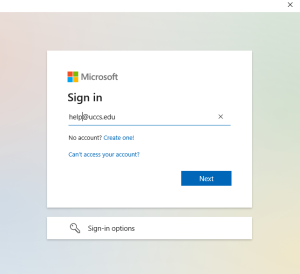
- Enter UCCS SSO login credentials
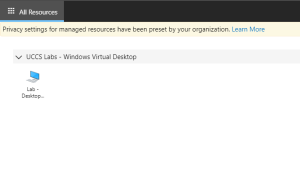
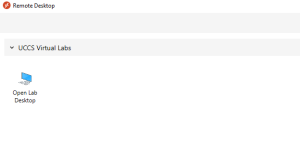
- Select the Open Lab Desktop icon under UCCS Virtual Labs:
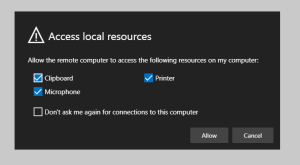
- Select local resources to make available, then Allow:
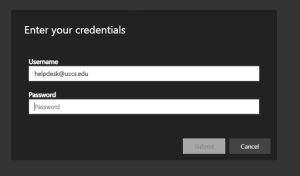
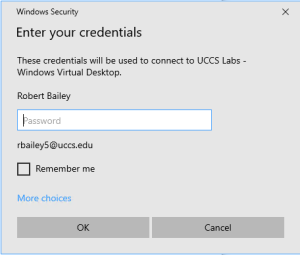
- Enter your domain email credentials:
- Virtual Lab Desktop will appear and work normally through the browser.
Windows Remote Desktop Client
...
- From a Windows desktop download the Microsoft Remote Desktop application directly from Microsoft, or see the Microsoft KB for additional Microsoft Desktop Documentation and Downloads.
- Install application using default settings
- Open from Start Menu:
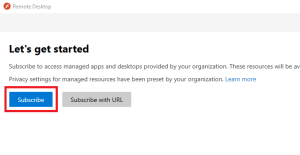
- If prompted with Let's Get Started, you must login first:
- Sign in with your UCCS email account:
- Double-click on the Open Lab Desktop icon (or right click to modify connection settings first):
- Enter your domain email credentials then click OK:
- Remote Desktop Connection window will open normally.

Internet Browser Access
- Open a browser to virtuallabs.uccs.edu, or directly at Remote Desktop Web Client (microsoft.com). Microsoft Edge is preferred if you have issues with your existing browser.
- Enter UCCS SSO login credentials
- Select the Open Lab Desktop icon under UCCS Virtual Labs:
- Select local resources to make available, then Allow:
- Enter your domain email credentials:
- Virtual Lab Desktop will appear and work normally through the browser.
OneDrive, Profiles, and Data Storage
...
- Internet Browsers (Edge, Firefox, Chrome)
- Adobe Creative Cloud Suite
- Adobe Acrobat Pro DC
- Microsoft Office365 / Teams
- Microsoft PowerBI Desktop 2.96
- Tableau 2021.2.1Desktop
- IBM SPSS/AMOS 2631
- ArcGIS Pro 23.8.1
- ArcGIS Desktop 10.8.1
- 5
- Remote Desktop / PuTTY
- Notepad++
- R / RStudio
HLM 8.2- JASP 0.95
- Zoom