| Excerpt Include | ||||
|---|---|---|---|---|
|
Step 1: Open Network Connections
Click the networking icon in the system tray, typically located in the lower right side of the screen.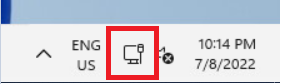
...
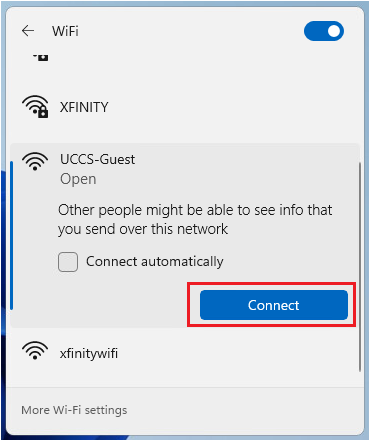
Note - if you want the computer to remember and save this network so it will automatically connect when in range, check the Connect automatically box.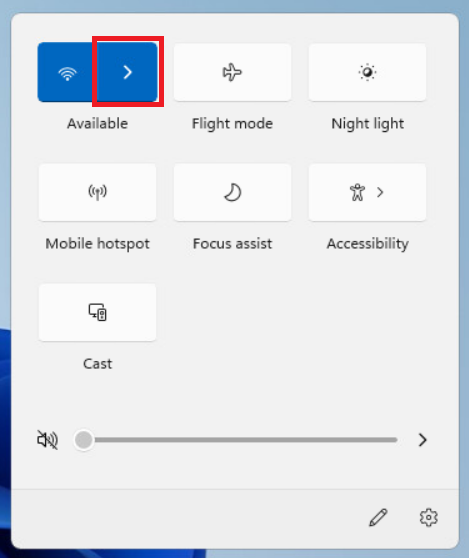
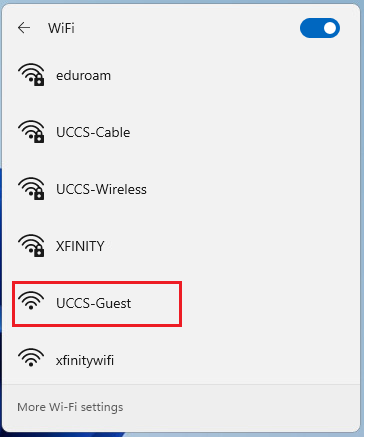
Step 3:
...
steps here
Step 4: <edit>
steps here
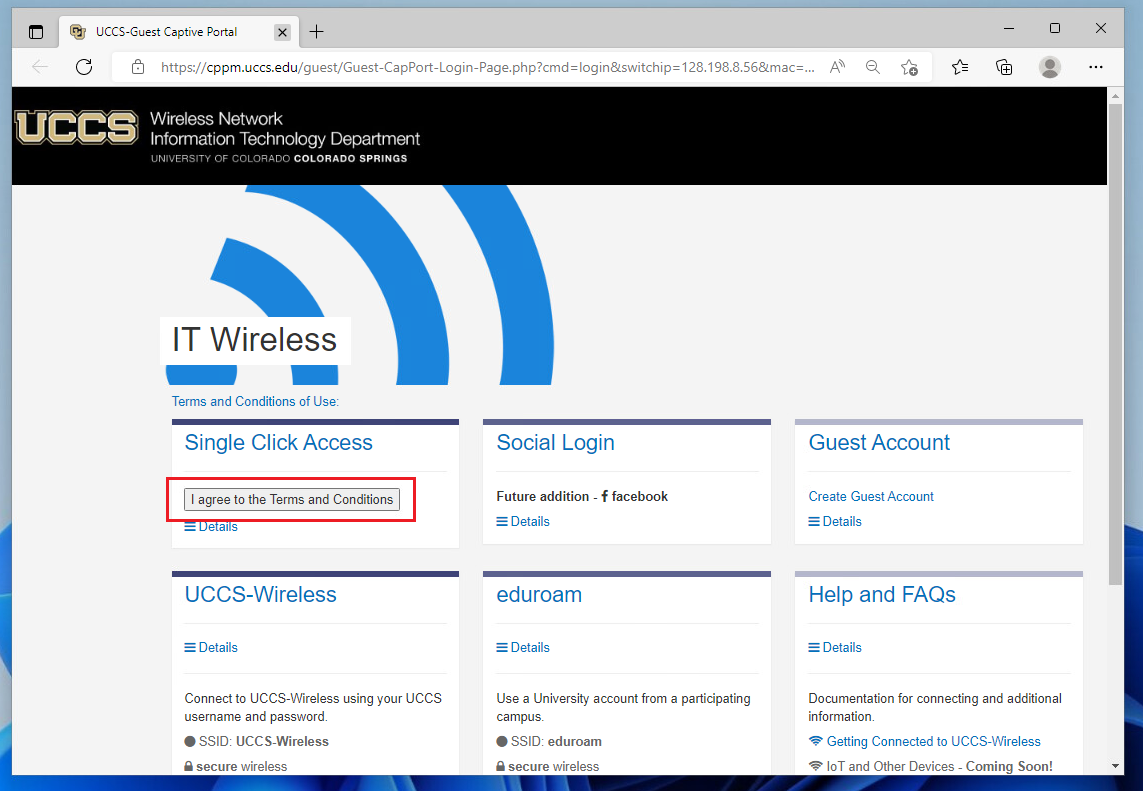
Choose Single Click Access in the captive portal
A captive portal web browser should automatically open and appear as below. If it does not open automatically, you may have to manually open a web browser.
Review the terms and conditions and then click the button to agree and select Single Click Access.
Step 4
...
: Confirm connection
Your device should now be connected to UCCS-Guest.
Note that this network is open and unsecure, so you should not send any sensitive data over this connection.
If you desire a secure and encrypted wireless connection, visit this KB article about requesting a username and password you can use to connect to our secure wireless network called UCCS-Wireless.
If you are still having problems connecting, please contact the OIT Help Desk.
...