| Table of Contents |
|---|
| Note |
|---|
When you log into |
...
an Office 365 Application, such as Outlook Web App (OWA) for the first time, you will be asked to provide account recovery options. You must provide at least one of the two requested options (alternative email or phone number). |
...
Step 1:
...
Open My UCCS Account Page
Go to https://myaccount.uccs.edu/ and click on Update Recovery Options.

Step 2:
...
Login with your UCCS Credentials
Login with
...
Type in your UCCS email address and password. Click Sign In


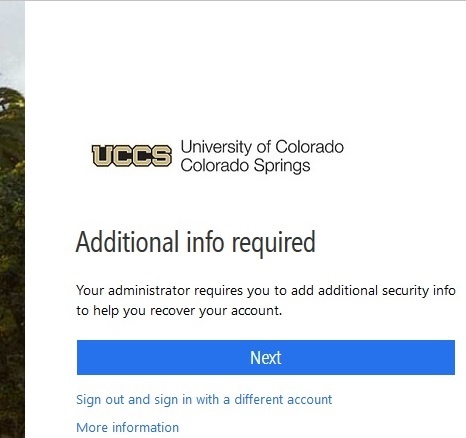
Step 3: Additional info required
You will see the following image. Click Next to add additional recovery information

Step 4:
...
Set up the Authenticator App
You will be directed to the following page to set up recovery options. Only one recovery option is required, however, you can configure both. We highly recommend setting up the Microsoft Authenticator app.
| UI Button | ||||
|---|---|---|---|---|
|
| UI Button | ||||
|---|---|---|---|---|
|
 See Recovery Option 1: Phone to setup Phone Recovery or Recovery Option 2: Email to setup Email Recovery
| Anchor | ||||
|---|---|---|---|---|
|
...
Additional Option: Phone Number
Step 1: I want to set up a different method
Select the link located on the bottom left titled "I want to set up a different method." You will be presented with a drop-down menu, select Phone then  .
.
| Note |
|---|
Do not use your campus phone number if you share an office with others. |

If the phone is text message capable, click on text me. If you prefer to receive a phone call, click on call me.

Step 2: Verify Code
Enter the code that you received in a text message or via an automated call. Press Next


...