UCCS-Guest – Creating a Guest Account on Windows 10
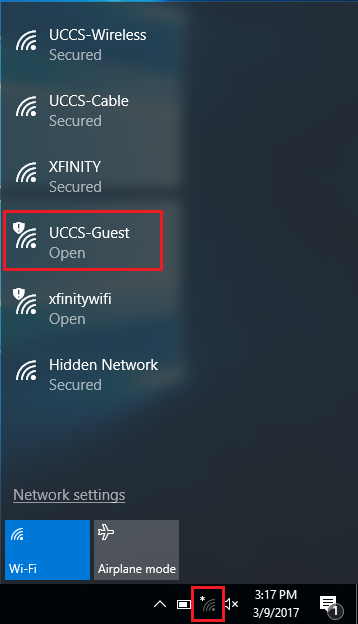
Step 1: Click Network Icon and Select UCCS-Guest
Click on the network icon in the bottom right corner. Then select the UCCS-Guest network.
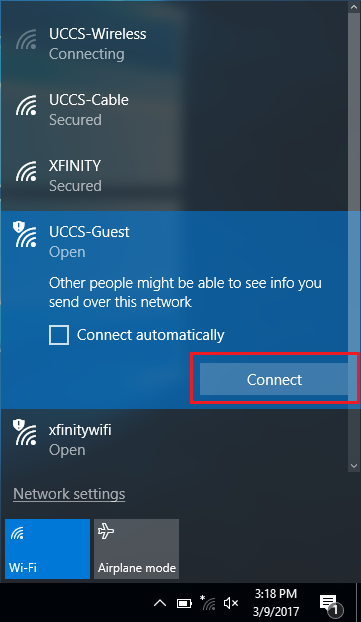
Step 2: Click Connect
Click Connect to begin connecting to the UCCS-Guest network.
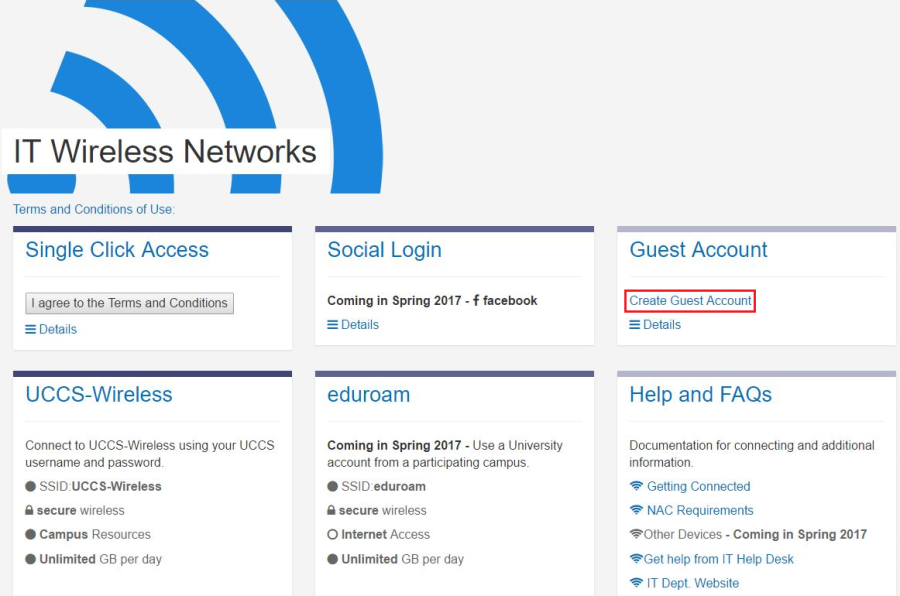
Step 3: Click Create Guest Account
A browser window will automatically open once connected to UCCS-Guest. Select the Create Guest Account option.
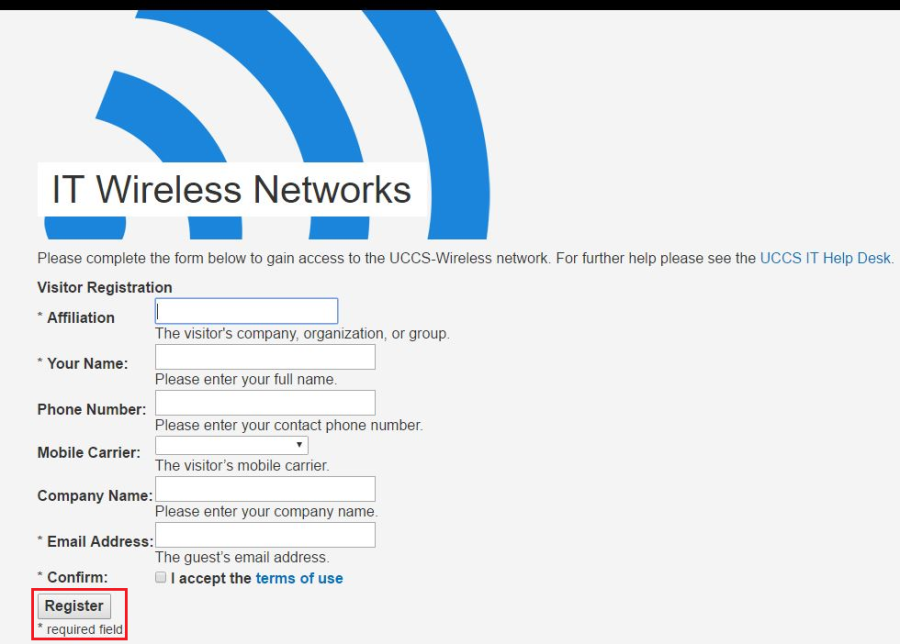
Step 4: Fill Out Form and Click Register
Fill out the form and then click the Register button at the bottom.
Step 5: Take Note of Guest Account Information
You will be provided with information about your Guest Account once the form has been completed. Please take note of this information.