
Table of Contents
Scope
This is a projector-based, uncontrolled classroom with an Epson projector and remote.
- Dell OptiPlex 7450 AIO Podium PC
- 2 Ceiling Speakers
- iClicker System
- Manual Projector Screen
- Epson PowerLite L610U 6000 Lumen Laser Projector with Mount
- VGA input at Lectern
- Vaddio/Hyflex VTC System with Camera and Ceiling Microphones
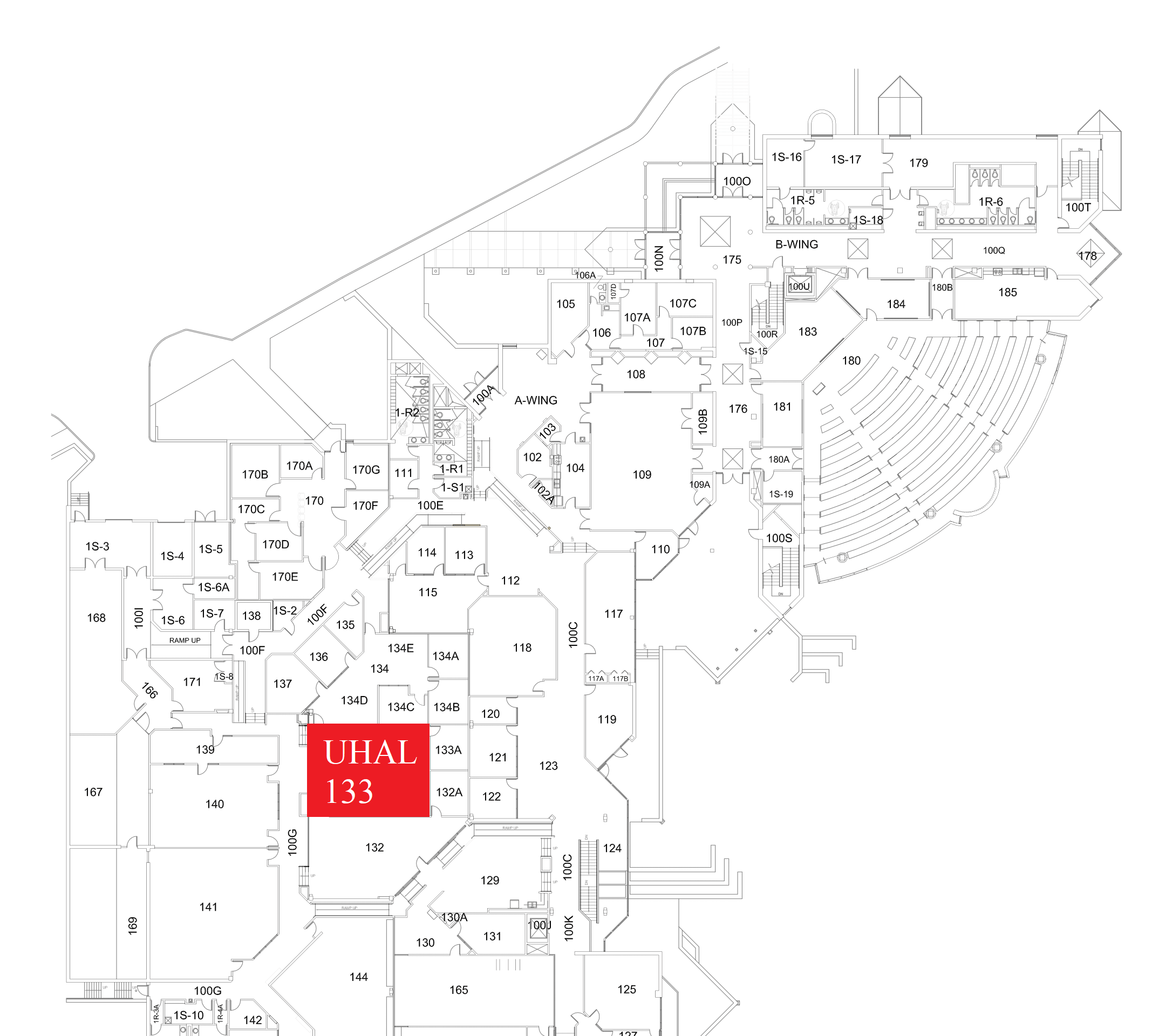
Location: UHAL 1st Floor A-Wing
Remotes
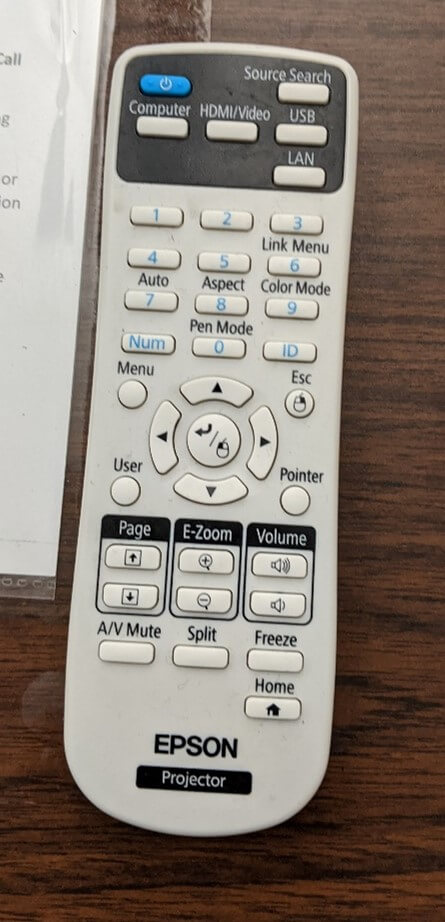
Projector Remote
Controls the projector and volume in the room. Located on top of the podium or in the middle right podium drawer.
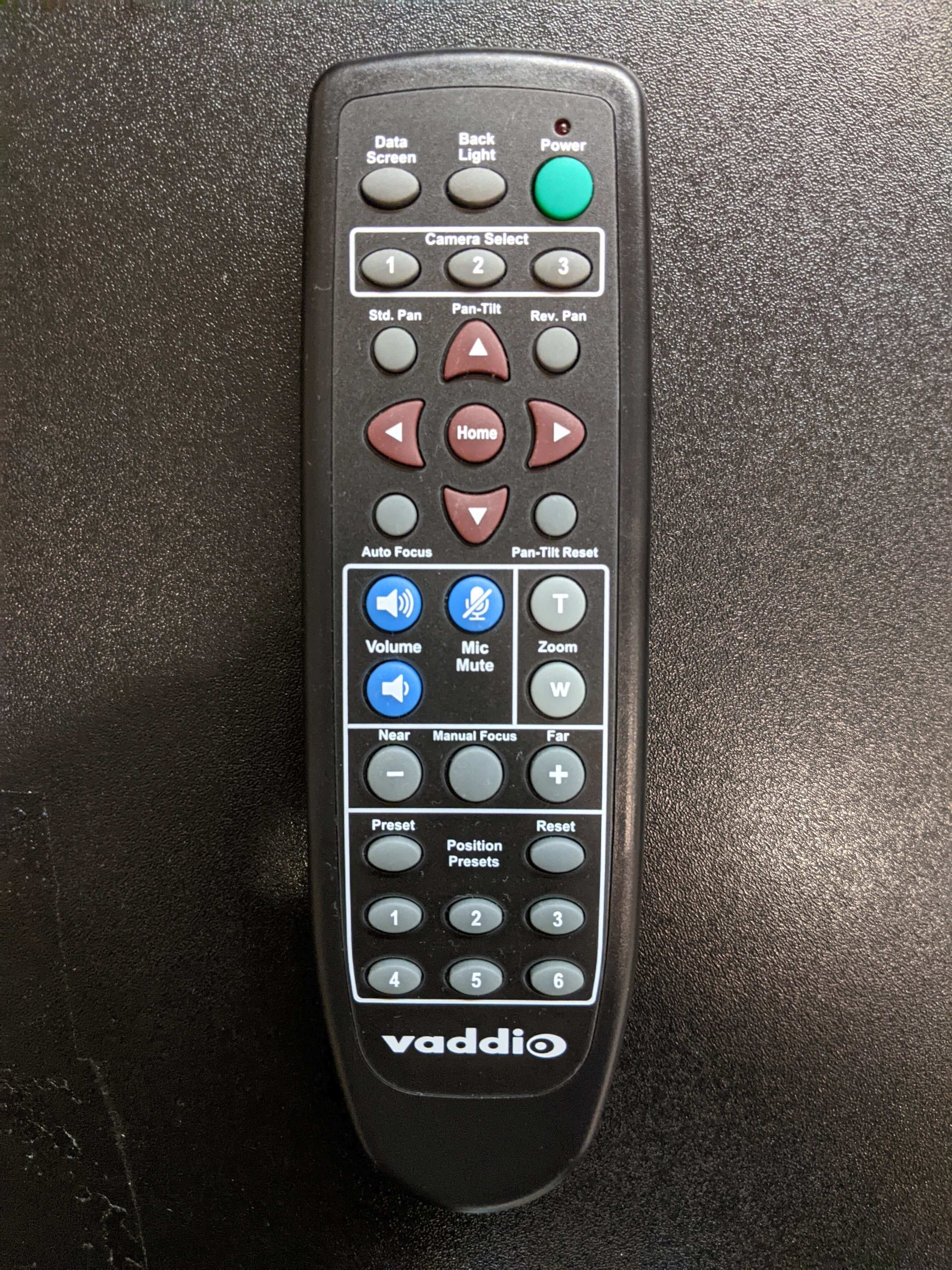
Hyflex Remote
Controls the Hyflex VTC System. Located on top of the podium or in the middle right podium drawer.
Controlling the A/V System
Using the Remote
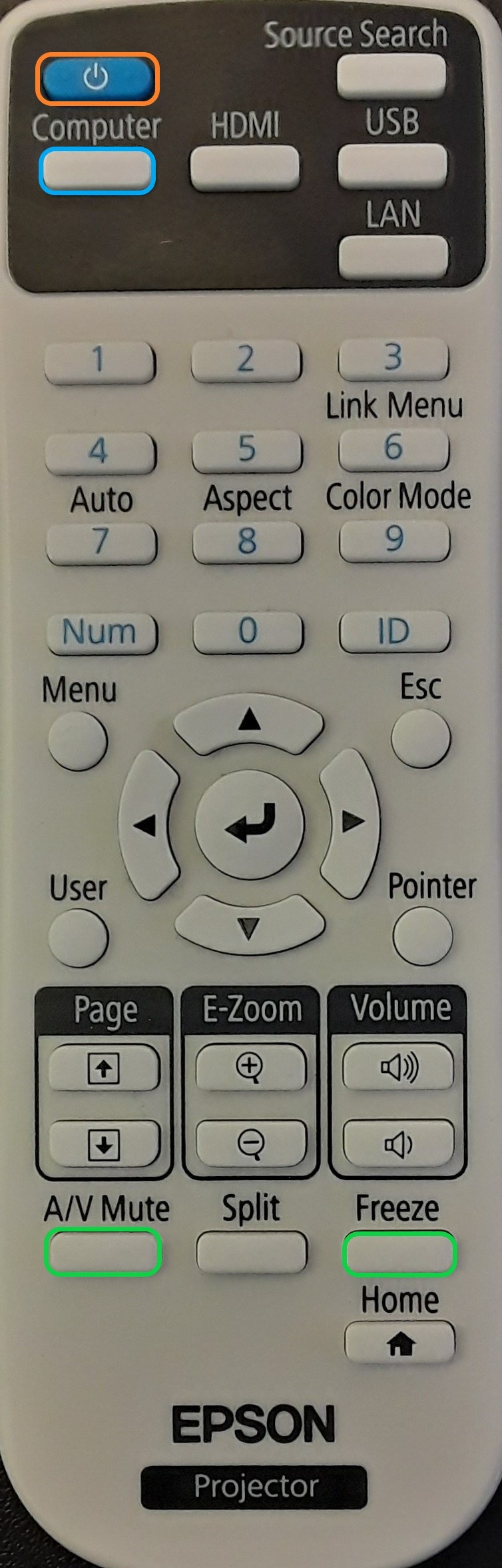
The remote for the projector controls most functions in the room. The remote is labeled below with the colors corresponding to a particular section explaining that function.
Turning the system on and off
To turn the system on, press the power button on the remote (outlined in orange to the left). This will only turn on the projector. You must physically pull on the string/handle on the screen to lower it. The bottom edge of the screen should be near the marker tray.
To turn off the system, press the power button twice. This will turn off the projector. To raise the screen, pull on the string/handle and the screen should raise. You may have to push on it a bit to get it all the way up.
Source Selection
The source in this space is going to be "Computer" (outlined in blue to the left). To switch inputs, first make sure that your laptop is connected with the provided VGA cable, then press the grey button on gray switching box on the top of the lectern. This will change the input to your laptop. To switch back to the podium PC, please press the grey button on the input changer again. There should be no need to switch inputs on the remote, unless troubleshooting an issue.
Volume Control
Volume can be controlled with the volume knob behind the lectern, or on the PC using the volume controls on the bottom right corner of the screen.
Before adjust volume knob on the wall, make sure the computer volume is up/not muted and that the source you're playing from also is not muted.
The volume is NOT affected by the volume button on the projector remote in this space.
Projector Control
The most commonly used projector functions are A/V Mute and Freeze. A/V Mute is on the bottom left of the remote, and Freeze is on the bottom right of the remote (both outlined in green to the left).
- A/V Mute will shutter the projector and mute the audio. Use this feature when you want to use the whiteboard or front of the room without shutting down the system. Please only use this feature for up to 20 minutes, otherwise it's best to shut down the system.
- Freeze will freeze the currently displayed image on the screen. Use this feature if you'd like to hold a frame still on the screen or use the podium PC for another activity without displaying it, such as checking your email.
Inputs
Using the Podium PC and Lectern
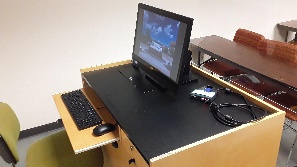
The computer placed on the podium is the primary source for this AV system. This computer runs the same image as all other podium computers in general fund classrooms and labs. You can sign in with your UCCS credentials.
The keyboard and mouse are located in the pull-open tray shown below. Please return them to this tray after use.
Using a Laptop
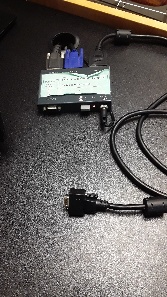
The VGA cable on the lectern is for use with a laptop. Connect your device and press the grey rectangular button to switch between inputs.
iClicker
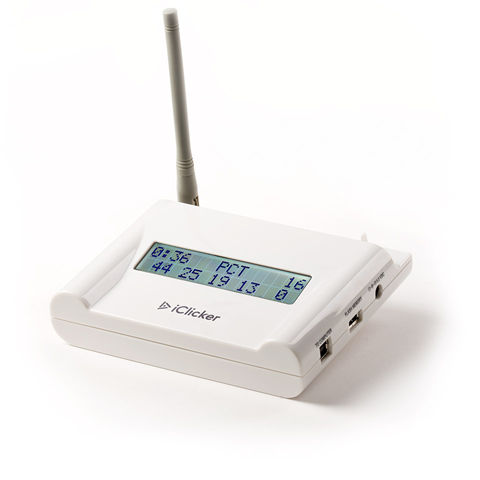
The iClicker system is used for student engagement and is located under/behind the podium PC. Unfortunately, this is not supported by OIT. If an instructor asks for assistance, they need to visit the Faculty Resource Center
Screen Control

The screen in this room is manually operated. The handle, with a string attached, is outlined in red in the photo above.
Troubleshooting
Audio Issues
Fixing Audio Issues: Uncontrolled Room
Video Issues
Fixing Video Issues: Uncontrolled Room
Vaddio/Hyflex VTC System
Room Specific Issues
This room has no unique equipment or known issues.
Photos
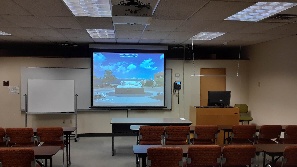
This is a projector-based, uncontrolled classroom

The room speakers are located on the ceiling on either side of the projector screen.
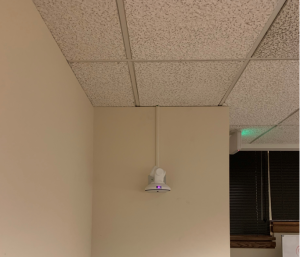
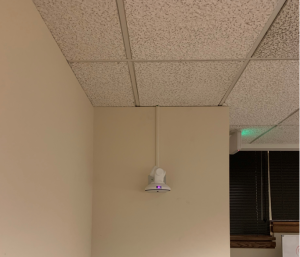
This is the Hyflex camera in the room. It is located on the back wall.
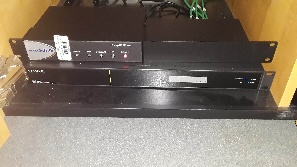
This is the A/V rack located in the bottom left compartment of the podium. It contains the Vaddio/Hyflex VTC system.
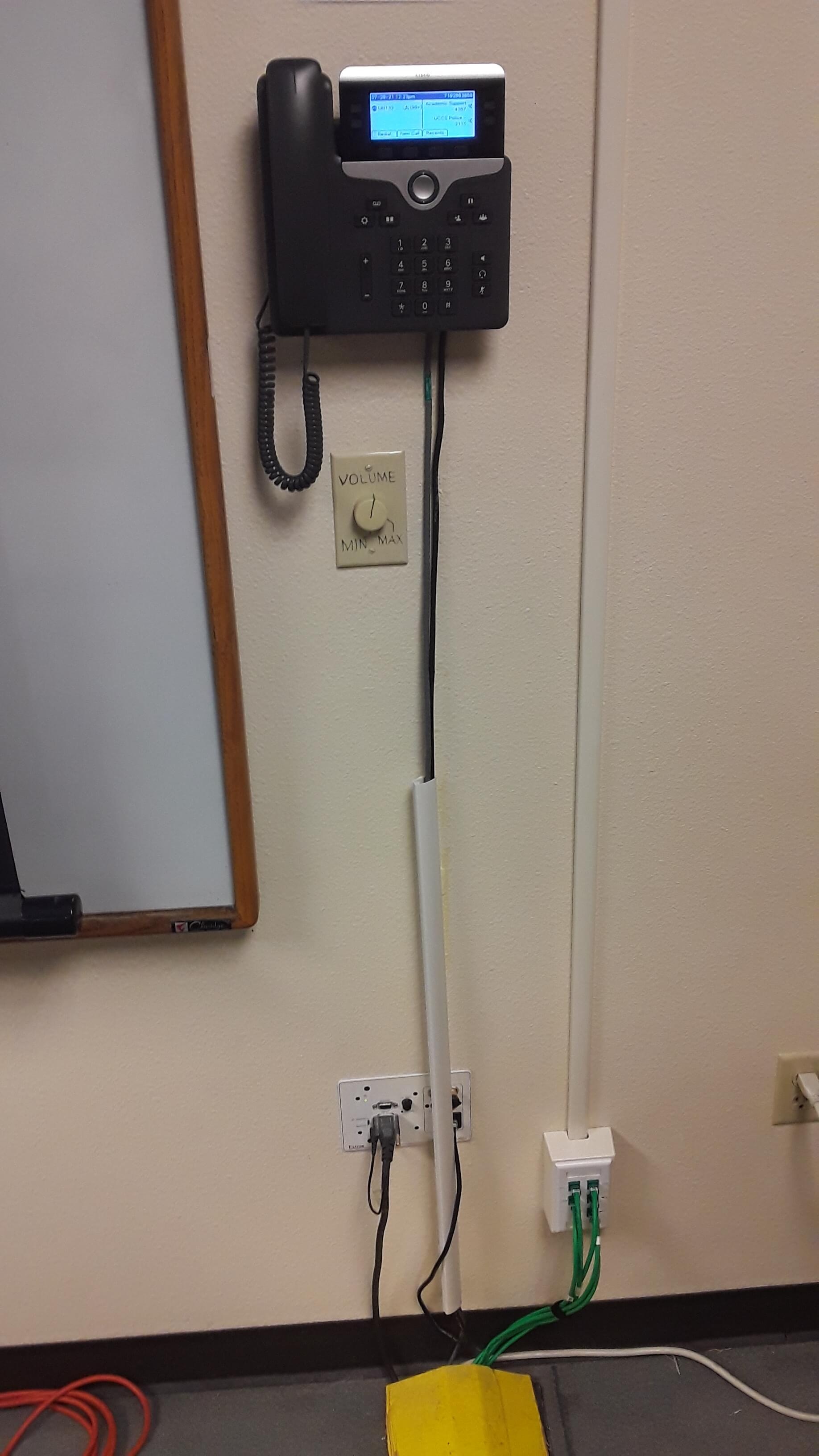
This is the Cisco phone located on the wall beside the podium desk as well as the volume knob, which controls the volume in the space.