
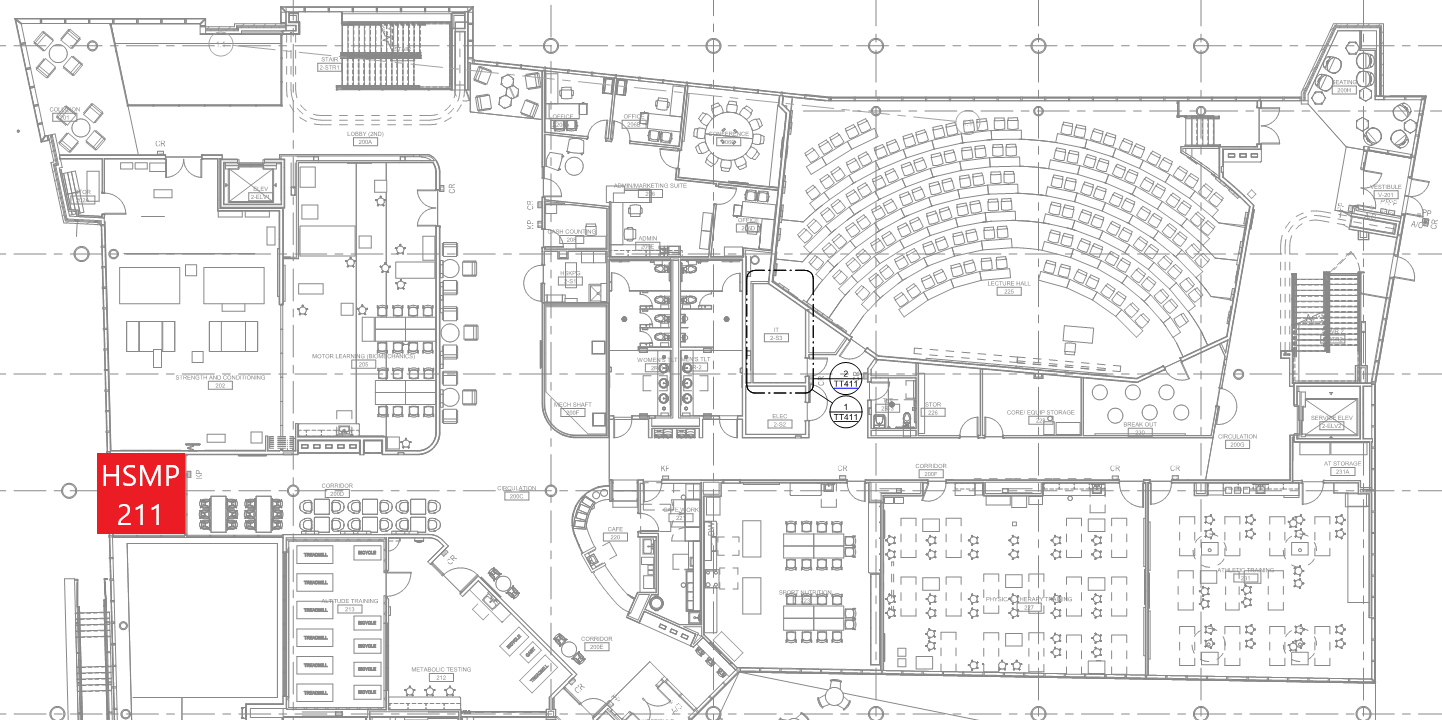
Location
Using the System
Turning the system on and off
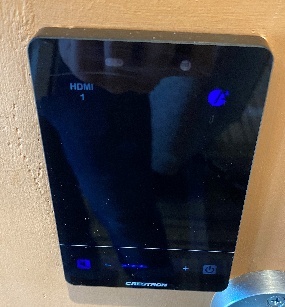
The AV system will power on when pressing the power button in the lower right corner of the control panel. This will turn on the display. To turn the AV system off, press the power button again.
Source Selection
There are two sources available for selection, HDMI and AirMedia. To select a source press the corresponding button on the top of the control panel.
Volume Control
Volume can be controlled using the volume buttons at the bottom of the control panel. The raise and lower buttons are on either side of the volume bar and the mute button is located in the lower left corner.
Using the AirMedia
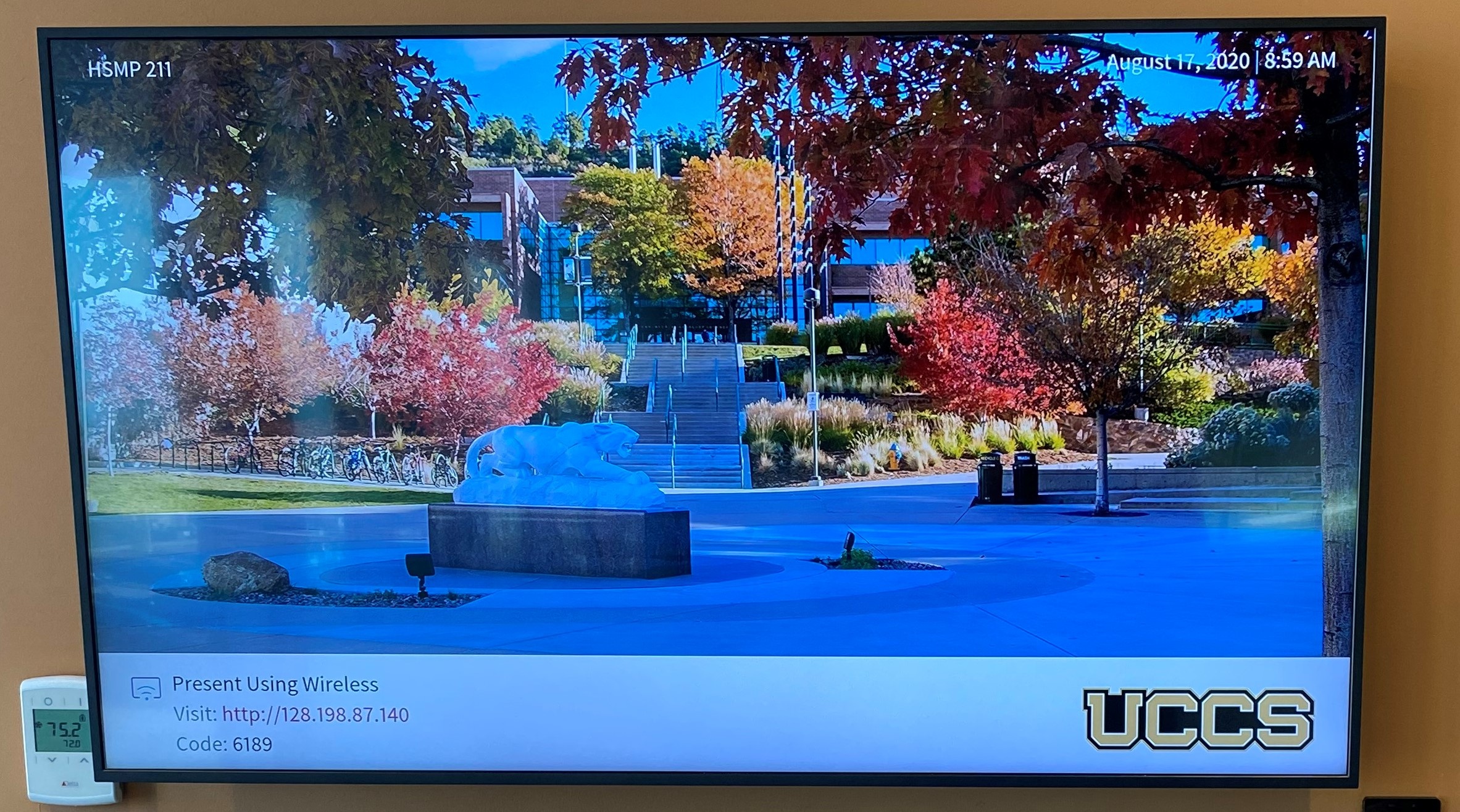
The AirMedia allows for wireless presentation of any device connected to the UCCS-Wireless network.
To connect to the AirMedia:
- Select the AirMedia source on the touch panel
- Open a web browser and enter the address listed on the lower right corner of the display
- Follow the instructions on the webpage to download the app to your device
- Enter the IP address and code to connect your device and start presenting
HDMI Input
The HDMI input is located below the display. You must provide your own HDMI cable.
Troubleshooting
Audio Issues
- If you are still experiencing audio issues, please contact an Academic Support Technician at 255-HELP (x4357).
Video Issues
- If you are still experiencing audio issues, please contact an Academic Support Technician at 255-HELP (x4357).
Photos
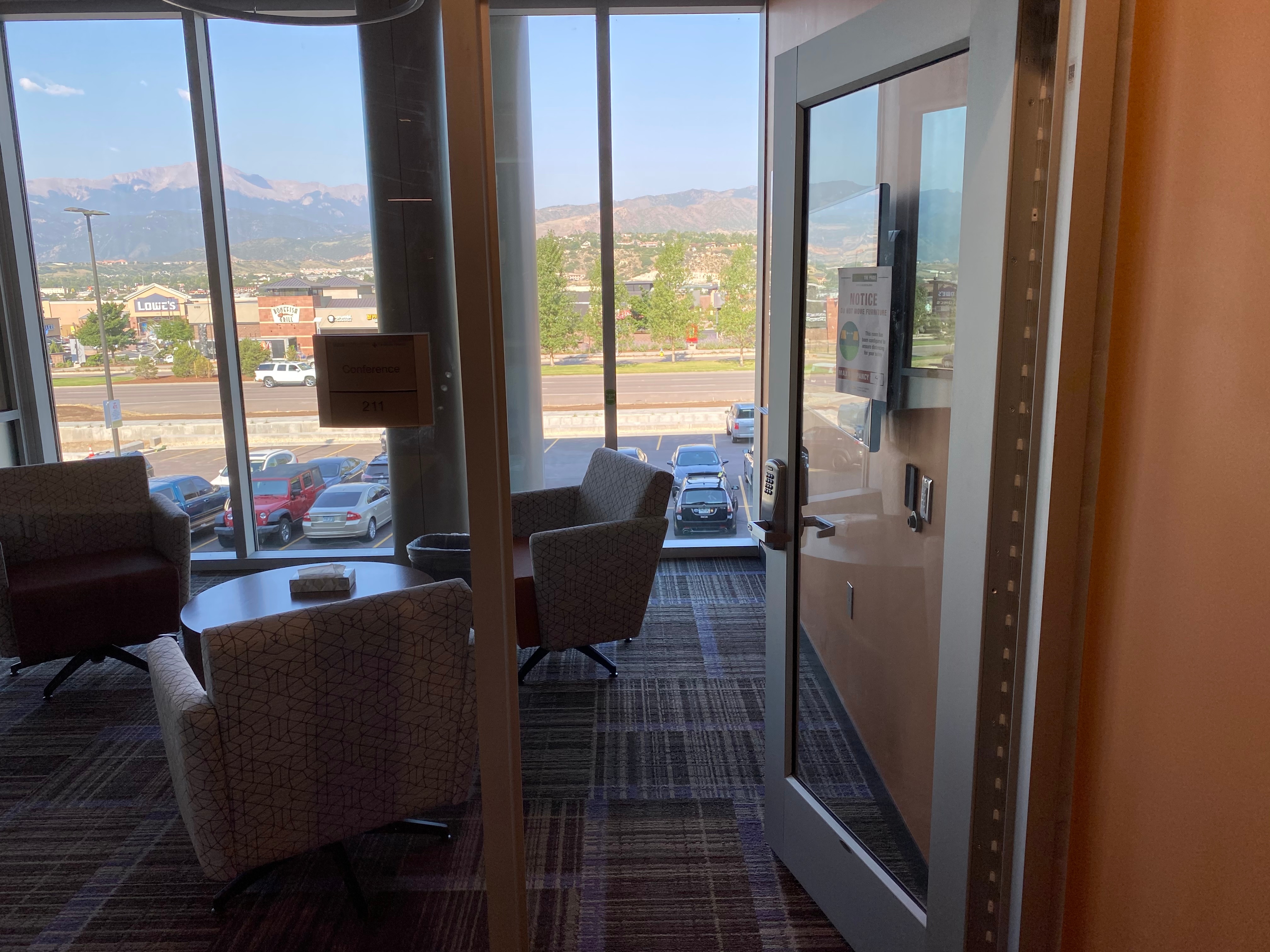
The room is a small meeting room at the end of the hallway opposite the cafe.

The AV system consists of a wall-mounted display with an AirMedia attached, an HDMI input below the display, and a control panel to the right of the display.
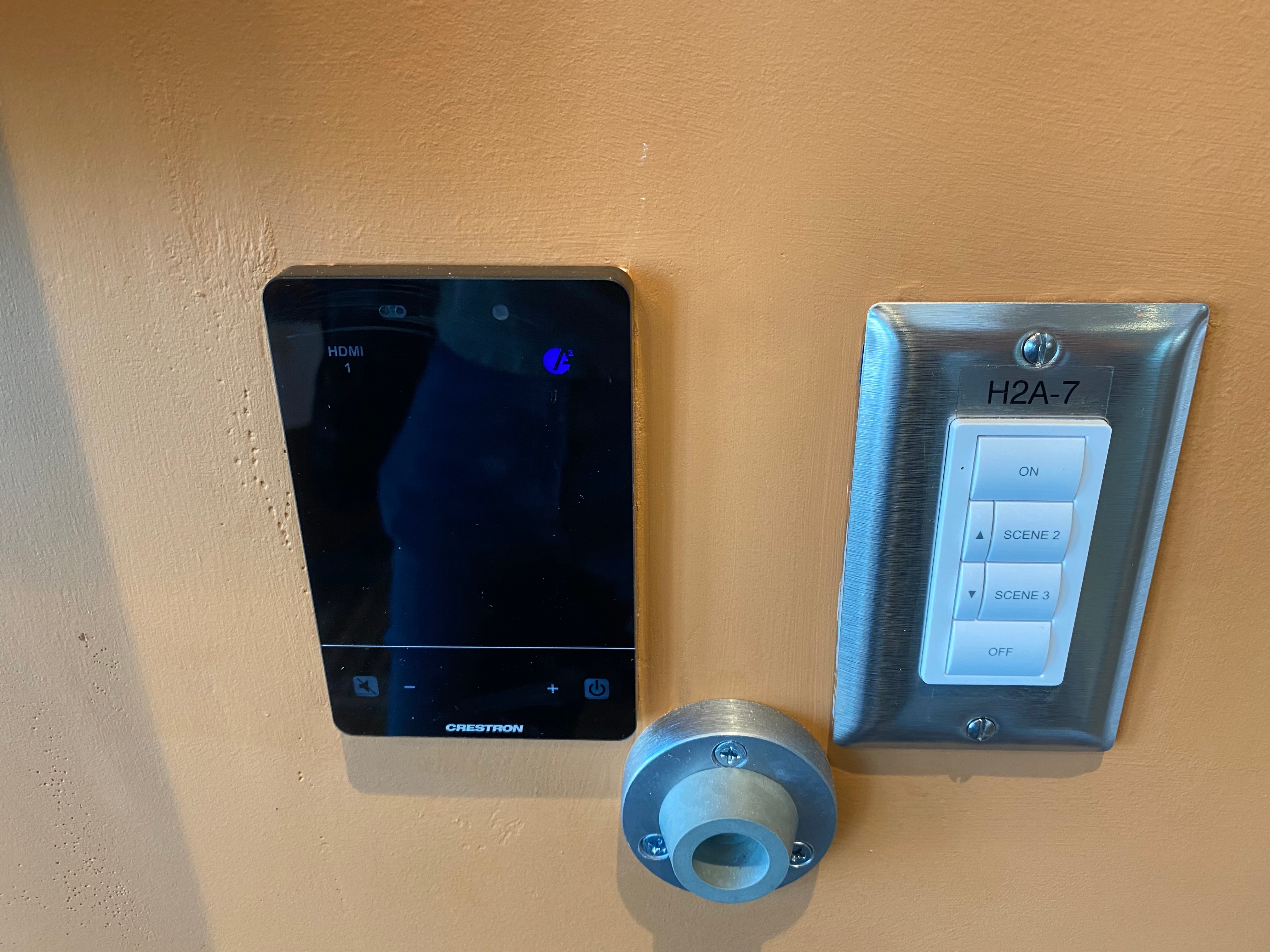
The control panel has two source selection buttons at top (HDMI and AirMedia), volume controls on the bottom, and a power button in the lower right corner.