Table of Contents
Scope
This is an uncontrolled conference room with a ClearTouch PC
- ClearTouch PC
- Logitech Wireless Keyboard and Mouse
- Crestron UC soundbar with camera and microphone
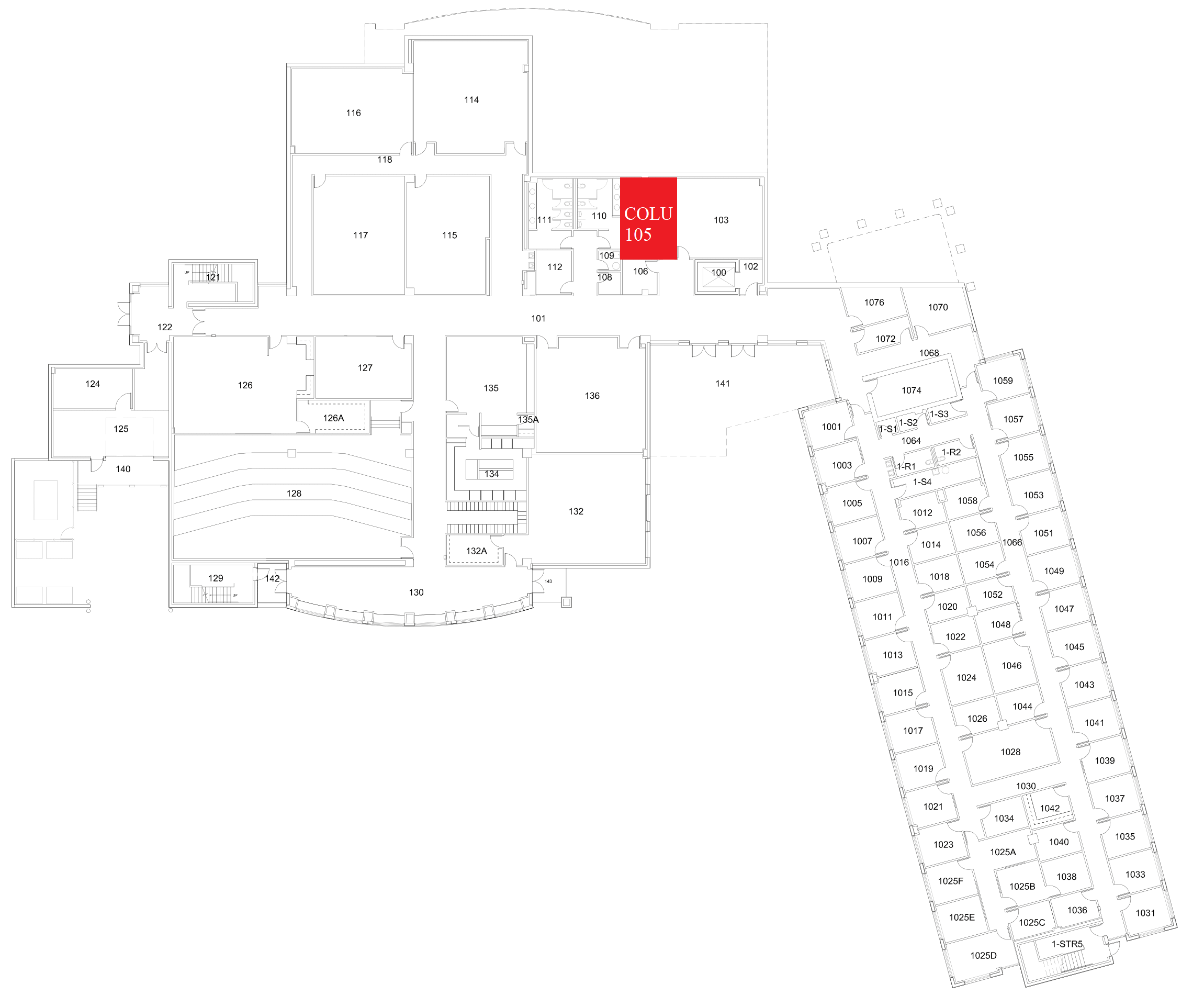
Location: Columbine 1st Floor
Peripherals
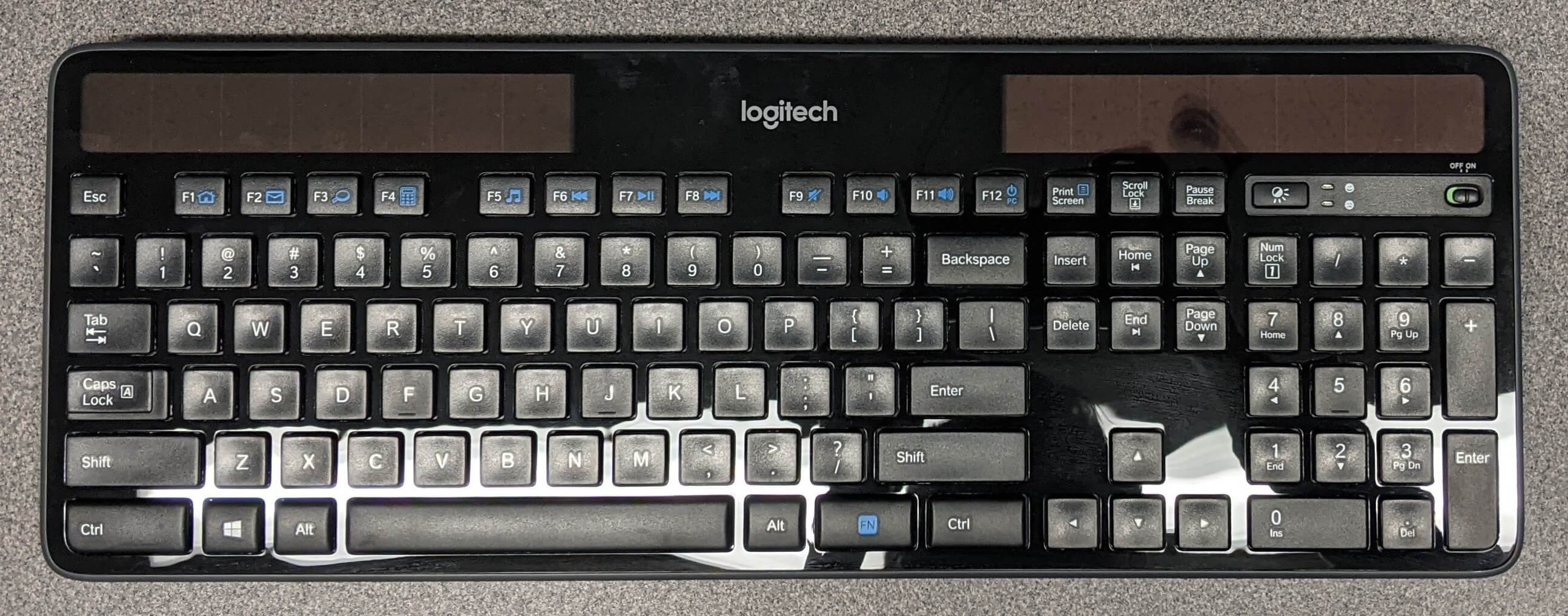
Logitech Wireless Keyboard
For use with the ClearTouch PC. Located on the bottom shelf of the mobile cart.
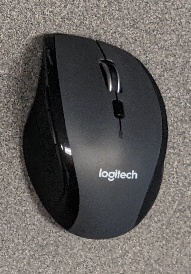
Logitech Wireless Mouse
For use with the ClearTouch PC. Located on the bottom shelf of the mobile cart.
Controlling the A/V System
Using the Touch Screen
The interactive touch screen of the ClearTouch PC controls all features of the PC and display. The screen and menus are labeled below with the colors corresponding to a particular section explaining that function.
To navigate the built-in PC you can use your hands and fingers or the provided keyboard and mouse.

Turning the system on
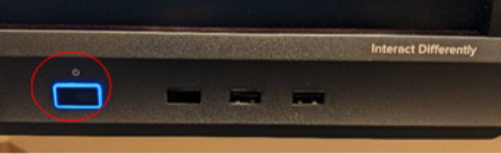
To turn the system on, press the power button at the bottom right of the Cleartouch screen.
Turning the system off
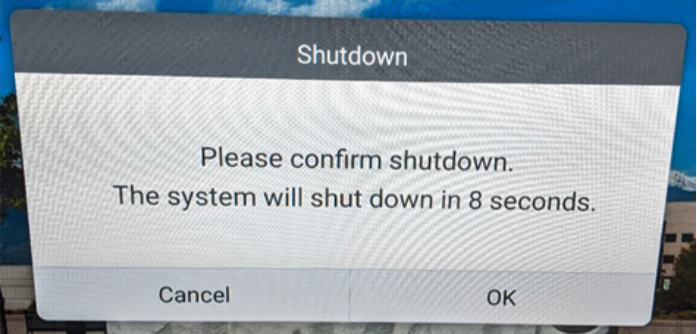
To turn the system off, hold the power button for 3 seconds. A prompt will appear asking you to confirm shutdown. You can confirm, cancel, or wait for the countdown.
Volume Control
Volume can be controlled with the PC system volume  on the task bar in the bottom right of the screen, or with the volume slider in the source selection menu above.
Source Selection
There is only one source on the Cleartouch and that's the built in PC. If the Cleartouch isn't on the correct source:
1. Tap on one of the white arrows located at the bottom left and right of the screen to open a shortcut menu.
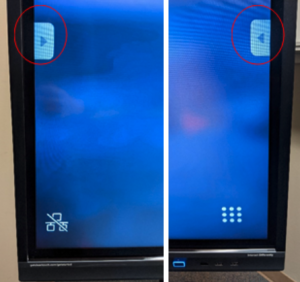
2. Select the shortcut with white sliders on a blue background to open the input selection menu.
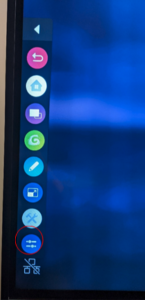
3. Select the PC source from the menu.
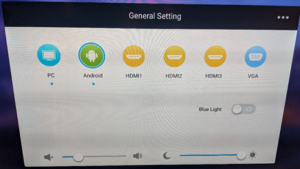
Inputs
Using the Podium PC and Lectern
The built-in on the podium is the single source for this AV system. This computer runs the same image as all other podium computers in classrooms and labs. You can sign in with your UCCS credentials.
Using the Vaddio/Hyflex VTC System
The Crestron UC soundbar. This contains a microphone, webcam, and speaker system.
Troubleshooting
Audio Issues
How To: Using Cleartouch Systems
Video Issues
How To: Using Cleartouch Systems
Room Specific Issues
Crestron Mobile Cart Conferencing Soundbars
Photos
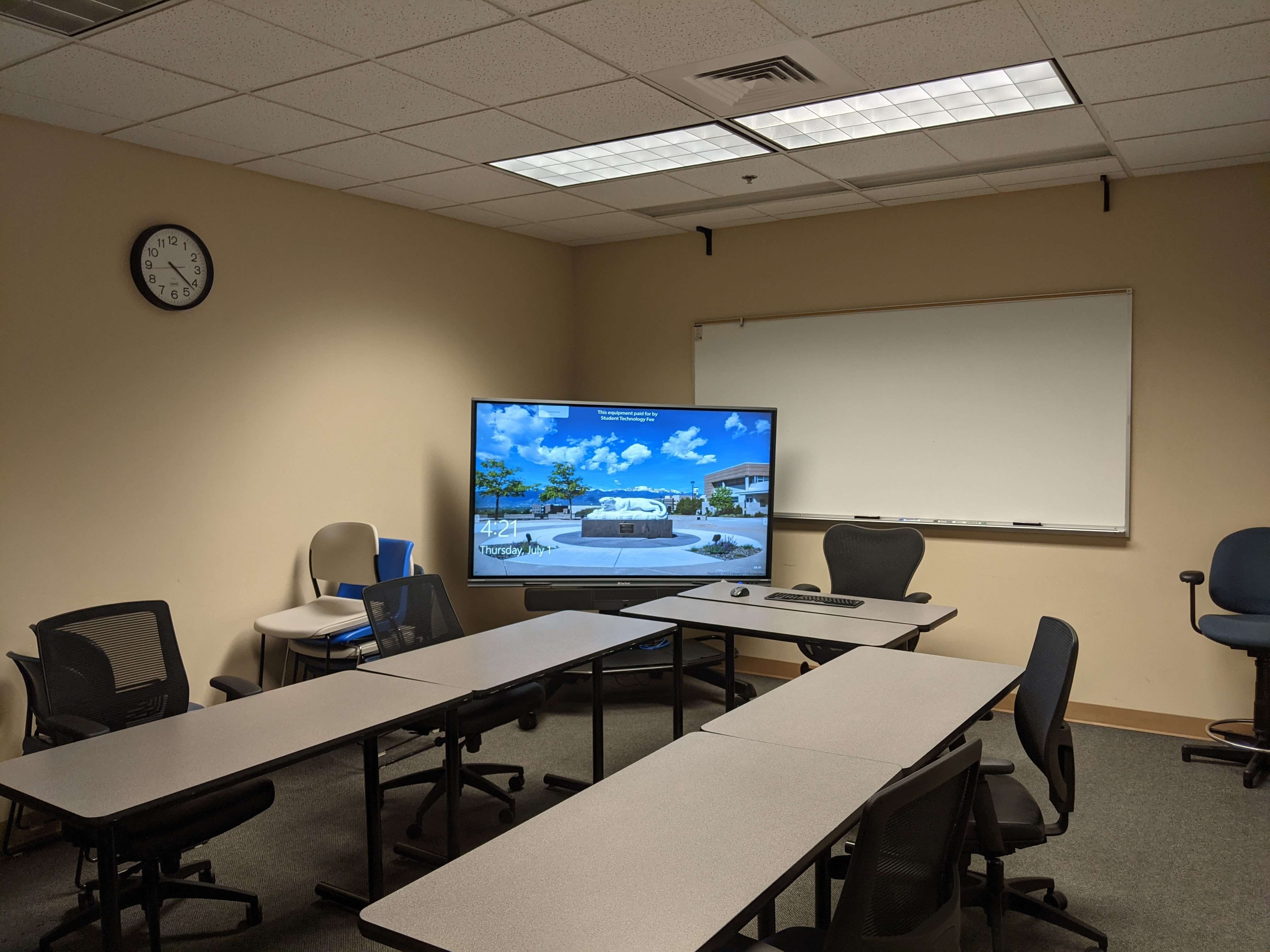
This is a projector-based, uncontrolled classroom
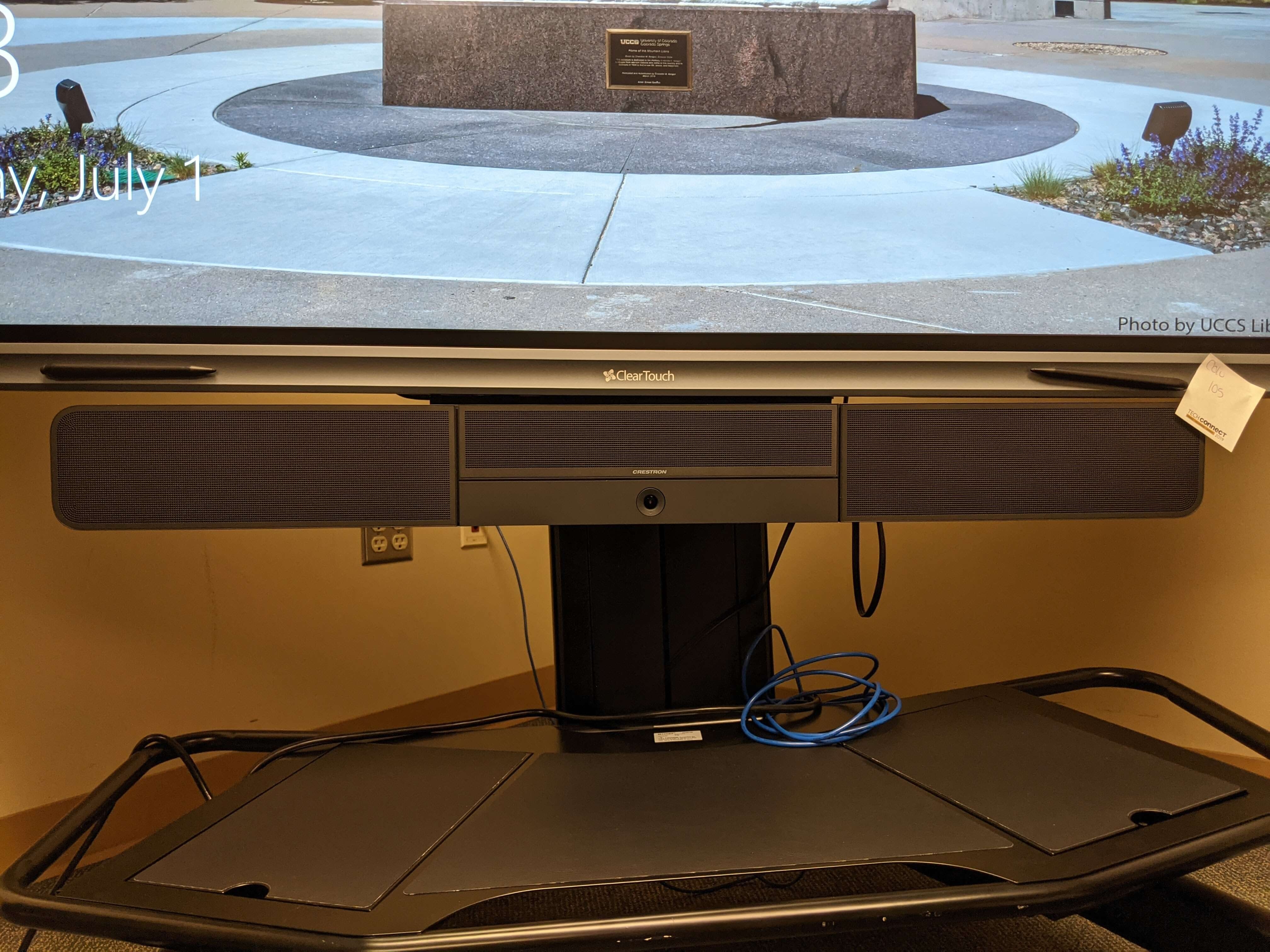
This is the Hyflex camera in the room, located on the mobile cart below the ClearTouch system.
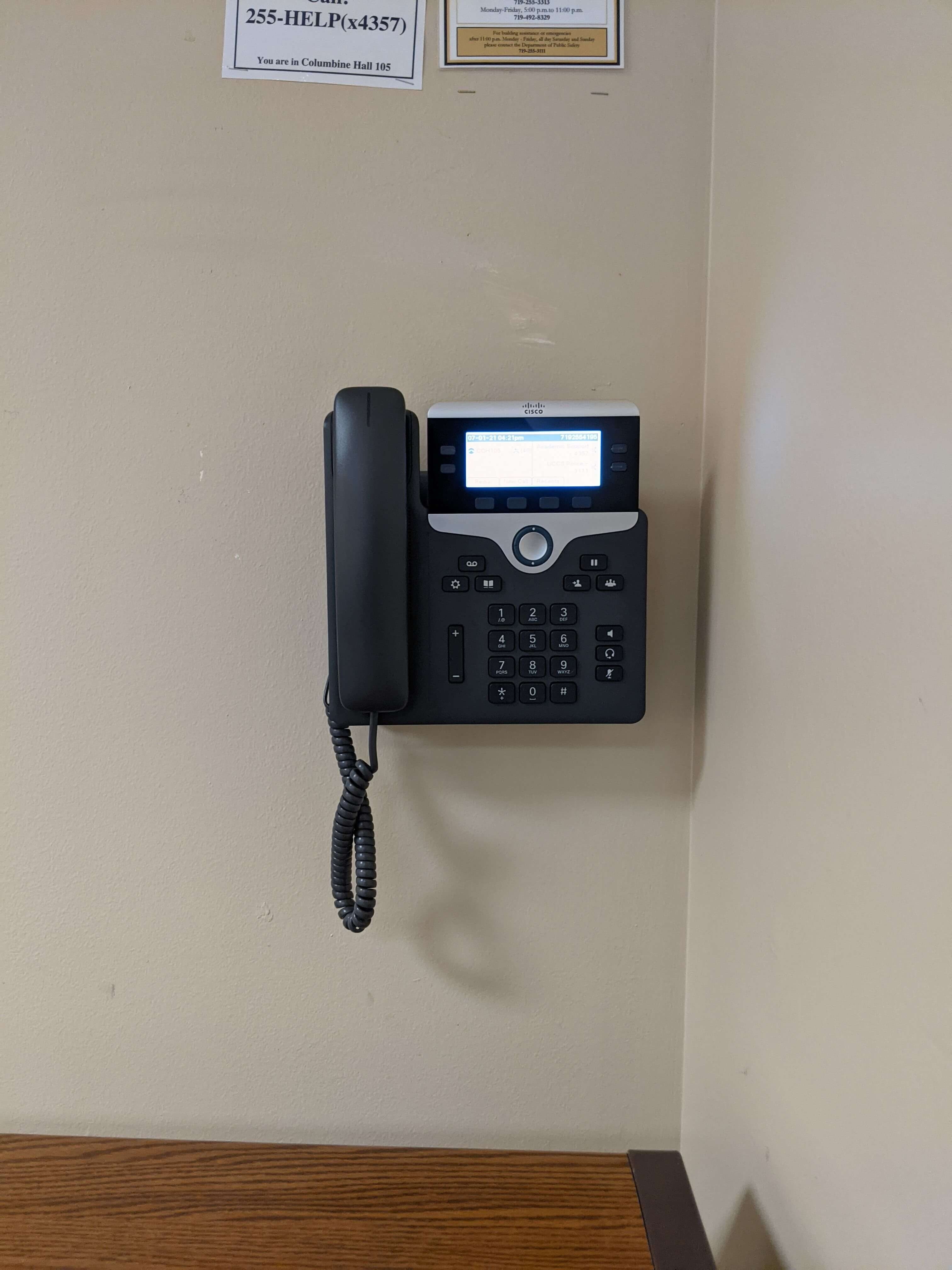
This is the Cisco phone located in the back left corner of the room.