Steps:

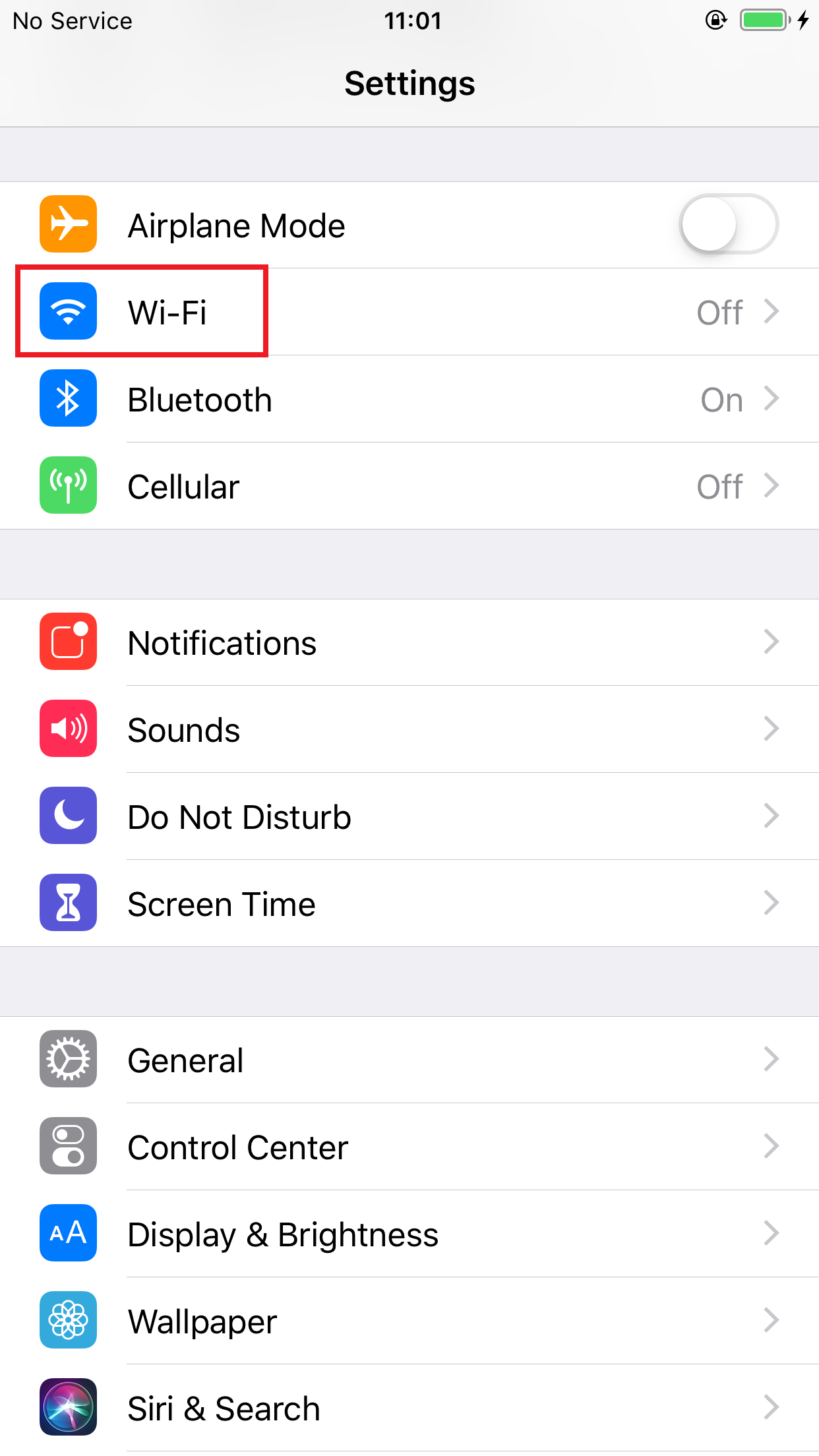
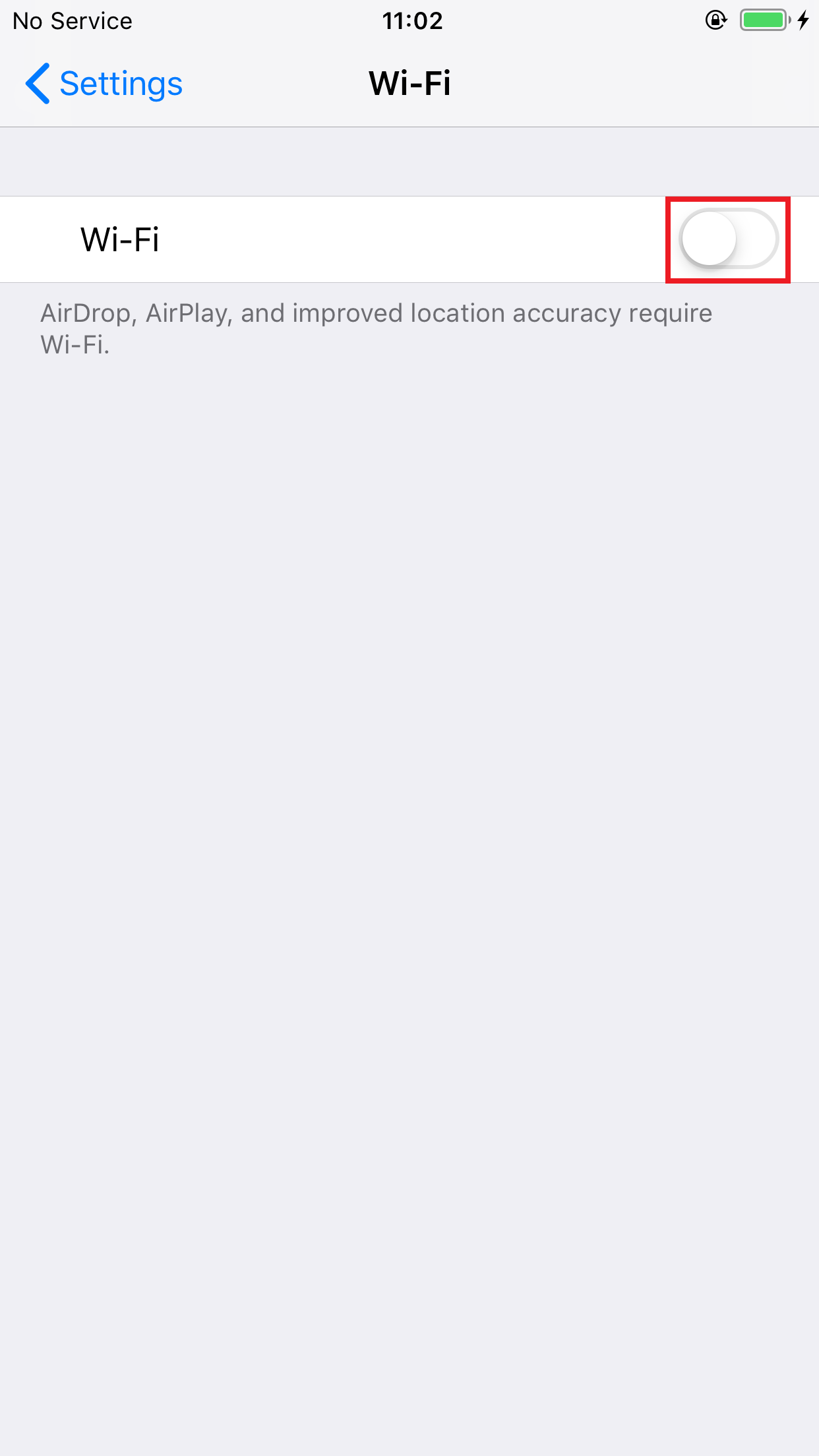

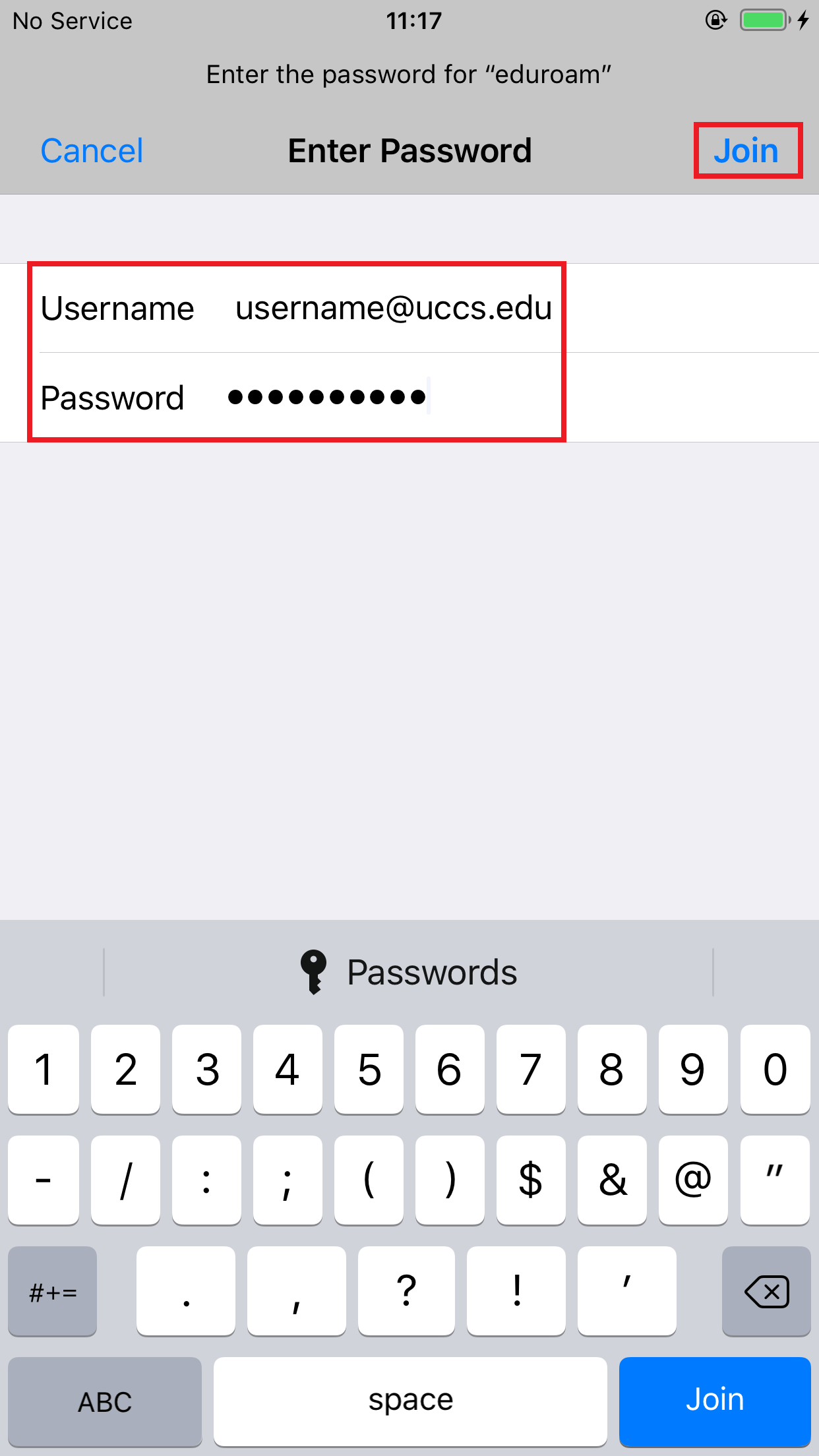
Enter your full domain username in the form [email protected] and your password, then tap Join
Note - the following refers to UCCS users who are joining eduroam either on the UCCS campus or at other eduroam institutions. For other eduroam guests on the UCCS campus from other eduroam institutions, you will want to make sure the certificate presented to you is from your home institution.
You should see a screen similar to the following asking you to verify and accept the server's security certificate. The server cppm.uccs.edu is the server you are authenticated against. To be safe you should always validate the certificate you are about to trust.
To validate and see more information about the certificate, click More Details

Scroll down until you see the Fingerprints section
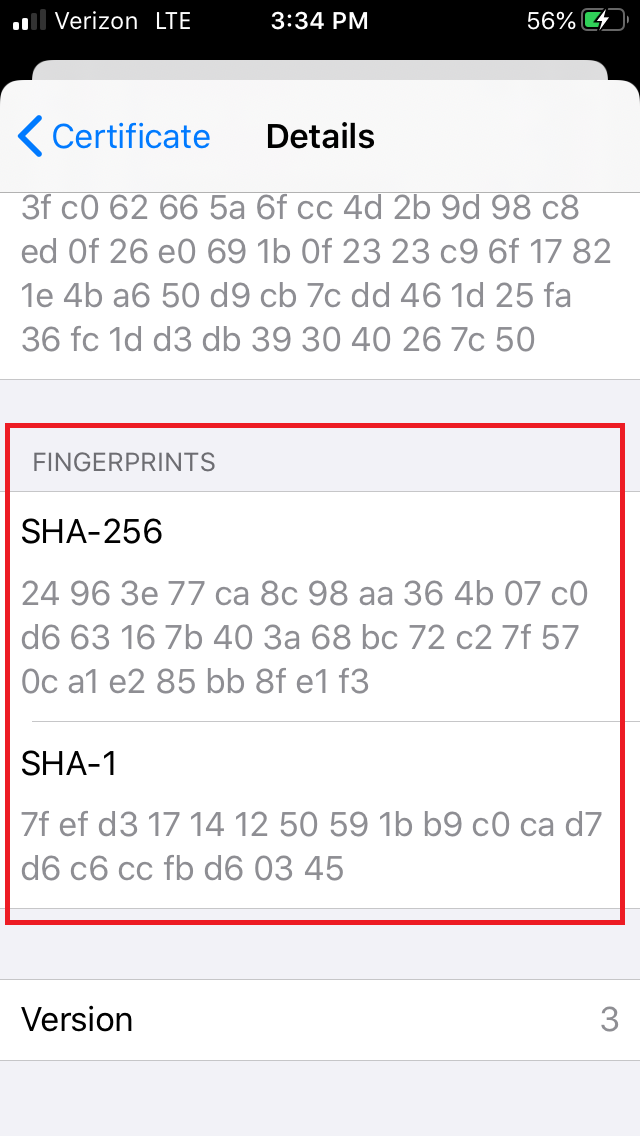
Your certificate fingerprints should match the fingerprints listed below...
If your certificate fingerprints match those listed above, you can trust the certificate is valid. Click Trust.
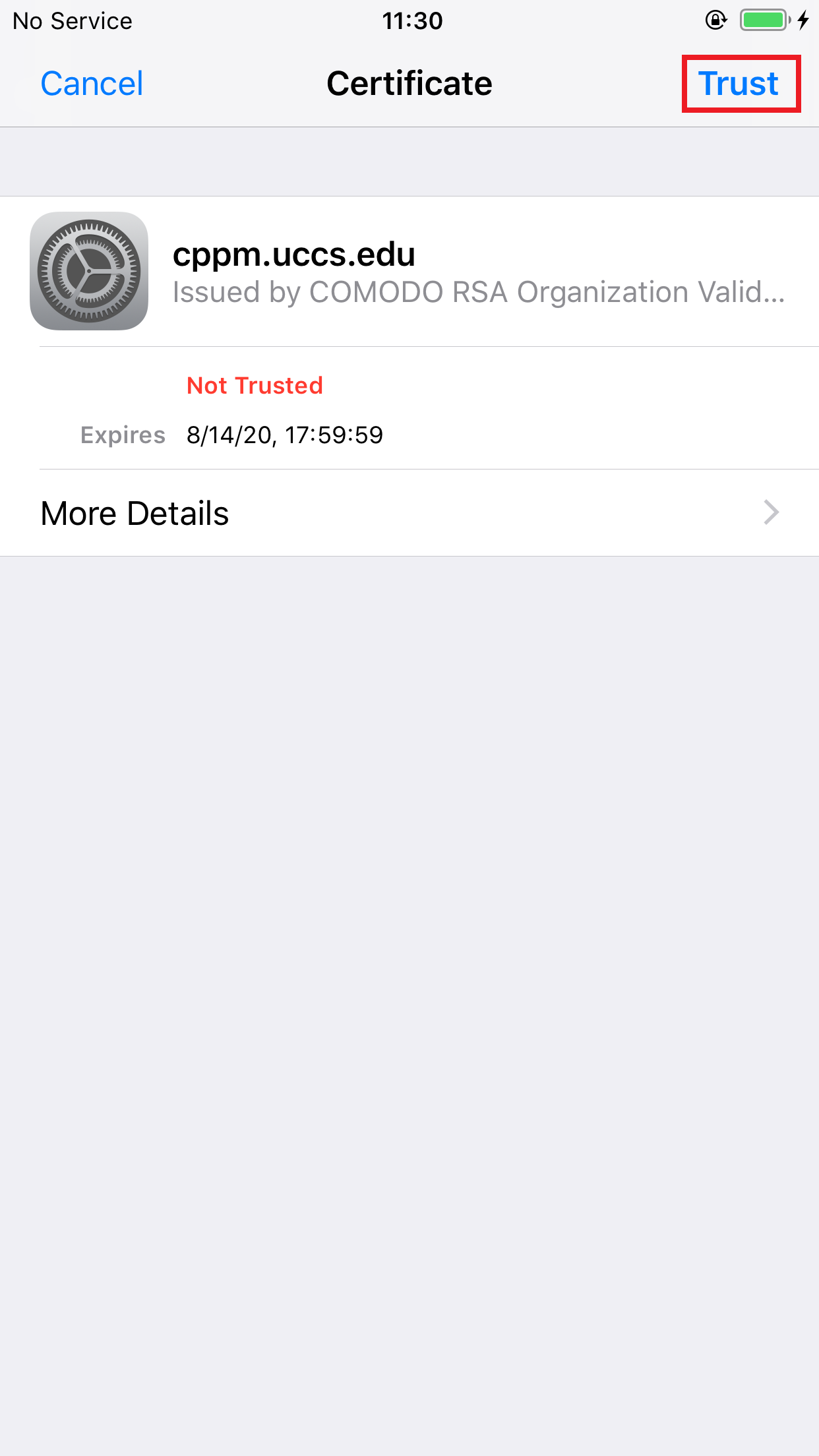
Screenshots from iOS version 12.2
Updated on 2019-05-15