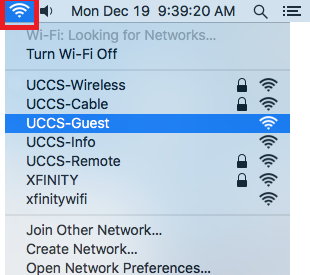
Click on your wireless network icon in the top right corner of the computer and then select UCCS-Guest from the list.
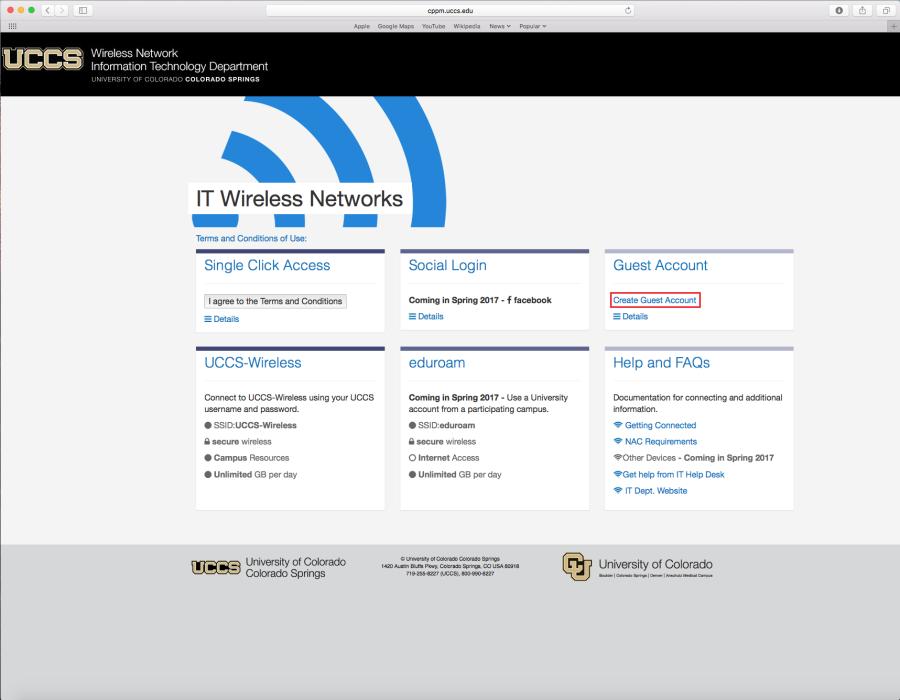
Your default browser will open up the UCCS-Guest wireless page. Click Create Guest Account to request a guest account.
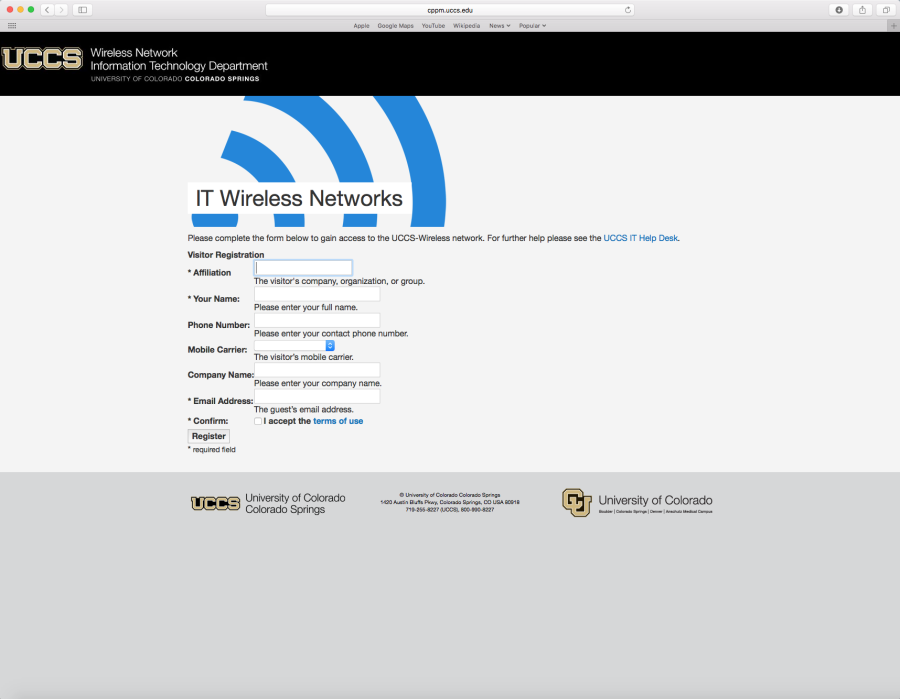
Fill out the request form, select the check box, and then click Register at the bottom of the page.
You will need to take note of the login information so you can use it to get into UCCS-Wireless.
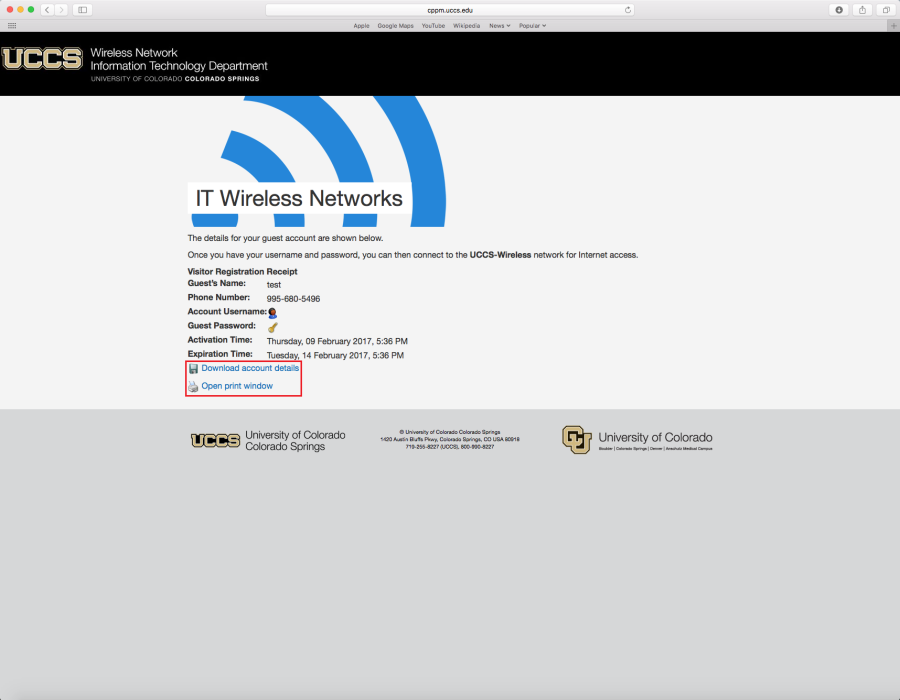
Your account details will be opened in a text file (.txt). You can then save that information to your computer or you can print it.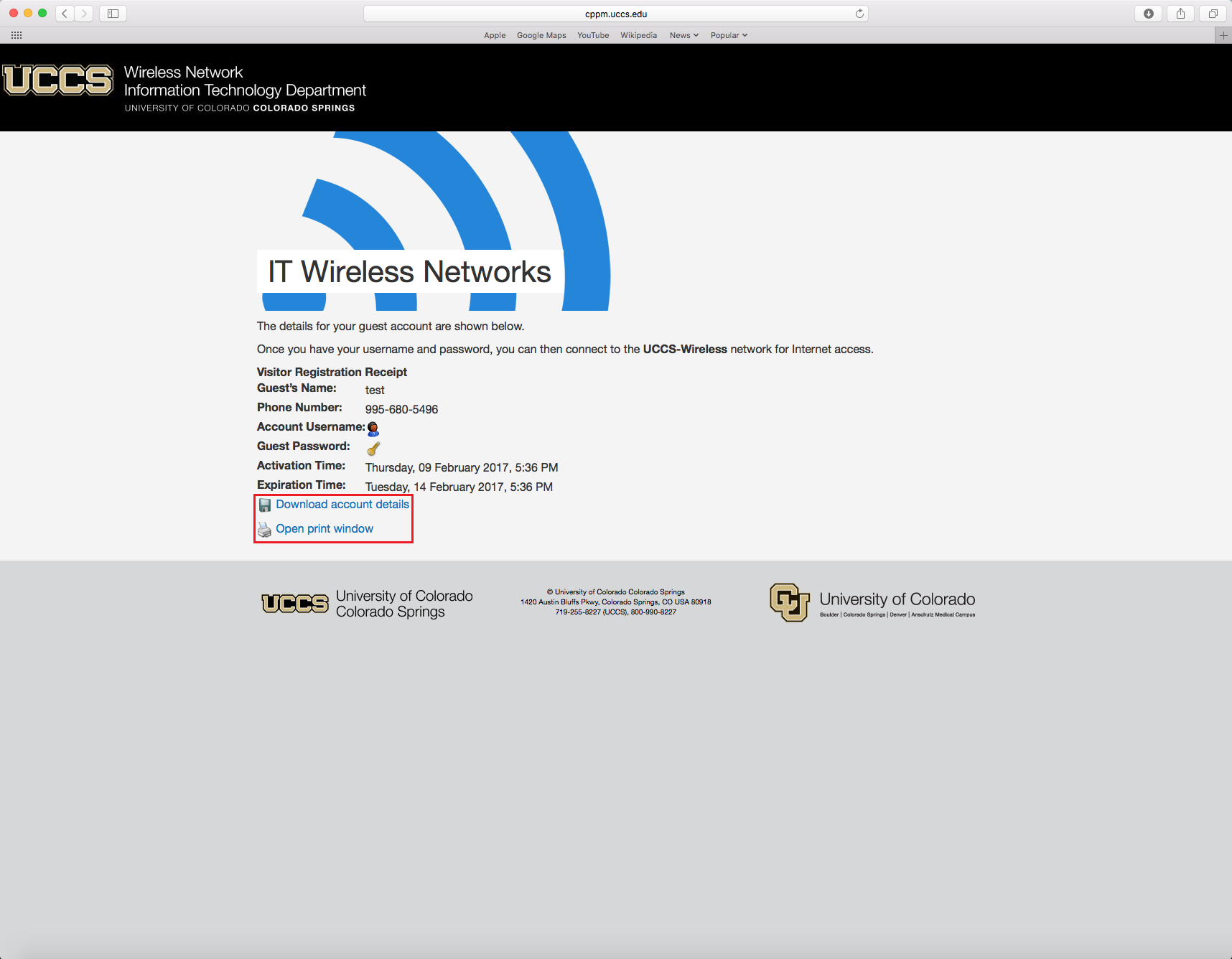
This will open a window with your login information that you can print.
Click on your wireless network icon in the top right corner of the computer and then select UCCS-Wireless from the list.

Enter the Guest account credentials that you were provided.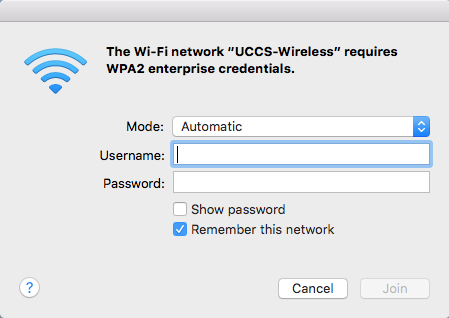
You are now connected to the UCCS-Wireless network.