There are particular sites and web-based applications used at UCCS and the CU Central system that require you to be on the campus network to access them. This method of opening a Campus Edge Browser will allow you to access these sites without connecting to a VPN service first.
Internet Explorer is no longer available as a browser, any application that required IE should now use Microsoft Edge.
To Open a Campus Edge Browser
The Remote Desktop desktop application is required for the Campus Edge Browser, a browser based Virtual Lab connection using the web console will not work.
- Open Microsoft's Remote Desktop app.
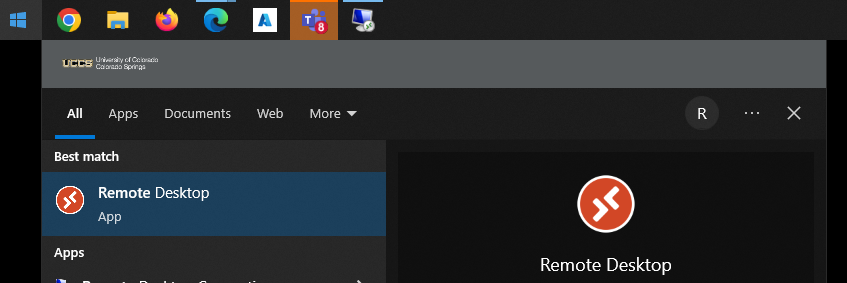
- If you do not have Remote Desktop app installed, Windows users can download and install here: https://go.microsoft.com/fwlink/?linkid=2068602
- Apple users can follow the instructions found here, and confirm your Workspace is added correctly: https://learn.microsoft.com/en-us/windows-server/remote/remote-desktop-services/clients/remote-desktop-mac
- Double-Click Campus Edge Browser from the list of connections under UCCS Virtual Labs.

- If you do not see UCCS Virtual Labs or the connections in the screenshot, select the three dots in the top right corner, select 'Subscribe', and login with your UCCS email account.
- Enter your UCCS email account and password when prompted.
- The Campus Edge Browser will load normally and allow you to access any website that normally requires you to be on the VPN.
- Close the browser normally when finished.