To access your unity voice mailbox go to this url: https://ucna1.uccs.edu/inbox/
Once logged into unity you will be presented with the home page of unity click on settings in the top left-hand corner of the page
Once on the settings home page hover over preferences in the top left-hand corner and click on message play back

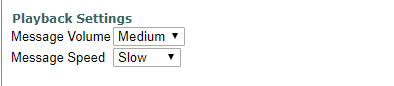
Once on the Message playback preferences message volume can be adjusted by clicking the drop-down menu this will increase the volume of the voicemails. Message speed will adjust the speed of the voicemail when being played back.