This guide will assist you in adding the UCTR306-P printer to your Windows device. If you have a Mac computer, or if you have tried all the steps below and you are still having issues, please contact the OIT Service Desk with the options listed on our website: Get Help | Office of Information Technology (uccs.edu)
We will be more than happy to help you get connected!
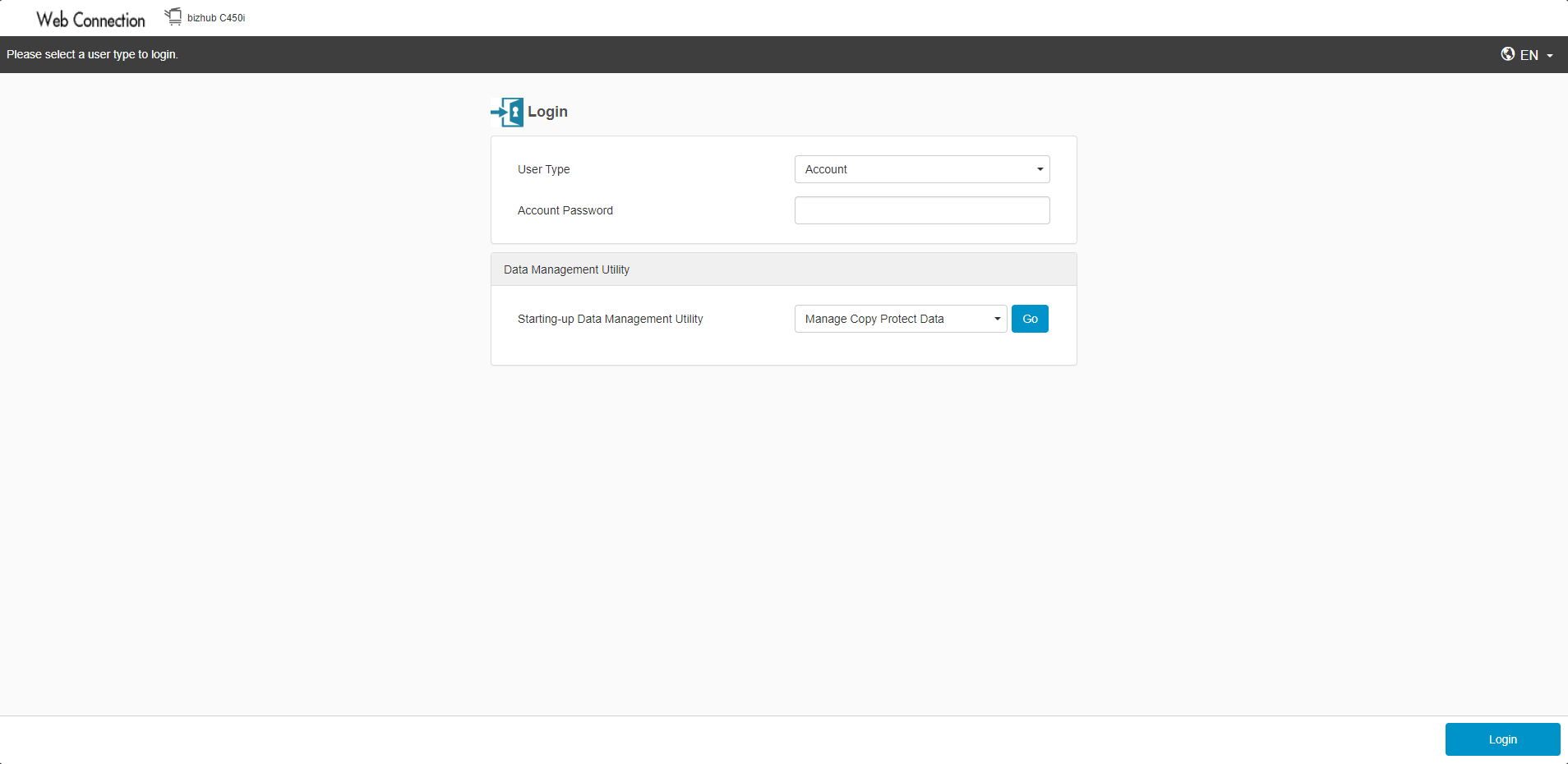
Before you start, make sure that you are able to connect to the printer. To test this, open a web browser and navigate to http://uctr306-p.uccs.edu/
When you go there, if you see the following page, you are successfully connected!
Download the appropriate driver from the link here: https://cscsupportftp.mykonicaminolta.com/DownloadFile/Download.ashx?fileversionid=33272&productid=2277
Once downloaded, extract the zip to a folder.
Right click the zip file, and choose "Extract All..."
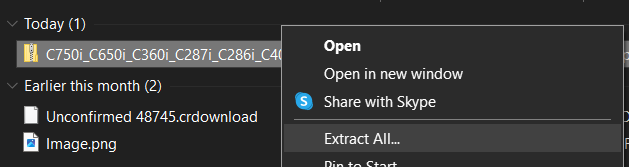
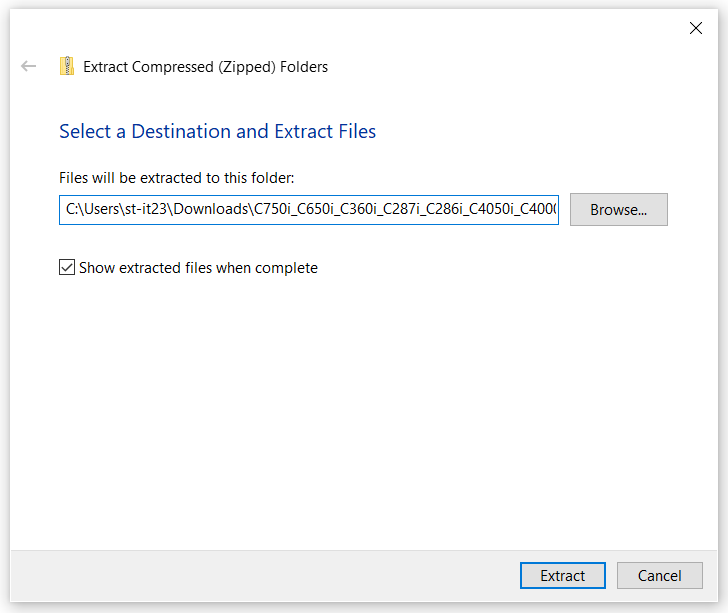
Then, you can choose the destination, or just select "Extract" to default to the Downloads folder.

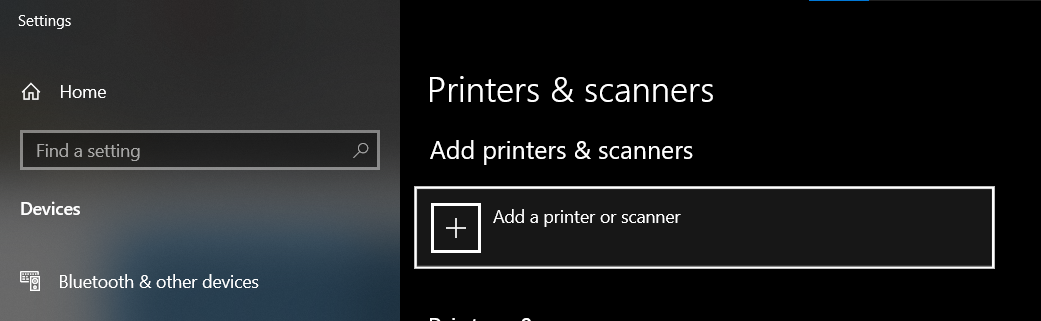
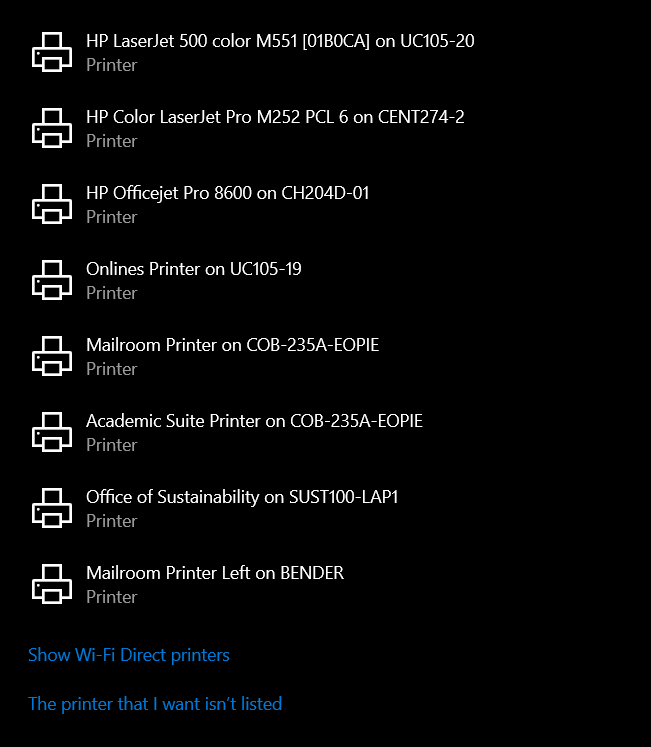
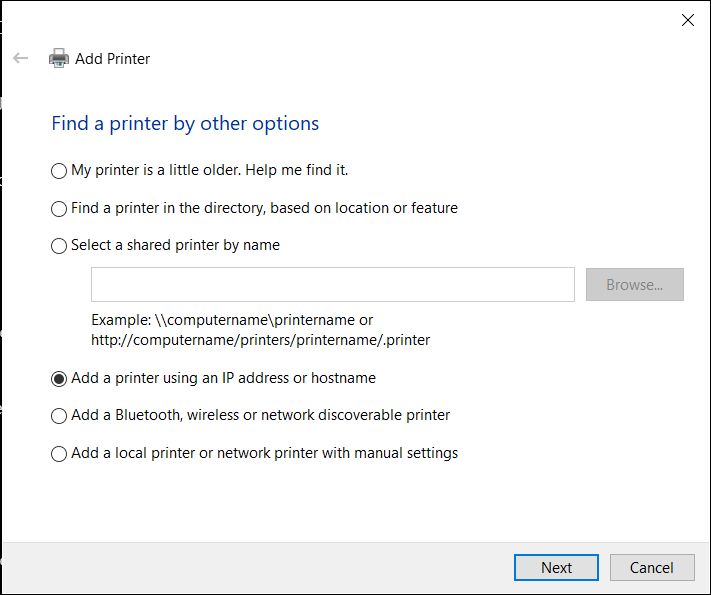
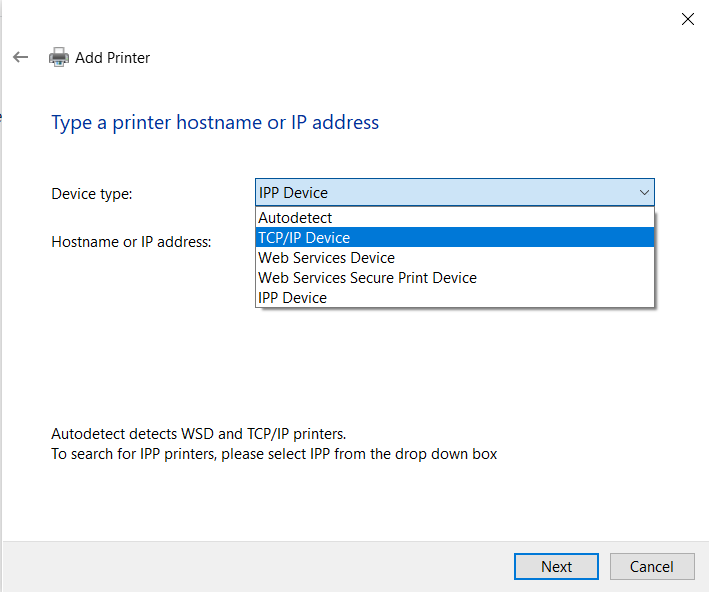

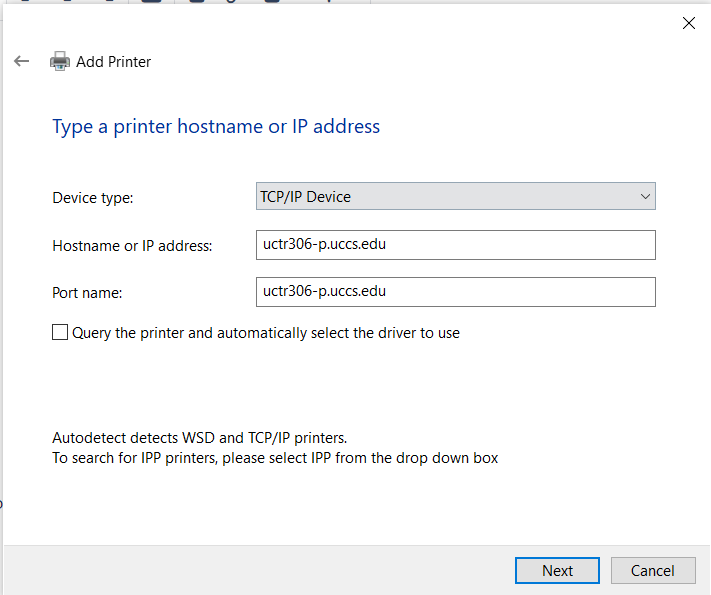
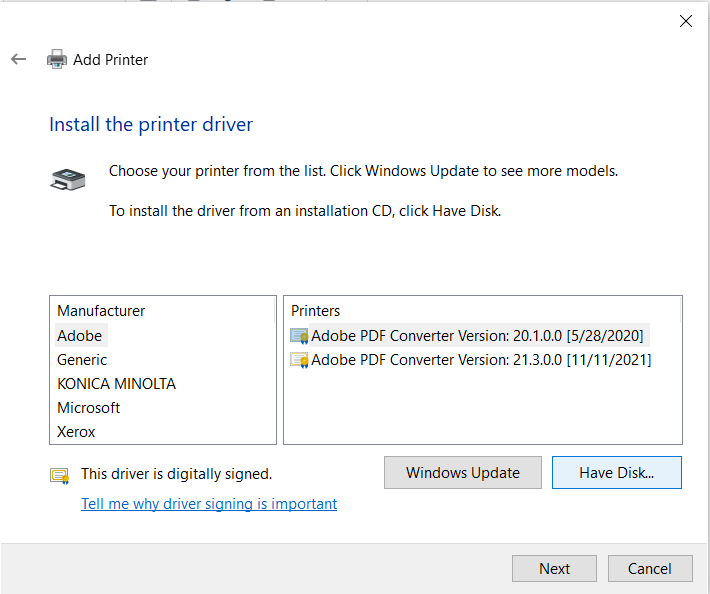
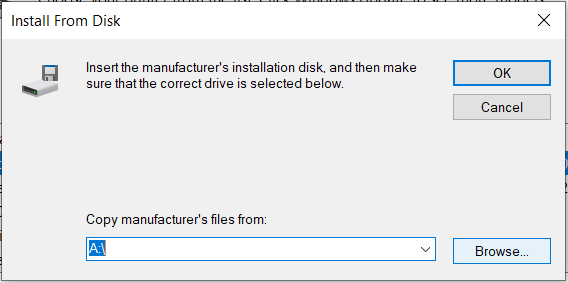

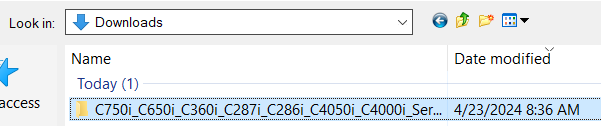
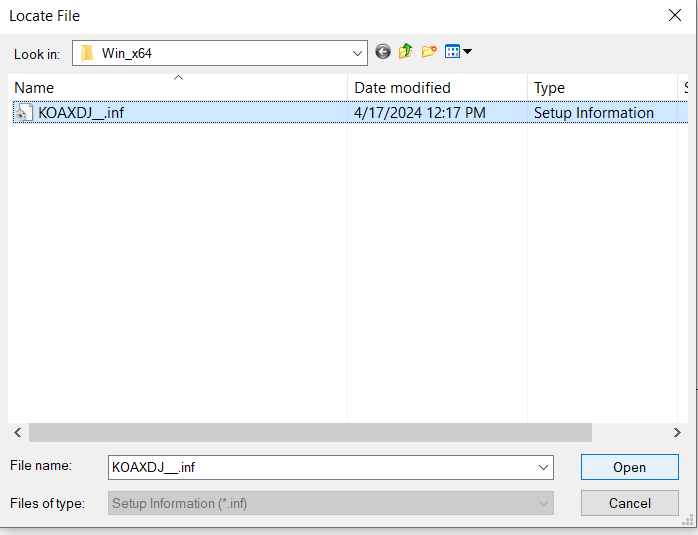
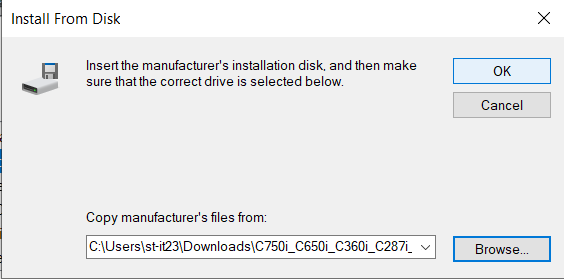
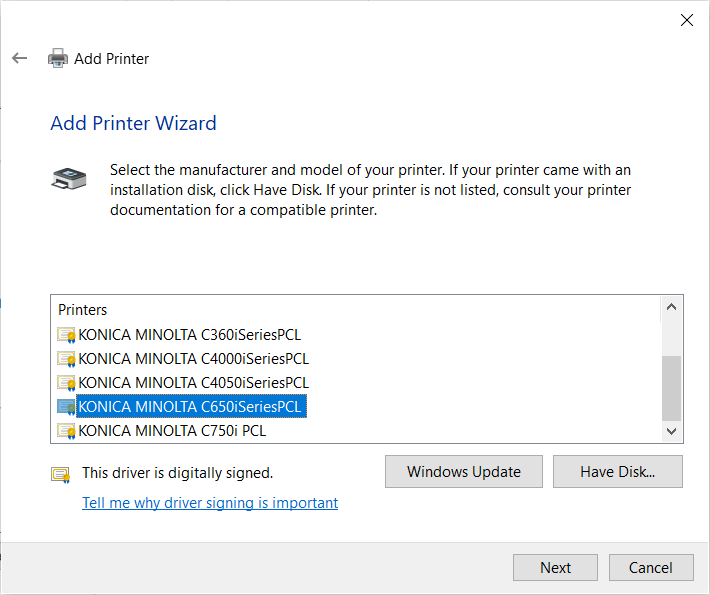
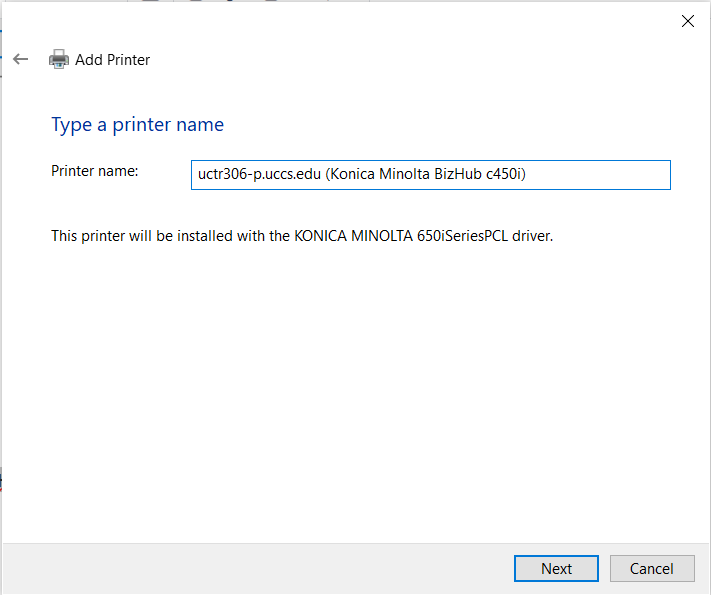
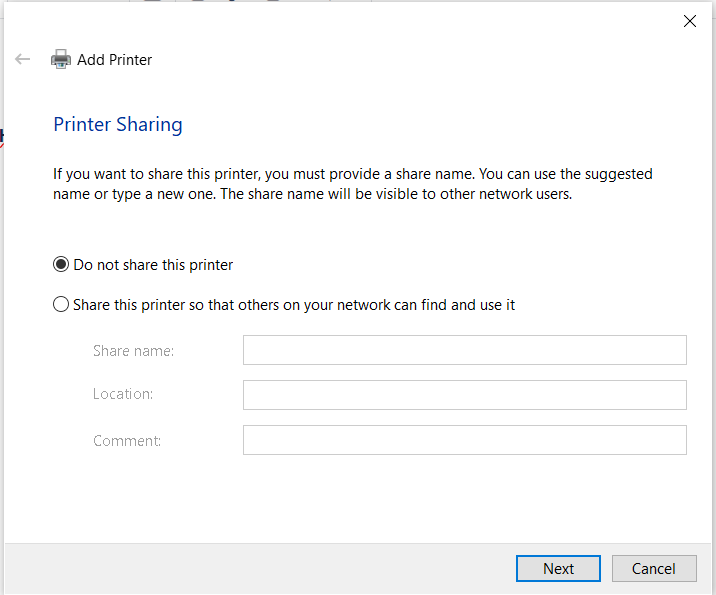
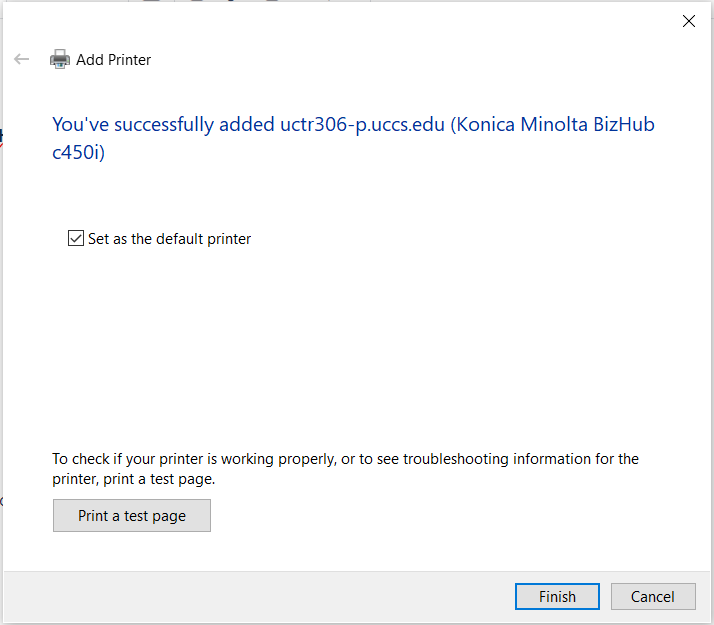
Go back to the "Printers & Scanners" page. Click uctr306-p.uccs.edu (Konica Minolta BizHub c450i) and select "Manage".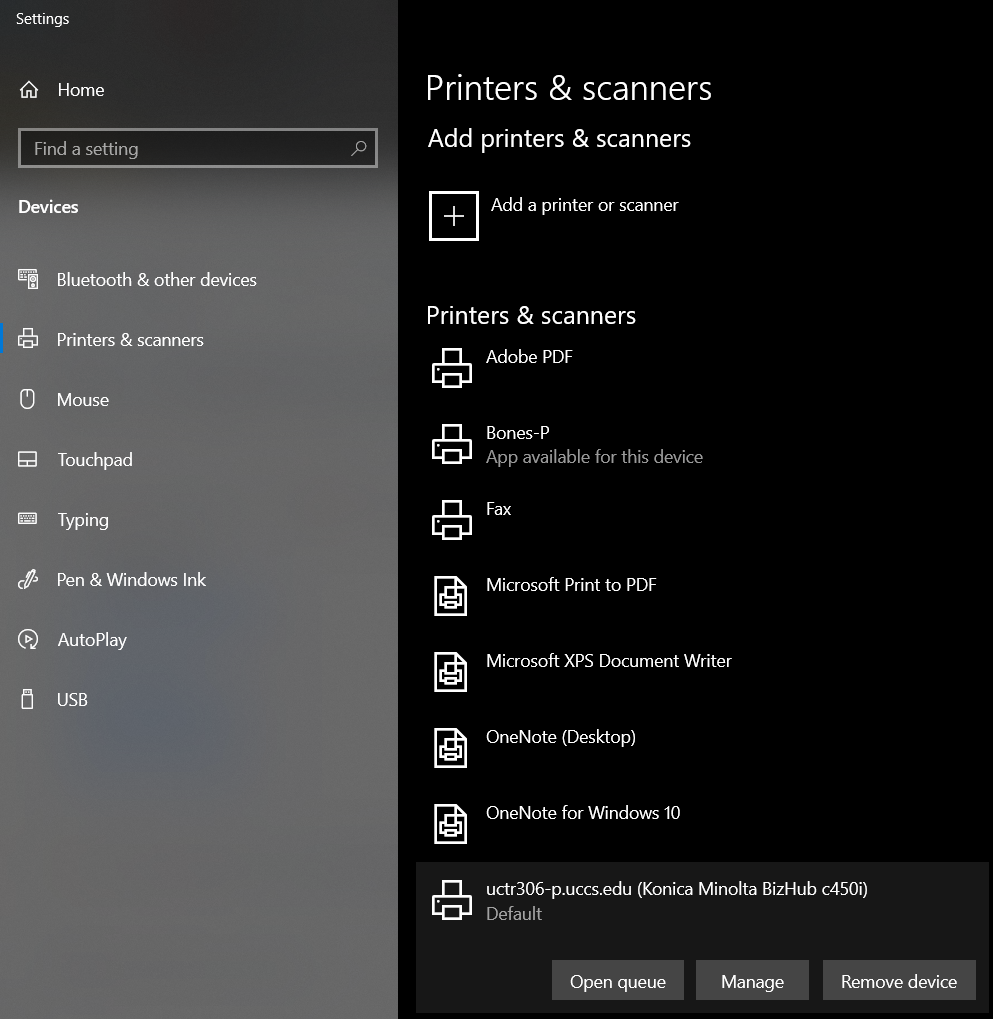
Choose "Print a test page" and make sure that the job completes successfully.

Now, try to print a document of your own to the printer. Make sure you select uctr306-p.uccs.edu (Konica Minolta BizHub c450i) when selecting a printer.
If you have tried all the steps above and you are still having issues, please contact the OIT Service Desk with the options listed on our website: Get Help | Office of Information Technology (uccs.edu)
We will be more than happy to help you get connected!