Click on the network icon in the bottom right corner. Then select the UCCS-Guest network.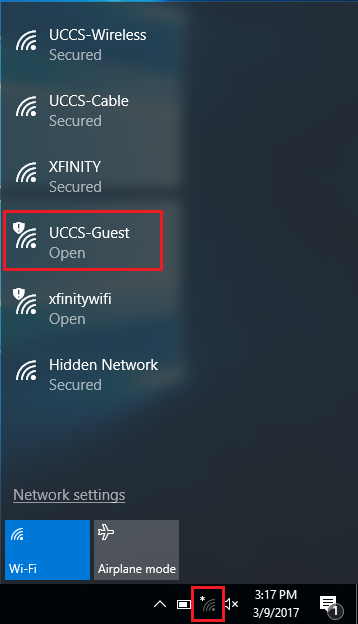
Click Connect to begin connecting to the UCCS-Guest network. Leave the "Connect automatically" box unchecked.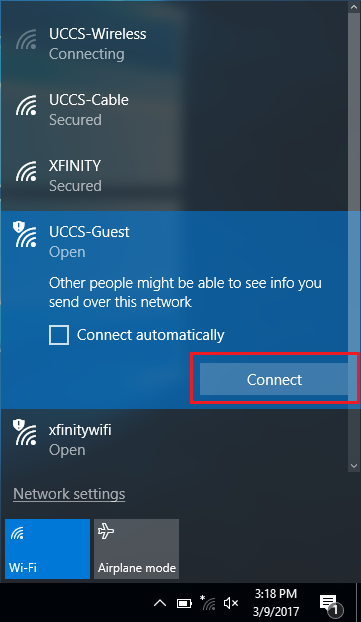
A browser window should automatically open once connected to UCCS-Guest. If not, launch a web browser. Click the Create Guest Account link.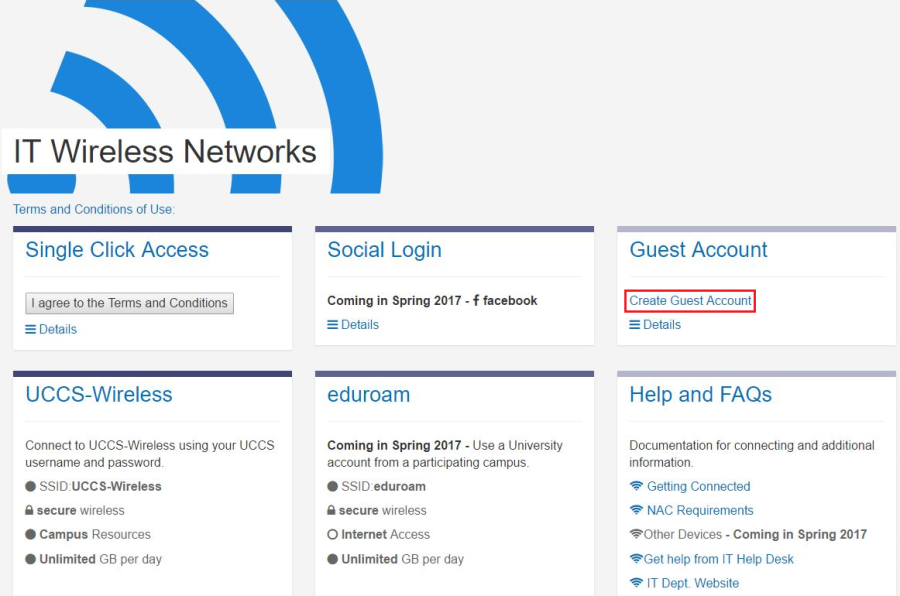
Fill out the form and then click the Register button at the bottom.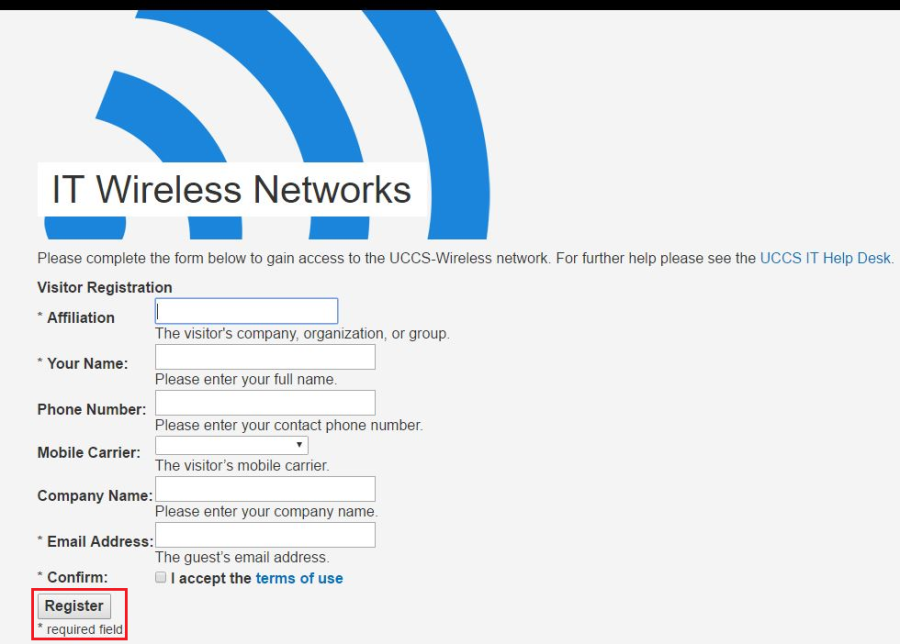
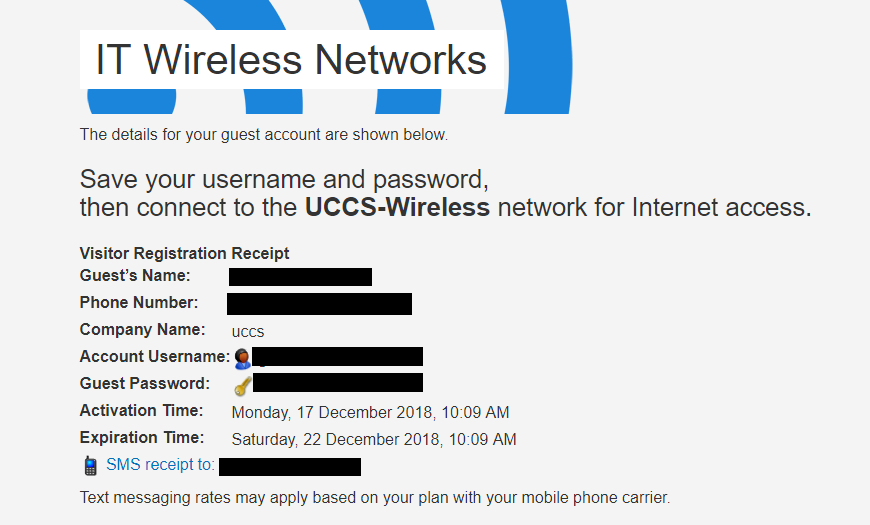
Take note of your newly issued guest login credentials (username and password) so you can use them to log into the UCCS-Wireless network in the steps below.
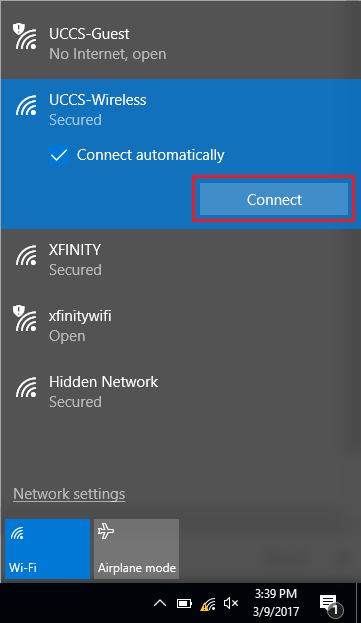
Click on the network icon again in the bottom right corner. Then select UCCS-Wireless from the list and click connect.
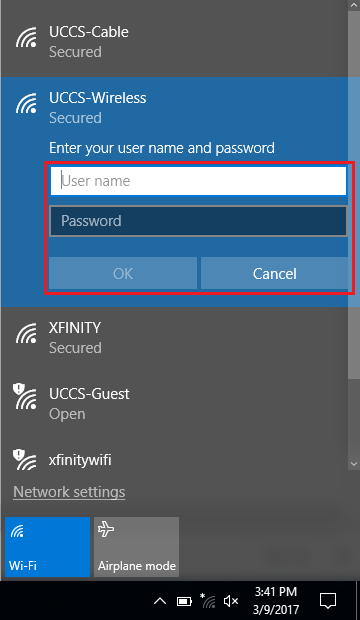
Enter the Guest Credentials you obtained from the registration step above and click OK.
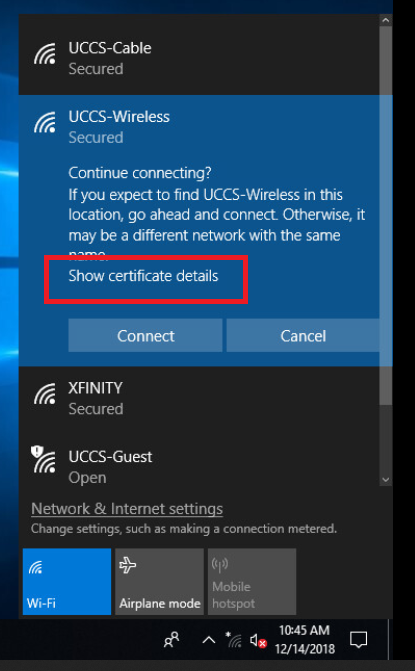
To validate and see more information about the certificate, click Show Certificate Details
The server certificate thumbprint should be displayed. It should match the SHA-1 fingerprint listed below.
If the fingerprint matches, click Connect
→ If the fingerprint do not match, DO NOT trust the certificate! Click Don't Connect and contact the OIT Helpdesk for assistance.
SHA-1 A7 D6 D8 4D FB 1F AC E7 B6 1F CD 59 A8 9A D7 03 77 A9 F8 09 |

Your device should now be connected to UCCS-Wireless.
Still having problems? Please contact the OIT Help Desk.