Table of Contents
Scope
This is a BYOD Conference room controlled by wall button panel and an OFE laptop.
- OFE Laptop
- Epson BrightLink 1485fi Projector
- Extron Button Panel
- Crestron AirMedia Wireless Presentation
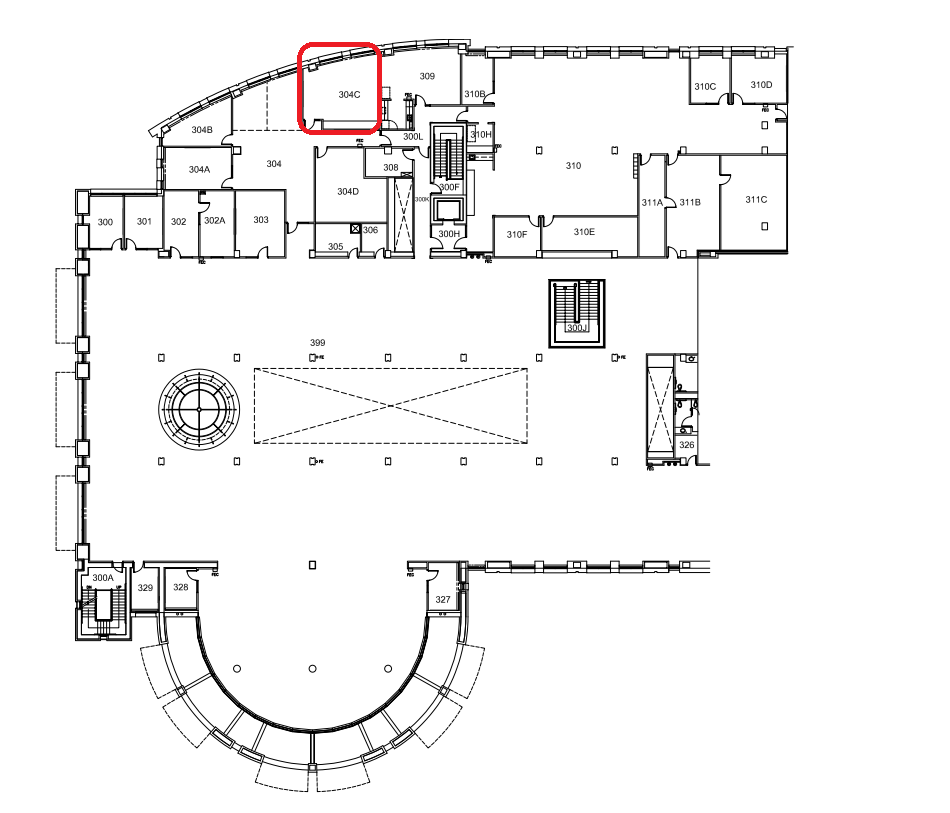
Location: El Pomar Center 3rd Floor
Controlling the A/V System
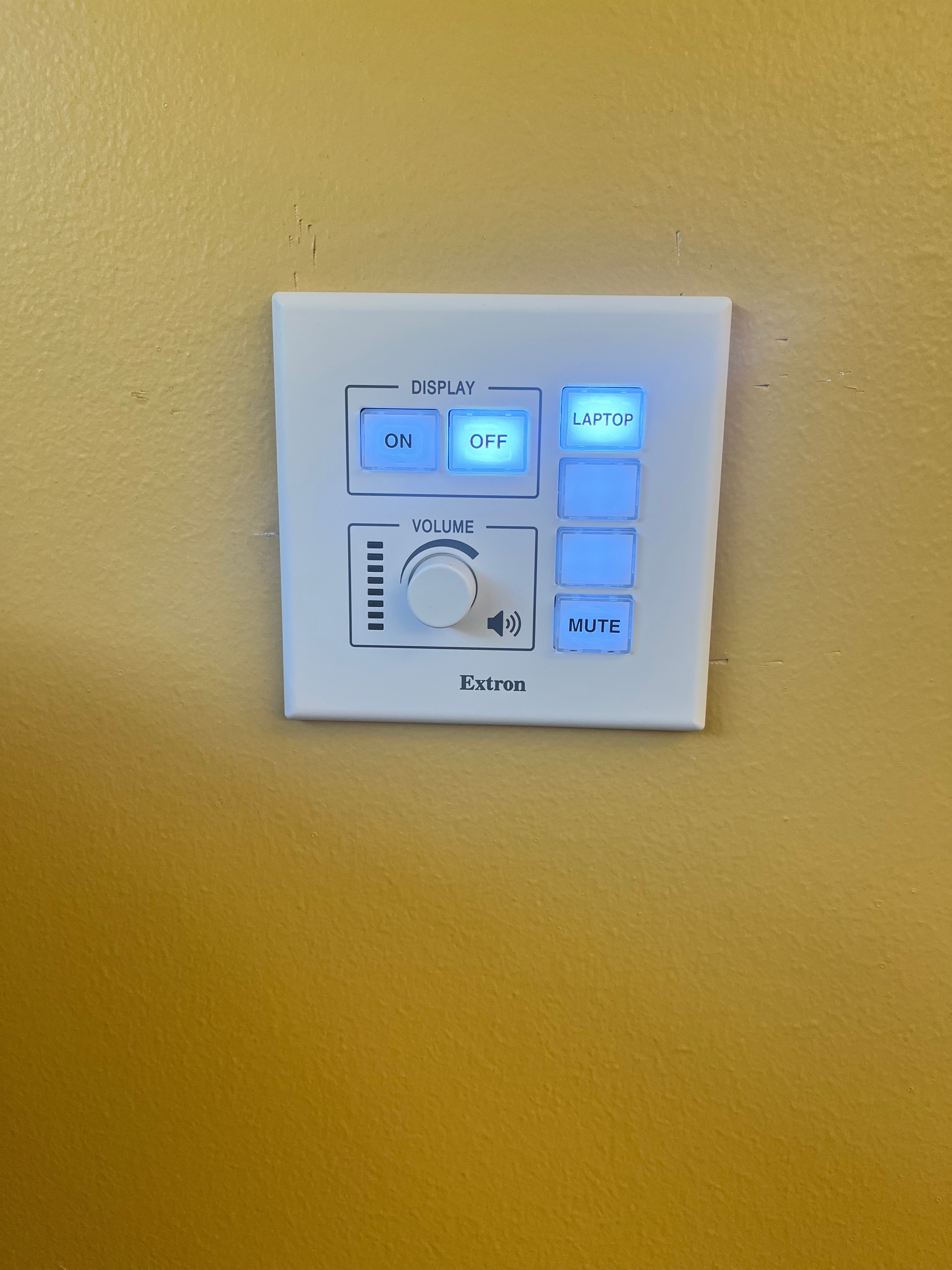
Extron MPC3 Button Panel
Using the room controller
- In the corner opposite the door, there is an AV rack with a button panel (pictured left) that is used to turn the projector on and off and allows the room user to adjust the volume in the room.
Turning the system on and off
- To turn the system on, press the "ON" button on the control panel located next to the AV rack in the room. The projector will beep and power on.
- To turn the system off, press the "OFF" button on the control panel located next to the AV rack in the room. The projector will then power off.
Volume Control
- Volume can be controlled using the dial knob on the button panel located near the AV rack. Turn the dial clockwise to increase the volume and turn the dial counterclockwise to decrease the volume.
- To mute the volume in the room, press the "MUTE" button on the button panel located near the AV rack.
- The volume can also be adjusted in Windows on the room laptop using the speaker icon at the bottom right of the screen.
Source Selection
- The sources in this room automatically switch based on the last active signal sent to the projector
- To use the AirMedia Wireless Presentation system ensure that the HDMI cable is unplugged from any devices in the room.
- To use the HDMI input, simply plug in your device and the projector will automatically switch the HDMI input source.
Owner Furnished Laptop
Using the room laptop
With the room laptop source:
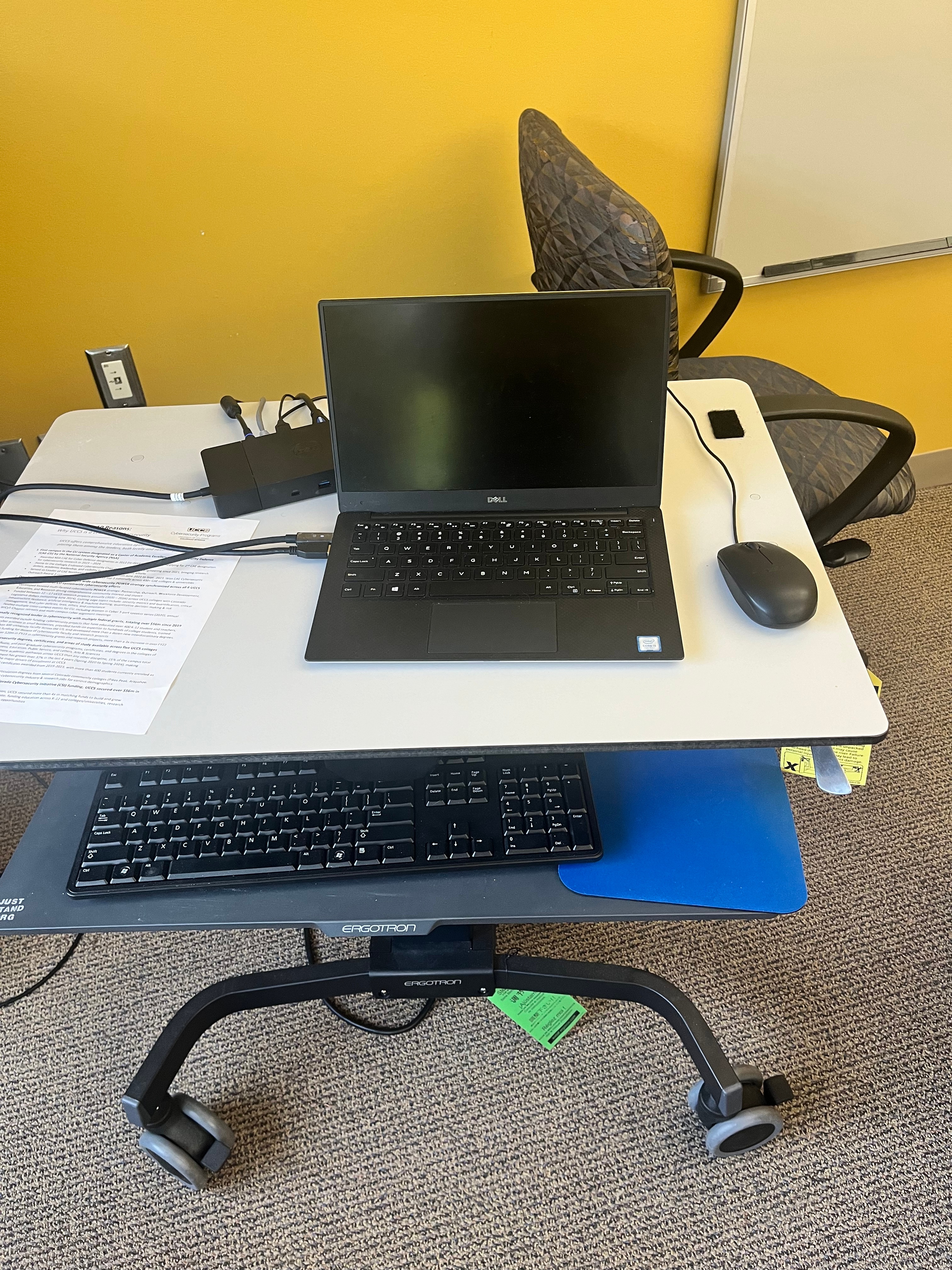
- Ensure that the system is turned on by the button panel on the wall and the laptop source is selected.
- Plug the HDMI cable located on top of the AV rack into the room laptop.
- Plug the USB from the top of the AV rack into the laptop.
- Turn on the laptop and login using your UCCS credentials
- Open your meeting software (Teams, Zoom, etc.)
- Open device settings and ensure:
- Shure P300 Echo Cancelling Speakerphone is selected for your microphone and speaker
- AVer CAM520 Pro2 is selected for your camera
- Join your meeting
With the AirMedia source:
- Ensure that the system is turned on by the button panel on the wall and the HDMI cable is disconnected.
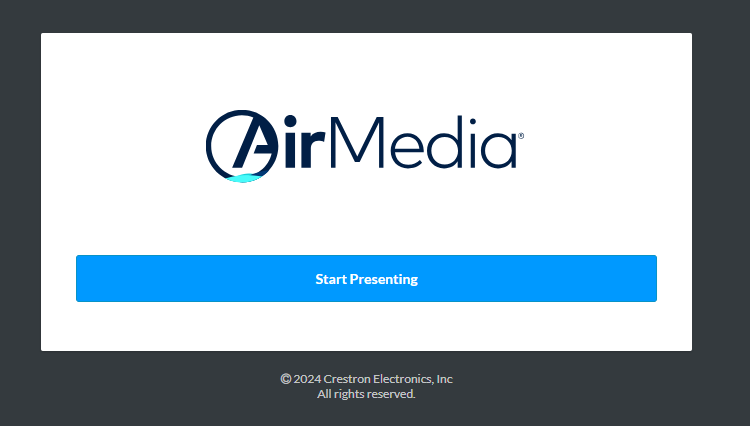
- Click "Start Presenting" to download the AirMedia application to your device.
- Once AirMedia application has been downloaded, open the application.
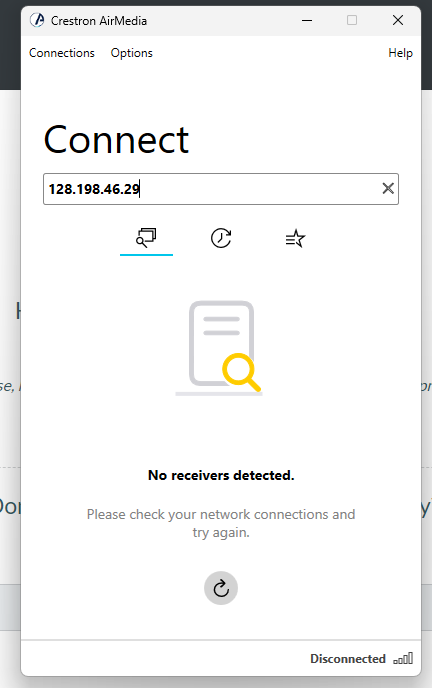
- Enter the IP address of the AirMedia receiver into the Connect Field
- You may need to click the back arrow in the application to reveal the Connect field
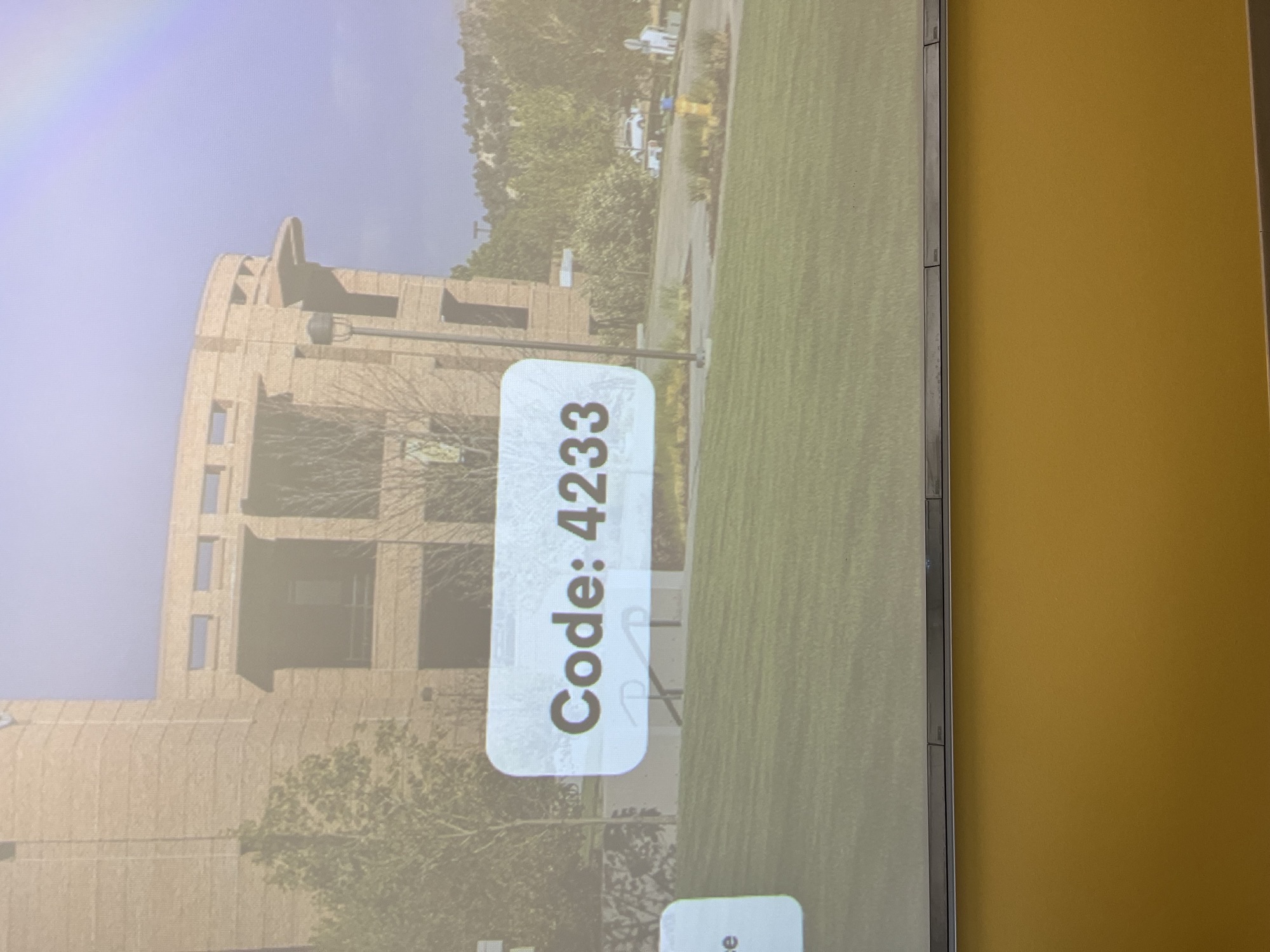
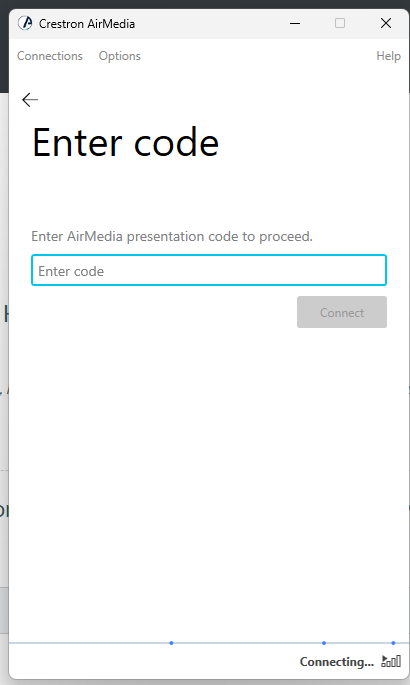
- Enter the code that shows on the projector
Crestron AirMedia
|
Troubleshooting
Audio Issues
- Make sure the system is turned on, and the correct source is selected.
- Ensure USB cable for room audio is connected/Device is connected to AirMedia.
- Turn up the room volume using the volume dial knob on the button panel.
- Make sure the room audio is not muted at the button panel or the media player on the device playing media.
- Turn up and unmute the volume of the source device.
Video Issues
- Make sure the system is turned on.
- Select the desired source.
- Check that the projector turned on when you turned the system on via button panel.
- If using a laptop, make sure the cable connections are seated properly, and the laptop is set to duplicate mode.
- If using AirMedia, make sure the device is properly connected through the AirMedia app.
Photos
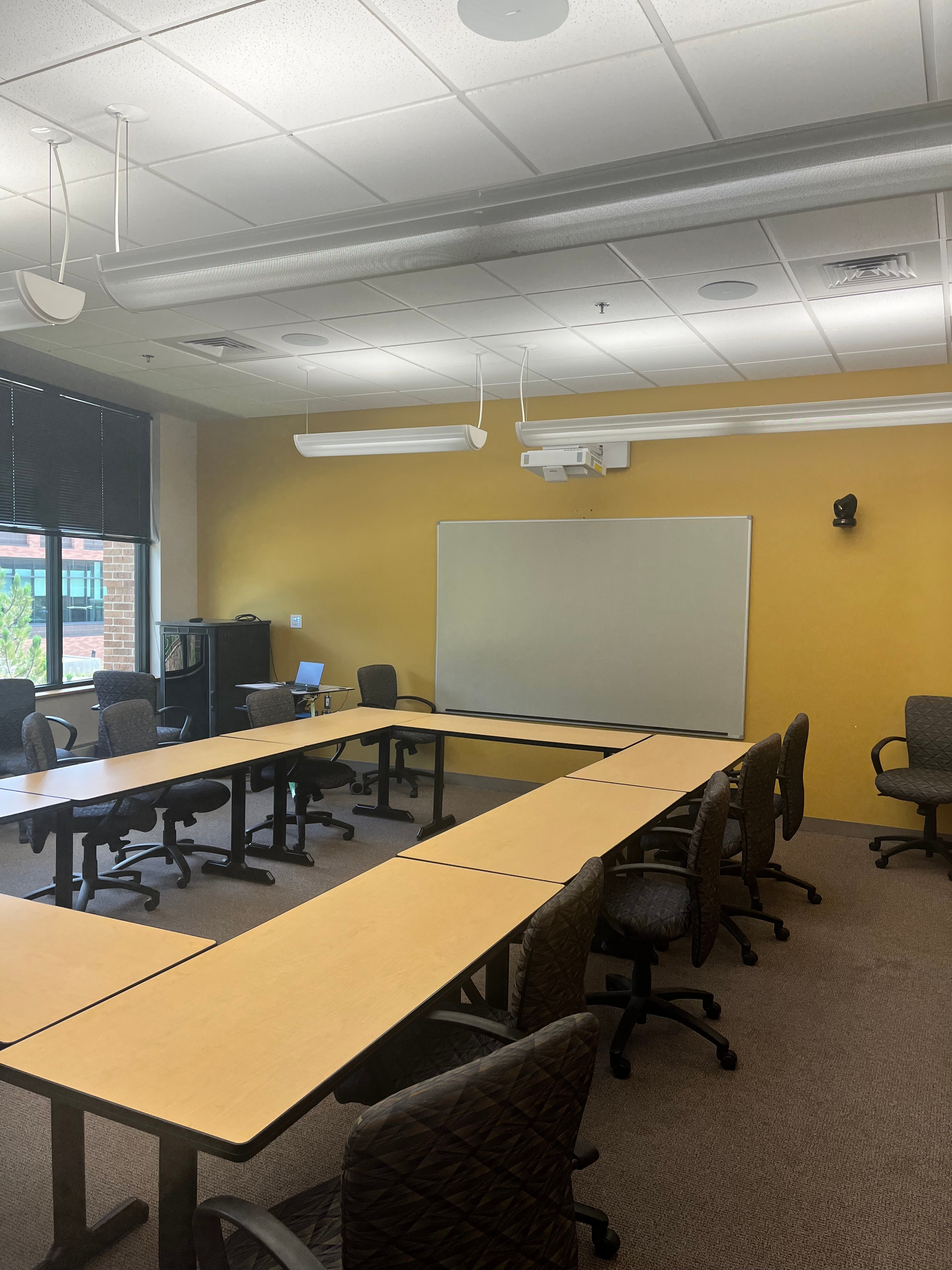
This is a BYOD Conferece room.
This room utilizes an Owner Furnished Laptop as one of the sources in this space.
This is controlled by an Extron MPC-3 button panel located near the AV rack in the room.
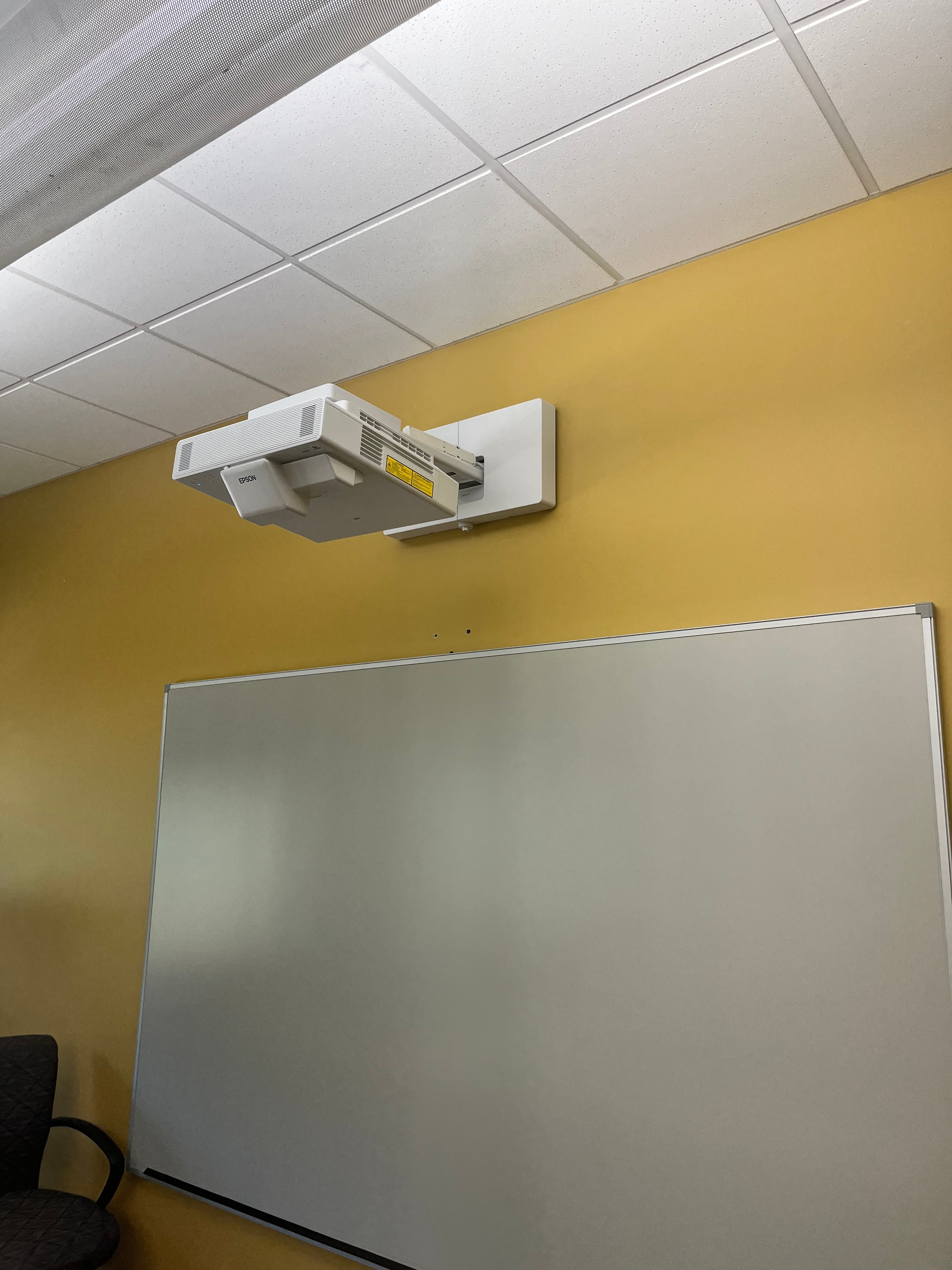
This room uses a short-throw projector for the room display.

This room utilizes a Crestron AirMedia Wireless Presentation system as one of the sources in this space.
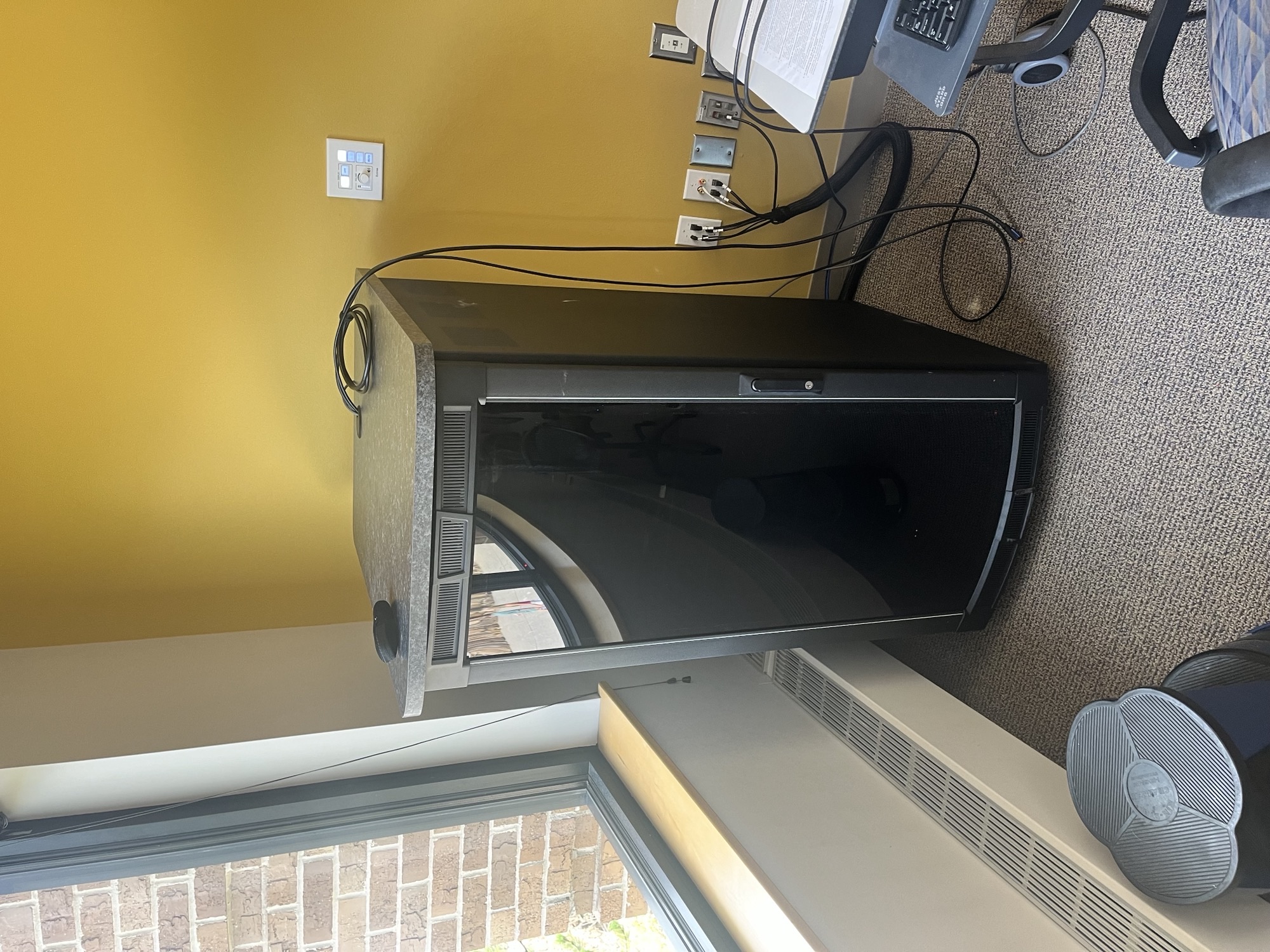
The room equipment in this space is housed within this AV rack located in the corner opposite the door.
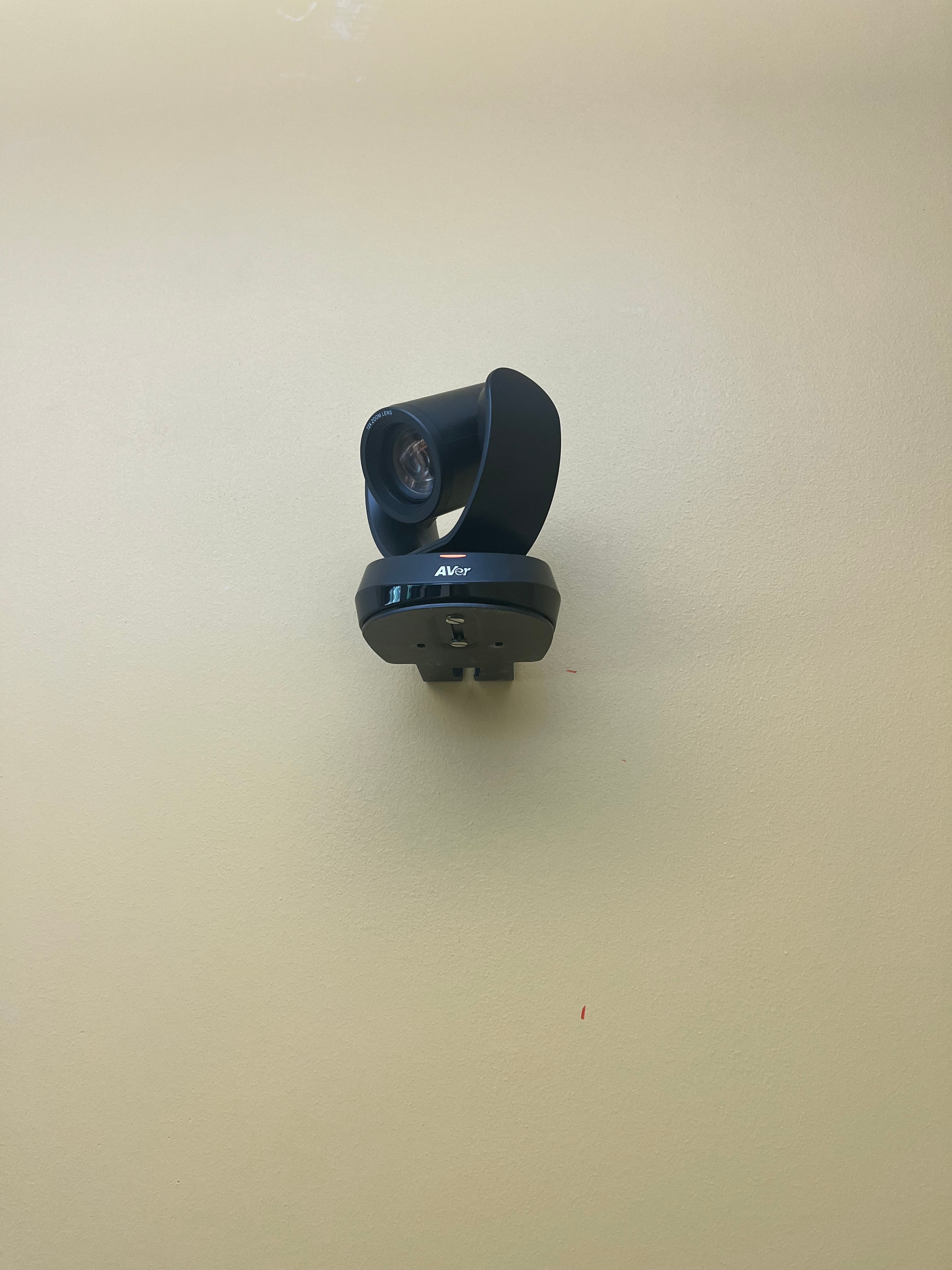
The room camera located to the right of the projector and mounted on the wall.
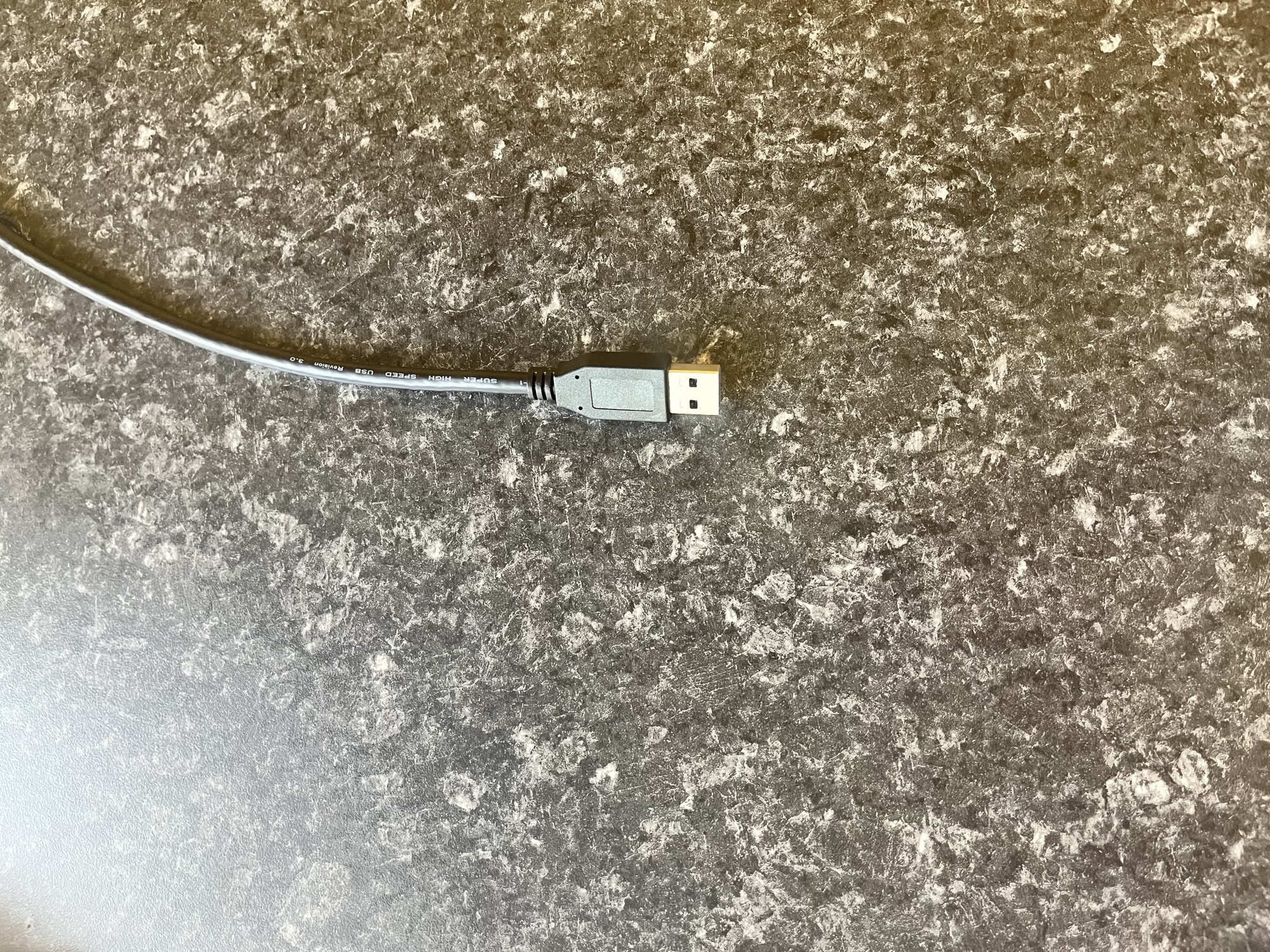
USB input for the room camera, speakers, and microphone.
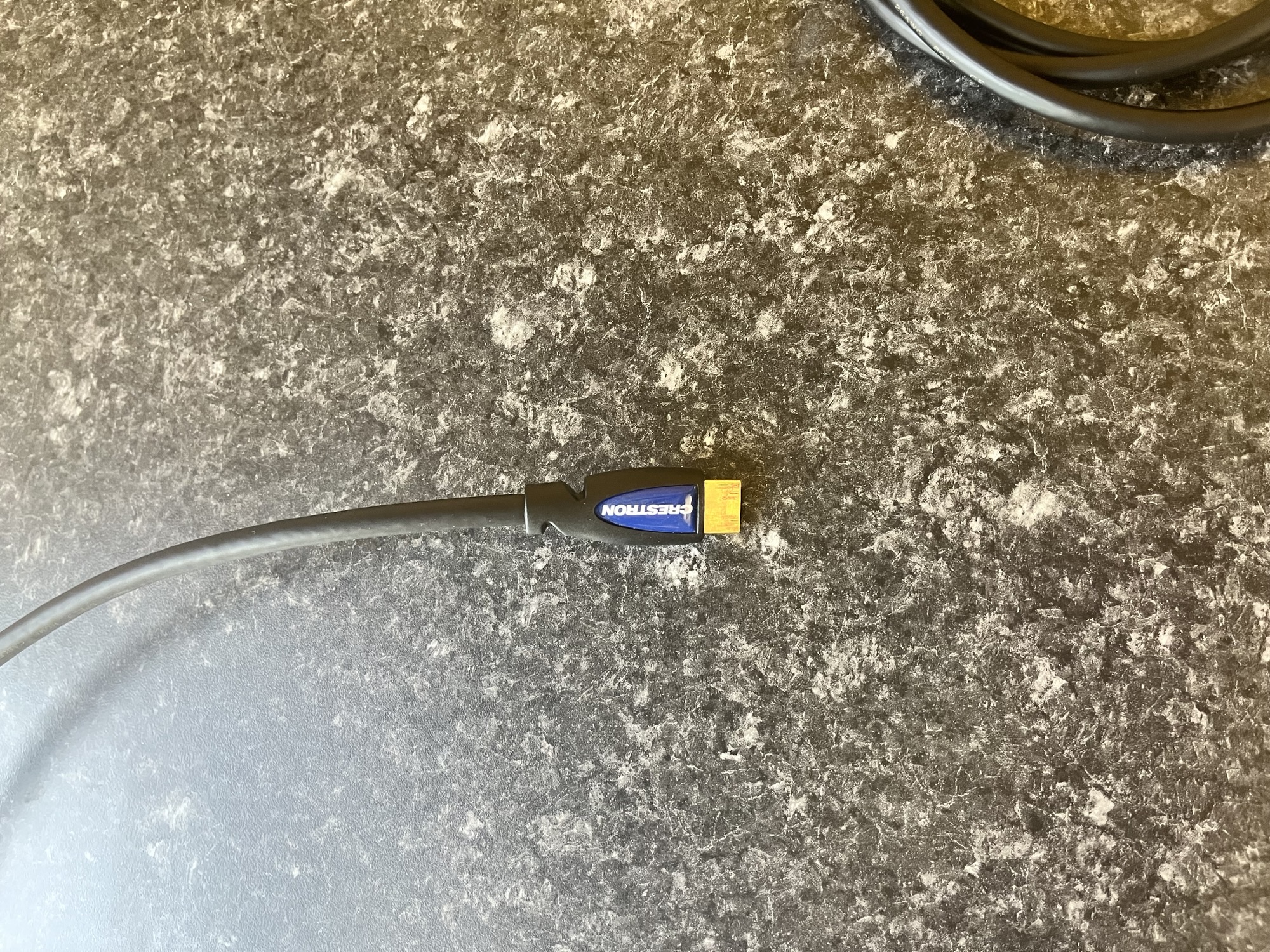
HDMI input for personal devices to share content or a meeting to the projector.