Archiving an Asset:
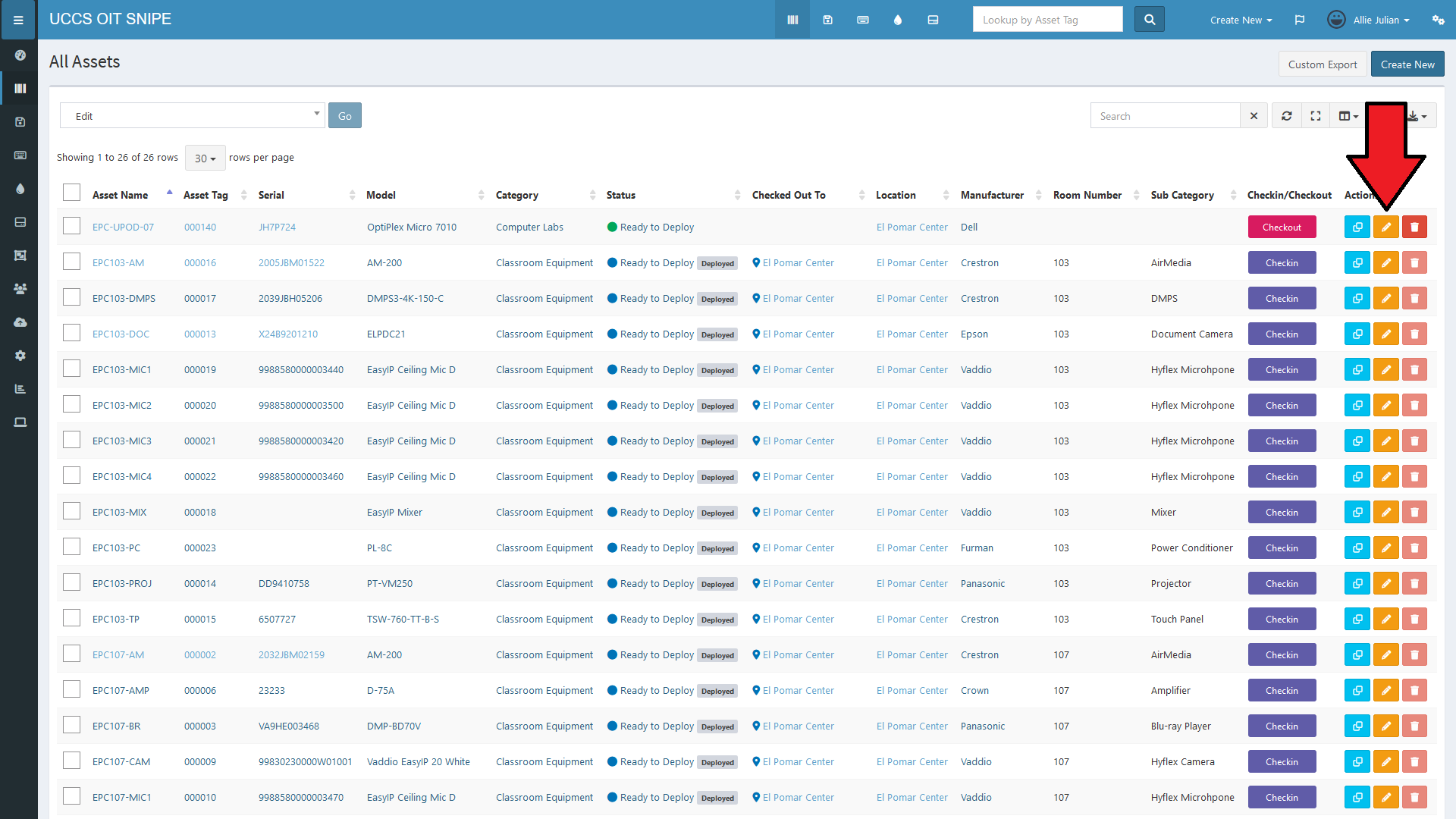
While on the "All Assets" page, find the asset you're going to Archive. If the device is currently checked out to a user, please check it in before proceeding. See "Changing an Asset" for checkin information.
Once the asset is checked in, click on the edit icon (the yellow pencil) in the "Actions" column on the far right of the entry for the asset you'd like to edit. Depending on how many columns you have toggled on, you may need to scroll to the right if the column isn't visible.
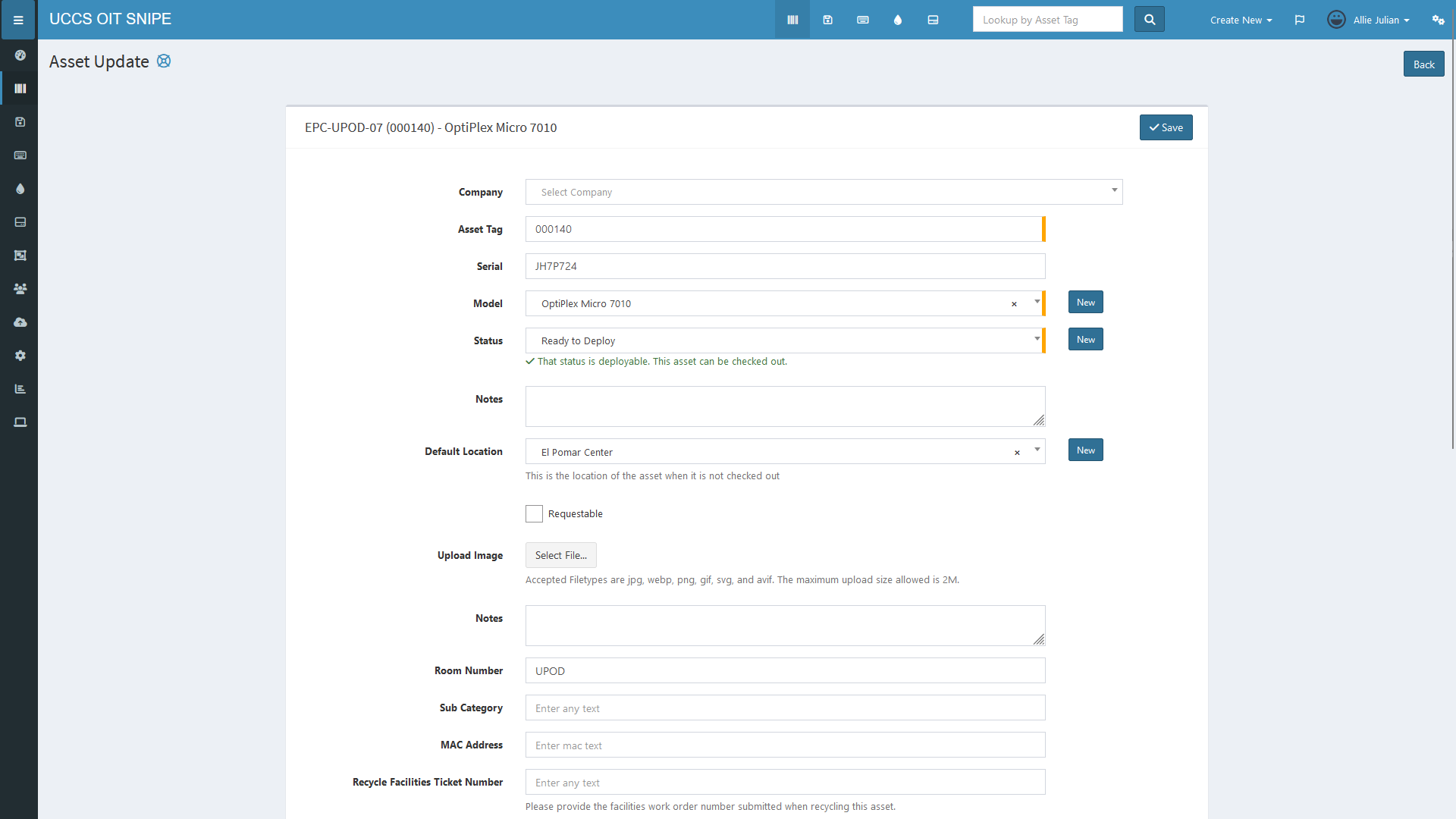
This will bring you to the "Asset Update" page:
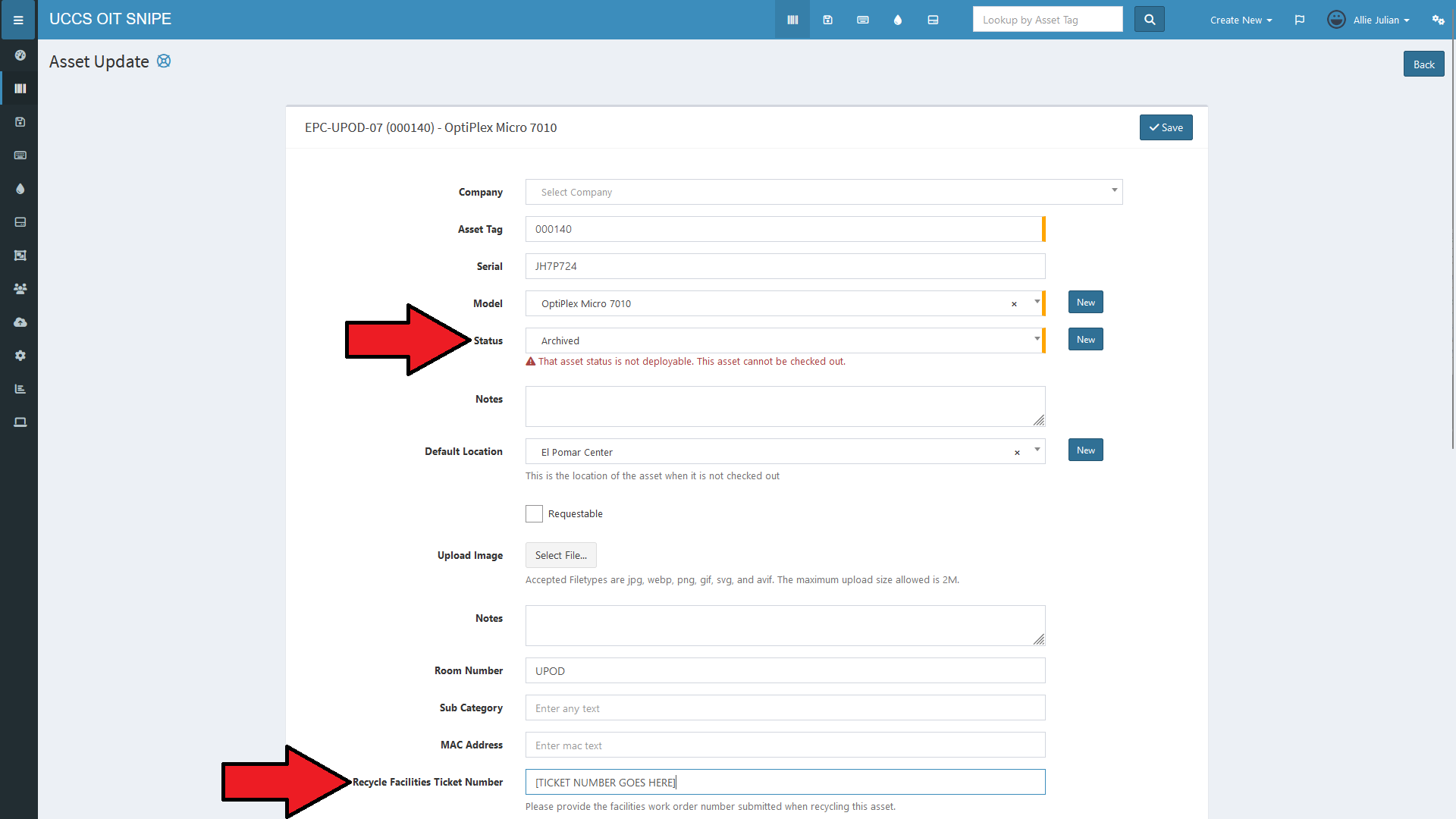
Here, you'll need to change the "Status" field to "Archived" and add the facilities ticket for disposal of the device in the "Recycle Facilities Ticket Number" field:
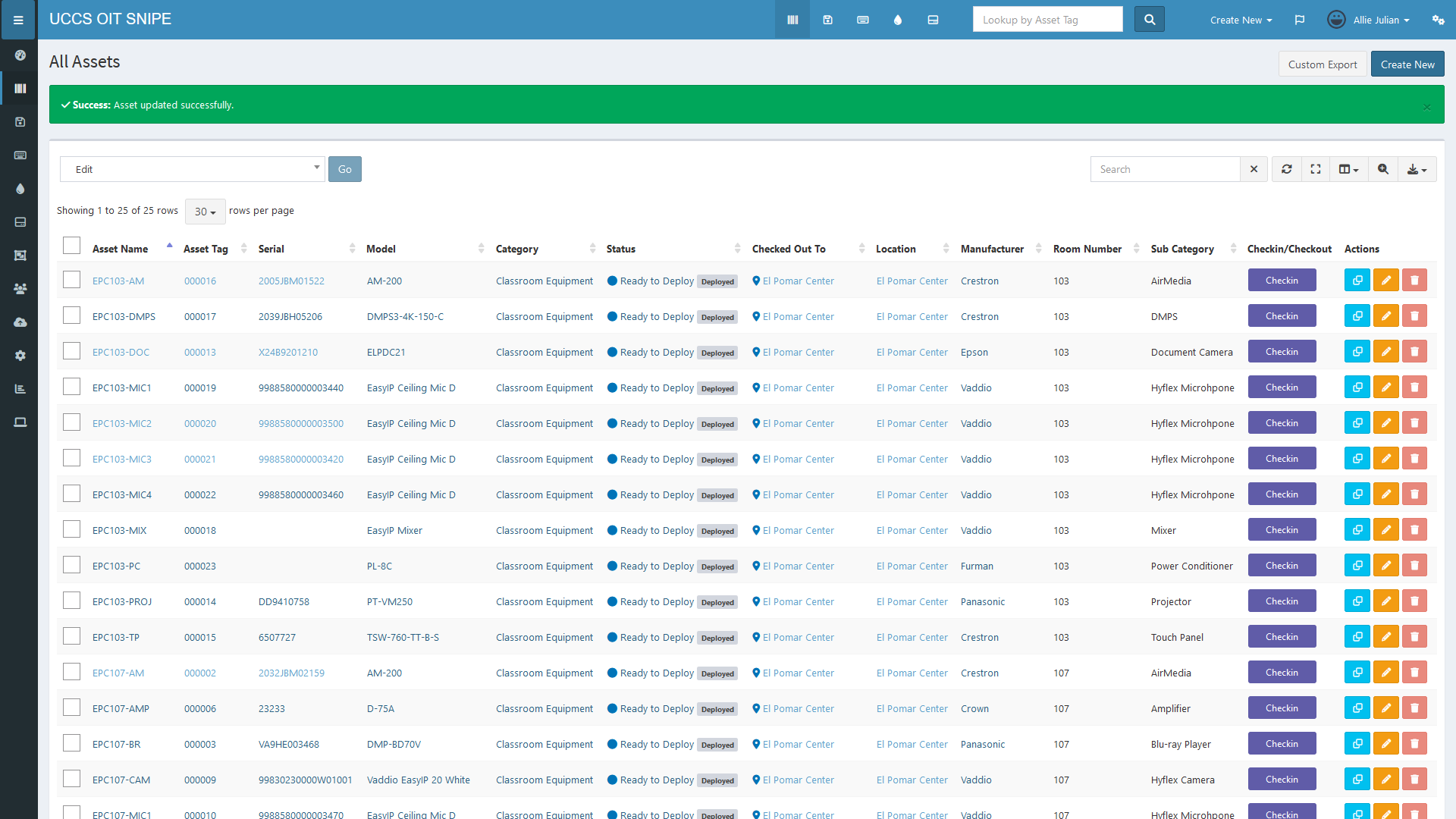
Once these fields are updated, click the "Save" button in the top or bottom right of the form to save your changes. The asset will now no longer appear on the "All Assets" page. Note that the total number of rows has also decreased as well:
Viewing Archived Assets:
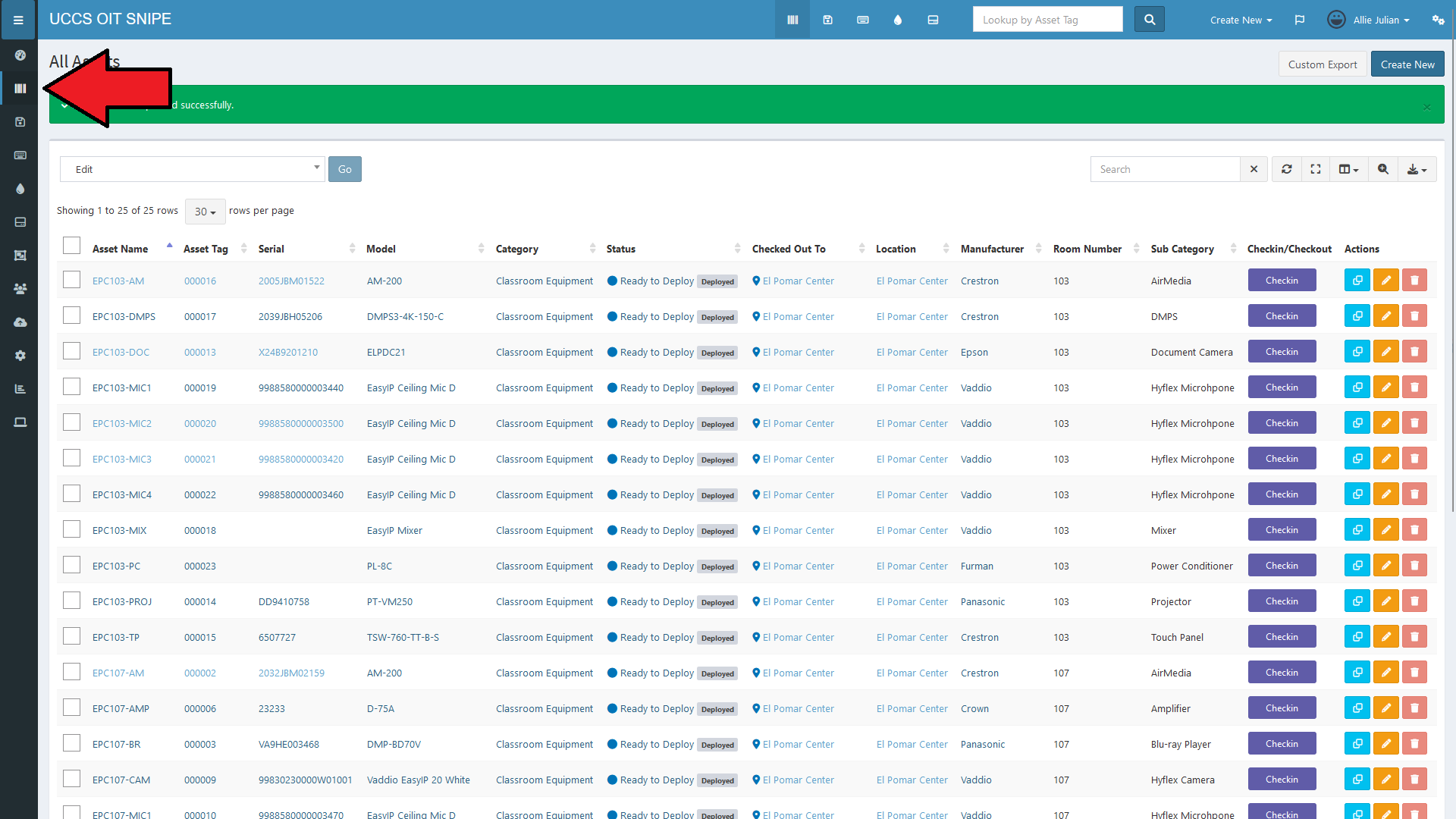
If you need to view an archived asset or restore an asset archived by mistake, you can access a list of archived assets from the asset drop-down menu in the navigation sidebar. Hover your mouse over the barcode icon on the left side of the page:
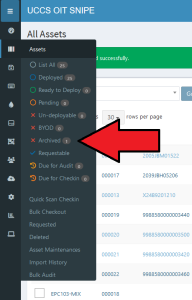
Then select "Archived" from the drop-down menu that appears:
This will bring you to the "Archived Assets" page:
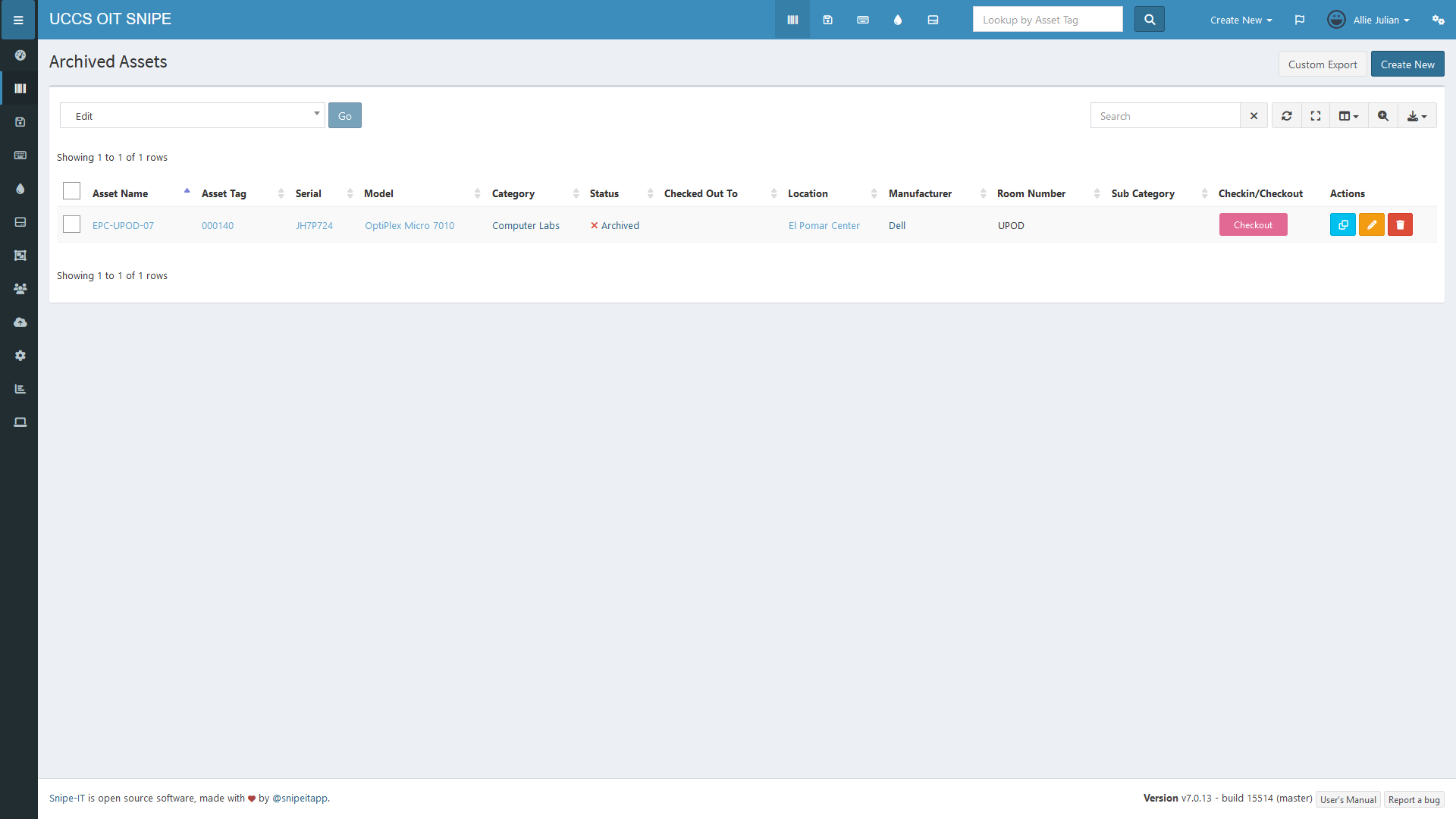
From here, you can search for assets, click on an asset's name to view its information, or click on the yellow pencil icon in the rightmost column to edit an asset just as you would on the "All Assets" page.
You can restore an asset from the archived list by editing it and changing its "Status" back to "In Storage" or "Ready to Deploy" as appropriate, but please remember to remove the ticket number in the "Recycling Facilities Ticket Number" field if one was entered. See "Changing an Asset" for information on editing an asset.