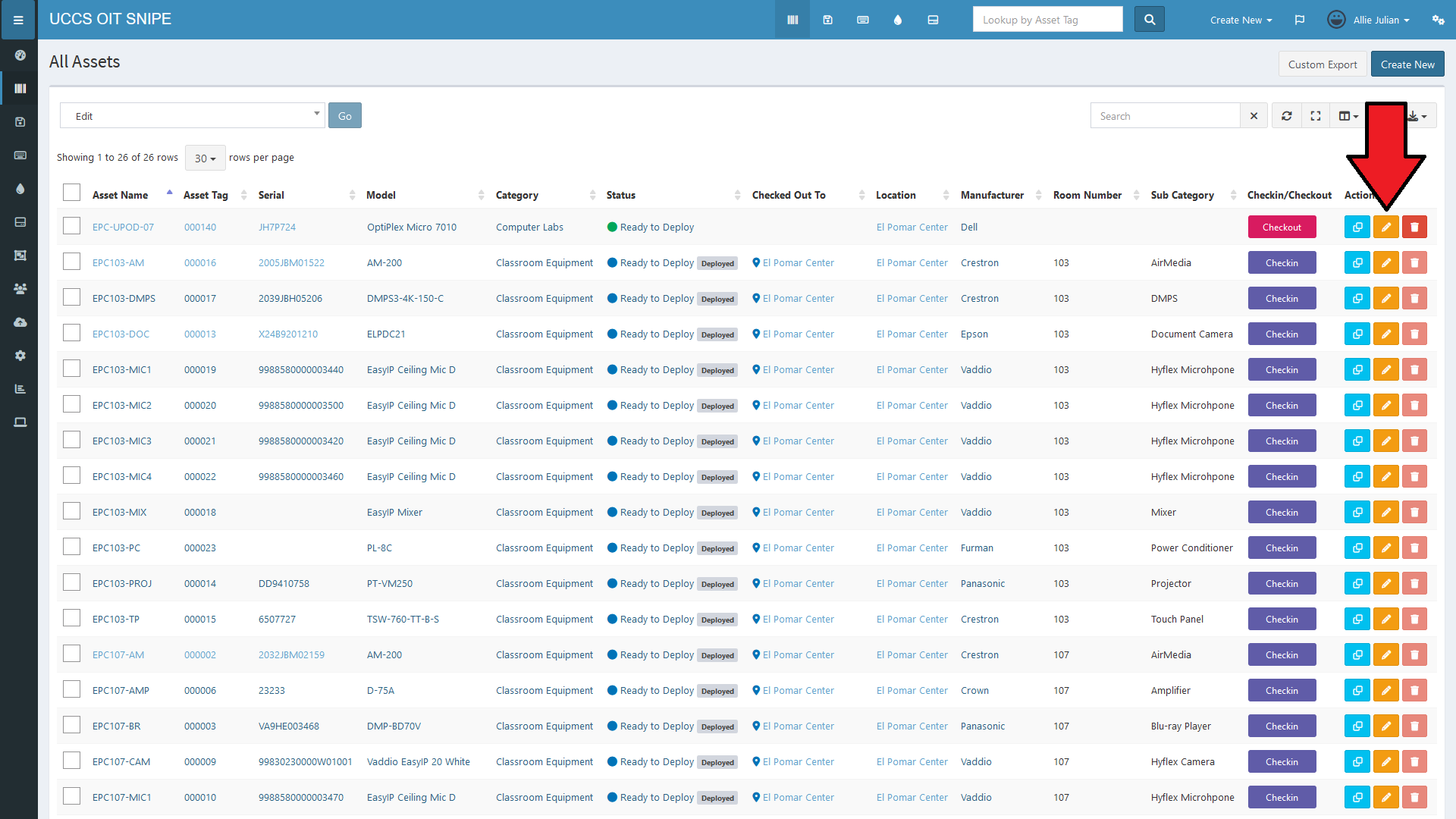
This will bring you to the "Asset Update" page. This has all of the same options as the "Create Asset" page, but the fields from "UCCS Custom Fields" ("Room Number", "Sub Category", "MAC Address", and "Recycle Facilities Ticket Number") will also be visible for editing:
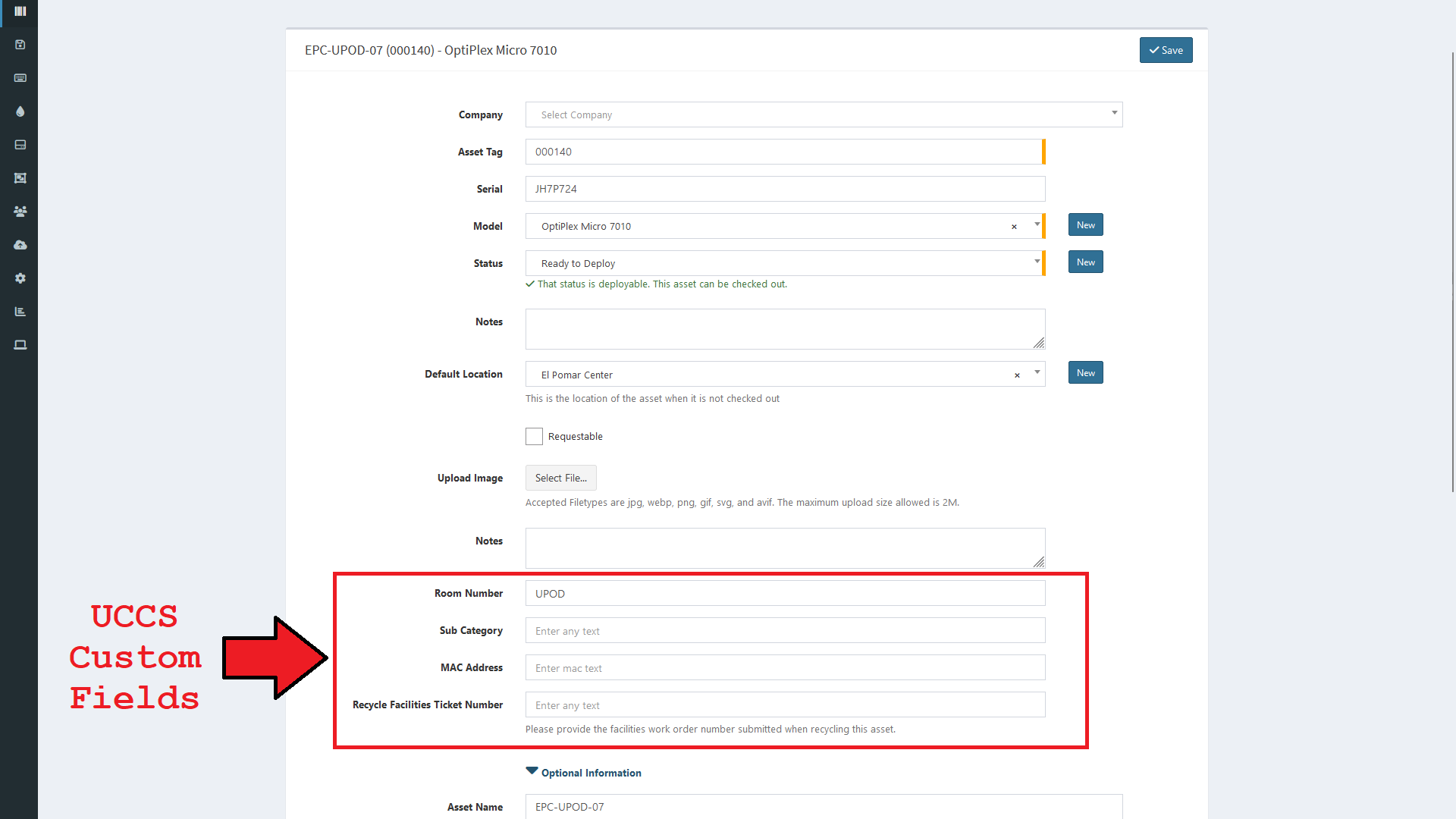
See How to Add an Asset for information about the options on this page.
Asset Checkout:
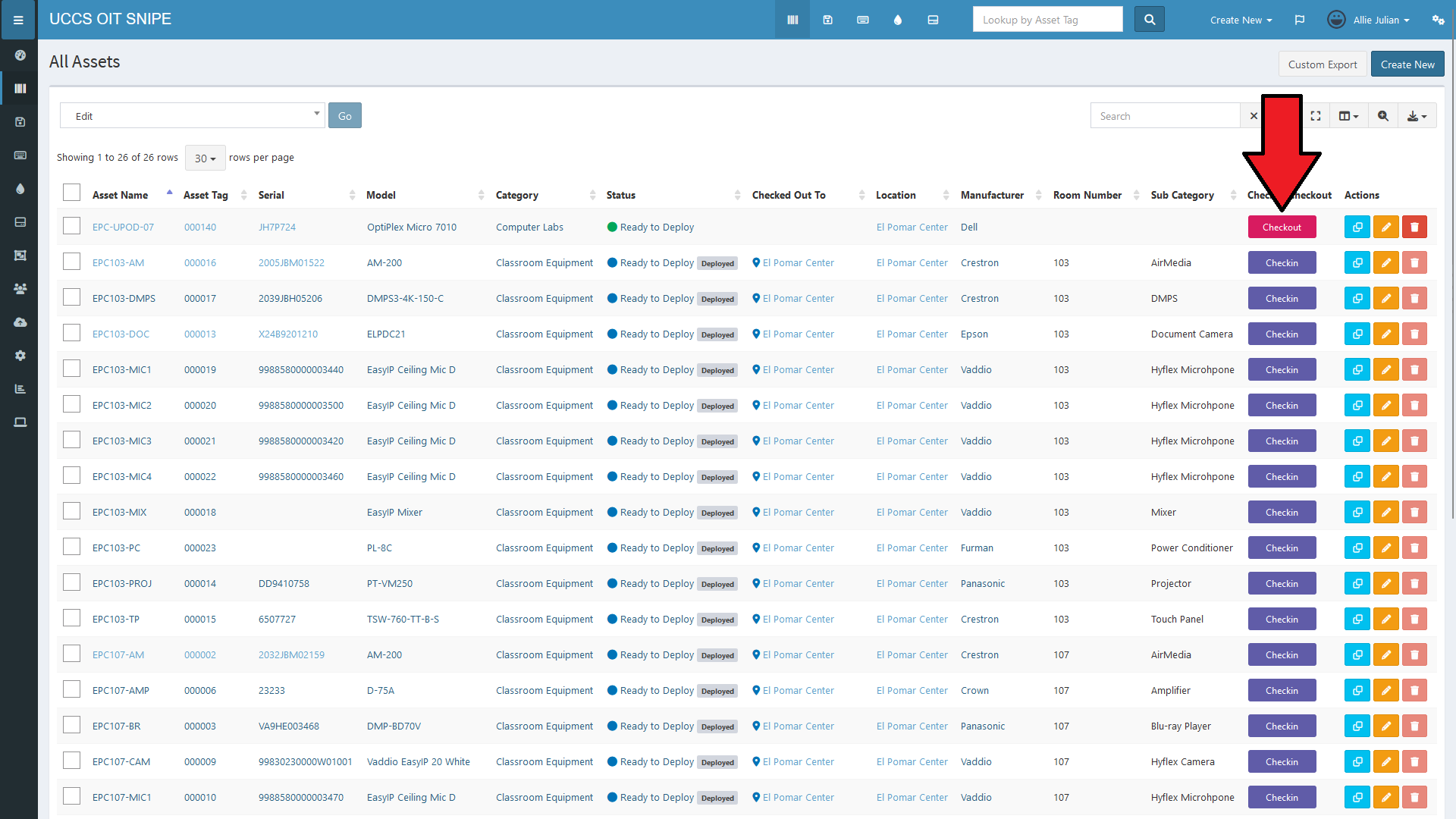
While on the "All Assets" page, click on the red "Checkout" button in the "Checkin/Checkout" column.
This will bring you to the "Checkout Asset" page:
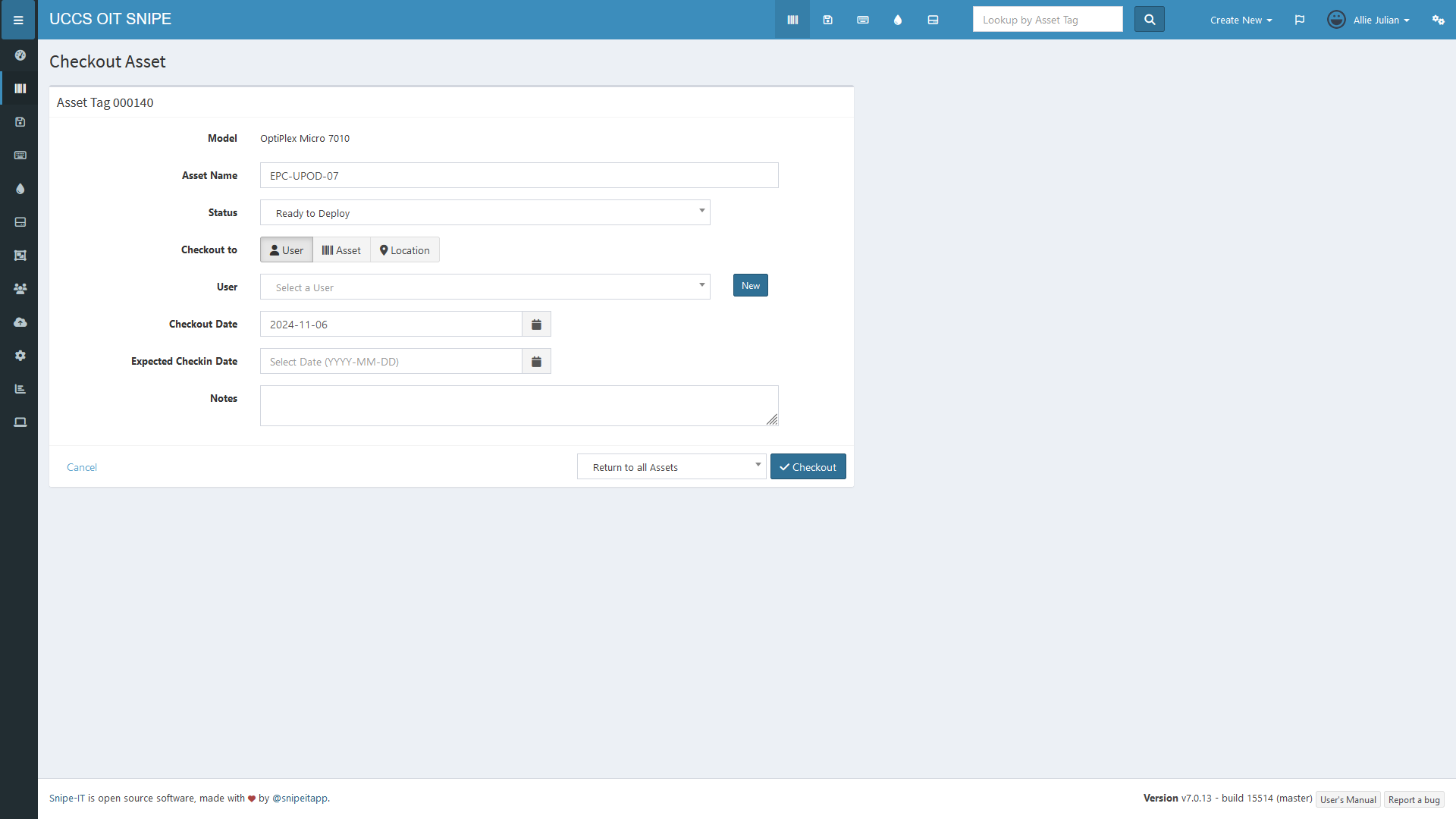
Select the user that you'd like to check the device out to from the drop-down menu in the "User" field. SnipeIT syncs all active fac/staff UCCS accounts on a regular basis, so new employees should show up in SnipeIT 24-48 hours after their account is set up. If the user you're looking for still isn't listed after that time, please contact OIT for further assistance.
The "Expected Checkin Date" and "Notes" fields aren't required, but should be filled out as needed.
When you've finished filling out the form, click the "Checkout" button in the bottom right to check the asset out.
Asset Checkin:
While on the "All Assets" page, click on the purple "Checkin" button in the "Checkin/Checkout" column.

This will bring you to the "Checkin Asset" page:
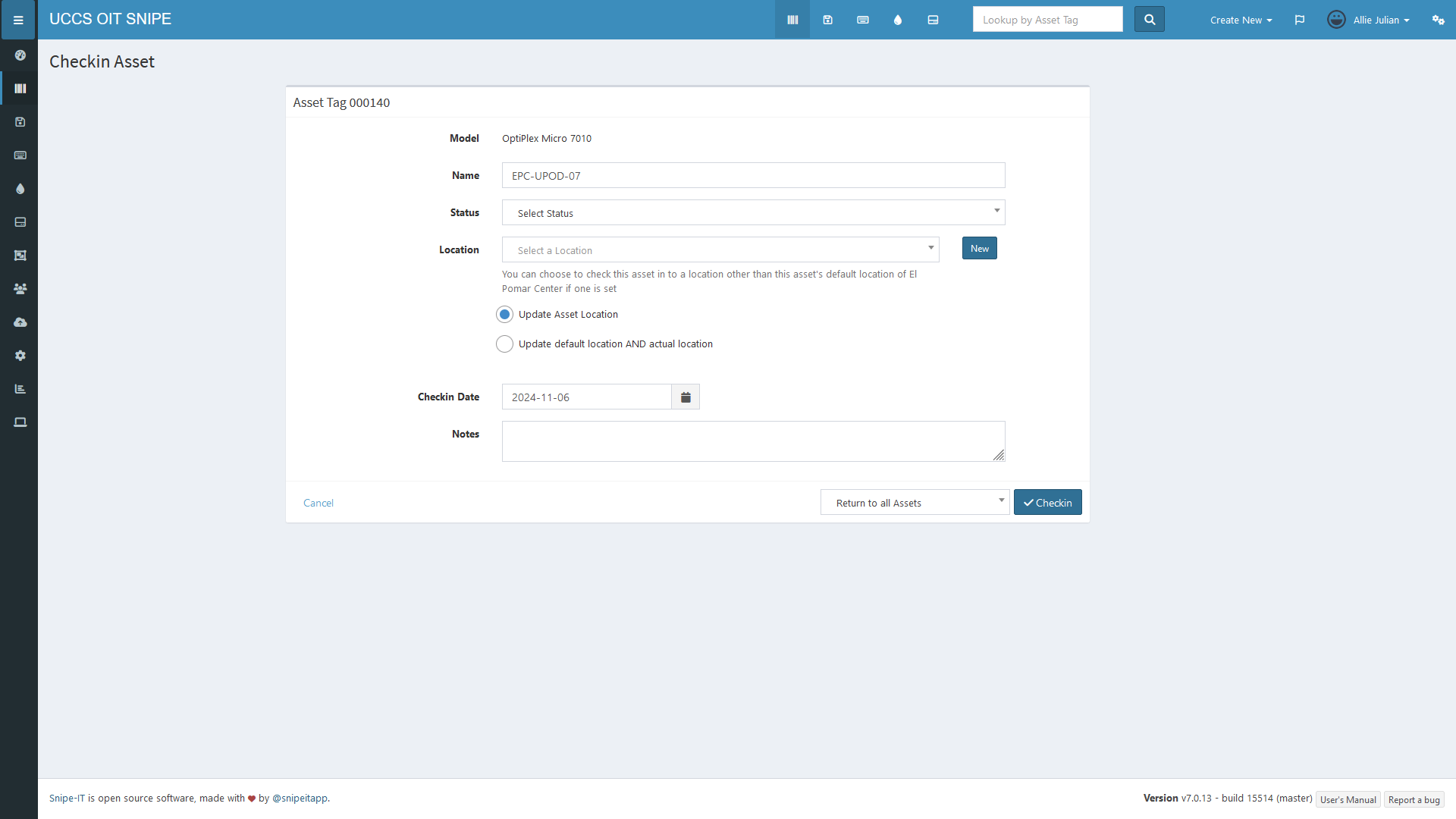
The only required fields here are "Status" and "Checkin Date". For an explanation of the "Status" options, see Bulk Import of Assets.
"Location" only needs to be filled in if the asset's location is changing during the checkin process. For temporary changes, select the "Update Asset Location" option under the "Location" field. For permanent changes to an asset's location, select the "Update default location AND actual location" option.
When you've finished filling out the form. click the "Checkin" button in the bottom right to check the asset in.