The UCCS IT Help Desk highly recommends upgrading Office 2010 to either Office 2013 or Office 2016 to ensure functionality. To upgrade to a newer version of Office, please contact the UCCS IT Help Desk at 719-255-3536 or email [email protected] |
Start a new email within Outlook.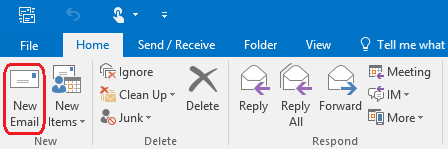
Drag the Spam/Phishing email from your list of emails and drop it into the new email. Address the email to [email protected] and put Reporting Spam/Phishing as the subject.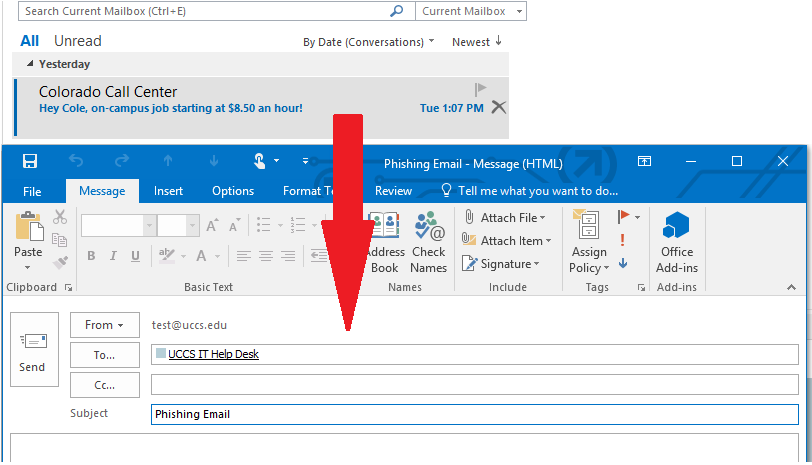
Finally you should see the email you made with the spam/phishing email in the Attached section. You are then ready to press Send and send the email.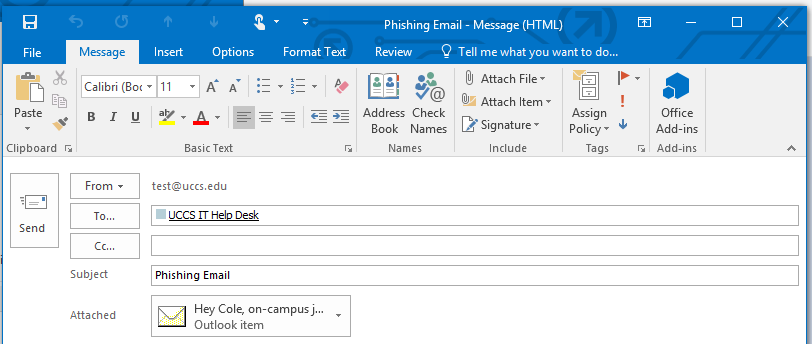
Create a new email and address it to [email protected] with the subject of SPAM Email.
Click on the Attach Item icon and choose Outlook Item from the drop down.
In the Insert Item window, find the email you would like to attach. Below the OK button ensure that it is send as attachment. Click OK.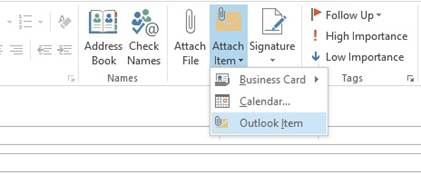
The email should now show an attachment. Click Send.