The new Jamf Connect system integrates the UCCS Login Portal with your Apple macOS device, allowing you to sign-in with your UCCS email and link your account for device management.

If your device does not have Jamf Connect installed, contact the service desk to update your device.

Logging In

While using the Jamf Connect Login system, you must be connected to the internet the first time you sign-in to ensure the local account and UCCS email are connected. Since you cannot connect to a wireless network for the first time from the login page, you will need a wired ethernet connection to have the login window appear if your device isn't already connected to an available wireless network.

If you do not have access to a working ethernet port in your work space or don't have an ethernet adapter to use with your device for your first Jamf Connect sign-in, please bring your device to the service desk while we're open for walk-ups or contact us via phone or live chat to schedule a work order for on-site service. See here for our open hours and contact information: https://oit.uccs.edu/get-help

  1. Connect to the internet via ethernet cable or wireless to show the Jamf Connect window:


    If you do not have internet connectivity, you can sign-in with your normal UCCS email account credentials (without the @uccs.edu) through the "local login" screen as long as it is not your first sign-in and your account has already been connected:
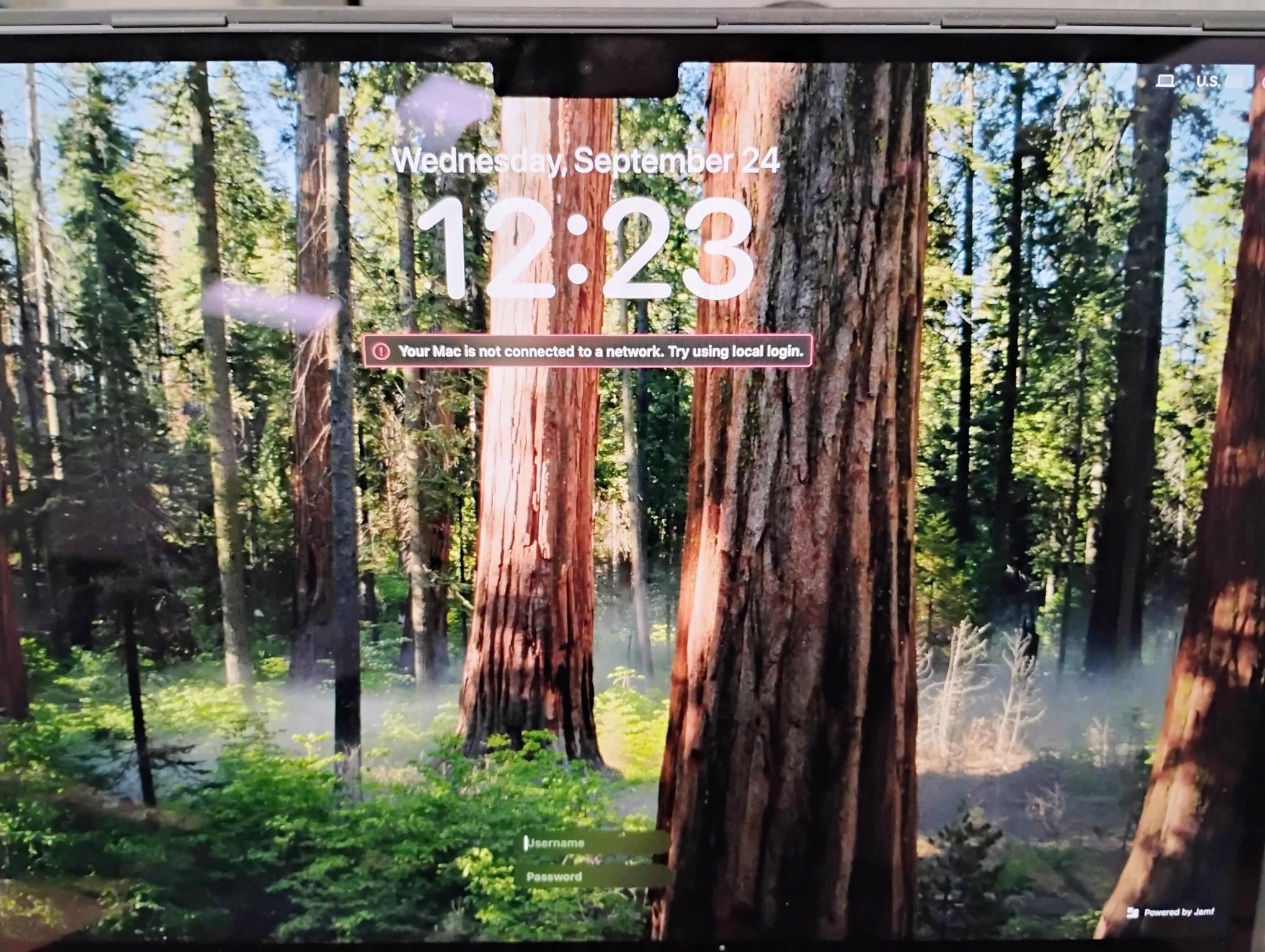


    If you are currently offline but the local login screen is not being displayed automatically, you can click the small computer icon in the top right of the screen to manually force it to display:

     
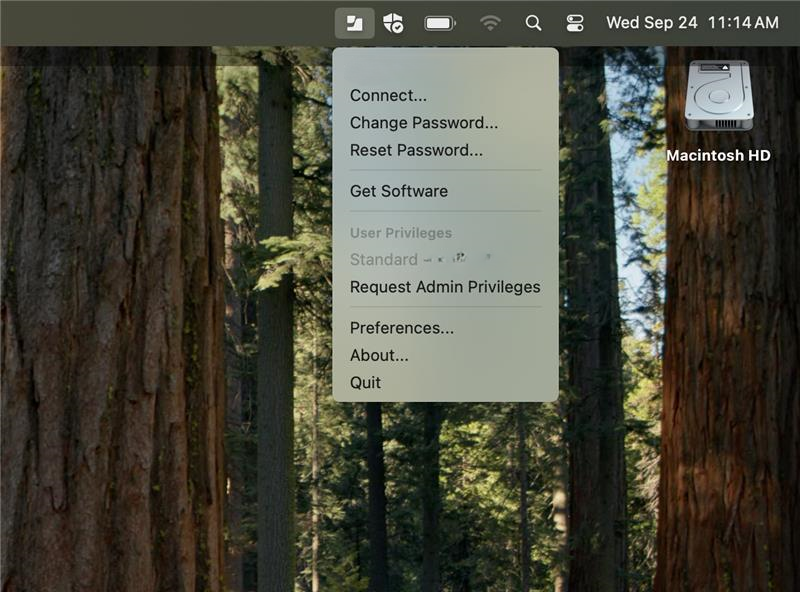
  2. Once logged in, ensure you are connected to Jamf Connect by selecting Connect on the Jamf Connect taskbar icon:


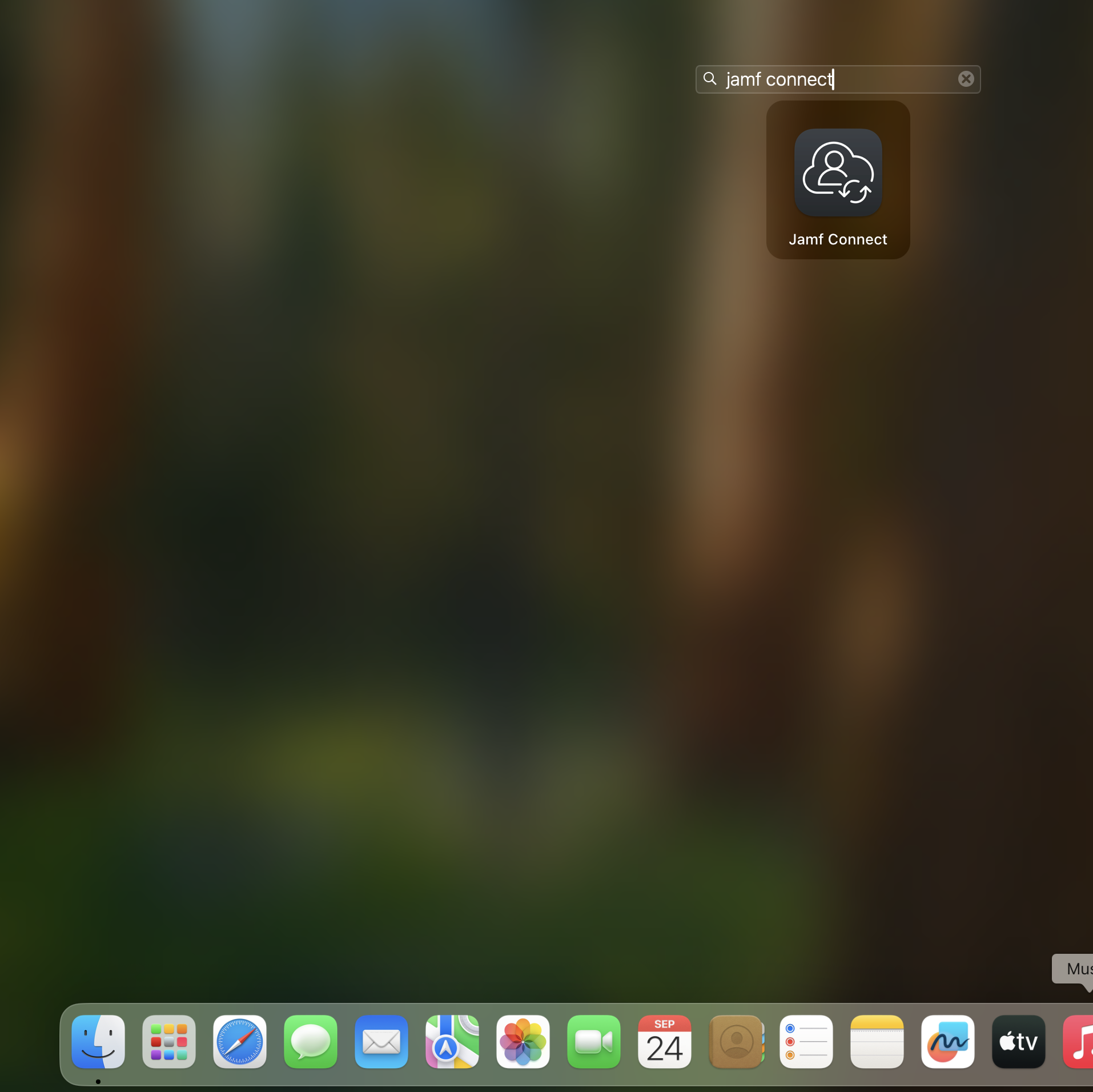
    If the icon does not appear, launch Jamf Connect from the LaunchPad:

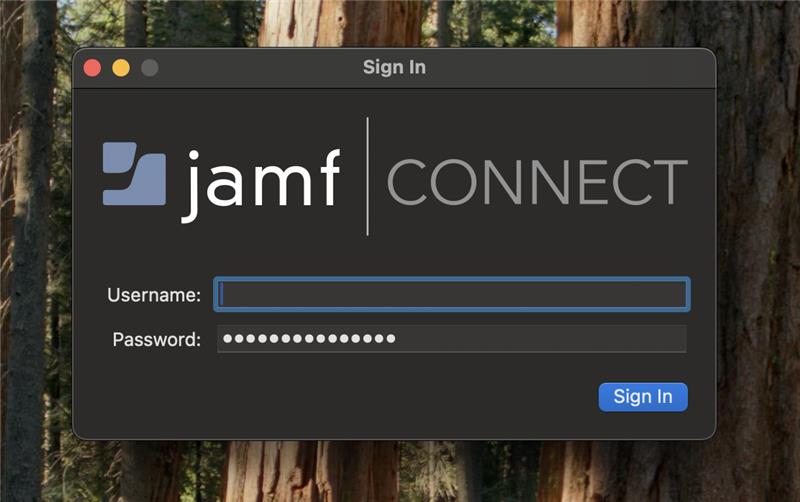
  3. Enter your full UCCS email credentials and select "Sign In":