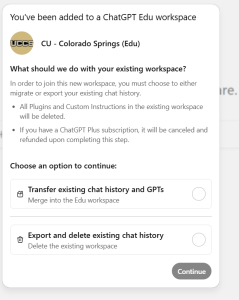
- Transfer your data — moves your existing chat history and custom GPTs into the UCCS Edu workspace
- Export and delete — lets you download your data, then starts fresh in the Edu workspace
This information is speculative and has not been verified as of yet. |
If you already have a personal ChatGPT account, you have options for how to handle it when joining the UCCS Edu workspace. This page explains the different scenarios and walks you through each one.
Important: UCCS will eventually require all campus ChatGPT usage to go through the Edu workspace. We strongly encourage you to merge or migrate your existing account now to avoid disruption later. We anticipate enforcing this around July 31, 2026.
This is the most common case. When your UCCS Edu account is provisioned, OpenAI will recognize that your email matches the UCCS workspace domain and prompt you to migrate automatically.
What happens:
What transfers:
What does NOT transfer:
Before you merge: Take a moment to copy or screenshot anything you want to keep from the lists above — especially custom instructions and memories. Once the merge is complete, these cannot be recovered.
If you have a paid subscription (Plus or Pro):
Your personal subscription will be automatically canceled, and you'll receive a refund for the remaining billing period. If you subscribed through the iOS or Android app, you'll need to cancel your subscription through your device's app store settings manually — OpenAI cannot cancel mobile subscriptions on your behalf.
If your personal account uses a non-UCCS email, you won't be automatically prompted to merge. You have two options.
Option 1: Change your existing account's email to @uccs.edu (recommended)
This consolidates everything into one account and triggers the merge process described in Scenario A.
@uccs.edu emailNote: If you also want to keep a separate personal account, do not change the email. See Option 2 instead.
Option 2: Keep your personal account separate
If you prefer to maintain a personal ChatGPT account alongside your UCCS Edu account, you can keep them as separate workspaces. You'll switch between them using the workspace switcher in ChatGPT (click your profile icon in the top-right corner to see your available workspaces).
Keep in mind:
No action needed — just follow the Getting Started guide and your Edu account will be created fresh.
Merging is permanent. Once you merge your personal workspace into the UCCS Edu workspace, it cannot be undone. Your personal workspace will be deleted and you will only see the Edu workspace when you log in.
Your data becomes university managed. After merging, your migrated conversations and GPTs are part of the UCCS Edu workspace. If you ever leave UCCS or are removed from the workspace, you will lose access to all data in the Edu workspace — including anything you migrated from your personal account.
Back up anything important first. Before merging, we recommend exporting your data as a safety measure:
If you weren't prompted automatically, or you skipped the prompt and want to merge now:
@uccs.edu emailIf you don't see the merge option, your personal account may be using a different email address than your Edu account. Change your personal account's email to your @uccs.edu address first (see Scenario B, Option 1).
Will I lose my ChatGPT Plus features if I merge? The Edu workspace includes GPT-5.3, file uploads, image generation, and other features at no cost to you. Your Plus subscription will be canceled with a prorated refund. In most cases, the Edu workspace provides equivalent or better capabilities for campus use.
Can I merge later instead of right now? Yes, but we encourage you to do it sooner rather than later. UCCS will eventually require all campus ChatGPT usage to go through the Edu workspace, and merging early ensures you don't lose access to your conversation history.
I accidentally skipped the merge prompt. Can I still merge? Yes. Go to Settings → Data Controls → Merge data from your personal workspace from within the Edu workspace.
I merged and now I'm missing some conversations. What happened? Some conversations may not transfer if they were created with features or plugins that aren't available in the Edu workspace. If you exported your data before merging, you can upload your conversations.json file into a new conversation to reference your old chats.
I have a ChatGPT account through another university or organization. Can I merge that too? No. OpenAI does not support merging between two organizational workspaces. Only personal workspaces can be merged into the Edu workspace.
Still have questions? Contact the OIT Help Desk or visit oit.uccs.edu/get-help for assistance.