This documentation aims to guide the user on how to connect to and use a Crestron UC-SB1-CAM soundbar in conjunction with a room display. These devices are typically installed in "non-supported" office spaces in campus, though, can be occasionally found in some of our seminar and huddle rooms on campus. These soundbars offer an all-in-one solution for basic bring-your-own-meeting (BYOM) rooms. The soundbar allows a user to plug in their laptop or pc computer which in turn, allows the device to use the speaker, microphone, and camera within the housing of the unit. These soundbars are typically mounted below the front-of-room display but can also be mounted above the display is some spaces.
To connect your laptop device or computer, you will need to have 1 USB-A port and 1 HDMI port available. Both of these cable connections are necessary to get the full use out of the soundbar. The USB connection allows the computer to use the microphone, speaker, and camera devices housed within the soundbar unit. The HDMI connection goes directly to the front of room display to allow the computer the ability to duplicate or extend its image.
Within the soundbar there are 3 total audiovisual devices. The speakers to the soundbar, the microphone embedded in the soundbar, and a Huddly camera mounted inside of the soundbar housing. These can be selected within your teams and computer settings in order to use the soundbar and display for sharing content or for small virtual conferences.
Once connected to the soundbar, select the speaker icon from the bottom-right of your laptop or computers taskbar and select Echo Cancelling Speakerphone (2-Crestron-UC-Soundabr) as the audio device. To use this audio device within Teams, navigate to the audio settings (Settings > Devices > Audio Settings) and set your speaker and microphone settings to Echo Cancelling Speakerphone (2-Crestron-UC-Soundbar).
|
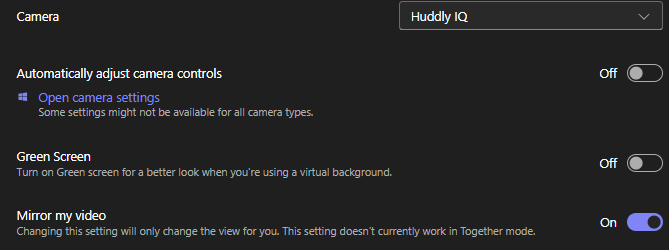
For the camera options, you may test the camera by opening the Teams application and setting the camera to reflect the Huddly IQ option. Within Teams, navigate to the camera settings (Settings > Devices > Video Settings) and set your camera option to Huddly IQ (see below).
|
In order to update your audio settings on Mac, once connected, navigate to your Mac audio settings. From the home bar select, Apple Icon > System Settings and then select the Sound option in the sidebar (you may need to scroll down in the sidebar). Select output and select the Echo Cancelling Speakerphone (2-Crestron-UC-Soundabr) option from the list of available audio devices. To use the soundbar for a Teams meeting or for conferencing select the appropriate audio devices in within teams by navigating to the audio settings (Settings > Devices > Audio Settings) and set your speaker and microphone settings to Echo Cancelling Speakerphone (2-Crestron-UC-Soundbar).
See example settings above. |
The process for using the camera in Teams on a MacOS device should be the same as the windows options. Open the Teams application and set the camera to the Huddly IQ option. Within Teams, navigate to the camera settings (Settings > Devices > Video Settings) and set your camera option to Huddly IQ (see below).
See example settings above. |