Click on your wireless network icon in the top right corner of the computer and then select UCCS-Guest from the list. 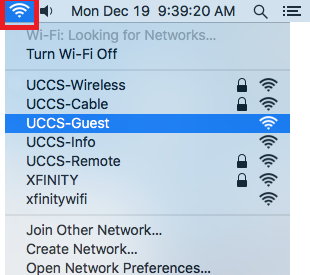
Your default browser should open up the UCCS-Guest captive portal page. Under the Guest Account section, click the Create Guest Account link. 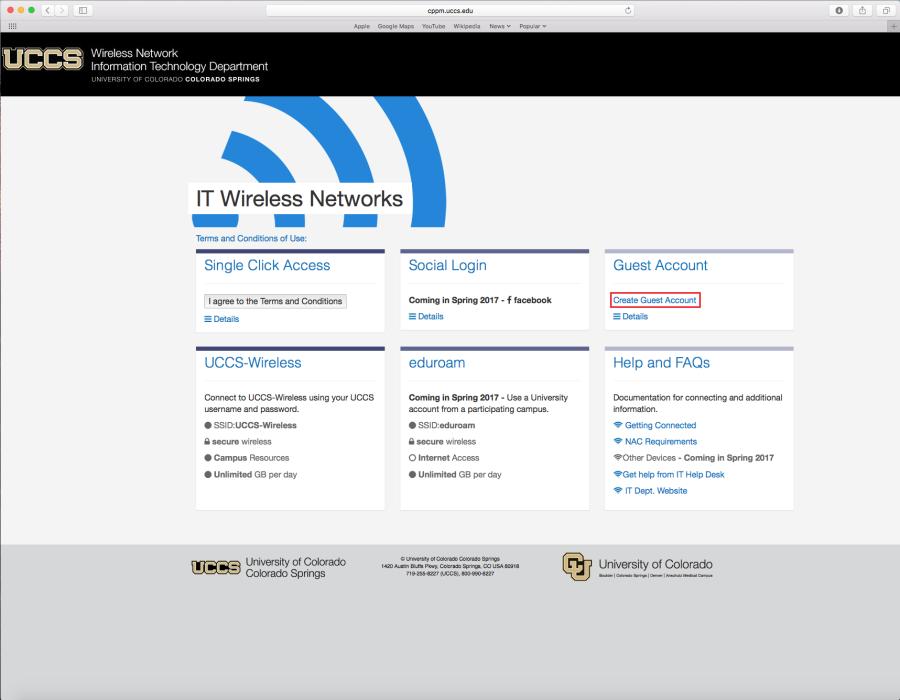
Fill out the request form and then click Register at the bottom of the page.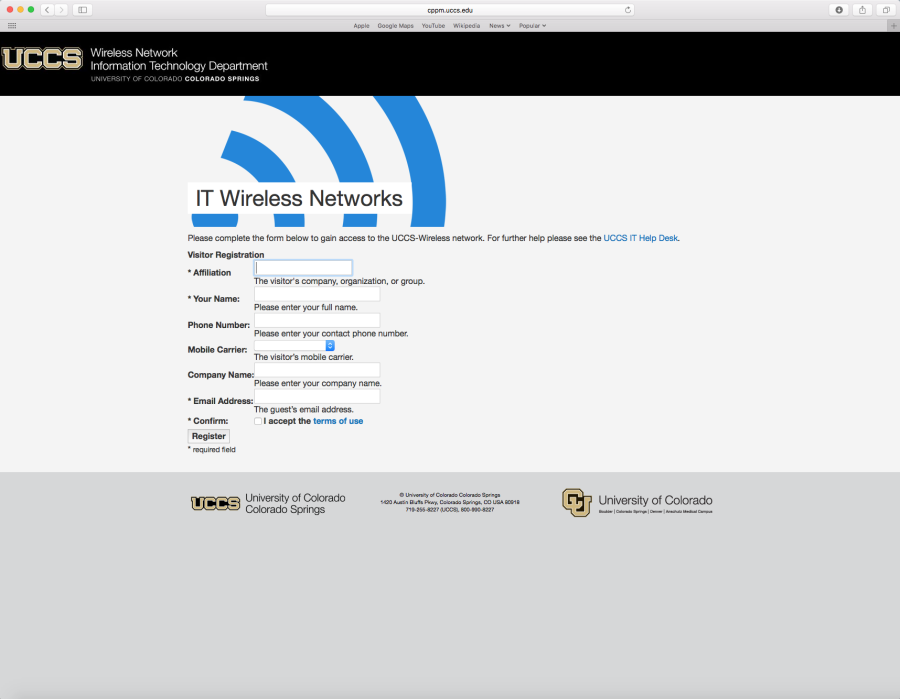
Take note of your newly issued guest login credentials (username and password) so you can use them to log into the UCCS-Wireless network in the steps below.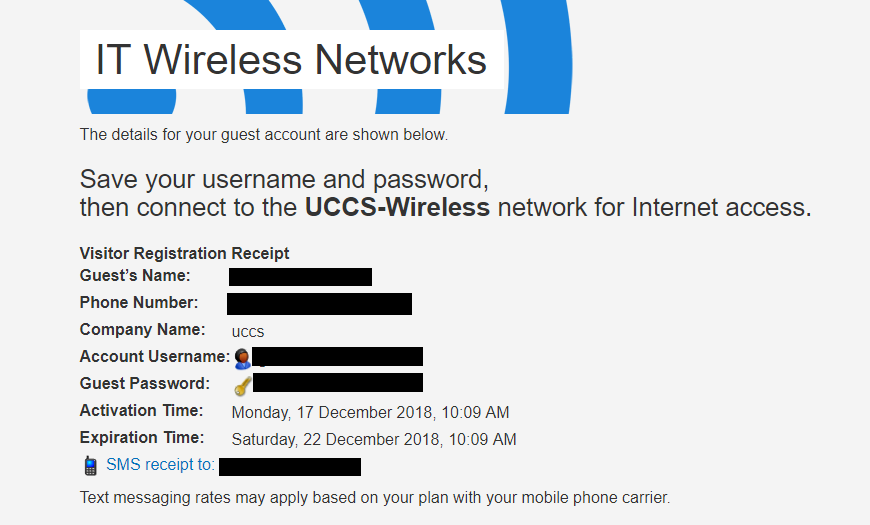
Click on your wireless network icon in the top right corner of the computer and then select UCCS-Wireless from the list. 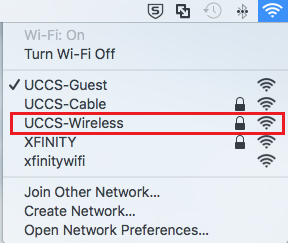
Step 6: Enter your Guest Account
Enter the guest username and password you obtained from the registration steps above.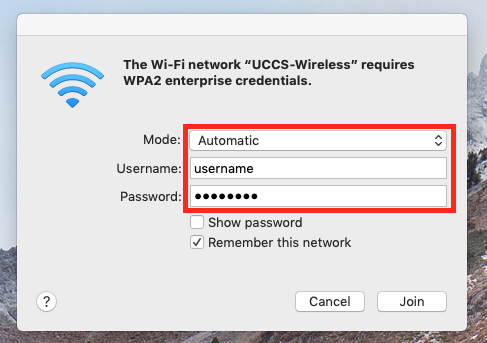
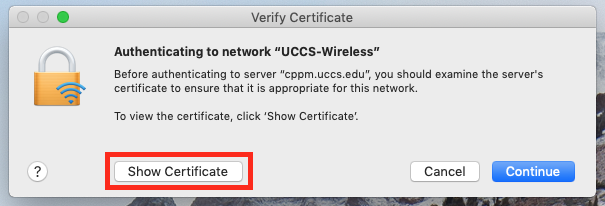
You should see a screen similar to the following asking you to verify and accept the server's security certificate. The server "cppm.uccs.edu" is the server you are authenticated against.
To be safe you should always validate the certificate you are about to trust. To validate and see more information about the certificate, click Show Certificate.
Our certificate is issued by Comodo RSA Certificate Authority.
Expand the Details by clicking the small triangle, and you should see more details about the certificate as seen below.
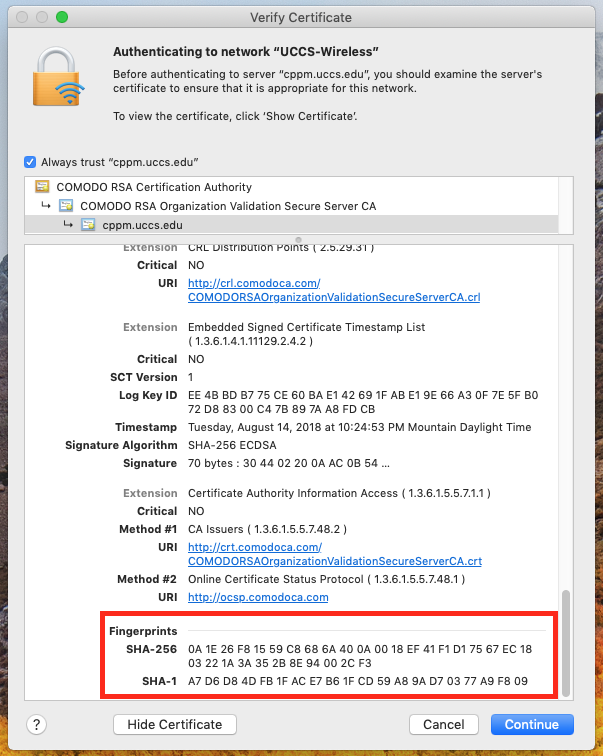
Scroll towards the bottom and you should see the certificate fingerprints. Your certificate should match the fingerprints listed below...
Server fingerprints
SHA-256 0A 1E 26 F8 15 59 C8 68 6A 40 0A 00 18 EF 41 F1 D1 75 67 EC 18 03 22 1A 3A 35 2B 8E 94 00 2C F3
A7 D6 D8 4D FB 1F AC E7 B6 1F CD 59 A8 9A D7 03 77 A9 F8 09 |
If your certificate fingerprints match those listed above, you can trust the certificate is valid. Go ahead and click Continue.
NOTE → If the fingerprint do not match, DO NOT trust the certificate! Click CANCEL and contact the OIT Helpdesk for assistance.
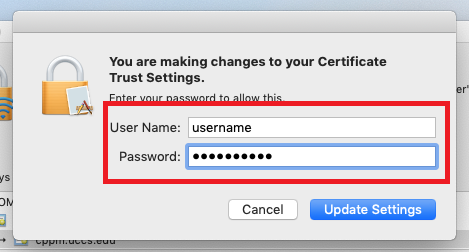
Your computer may then prompt you for your username/password to allow your computer to store the newly trusted certificate.
If prompted, enter your credentials and click "Update Settings."
Your device should now be connected to UCCS-Wireless.
Still having problems? Please contact the OIT Help Desk.