This AV system is a mobile cart and may be used in rooms other than HSMP 306. |
HSMP 306 is located on the north side of the 3rd floor.

The display will power on by pressing the power button on the right side of the display. The remote can also be used to power the display on and off.
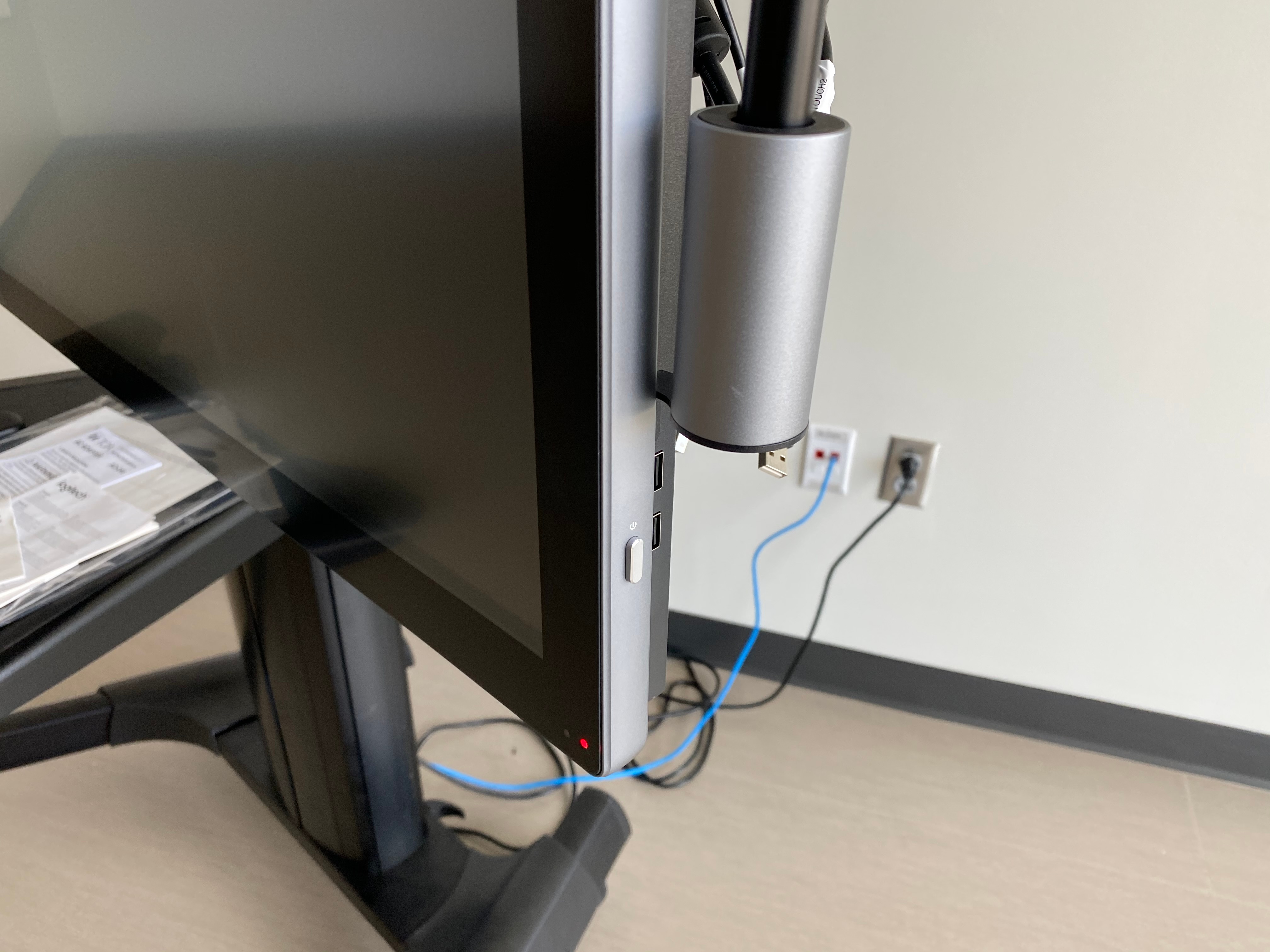
The default source is the built in PC which will power on with the display. To select a source, press INPUT on the remote or swipe up from the center of the display to reveal the source selection menu.

Volume can be controlled using the remote or by changing the volume on the source selection menu.
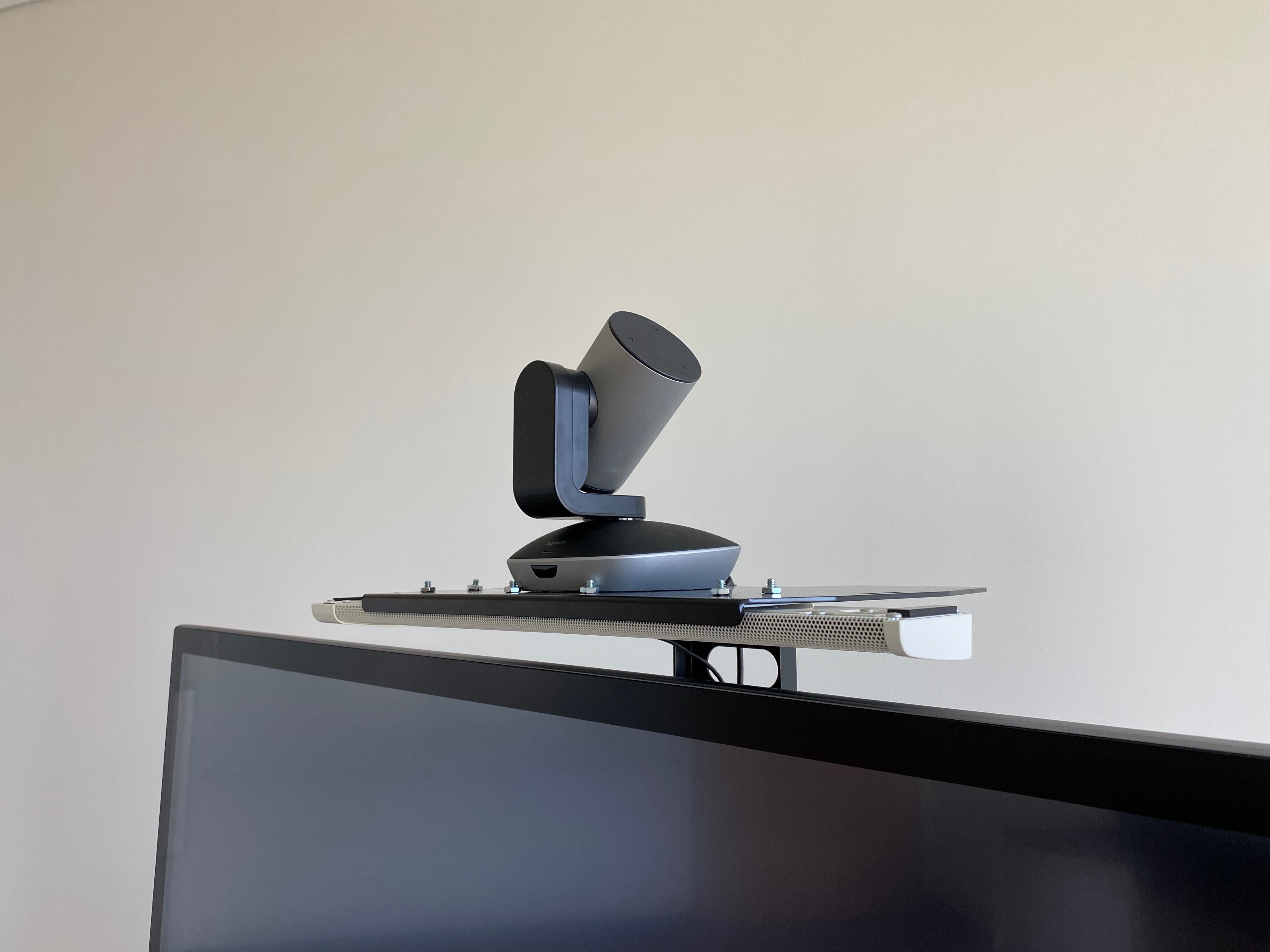
The camera and microphone above the display are connected to the built-in PC. To control the camera, use the Logitech remote on the cart.
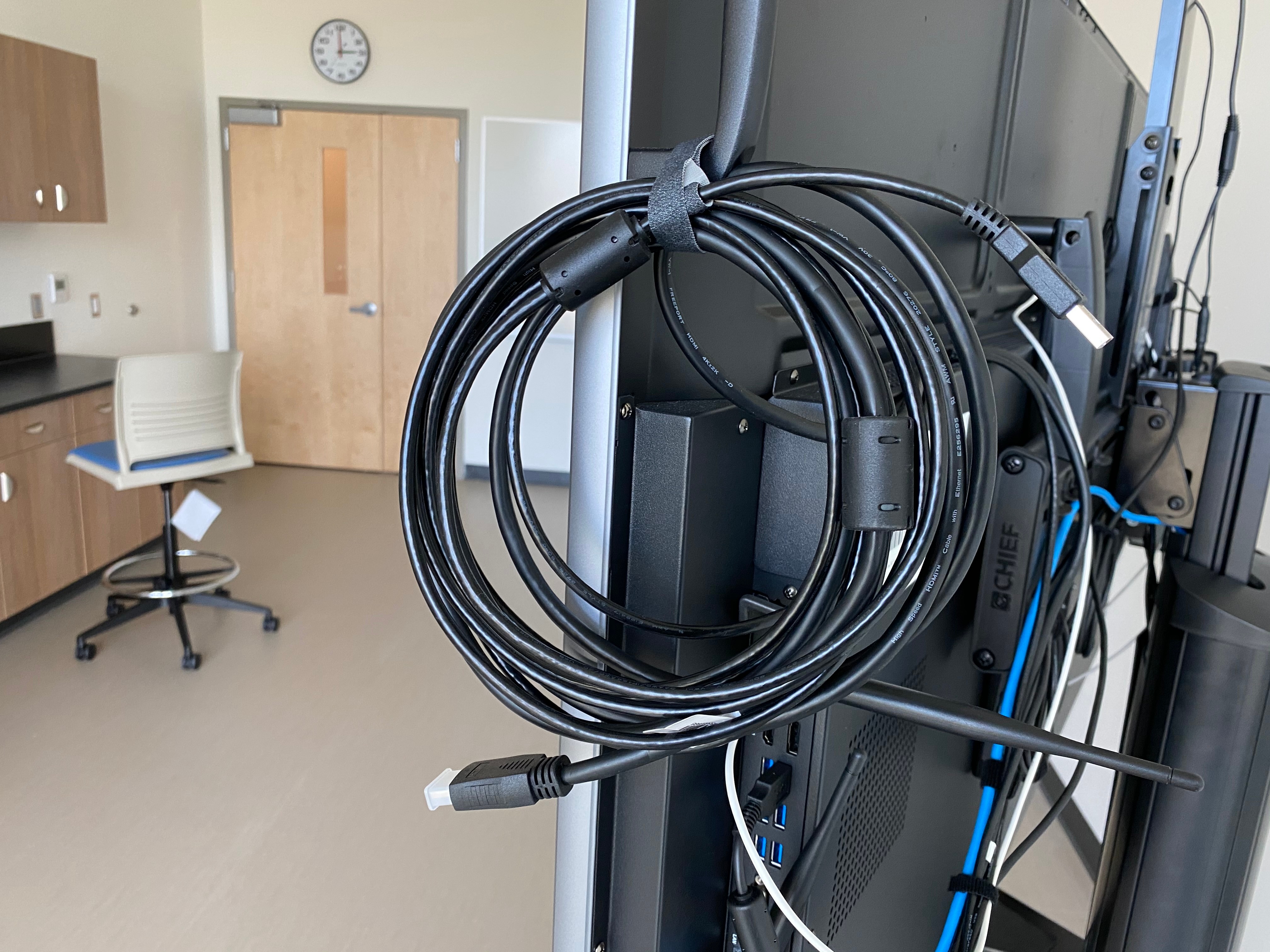
Connected to the cart are HDMI and USB cables for a laptop. The USB cable will allow for touch input from the display to be sent to the laptop.
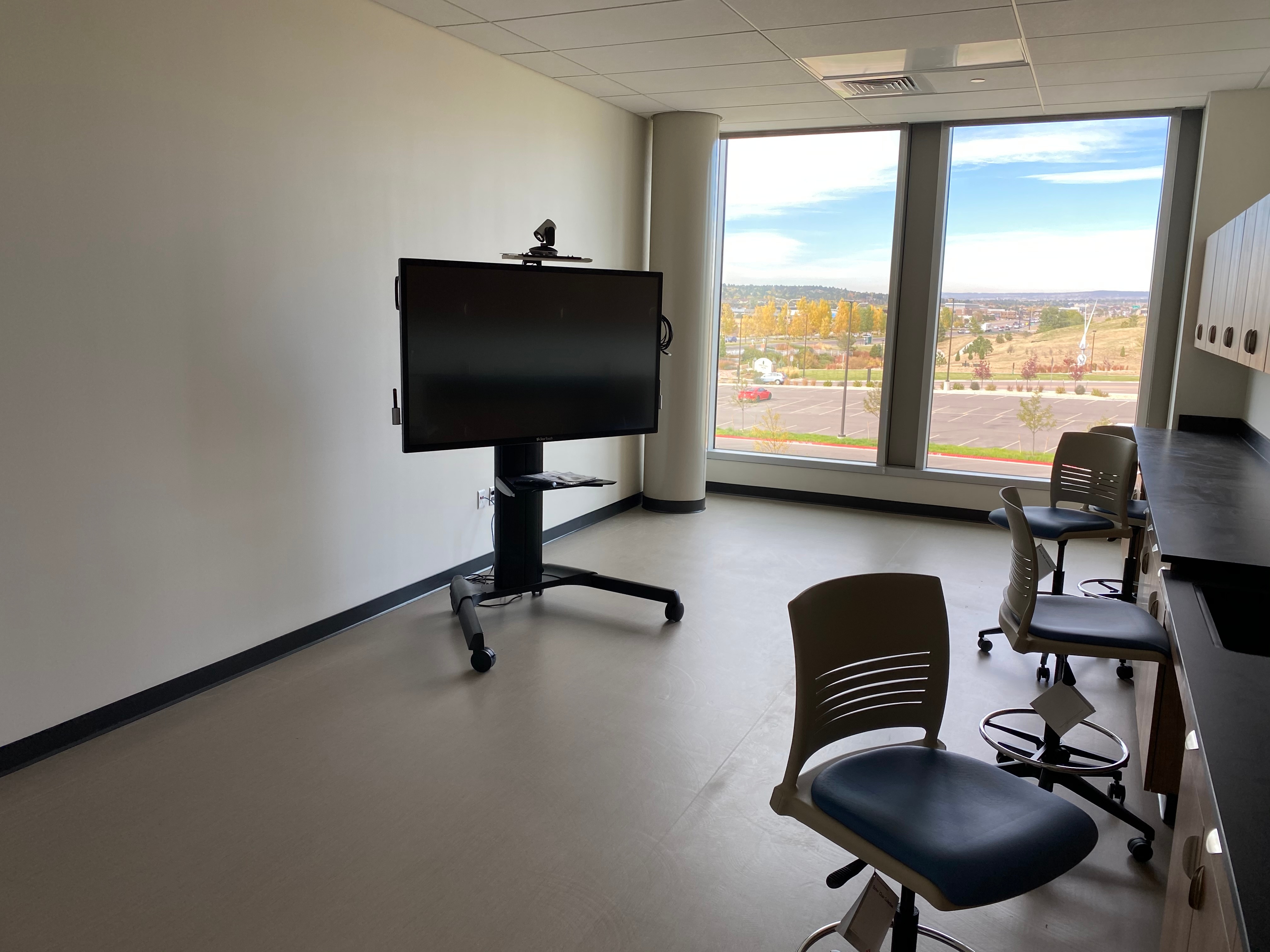
The cart is located in HSMP 306 but may be moved to other rooms.
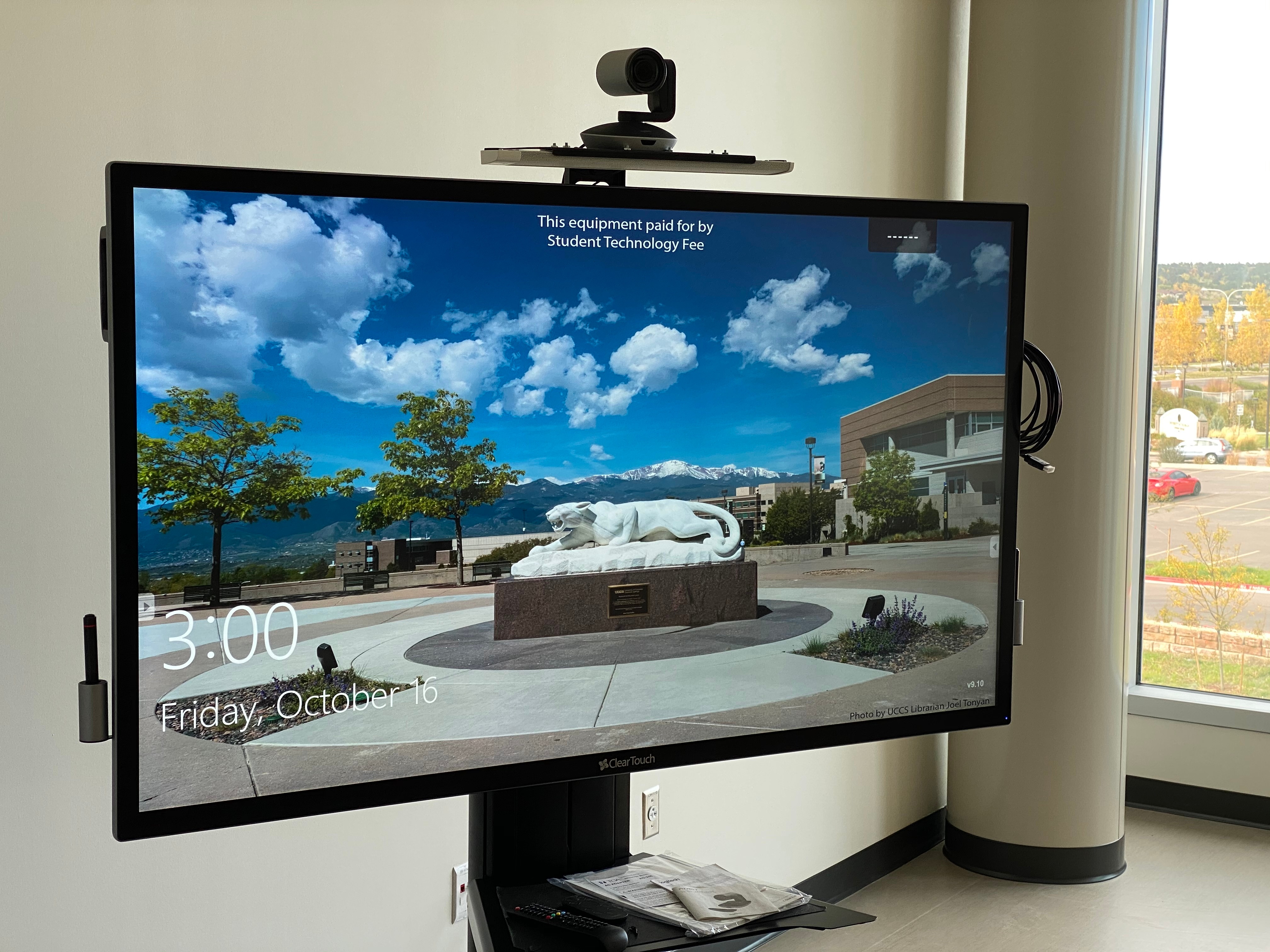
The cart features a touch display, built-in PC, camera and microphone, and laptop connections.
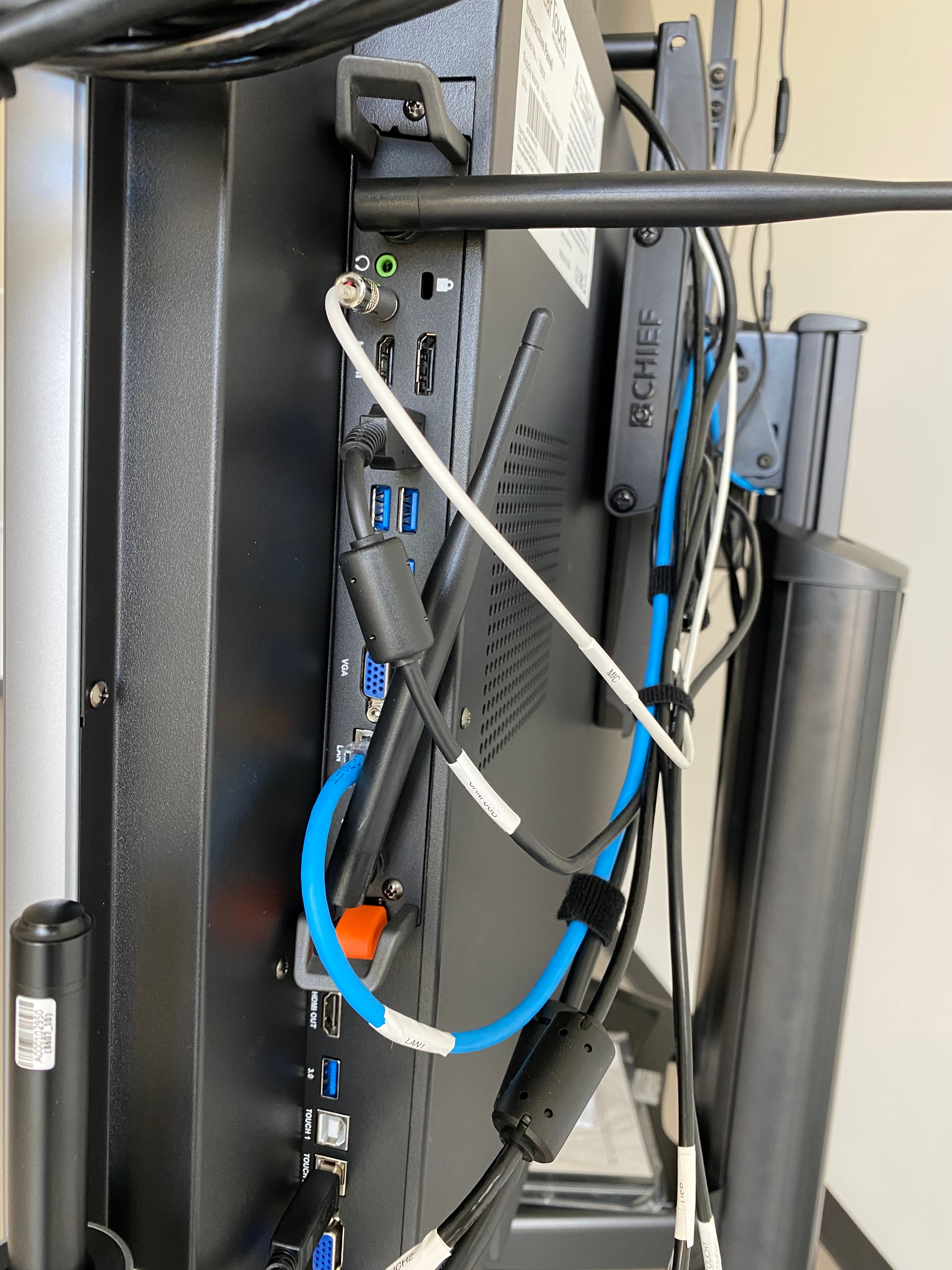
The built-in PC slides into the back of the display but should never be removed. Additional USB ports are available.
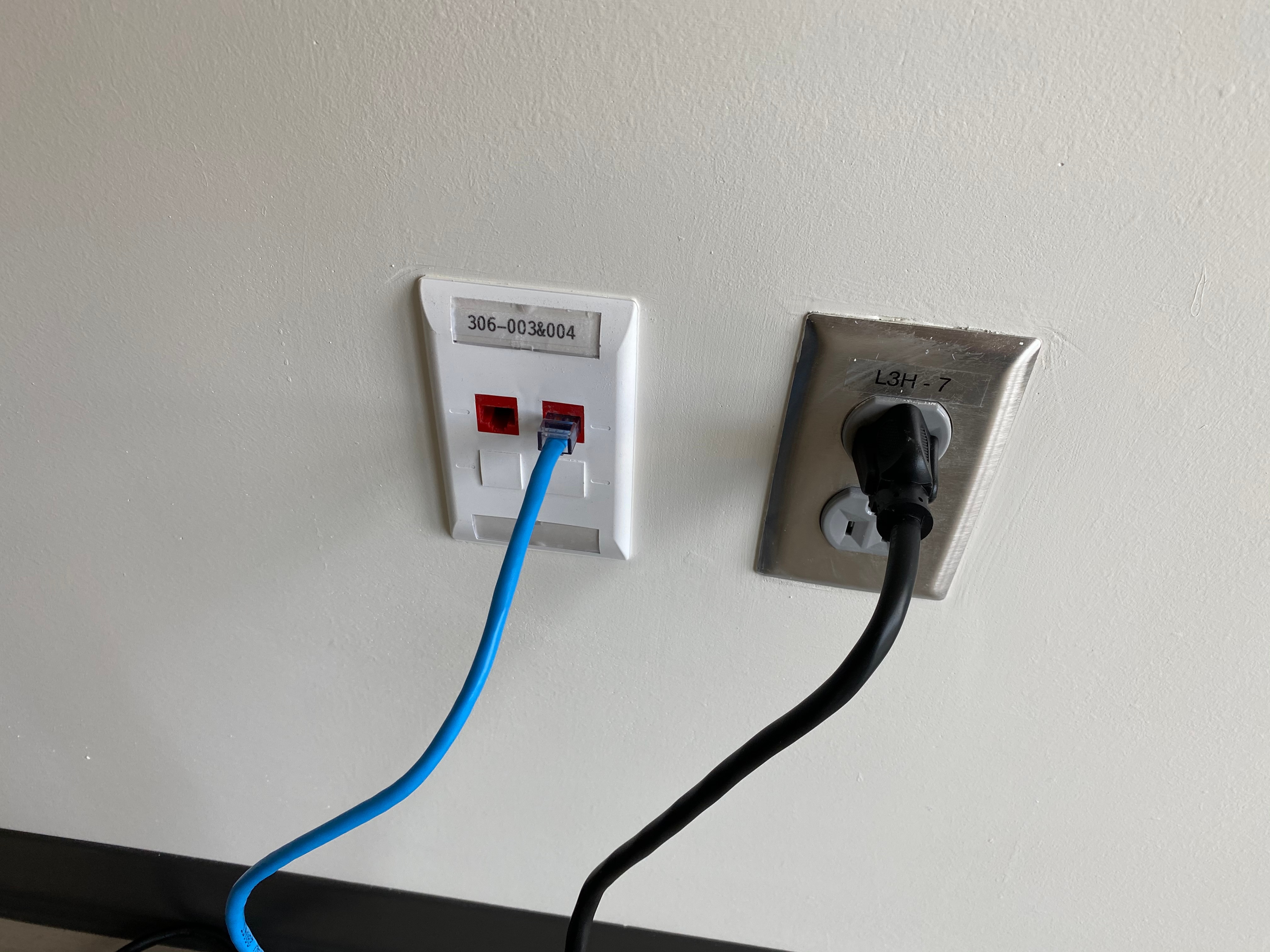
The cart requires a power and data connection to function properly.