Open Update Options Link
Either go to:
- https://mysignins.microsoft.com/security-info
- or https://myaccount.uccs.edu/ and click on Update Multi-Factor Authentication (MFA) Options

Login with your UCCS Credentials
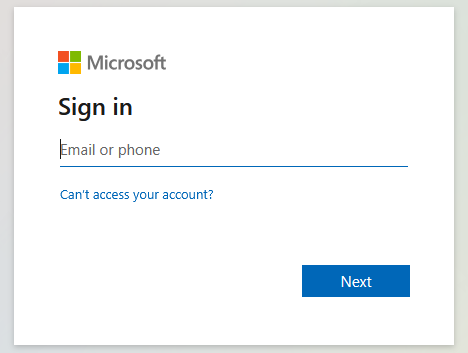
Depending on which option you chose prior you will see the following screens. Log in using your UCCS email address and password

Verify MFA
You will be prompted to complete MFA. Complete whichever option you currently have set up (phone, app, etc.).

Security Info
You should then be presented with the following screen. You may have a different list of options depending on what you have set up.

Default Methods
By default, the Authenticator app will be your default method for authentication. You cannot change this to be your phone, it will always be considered a secondary form when you have the app set up. We recommend always having both set up.
Add New Method
Click 'Add sign-in method'

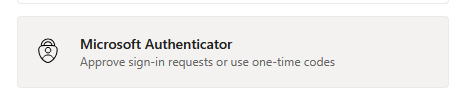
Pick the method you would like to set up. You likely won't see every option in the below screenshot because you should have a couple of them already set up.
Please note that only "Microsoft Authenticator" and "Phone" are currently supported by UCCS OIT. If you would like to try one of the other methods, do so at your own discretion.

Microsoft Authenticator
For this option please, refer to this article: Microsoft Authenticator App
Phone
For this option, please refer to this article: Phone Verification

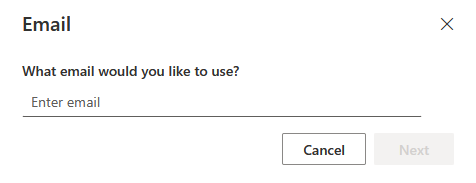
You can add an alternate email, however, you can not actually use it to verify your MFA. It is recommended you still have one set up.
To do so:
Click this option:

Enter a NON-UCCS email into the box. It is also recommended to not use any other institutions' email addresses either unless you know you will keep it for life.
Go to that email's inbox and enter the code that was emailed to you.

All done! It should be added to the list.
Alternate/Office Phone
These options are available for if you have a second phone number you need to set up. Usually you set these up if you don't have access to your primary phone number when you are at work, abroad, etc.
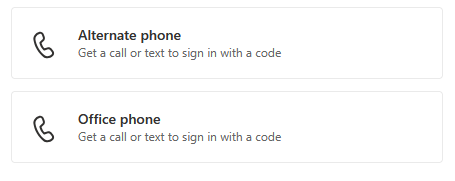
They will set up the exact same way as the primary phone with the caveat that you can only be called. There is no text message options for these. Refer to this guide for help with set up: Phone Verification