Step 1: Navigating to Unity
Navigate to Unity: https://ucna1.uccs.edu/inbox/
Step 2: Navigating to Settings
Once you have logged into unity you will be presented with your mailbox that show your previous voicemails. Click on the settings tab in the top left-hand corner.

Step 3: Selecting Phone Menu
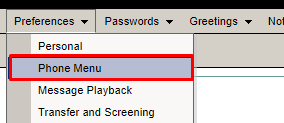
Once you are on the settings page click preferences and then phone menu.
Step 4: Changing Volume and Speed
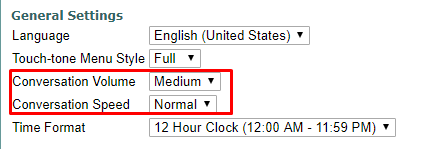
Once you are on the phone menu page to change the speed or volume of the automated messages within your voicemail you can do so with these drop downs.