
Table of Contents
Features
This is a projector-based classroom controlled by a Crestron touch panel.
- Dell AIO 7470 Podium PC
- BrightLink 1485Fi with mount
- Ceiling speakers
- Large white board for screen
- Crestron touch panel
- Wall mounted PC and wall rack
- Input slots Available: HDMI, VGA, Audio, Network
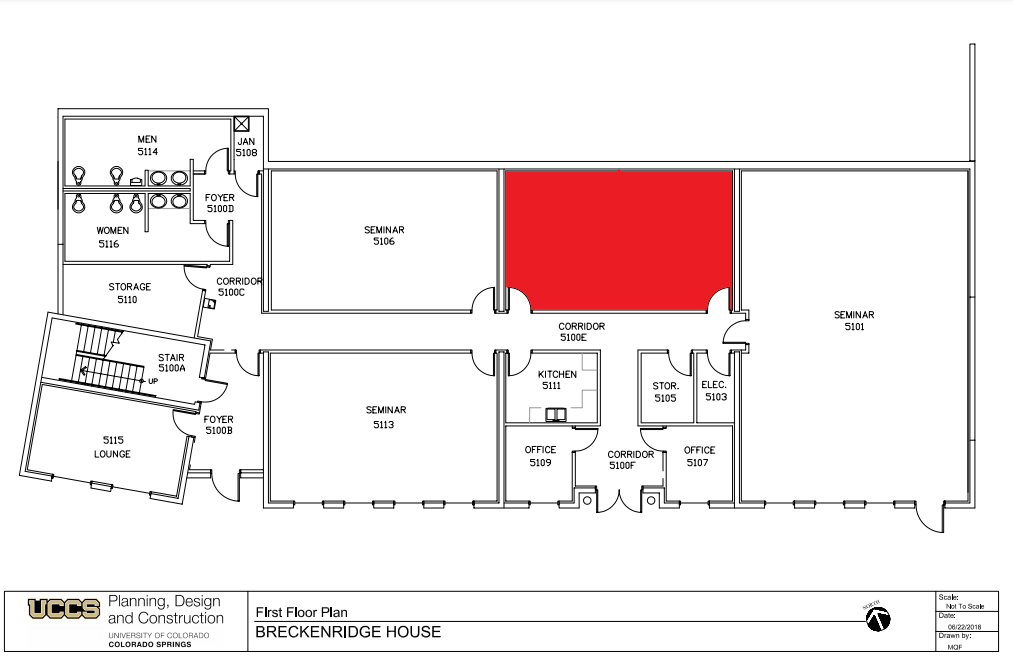
Location: Breckenridge House 1st Floor
Remotes
Hyflex Remote

Controls the Hyflex VTC System.
Controlling the A/V System

Turning the system on and off
The AV system will power on when pressing anywhere on the touch panel. This will turn on the projector and switch to the main menu page on the touch panel.
To turn the AV system off, press the red Power Off button in the upper right corner. You will have 10 seconds to cancel the power off, then the system will shut down automatically.
Source Selection
To change sources, select the input you would like to send to the projector. You may choose between Podium PC, Laptop HDMI and VGA inputs and Blu-ray.
Volume Control
Volume can be controlled using the volume buttons on the bottom of the touch panel. The system can also be muted using the mute icon on the bottom.
Projector/Screen Controls
The projectors will automatically power on and off with the system.
All essential functions of the projector and screen are controlled via the Crestron touch panel. A/V Mute and Freeze are all located in the menu after pressing the "Projector" button.
- A/V Mute will shutter the projector. Use this feature when you want to use the whiteboard without shutting down the system. Please only use this feature for up to 20 minutes, otherwise it's best to shut down the system.
- Freeze will freeze the currently displayed image on the screen. Use this feature if you'd like to hold a frame still on the screen or use the podium PC for another activity without displaying it, such as checking your email.
Inputs
Using the Podium PC and Lectern
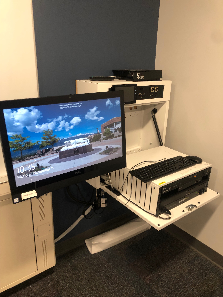
The computer attached to the wall is the primary source for this AV system. This computer runs the same image as all other podium computers in general fund classrooms and labs. You can sign in with your UCCS credentials.
Using a Laptop
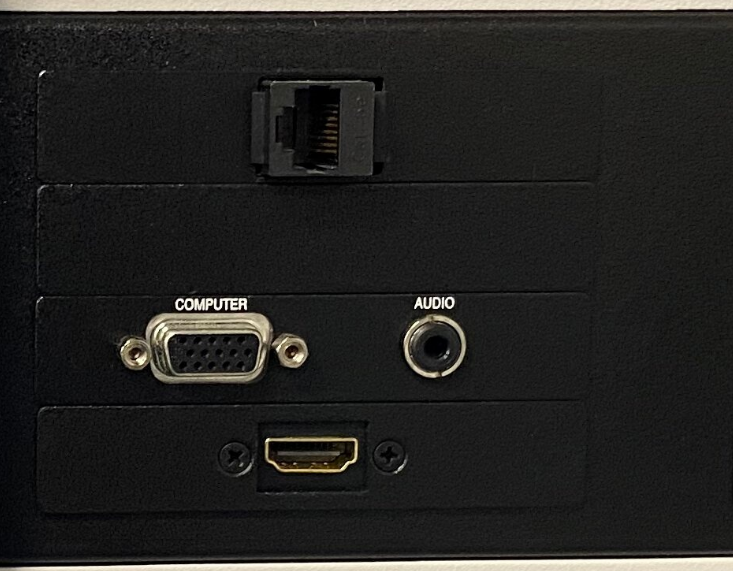
There are no cable connections available to be used for a laptop, faculty and anyone using the room will need to provide their own. There are input slots for HDMI, VGA, 3.5mm audio, and a network connection.
Using the Blu-ray Player
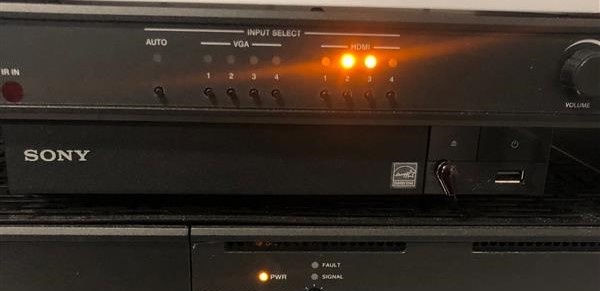
Selecting the Blu-ray source will open the Blu-ray control page. Use this page to turn on the player, open the disc drive, and navigate through the disc menus.
Using Microphone Input and Output
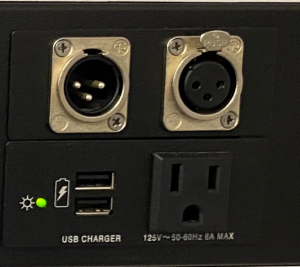
There is a microphone input panel at the top of the podium workstation which allows for two devices to be connected to the system, one for input and one for output. Both devices must use the XLR connections provided. Any microphone or audio input device connected to the input port will add audio to the system. This audio will be heard on the in-room speakers, the VTC system, and the XLR output. The XLR output port will allow any connected device to receive all audio from a selected source or the XLR input.

Troubleshooting
Audio Issues
Fixing Audio Issues: Standard Crestron Room
Video Issues
Fixing Video Issues: Standard Crestron Room
Vaddio/Hyflex VTC System
Photos
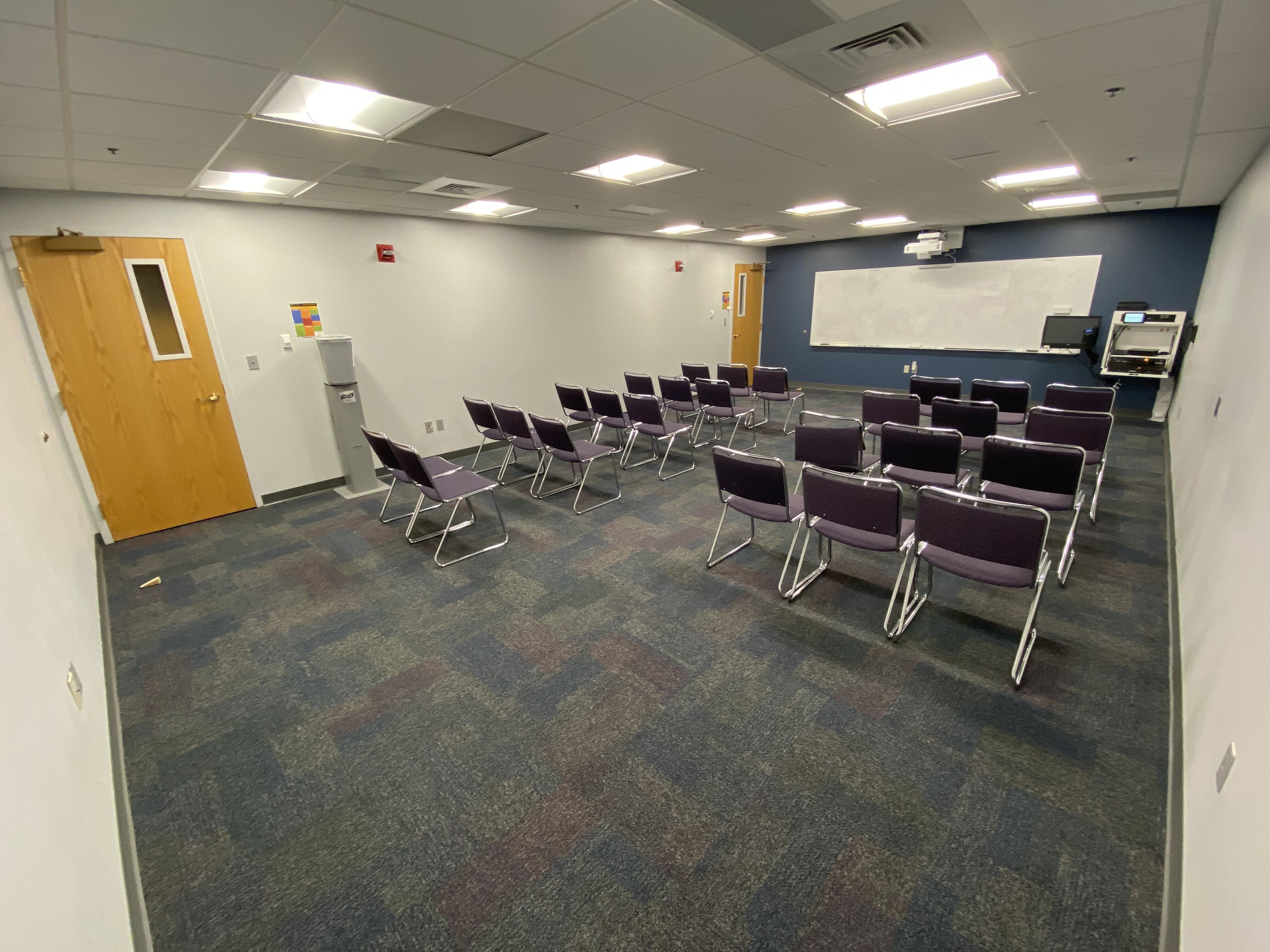
This is a Crestron controlled classroom

There is one projector at the front of the classroom

The AV, located to the right of the PC
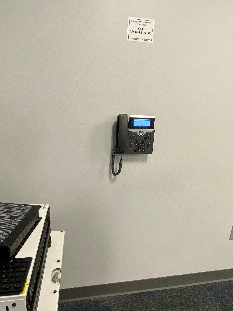
The phone is located on the wall to the right of the AV rack.
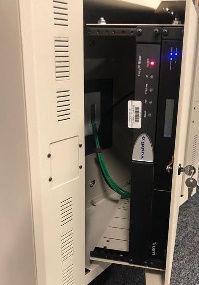
The HyFlex Rack at the front of the room.