
Table of Contents
Scope
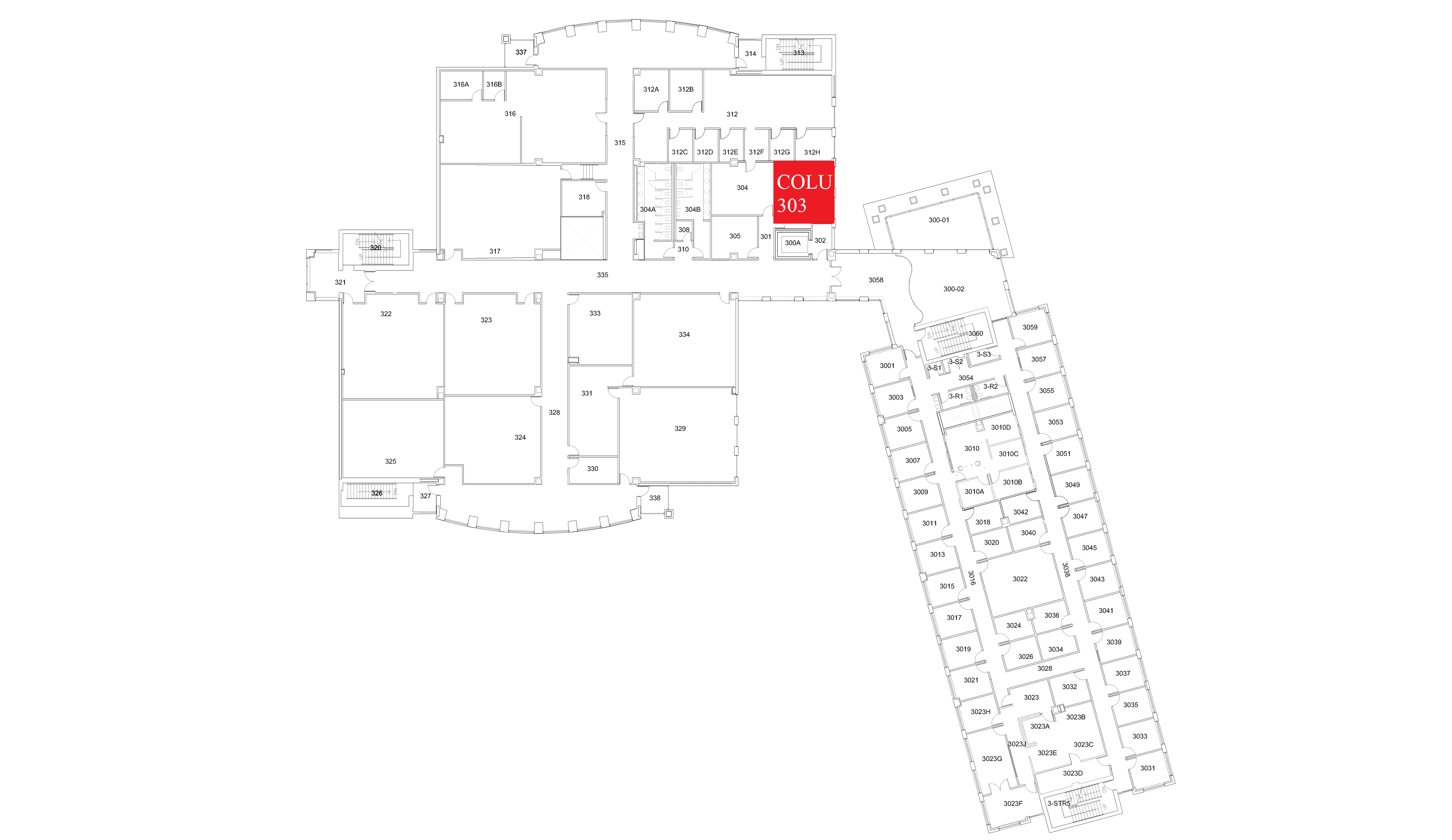
This is a mobile cart based seminar room with a Dell Micro Form Factor PC.
- Dell OptiPlex 7070 Micro
- Dell 86 4K Interactive Touch Monitor
- Crestron UC VTC Soundbar & Camera
- Chief Fusion Mobile AV Cart
- Logitech Wireless Keyboard and Mouse
Location: Columbine 3rd Floor
Peripherals
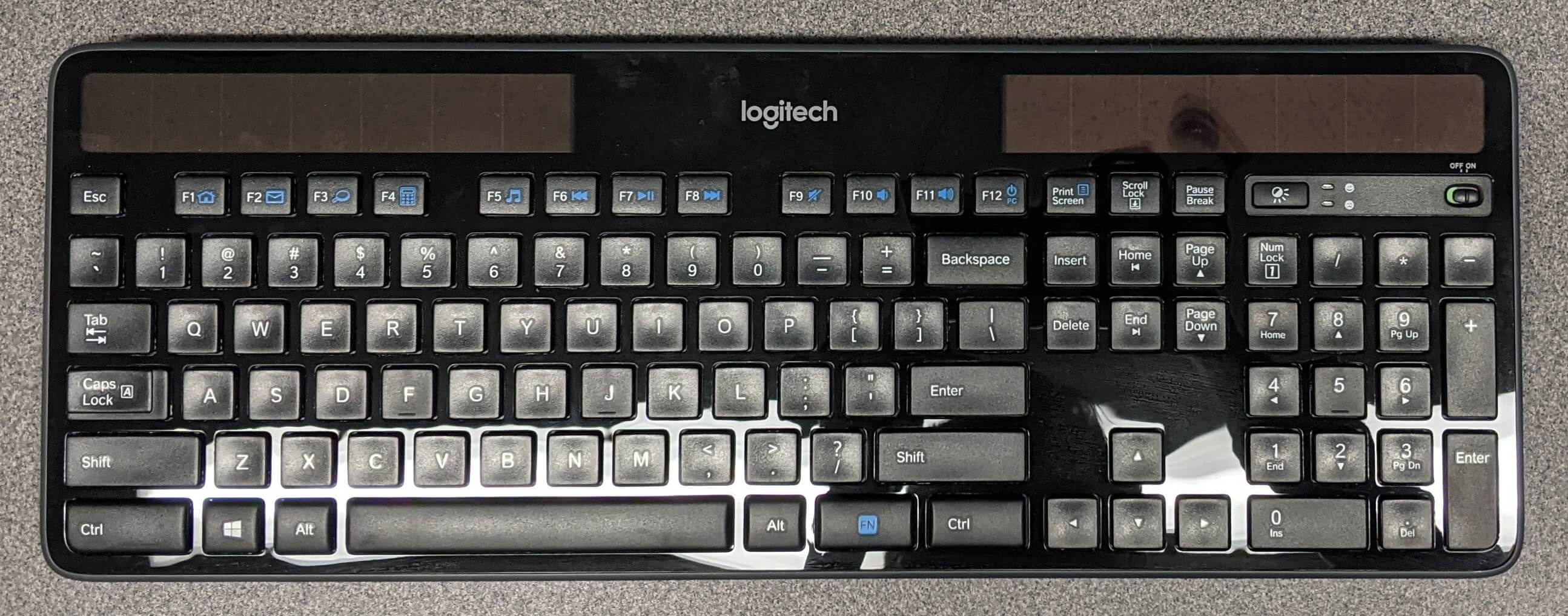
Logitech Wireless Keyboard
For use with the ClearTouch PC. Located on the bottom shelf of the mobile cart.

Logitech Wireless Mouse
For use with the ClearTouch PC. Located on the bottom shelf of the mobile cart.
Controlling the A/V System
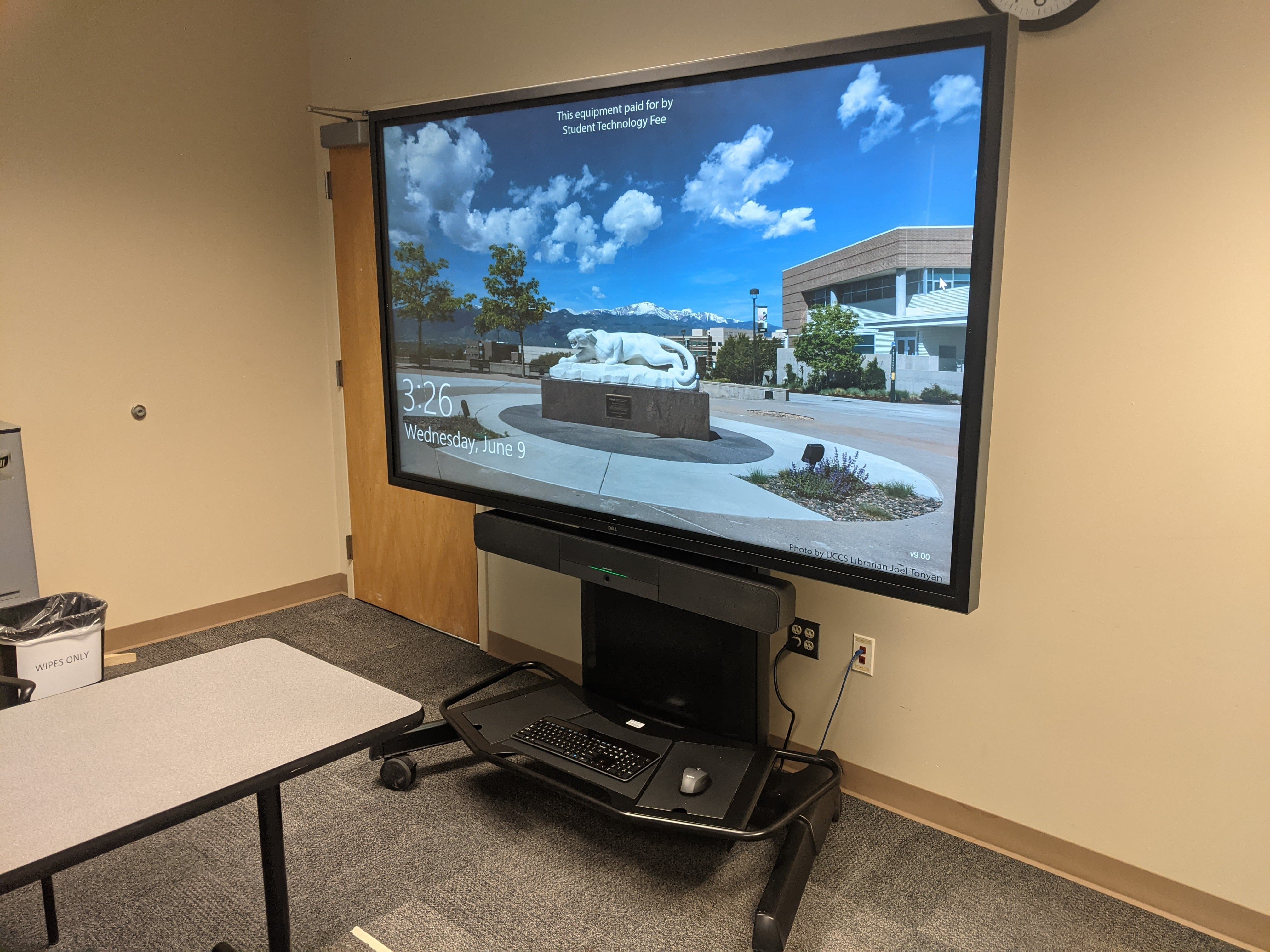
Using the Mobile Cart PC
- The computer mounted behind the monitor is the primary source for this AV system, and works with the interactive touch display. This computer runs the same image as all other podium computers in general fund classrooms and labs. You can sign in with your UCCS credentials.
Turning the system on and off
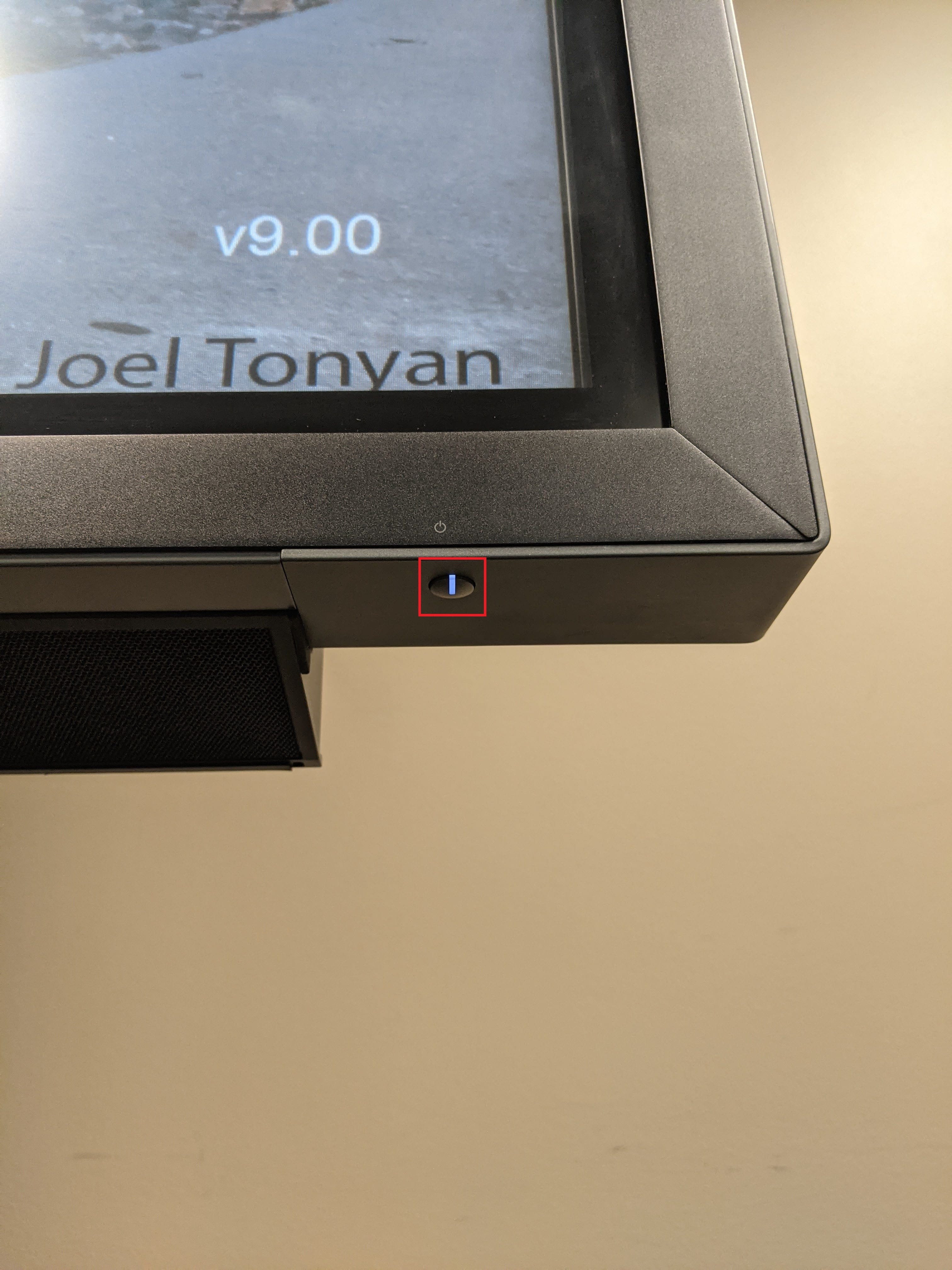
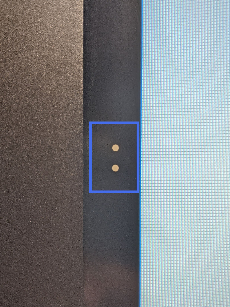
- To turn the system on, press the power button on the PC located behind the monitor (outlined in white), and press the power button on the bottom right of the monitor (outlined in red).
- To turn the system off, you may use the shutdown feature in Windows, or press the power button behind the monitor. Then press the power button on the bottom right of the monitor to turn it off.
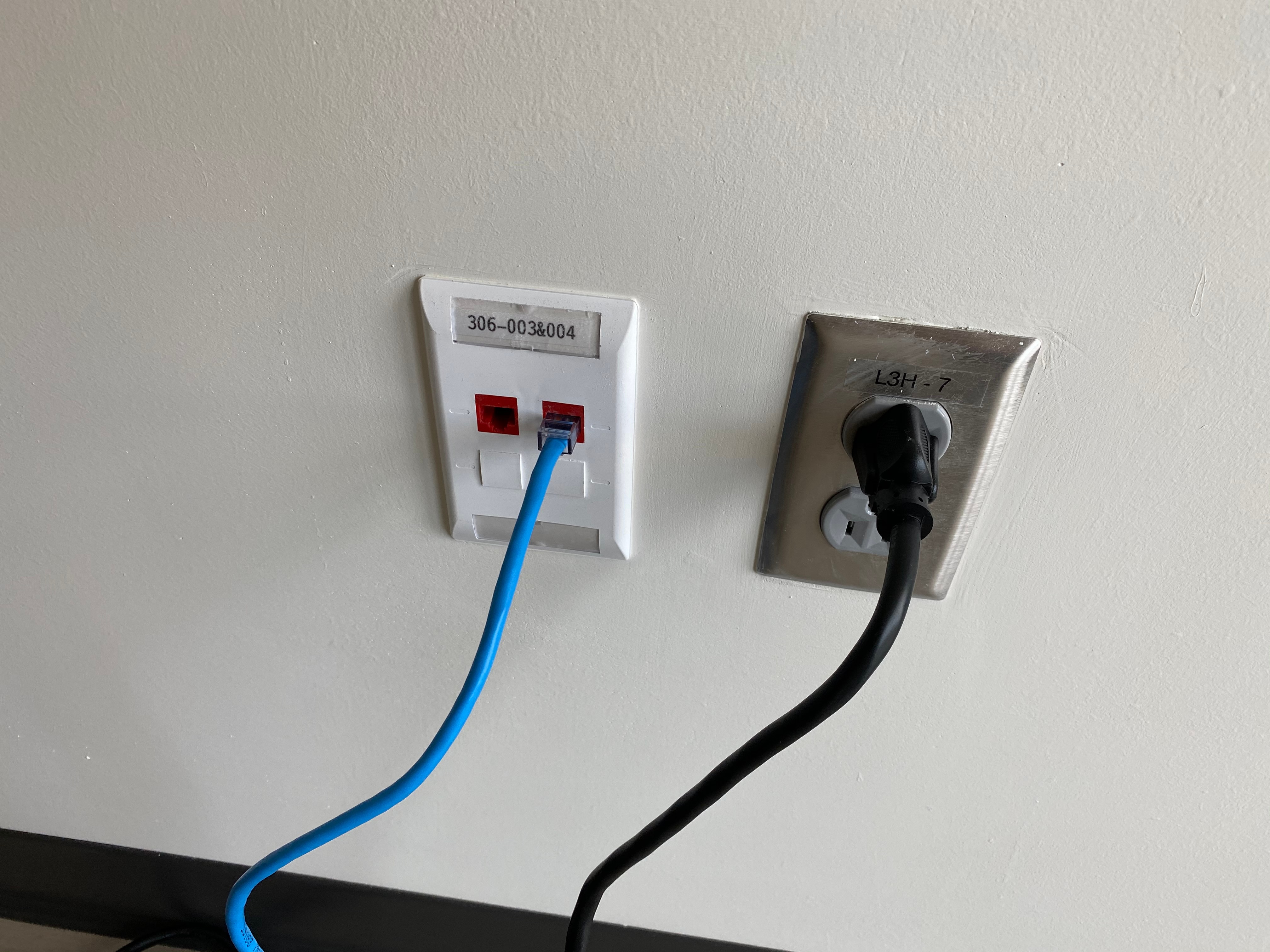
Power
- The cart requires a power and data connection to function properly.

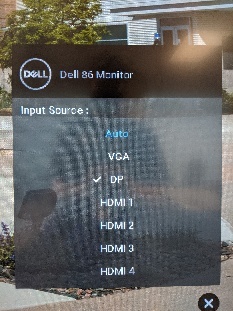
Source Selection
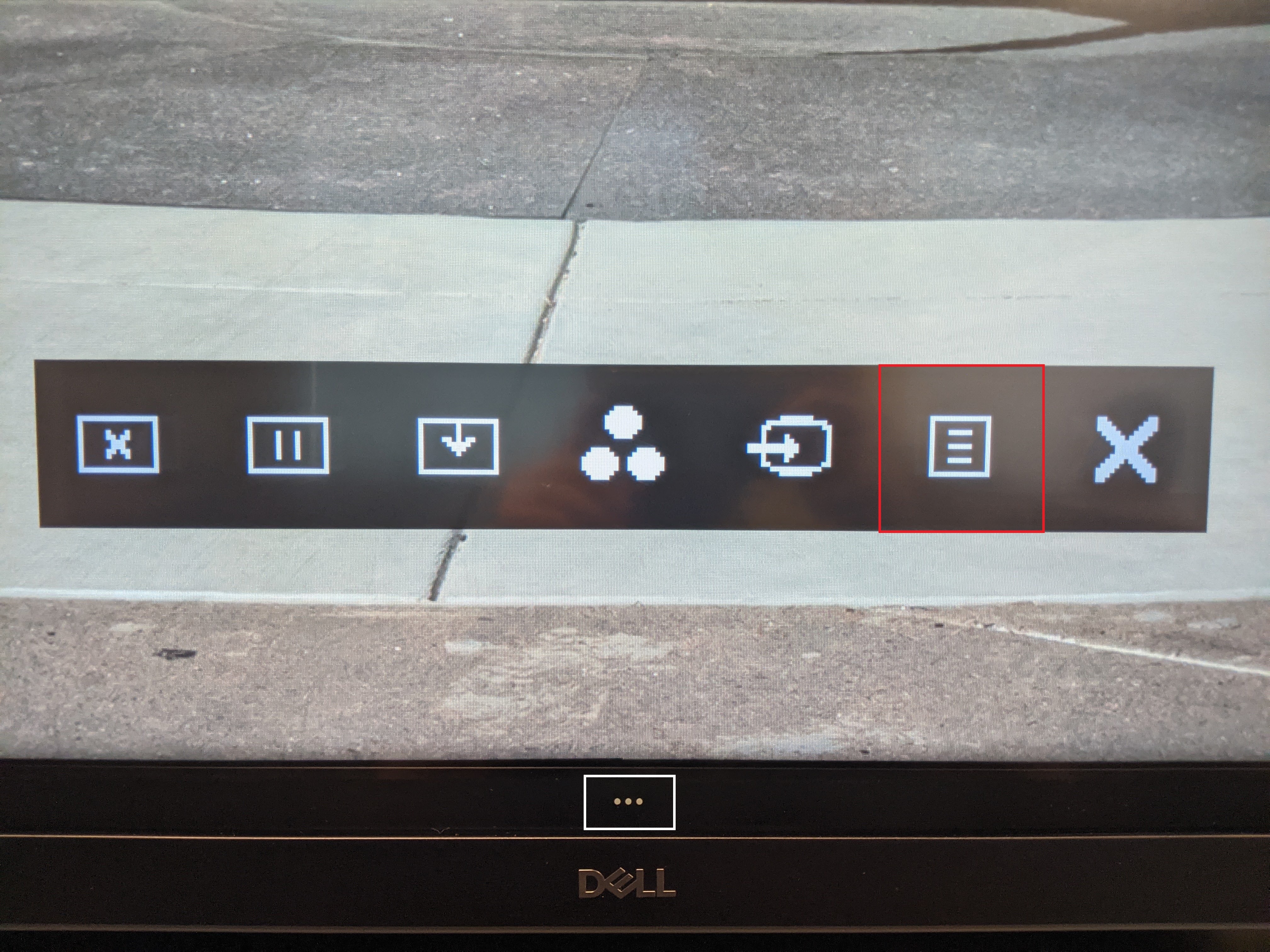
- To change sources, press the 3 dots on the bottom of the screen (outlined in white), and press the Input Source button (outlined in red) from the menu. You may choose between VGA, DP (Main PC), and HDMI 1-4.
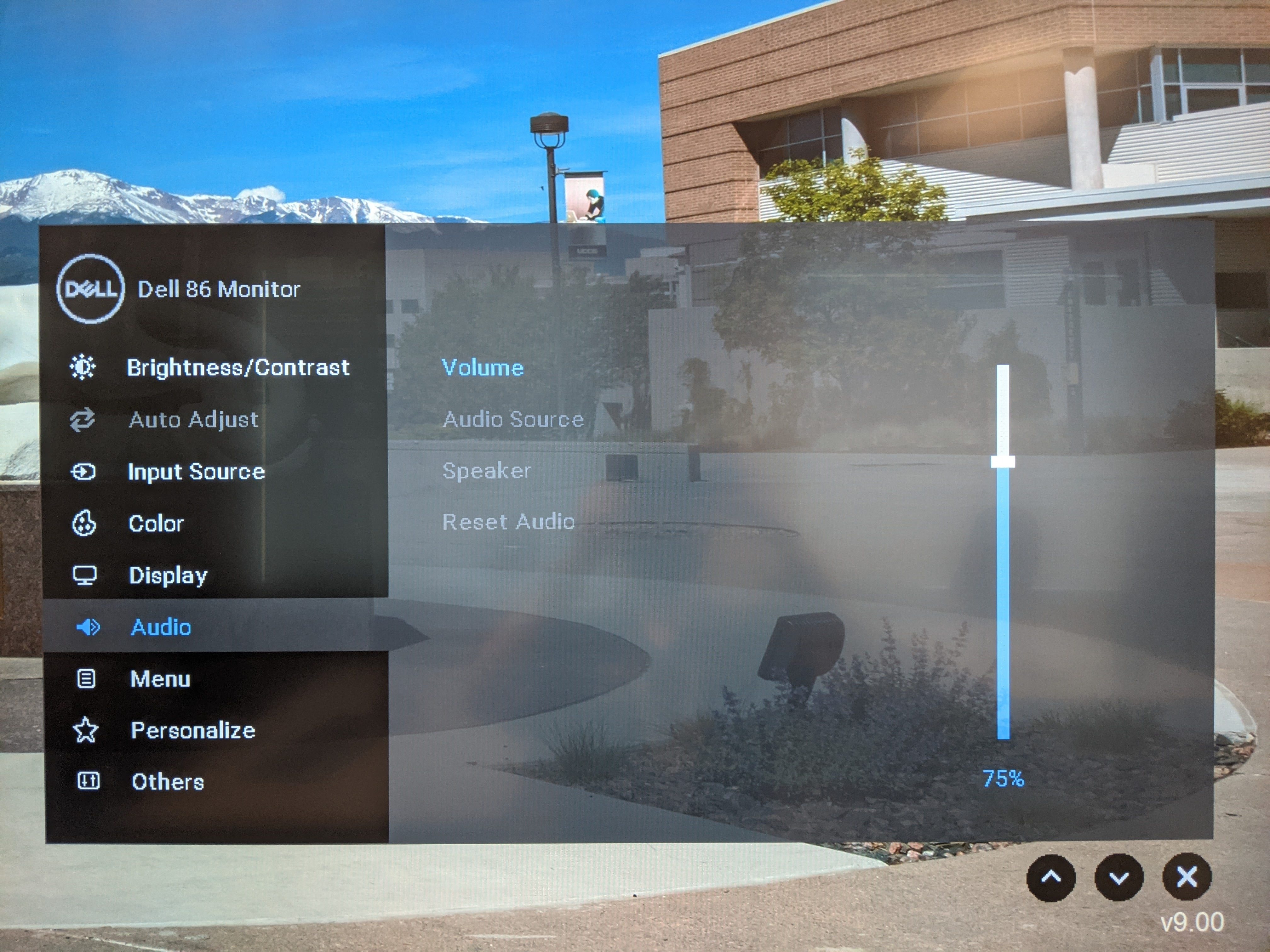
Volume Control
- Volume can be controlled using the Volume option in the Audio section of the menu. Open the touch menu using the 3 dots on the bottom of the screen (outlined in white), and select the Menu button (outlined in red). Select Audio and then Volume. This will bring up a slider to adjust the volume.
- The volume can also be adjusted in Windows using the speaker icon at the bottom right of the screen.
Touch Screen Controls
The interactive display has many useful functions that can be accessed by pressing the 3 dots on the bottom of the screen (outlined in white). This will pull up a menu with the following options:
- Screen Off (Equivalent to A/V Mute) (outlined in red) will turn the screen white. Use this feature when you want to hide the display without shutting down the system. Please only use this feature for up to 20 minutes, otherwise it's best to shut down the system.
- Suspend (Freeze) (outlined in green) will freeze the currently displayed image on the screen. Use this feature if you'd like to hold a frame still on the screen or use a laptop for another activity without displaying it, such as checking your email.
- Screen Drop Down (outlined in blue) will drop what is displayed on the screen halfway down for easier access to the top of the screen. This is most useful when using touch with the PC. Additional easy access buttons for this function are located on either side of the screen.
Using a Laptop
This room does not provide laptop cables. You will need either an HDMI or VGA + Audio cable to use a laptop in this room.
To use a laptop, plug it in to one of the ports behind the monitor, and select the corresponding source from the touch menu on the monitor.
Troubleshooting
Crestron UC VTC System
Crestron Mobile Cart Conferencing Soundbars
Audio Issues
Video Issues
- Make sure the cart is connected to power and turned on.
- Select the desired source.
- If the cart is displaying the menu but not the built-in PC, toggle the power using the button on the side of the display (this will turn the built-in PC on).
- If using a laptop, make sure the cable connections are seated properly and the laptop is set to duplicate mode.
Photos
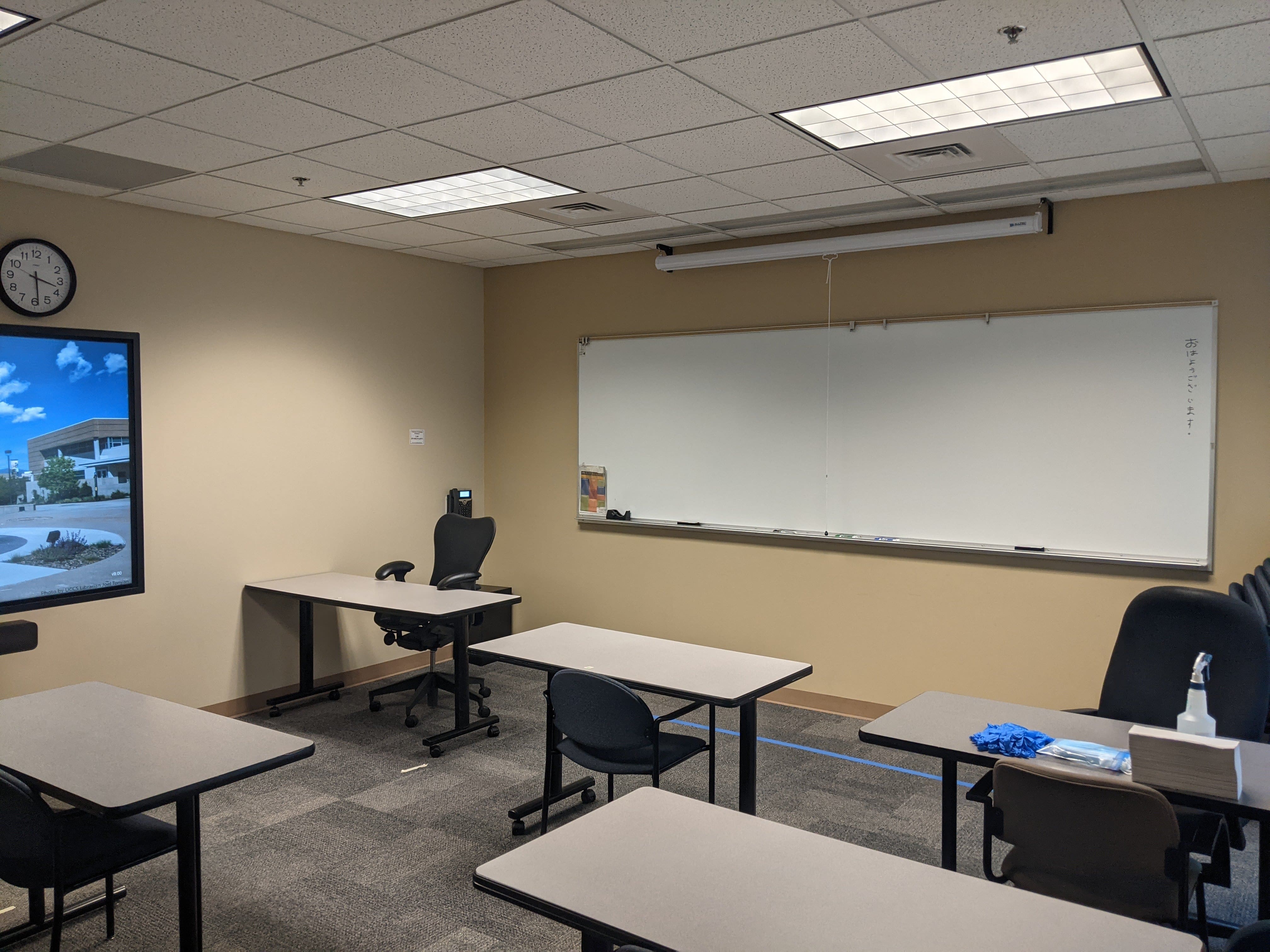
This is a mobile cart seminar room.
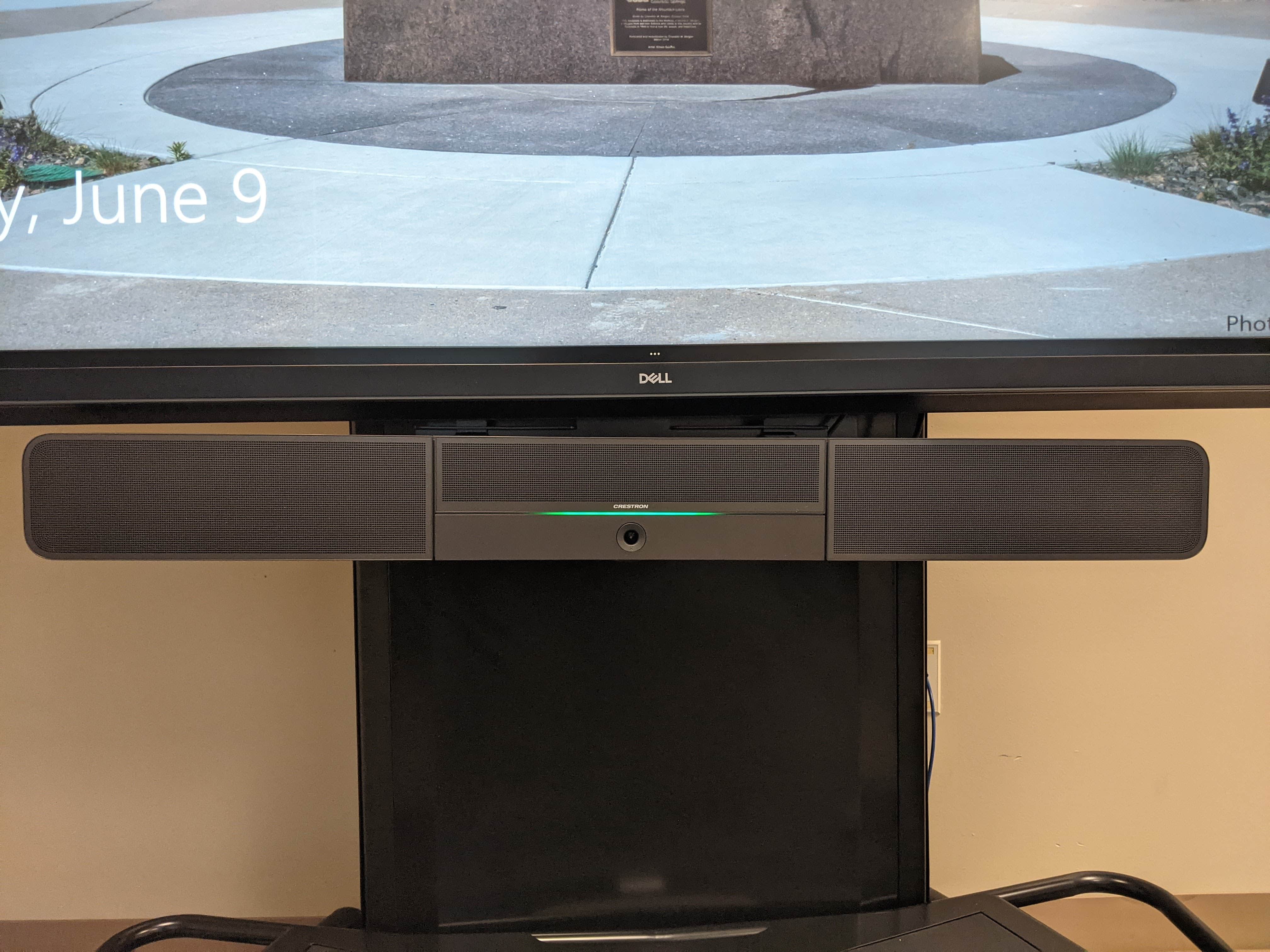
The Crestron UC Soundbar is located below the monitor.
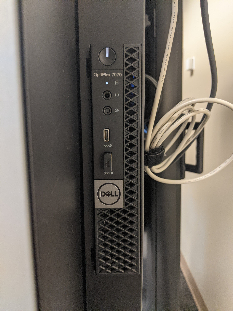
The PC is located behind the monitor on the right side.
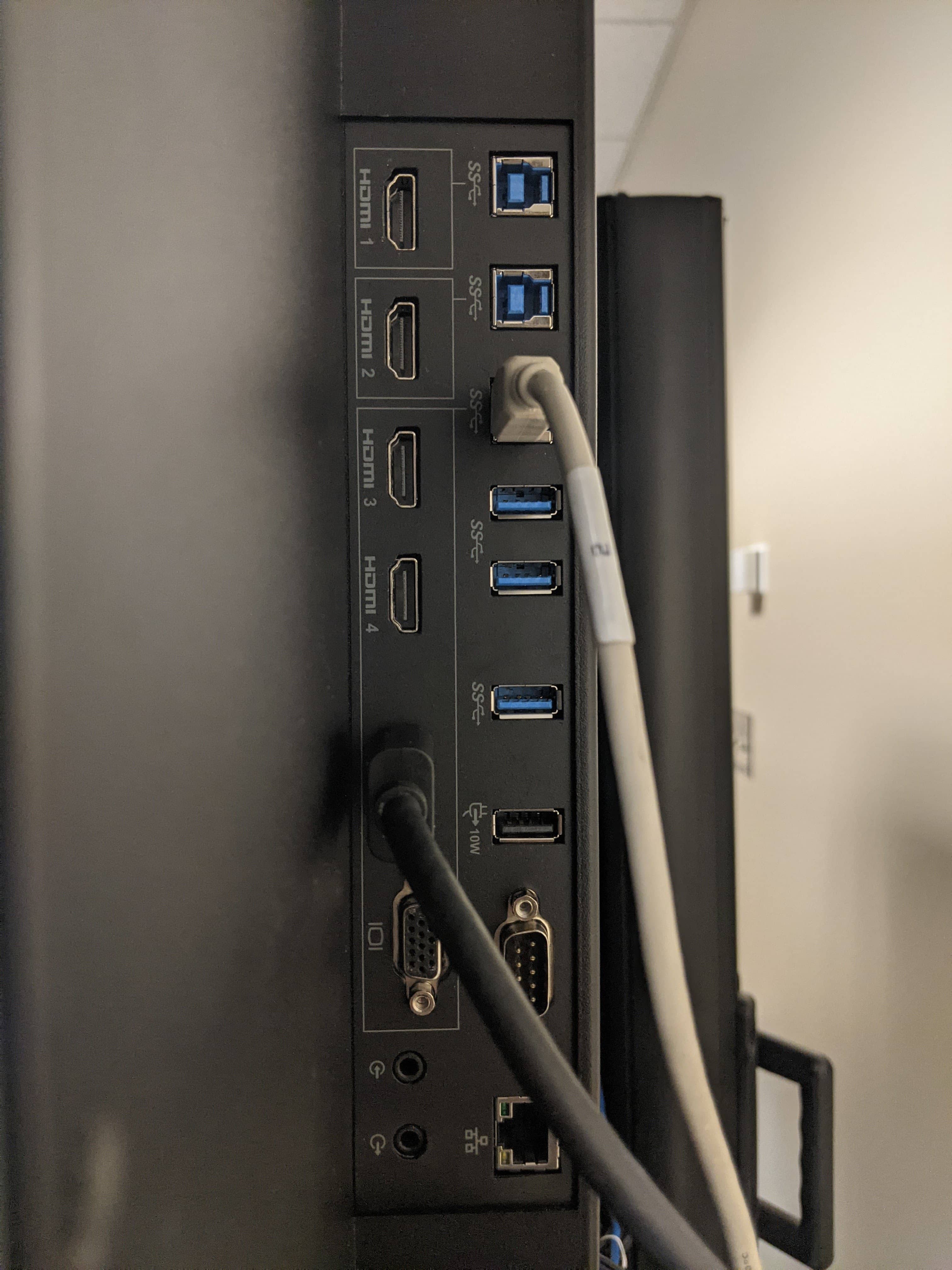
The monitor inputs are located behind the right side above the PC
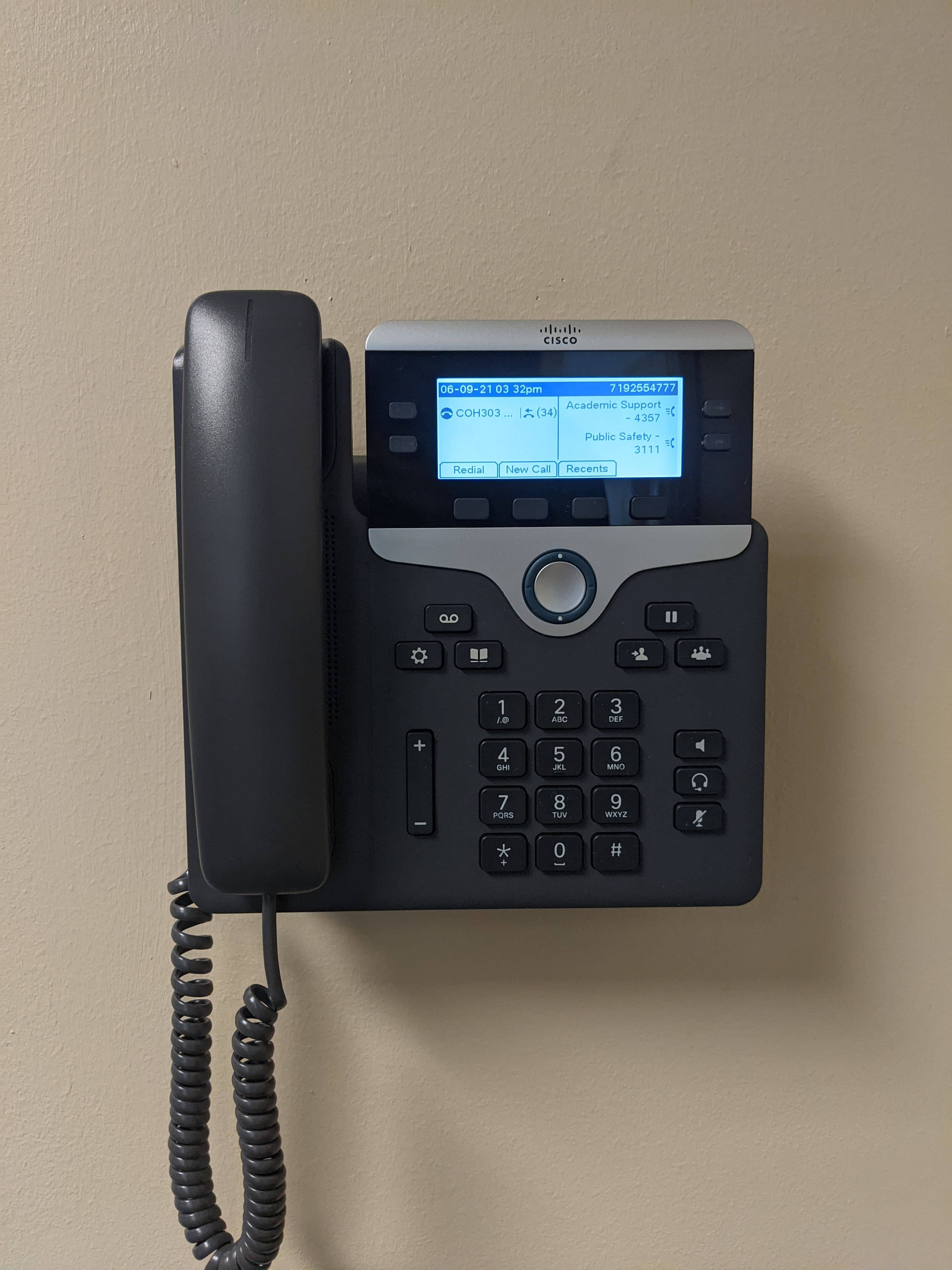
The phone is located on the wall to the left of the whiteboard.