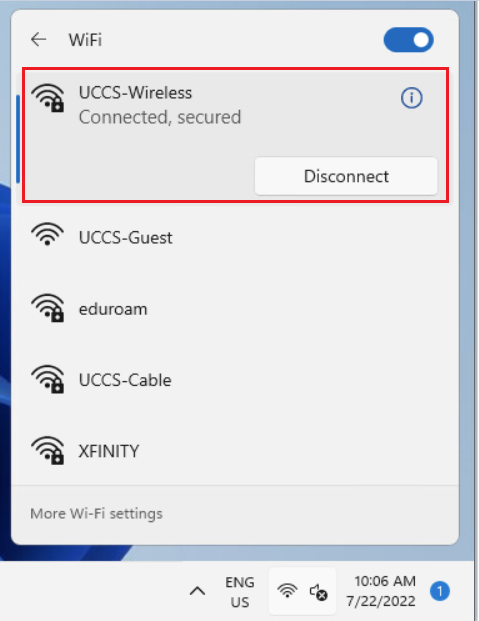
Step 1: Open Network Connections
Click the networking icon in the system tray, typically located in the lower right side of the screen.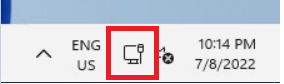
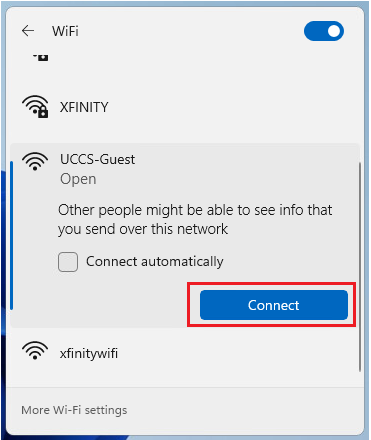
Step 2: Select the UCCS-Guest wireless network
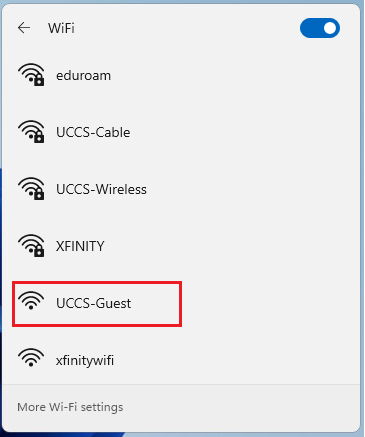
Click the right-arrow to open the list of wireless networks, and choose the UCCS-Guest network, then click Connect.
Note - if you want the computer to remember and save this network so it will automatically connect when in range, check the Connect automatically box.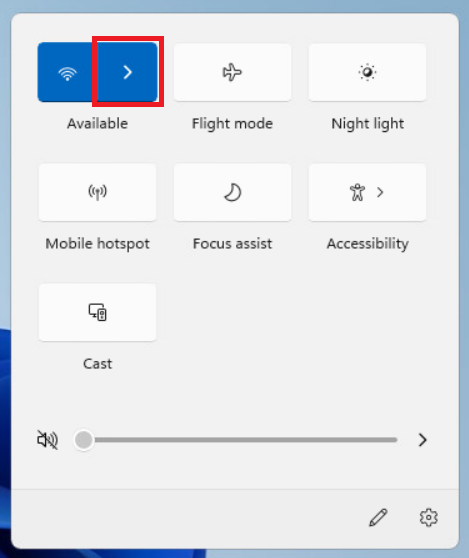
Step 3: Click Create Guest Account
A browser window should automatically open once connected to UCCS-Guest. If not, launch a web browser manually.
You should be redirected to a captive portal. Under the "Guest Account" section click the Create Guest Account link.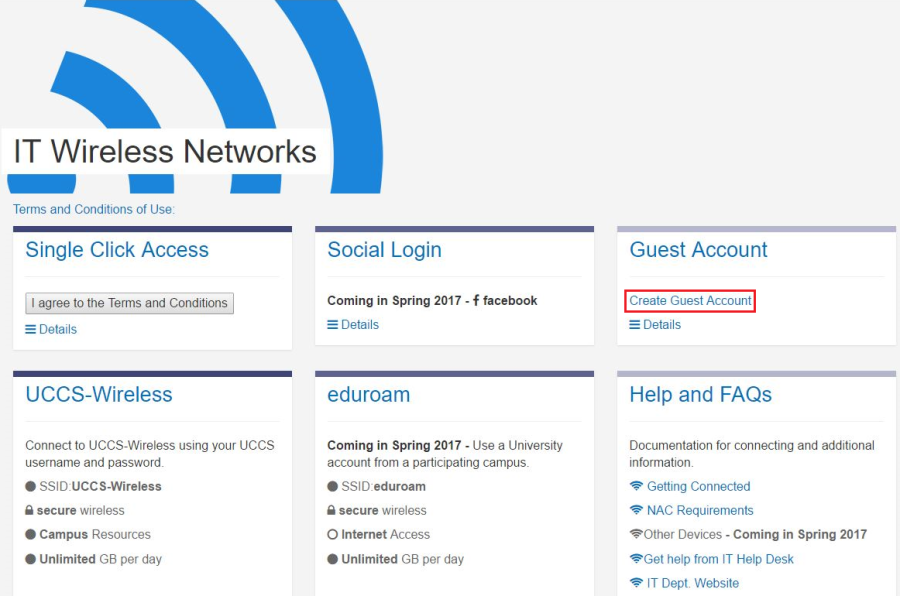
Step 4: Fill Out Form and click Register
Fill out the form and then click the Register button at the bottom.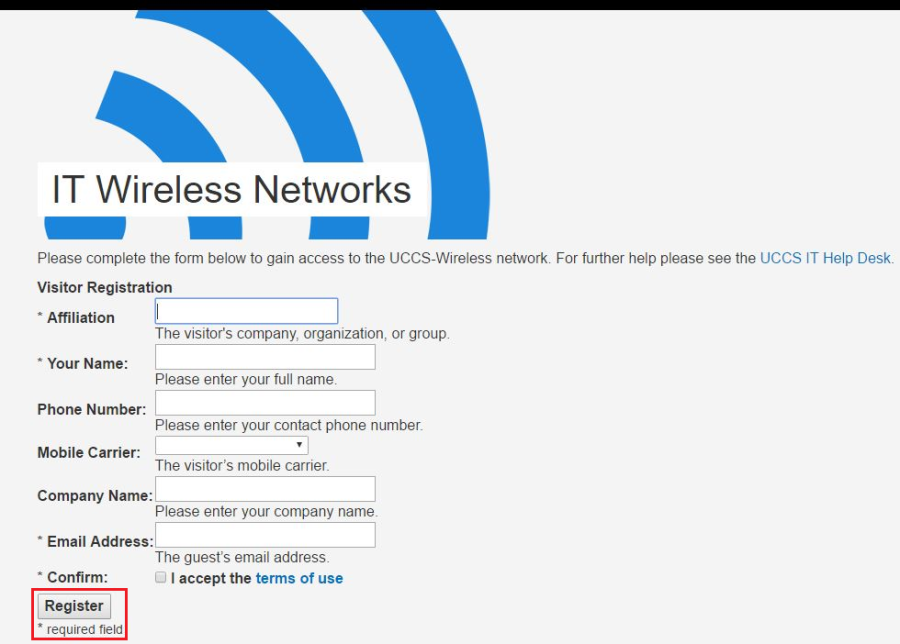
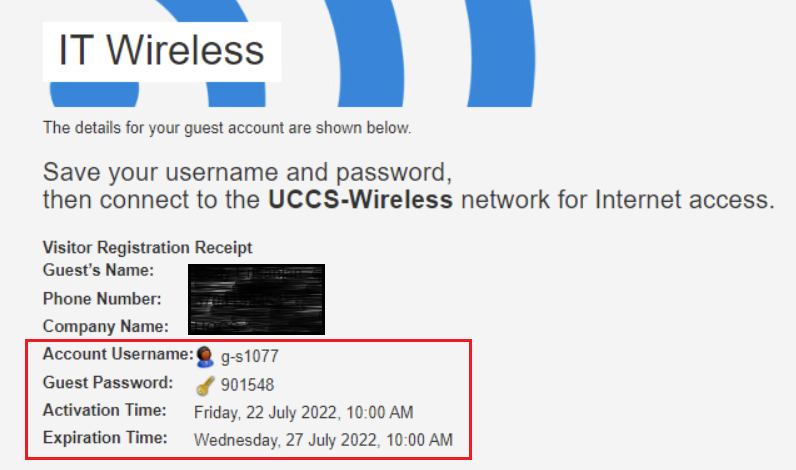
Step 5: Take Note of Guest Account Information
Take note of your newly issued guest login credentials (username and password) so you can use them to log into the UCCS-Wireless network in the steps below.
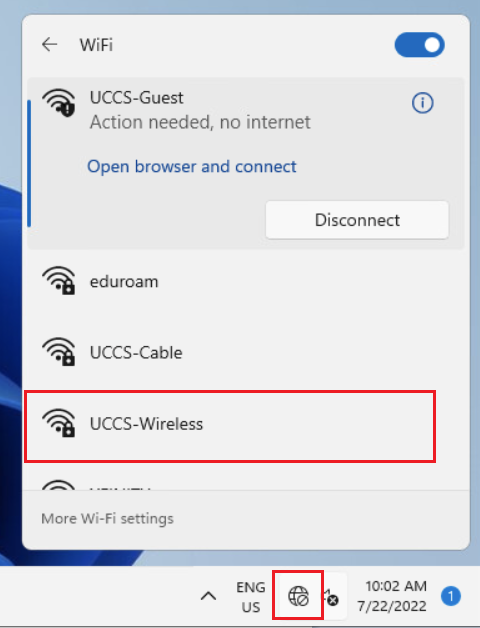
Step 6: Open Network Connections and select the UCCS-Wireless wireless network.
Click on the network icon again in the bottom right corner. Then select UCCS-Wireless from the list and click connect.
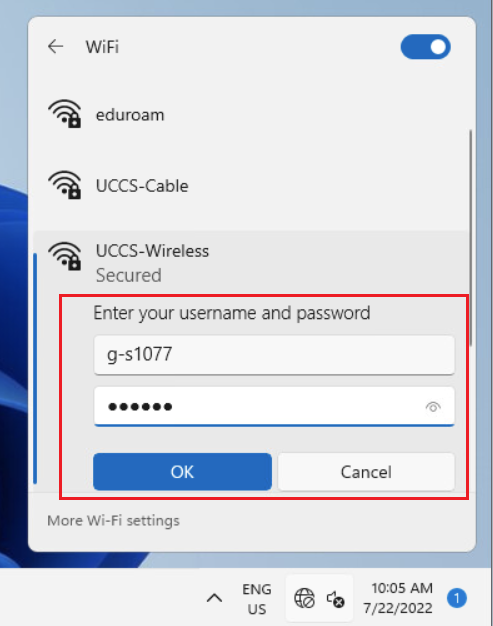
Step 7: Enter Guest Account Username/Password and Click Ok
Enter the guest username and password you obtained from the registration step above and click OK.
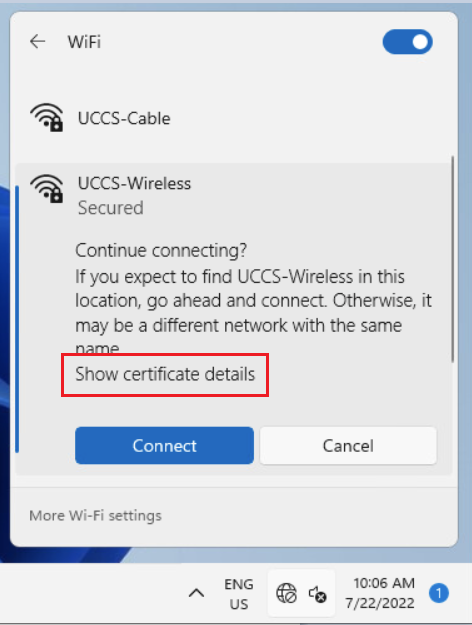
Step 8: Verify Security Certificate - part A
To validate and see more information about the certificate, click Show Certificate Details.
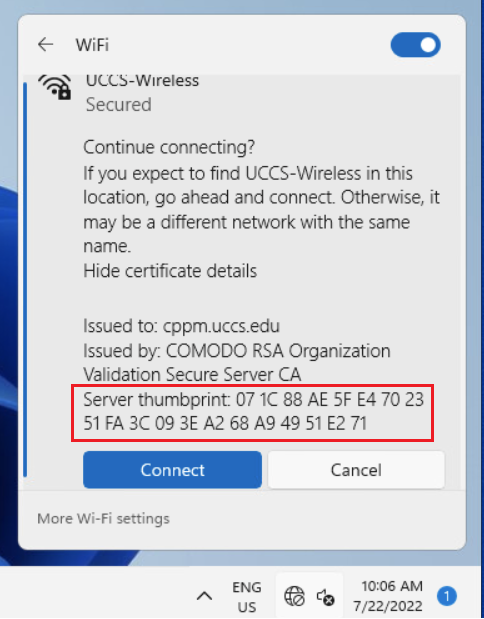
Step 9: Verify Security Certificate - part B
The server certificate thumbprint should be displayed. It should match the SHA-1 fingerprint listed below. CPPM Certificate Fingerprint (SHA-1) SHA-1: 36 88 97 DB 04 13 80 CE 84 1E BB 22 20 56 68 BF 92 F4 78 B4
If the fingerprint matches, go ahead and click Connect.
NOTE → If the fingerprint does not match, DO NOT trust the certificate! Click Cancel and contact the OIT Service Desk for assistance.
Your device should now be connected to UCCS-Wireless.
Still having problems? Please contact the OIT Service Desk.