The UCCS IT Help Desk highly recommends upgrading Office 2010 to either Office 2013 or Office 2016 to ensure functionality. To upgrade to a newer version of Office, please contact the UCCS IT Help Desk at 719-255-3536 or email [email protected]
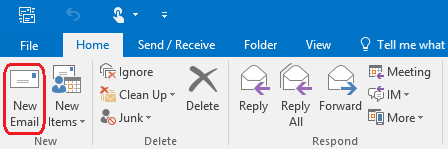
Step 1: Create a New Email
Start a new email within Outlook.
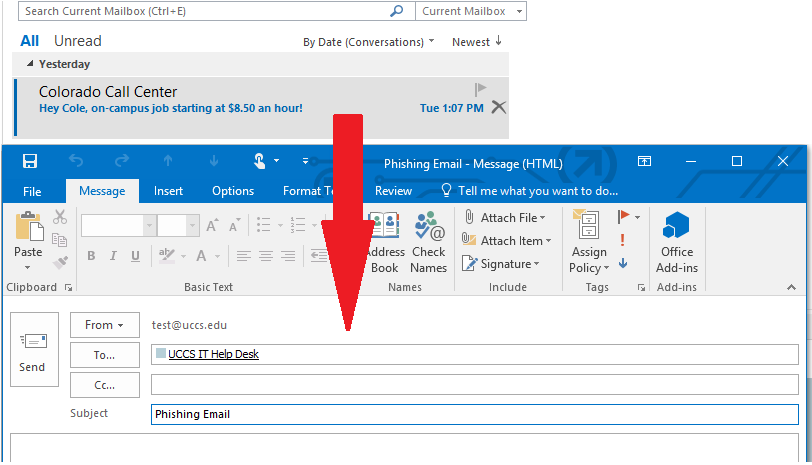
Step 2: Drag Spam/Phishing Email and Drop in New Email
Drag the Spam/Phishing email from your list of emails and drop it into the new email. Address the email to [email protected] and put Reporting Spam/Phishing as the subject.
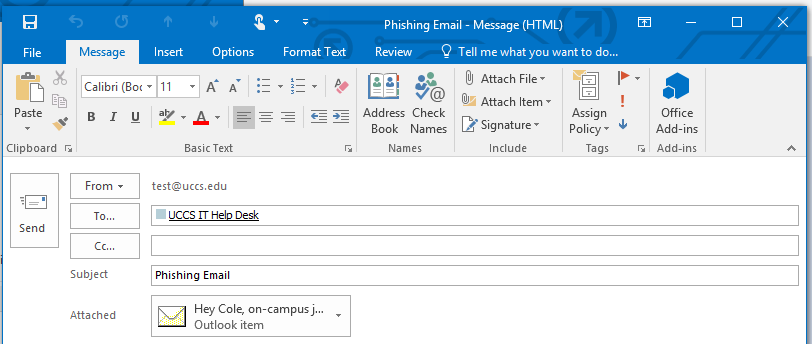
End Result
Finally you should see the email you made with the spam/phishing email in the Attached section.
Attaching Spam as an Attachment for Outlook 2010 & 2013 (Windows)
Step 1: Create a New Email
Create a new email and address it to [email protected] with the subject of SPAM Email.
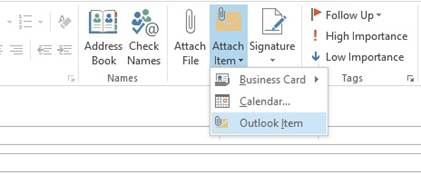
Step 2: Attaching the Email
Click on the Attach Item icon and choose Outlook Item from the drop down.
Step 3: Insert Item
In the Insert Item window, find the email you would like to attach. Below the OK button ensure that it is send as attachment. Click OK.
Step 4: Send the Email
The email should now show an attachment. Click Send.