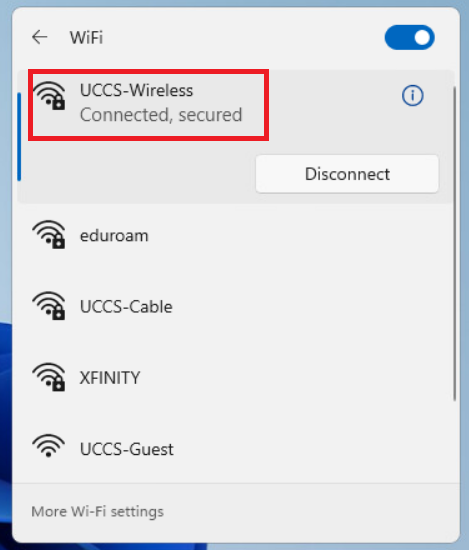
Step 1: Open Network Connections
Click the networking icon in the system tray, typically located in the lower right side of the screen.
Step 2: Select the UCCS-Guest network
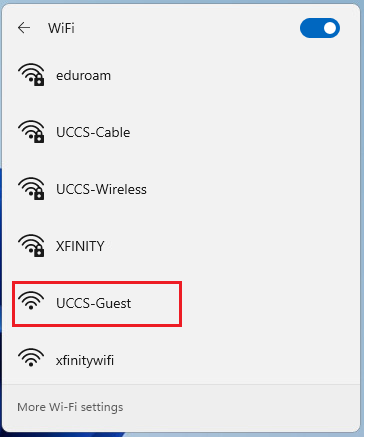
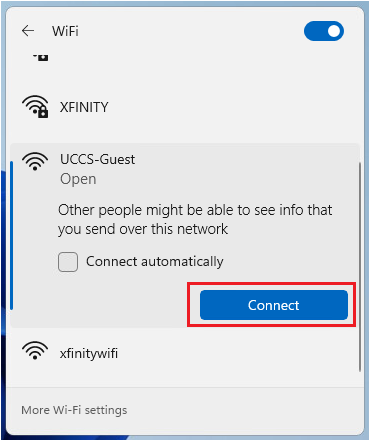
Click the right-arrow to open the list of wireless networks, and choose the UCCS-Guest network, then click Connect.
Note - if you want the computer to remember and save this network so it will automatically connect when in range, check the Connect automatically box.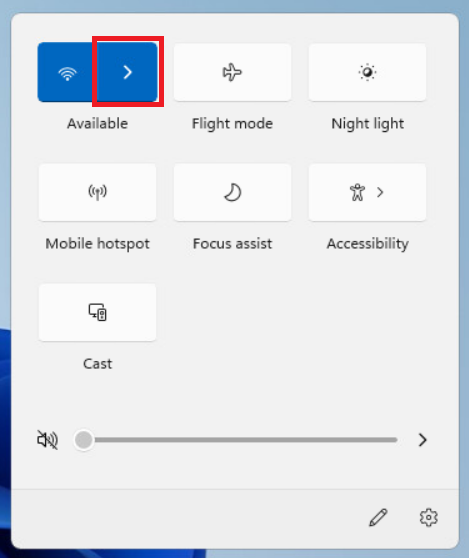
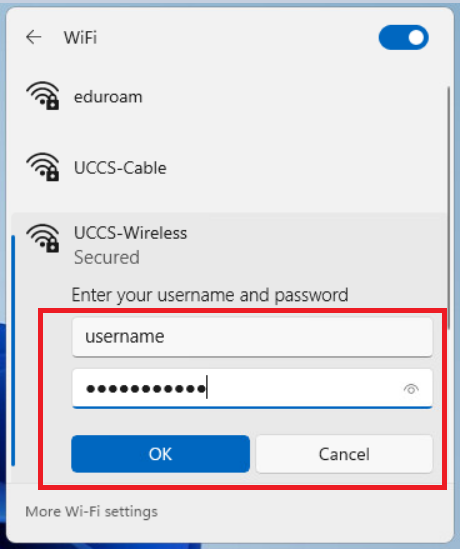
Step 3: Enter your credentials
Enter your username and password and click OK.
Step 4: Verify security certificate
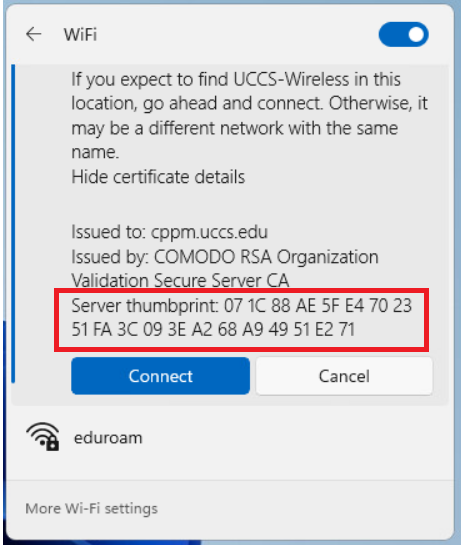
Click Show Certificate Details. The server certificate thumbprint should be displayed. It should match the SHA-1 fingerprint listed below.
If the fingerprint matches, go ahead and click Connect.
NOTE → If the fingerprint does not match, DO NOT trust the certificate! Click Cancel and contact the OIT Helpdesk for assistance.
CPPM Certificate Fingerprint (SHA-1) SHA-1: 36 88 97 DB 04 13 80 CE 84 1E BB 22 20 56 68 BF 92 F4 78 B4

Step 5: Confirm connection
Your device should now be connected to UCCS-Wireless.
If you are still having problems connecting, please contact the OIT Help Desk.