Below is what to expect during the first time boot up of an AudioCodes Teams Phone.
Step 1 - Plugging in the Phone
There is no physical "on" button, so to turn on the phone, make sure to plug in the phone with the provided Ethernet cable connecting from the wall to the middle port on the back of the device between the AUX port and the PC port, as indicated below. Once seated, the phone should flash and begin booting automatically.

Step 2 - Boot Process
The first time boot-up can take a while for one of the teams phones. Please allow it some time to update and configure itself.
Below are the different steps of the boot process:
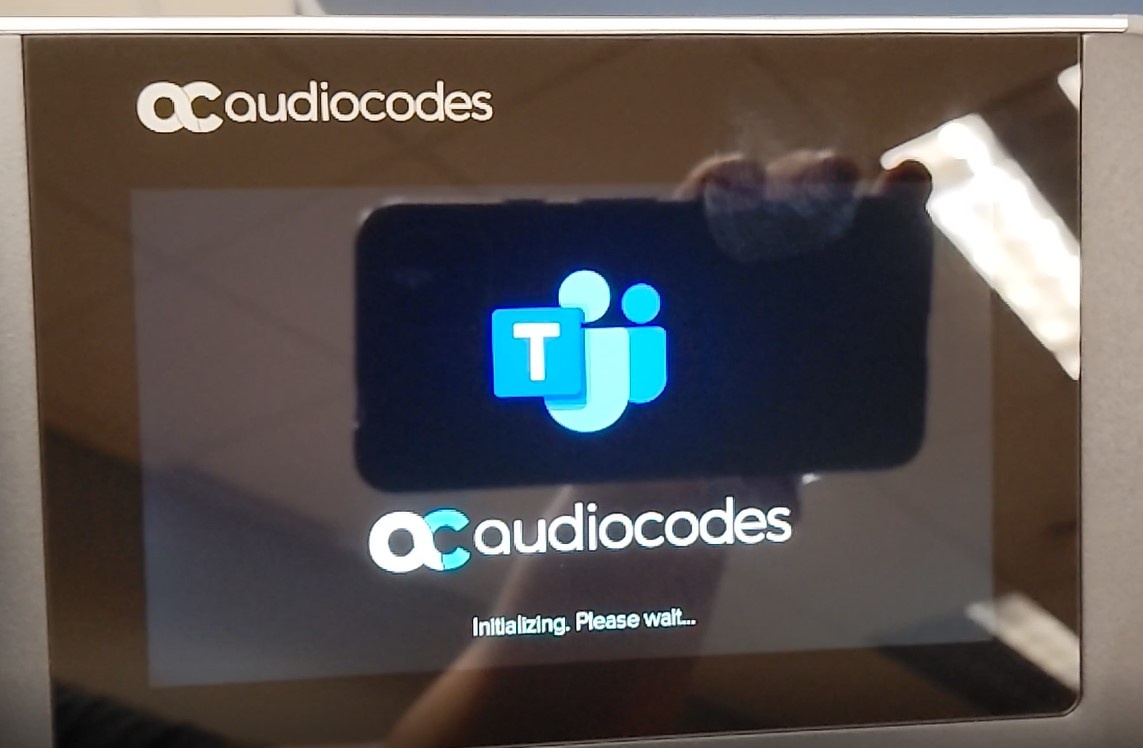
Screen 1: Initializing |
|
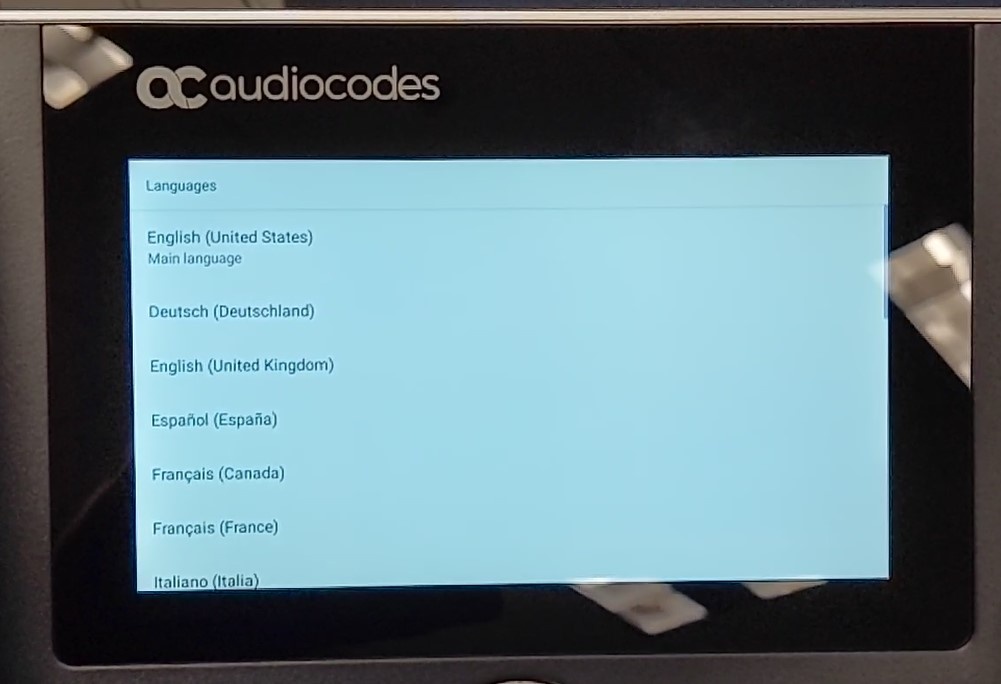
Screen 2: Language Selections Please select your primary |
|
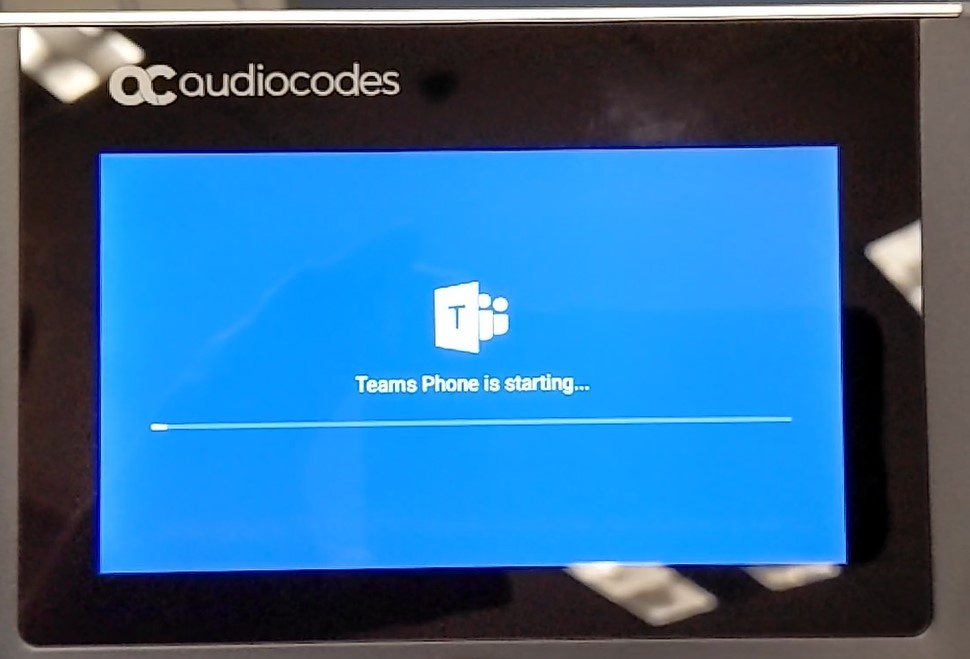
Screen 3: Final Sequence |
|
Step 3 - Sign in
After the phone has started up, you should see a screen like the one below:

Sign in From your Computer (Top code option)
- To sign in to the phone from your computer, go to the website seen in "Step 3:" on the phone ( https://microsoft.com/devicelogin )
Then type in the code when prompted.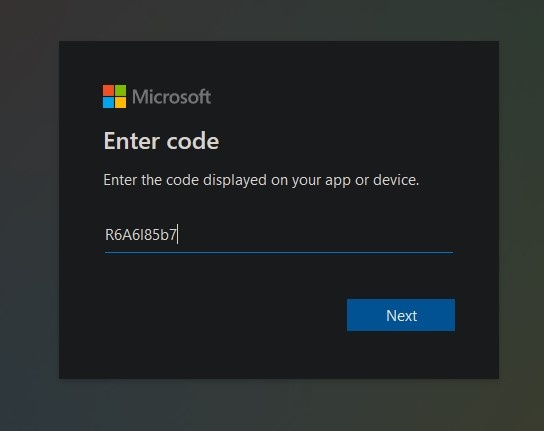
- It should take you to the UCCS Sign In page or ask you to select your UCCS account. (It may prompt you for Multi-Factor Authentication)
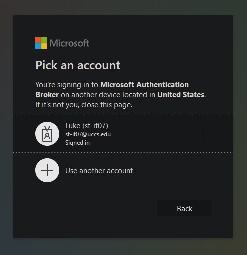
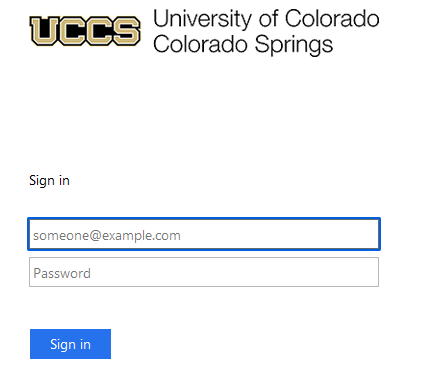
- Once you sign in, the webpage will ask if you would like to sign in using a Microsoft Authentication Broker. When this happens, click: Continue
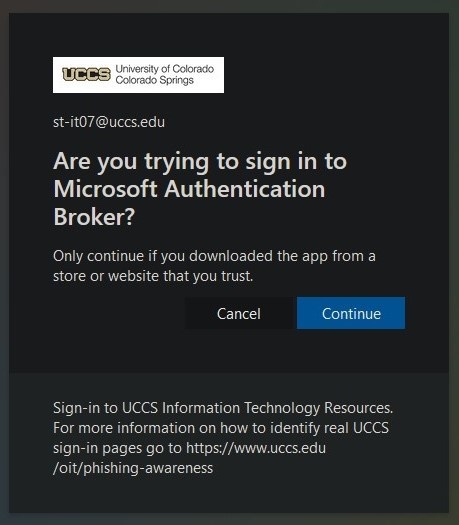
- If the sign in process is taking too long (more than 5 minutes), try unplugging the device and plugging it back in to reboot.
Sign in on Device (Bottom "Sign in on this device" option)
- If you would rather sign in on the phone itself, please click the Sign in on this Device
This should take you to a page asking for your email. Please enter your full UCCS email address (including the '@uccs.edu' ):
- After typing in your email and tapping Sign in, you should be brought to the UCCS sign in page where you can enter your password.
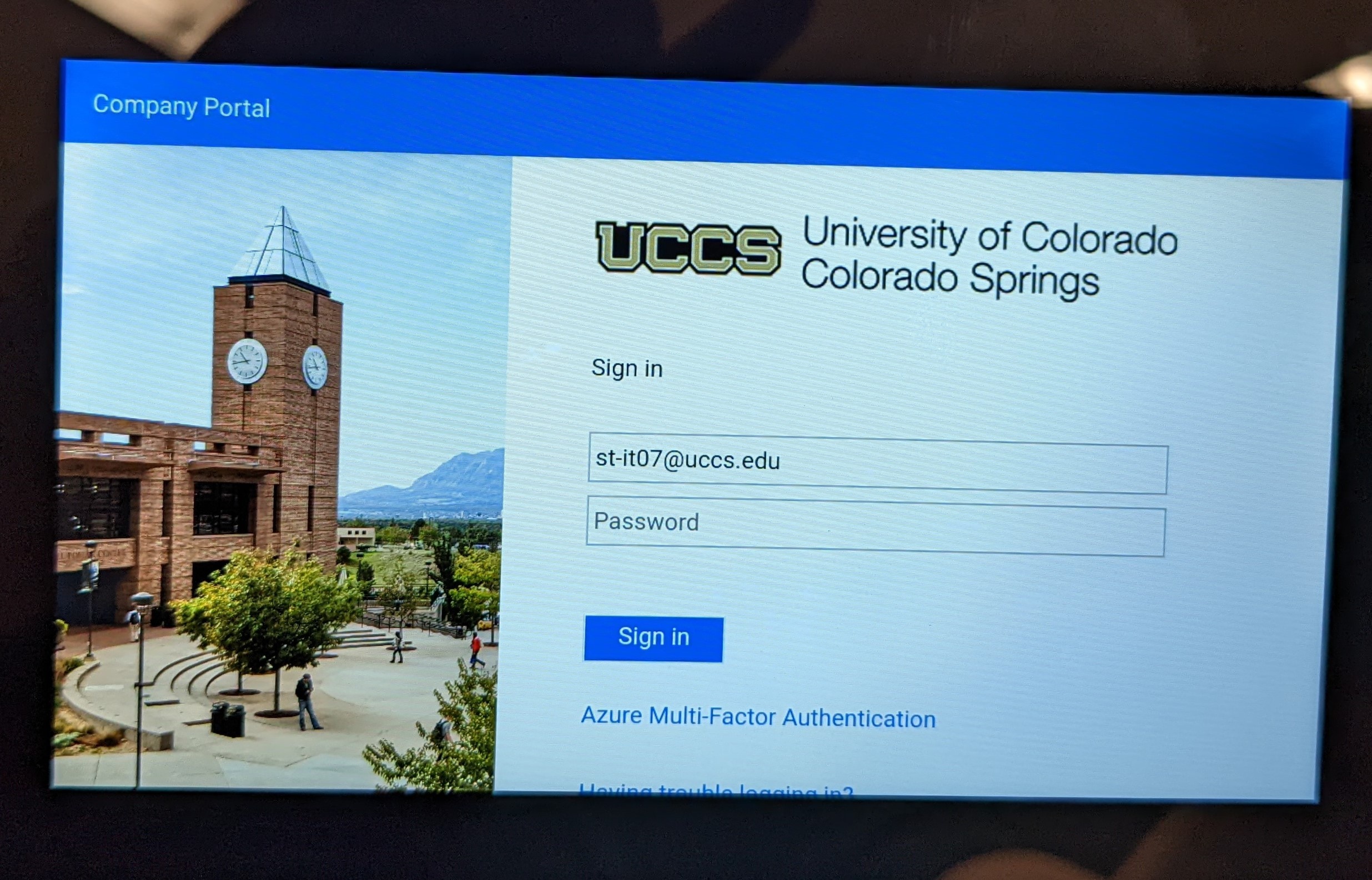
- Press Sign in once more to finish the sign in process
Step 4 - After You've Logged In
After you've signed in, the phone should be ready to use. A screen similar to the photo below should be seen.
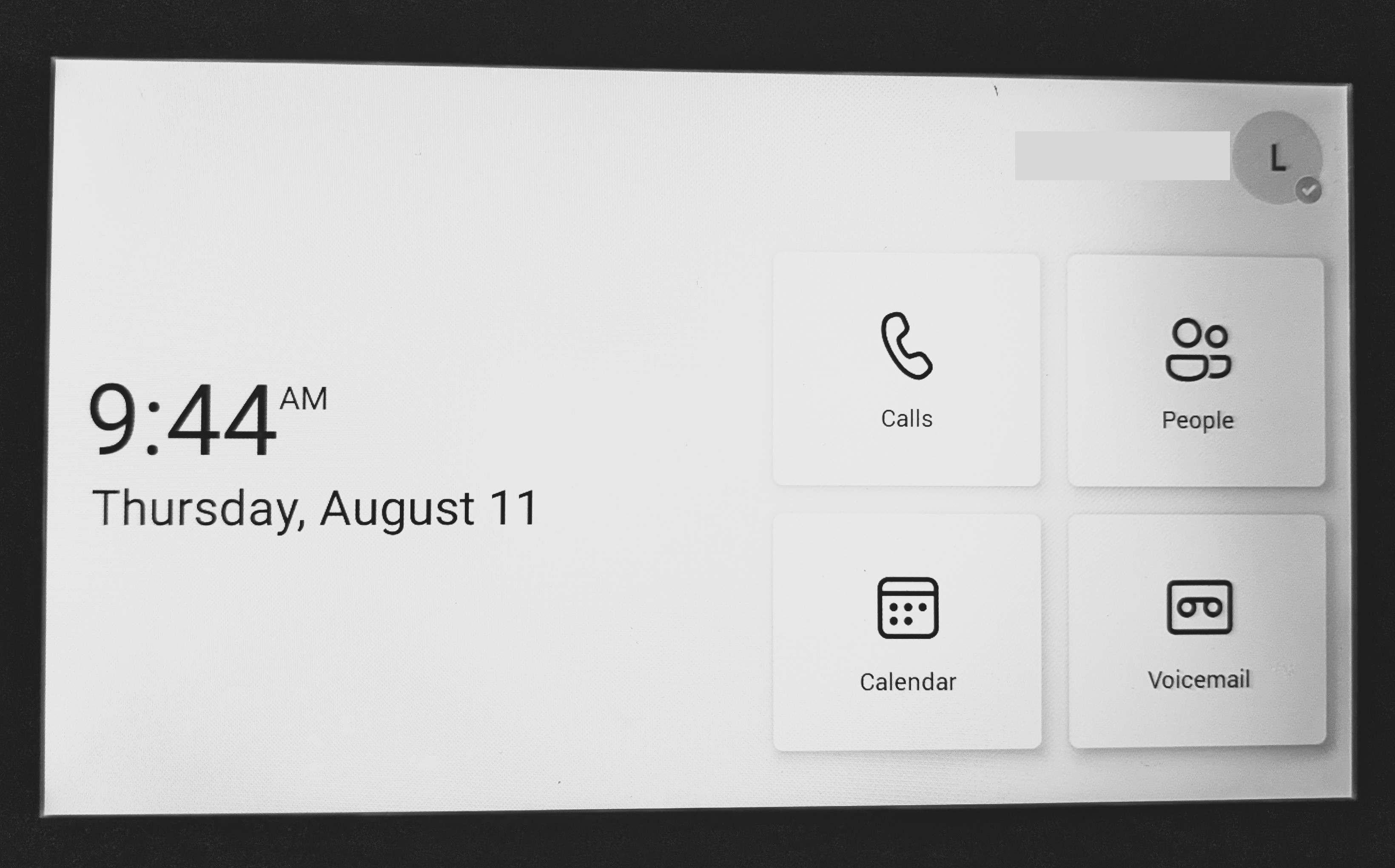
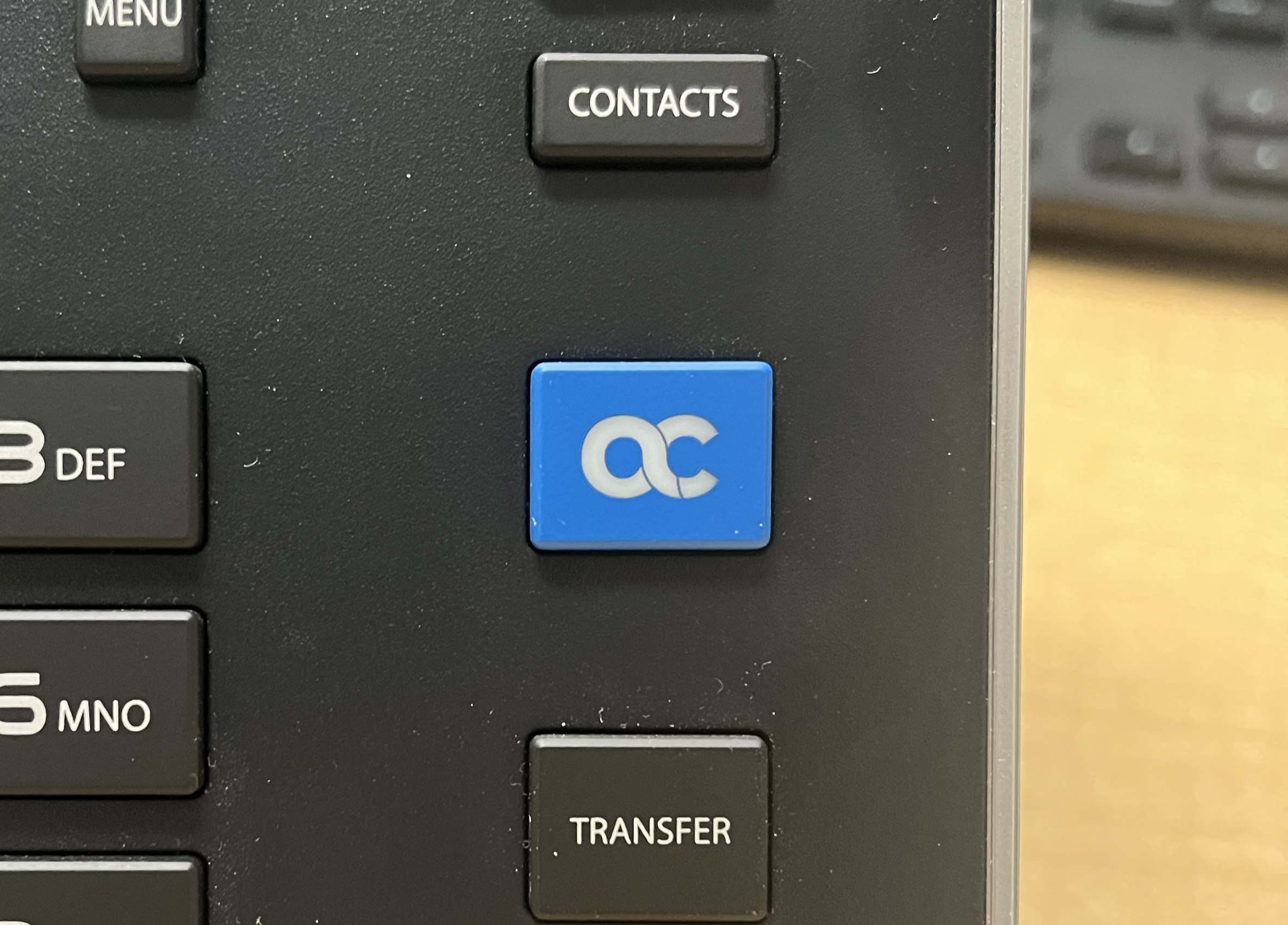
This is your homepage, and it can be reached by pressing the blue button with the AudioCodes logo on it on the phone. It is on the right-hand side under 'contacts'.
Questions or Issues?
If at any point in the process you are getting stuck, or the phone is not behaving as expected, please call our Service Desk for assistance.
Their contact information can be found using the button or link below: